Grayscale Conversion: Average, BT.601, BT.709, and Luminance Explained
A technical deep-dive into every grayscale conversion method — simple average, BT.601 luma, BT.709 luminance, HSL lightness, and channel extraction — with formulas, JavaScript and Python code, and guidance on when to use each.
ToolNest AI Team
Author
Published
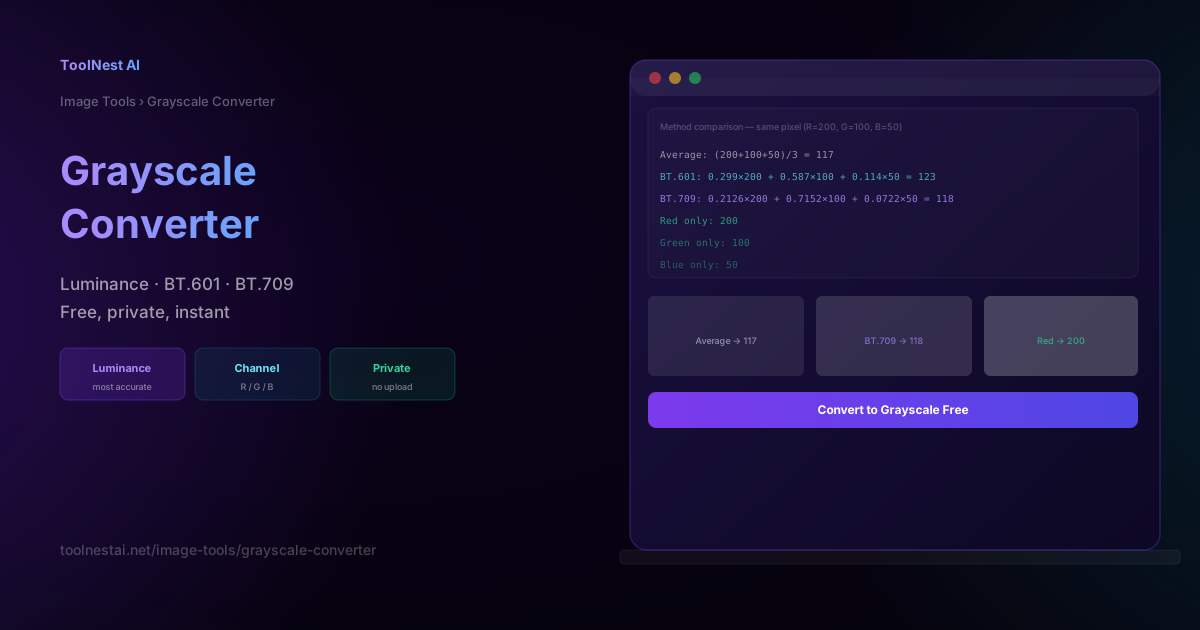
When you convert a color photograph to black and white, the result depends entirely on which formula was used to reduce three channels — red, green, and blue — to a single luminance value. Use the wrong formula and your image loses critical tonal contrast. Use the right one and you can make a red object appear as a bright highlight or a deep shadow, depending on your intent.
Convert any image to grayscale instantly with the ToolNest AI Grayscale Converter — fully browser-side, no upload required.
Why Grayscale Conversion Is Non-Trivial
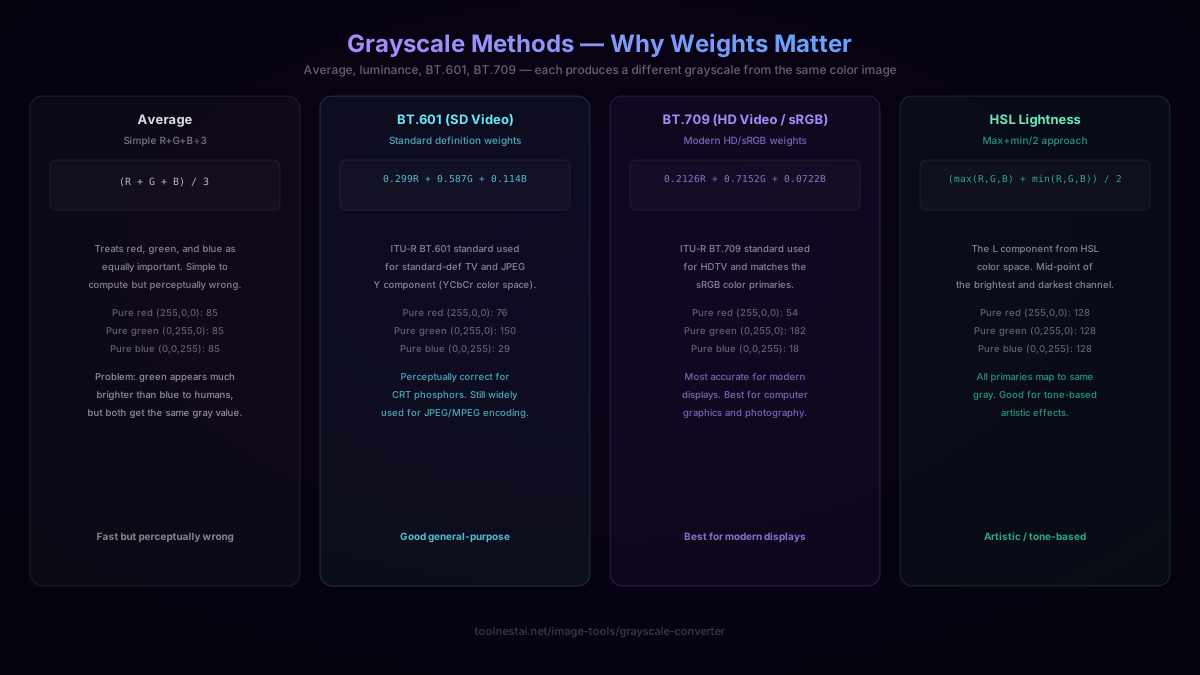
A naive developer might assume grayscale conversion is simple: add the three channel values and divide by three. That works, but it often produces images that look perceptually wrong — reds look too dark, greens look too bright, or the image has a muddy, flat feel.
The reason is that human visual perception is not equally sensitive to all wavelengths of light. The human eye has roughly four times more green-sensitive cones than red-sensitive cones, and blue-sensitive cones contribute very little to perceived brightness. A 100% green pixel at (0, 255, 0) appears far brighter to the human eye than a 100% red pixel at (255, 0, 0), even though both have the same maximum channel value.
Grayscale conversion methods differ in how they account for this perceptual weighting.
Method 1: Simple Average
The simplest approach assigns equal weight to all three channels:
gray = (R + G + B) / 3
For a pixel at (200, 100, 50):
gray = (200 + 100 + 50) / 3 = 116.67 ≈ 117
What it gets right: It is dead simple to implement and produces reasonable results when the image has a roughly balanced color distribution.
What it gets wrong: It over-weights blue and under-weights green relative to human perception. Red and green objects may appear at similar brightness even though the eye perceives them very differently.
When to use it: Low-complexity preprocessing in computer vision pipelines where perceptual accuracy is not the goal, or for stylistic effect when you deliberately want a flat, color-unweighted grayscale.
Method 2: BT.601 (Standard Definition Video)
BT.601 (officially Rec. 601) is the ITU standard for standard-definition television. It defines luma — the brightness component of a video signal — using perceptually weighted coefficients:
gray = 0.299 × R + 0.587 × G + 0.114 × B
For the same pixel at (200, 100, 50):
gray = 0.299 × 200 + 0.587 × 100 + 0.114 × 50
     = 59.8 + 58.7 + 5.7
     = 124.2 ≈ 124
The coefficients reflect a specific CRT phosphor set defined in the 1980s. Green gets the most weight (0.587) because the human eye is most sensitive to green. Blue gets the least (0.114) because it contributes little to perceived brightness.
What it gets right: It aligns with human perception far better than simple average. Widely supported — every major image editing application knows BT.601.
What it gets wrong: The coefficients were derived for CRT displays and the color gamut of 1980s television broadcast. They are not ideal for modern sRGB displays.
When to use it: Any JPEG or image workflow that interoperates with legacy video tools, or when you need broad compatibility with existing software pipelines.
Method 3: BT.709 (High Definition Video and sRGB)
BT.709 (Rec. 709) is the ITU standard for high-definition television and is also the basis for the sRGB color space used by virtually all modern monitors and the web. It defines luminance as:
gray = 0.2126 × R + 0.7152 × G + 0.0722 × B
For the same pixel at (200, 100, 50):
gray = 0.2126 × 200 + 0.7152 × 100 + 0.0722 × 50
     = 42.52 + 71.52 + 3.61
     = 117.65 ≈ 118
The differences from BT.601 are subtle but measurable. BT.709 allocates slightly more weight to green (0.7152 vs 0.587) and slightly less to red (0.2126 vs 0.299).
What it gets right: Correct for modern sRGB content — monitors, web images, digital photographs. This is the formula used by CSS luminance calculations, SVG filter primitives, and the WCAG contrast ratio specification.
What it gets wrong: Should be applied to linear light values, not gamma-encoded values. If your image is in sRGB (8-bit JPEG, PNG), you should technically linearize the pixel values before applying the formula, then re-encode. In practice, most tools skip linearization for 8-bit images because the visual error is small.
When to use it: Any modern color-accurate grayscale workflow. Default choice for web and print photography.
Method 4: HSL Lightness
The HSL color model (Hue, Saturation, Lightness) defines lightness as the average of the maximum and minimum channel values:
lightness = (max(R, G, B) + min(R, G, B)) / 2
For (200, 100, 50):
lightness = (200 + 50) / 2 = 125
This definition has nothing to do with perceptual weighting — it is purely geometric in color space.
What it gets right: Very fast to compute. Produces a particular artistic look that can be useful for stylized effects.
What it gets wrong: Perceptually inaccurate. Highly saturated colors at the same perceptual brightness can map to very different lightness values. A pure red (255, 0, 0) and a pure blue (0, 0, 255) both map to lightness 127.5 even though the red looks dramatically brighter.
When to use it: Artistic filters or stylization pipelines where you want a different tonal mapping, not color-accurate B&W conversion.
Channel Extraction: Red, Green, Blue, and L*
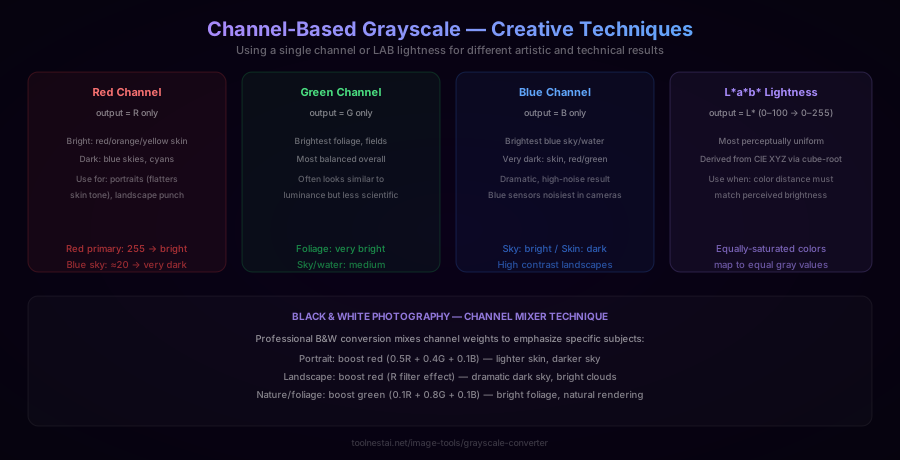
Dedicated black and white photographers often use individual channel extraction — a technique borrowed directly from analog infrared and colored-filter photography.
Red channel only (gray = R): Makes red objects appear bright and blue/green objects dark. Produces dramatic skies (blue sky goes dark), bright skin tones, and punchy portraits. Emulates red filter photography.
Green channel only (gray = G): Produces the most "natural" looking B&W because the green channel dominates in most natural-light scenes. Foliage appears bright, which mimics the human eye's sensitivity curve. Green channel is also the least noisy channel in most digital cameras.
Blue channel only (gray = B): Makes skies bright and skin dark. Often has the most noise and grain. Can produce dramatic atmospheric effects.
L channel (CIE L*a*b*):* The L* channel in the Lab color space is perceptual lightness — arguably the most accurate representation of how bright a color appears to the human eye. To extract it, you must convert from sRGB to XYZ then to Lab. The result has better perceptual uniformity than BT.709 but requires more computation.
Implementing Grayscale Conversion in JavaScript
Here is a complete browser-side implementation that works on ImageData from a Canvas:
function toGrayscale(imageData, method = 'bt709') {
  const data = imageData.data; // Uint8ClampedArray [R, G, B, A, R, G, B, A, ...]
  const len = data.length;

  for (let i = 0; i < len; i += 4) {
    const r = data[i];
    const g = data[i + 1];
    const b = data[i + 2];

    let gray;

    switch (method) {
      case 'average':
        gray = (r + g + b) / 3;
        break;
      case 'bt601':
        gray = 0.299 * r + 0.587 * g + 0.114 * b;
        break;
      case 'bt709':
        gray = 0.2126 * r + 0.7152 * g + 0.0722 * b;
        break;
      case 'lightness':
        gray = (Math.max(r, g, b) + Math.min(r, g, b)) / 2;
        break;
      case 'red':
        gray = r;
        break;
      case 'green':
        gray = g;
        break;
      case 'blue':
        gray = b;
        break;
      default:
        gray = 0.2126 * r + 0.7152 * g + 0.0722 * b;
    }

    const value = Math.round(gray);
    data[i]     = value; // R
    data[i + 1] = value; // G
    data[i + 2] = value; // B
    // data[i + 3] = alpha — leave unchanged
  }

  return imageData;
}
Usage with a canvas:
const canvas = document.createElement('canvas');
const ctx = canvas.getContext('2d');
ctx.drawImage(img, 0, 0);

const imageData = ctx.getImageData(0, 0, canvas.width, canvas.height);
const result = toGrayscale(imageData, 'bt709');
ctx.putImageData(result, 0, 0);
Implementing Grayscale Conversion in Python
Using Pillow:
from PIL import Image
import numpy as np

def to_grayscale(image_path, method='bt709'):
    img = Image.open(image_path).convert('RGB')
    arr = np.array(img, dtype=np.float32)

    r, g, b = arr[:, :, 0], arr[:, :, 1], arr[:, :, 2]

    if method == 'average':
        gray = (r + g + b) / 3
    elif method == 'bt601':
        gray = 0.299 * r + 0.587 * g + 0.114 * b
    elif method == 'bt709':
        gray = 0.2126 * r + 0.7152 * g + 0.0722 * b
    elif method == 'lightness':
        gray = (np.maximum(r, np.maximum(g, b)) + np.minimum(r, np.minimum(g, b))) / 2
    elif method == 'red':
        gray = r
    elif method == 'green':
        gray = g
    elif method == 'blue':
        gray = b
    else:
        raise ValueError(f"Unknown method: {method}")

    gray_uint8 = gray.clip(0, 255).astype(np.uint8)
    result = Image.fromarray(gray_uint8, mode='L')
    return result

# Save as PNG
result = to_grayscale('photo.jpg', method='bt709')
result.save('photo_gray.png')
Note: Pillow's Image.convert('L') uses BT.601 coefficients internally. If you need BT.709, the NumPy approach above is required.
Choosing the Right Method
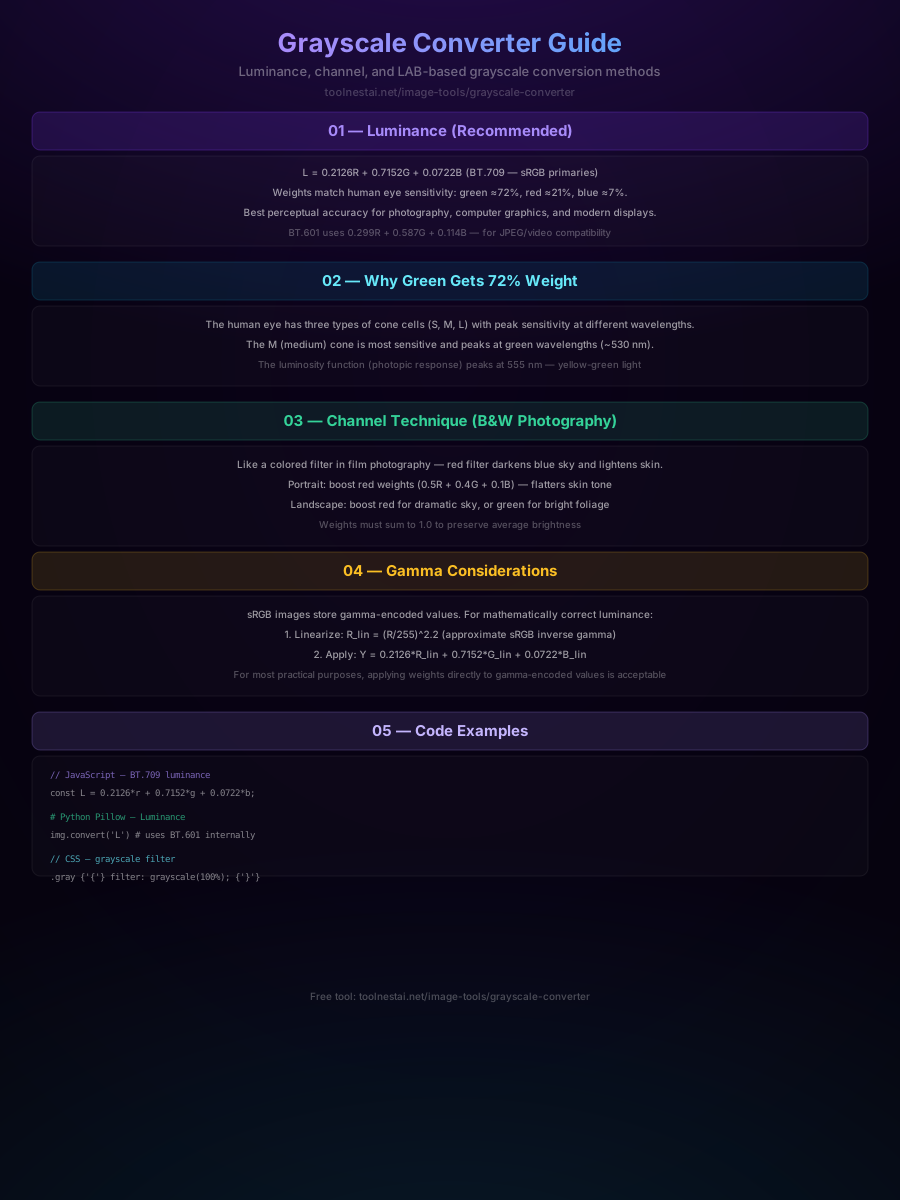
| Use Case | Recommended Method |
|---|---|
| Modern web / digital photo B&W | BT.709 |
| Legacy video / broadcast workflow | BT.601 |
| WCAG contrast calculation | BT.709 |
| Dramatic portrait (bright skin) | Red channel |
| Dramatic landscape (dark sky) | Red channel |
| Natural foliage / landscapes | Green channel |
| Artistic stylization | HSL Lightness |
| Simple preprocessing / CV | Average |
| Most perceptually accurate | L* (CIE Lab) |
The difference between methods is most visible on images with strong primary colors — a red rose against green foliage, a blue sky behind orange skin tones, or a colorful chart. For neutral images (portraits with natural lighting, overcast landscapes), all methods produce very similar results.
Common Mistakes
Using BT.601 on web images: Many tutorials default to BT.601 because it is slightly simpler to memorize, but for sRGB content (every modern JPEG and PNG) BT.709 is more accurate. The difference is small but visible on color-rich content.
Forgetting gamma: Strictly correct BT.709 luminance requires linearizing the sRGB gamma curve before applying the coefficients, then re-encoding. The fully correct approach:
function linearize(c) {
  c = c / 255;
  return c <= 0.04045 ? c / 12.92 : Math.pow((c + 0.055) / 1.055, 2.4);
}

function srgbLuminance(r, g, b) {
  return 0.2126 * linearize(r) + 0.7152 * linearize(g) + 0.0722 * linearize(b);
}
For 8-bit images the error from skipping linearization is typically under 5% for mid-tones, so most applications skip it for performance. For HDR content or precision color science work, always linearize.
Assuming PIL's .convert('L') is BT.709: It is not — Pillow uses BT.601. If your workflow depends on BT.709 accuracy, compute it manually as shown in the Python snippet above.
Grayscale in CSS and SVG
CSS supports desaturation via filters:
/* Full grayscale */
img { filter: grayscale(1); }

/* 50% desaturated */
img { filter: grayscale(0.5); }
The CSS grayscale() filter uses the BT.709 luminance matrix internally (per the SVG filter specification's feColorMatrix type="saturate" primitive).
For more control in SVG, you can apply a custom color matrix:
<filter id="grayscale-bt709">
  <feColorMatrix type="matrix"
    values="0.2126 0.7152 0.0722 0 0
            0.2126 0.7152 0.0722 0 0
            0.2126 0.7152 0.0722 0 0
            0      0      0      1 0" />
</filter>
Each row of the matrix produces one output channel (R, G, B, A). Setting all three rows to the same BT.709 weights produces a true luminance grayscale.
Frequently Asked Questions
What is the best grayscale conversion formula?
For modern web and photography work, BT.709 (0.2126 × R + 0.7152 × G + 0.0722 × B) is the most accurate because it matches the sRGB color space used by all modern displays. For legacy video interoperability, BT.601 (0.299 × R + 0.587 × G + 0.114 × B) is more appropriate.
Does CSS grayscale() use BT.709 or BT.601?
CSS filter: grayscale() uses BT.709 luminance weights, as specified in the W3C Filter Effects specification. The underlying SVG feColorMatrix type="saturate" primitive also uses BT.709.
Why does my green channel look better than the blue?
Because the green channel contains the most luminance information in typical daylight photography. Cameras weight their sensor pixels toward green (Bayer pattern has 2 green pixels for every 1 red and 1 blue), and the human eye is most sensitive to green wavelengths near 555 nm. Green channel extraction is a classic technique in B&W photography.
Should I linearize before applying BT.709?
Technically yes — BT.709 coefficients are defined for linear light values, not gamma-encoded sRGB values. In practice, for 8-bit images the error from skipping linearization is small enough that most tools ignore it. For 16-bit images or precision color work, always linearize first.
What is the difference between luminance and luma?
Luminance refers to linear-light luminance (BT.709 formula applied to linear RGB). Luma (written Y') refers to the gamma-encoded equivalent — BT.601 or BT.709 coefficients applied directly to gamma-encoded pixel values without linearization. In everyday usage the terms are often used interchangeably, but they produce slightly different results.
Can I convert to grayscale without losing the original colors?
Yes. Instead of replacing RGB with a single gray value, you can store the grayscale in the L* channel of Lab color space, then set a* and b* to zero while keeping the Lab → RGB conversion. This gives you a grayscale image with the same perceived lightness as the original. Tools like Photoshop's Black & White adjustment layer do this.
What is the WCAG contrast ratio formula and how does it relate to grayscale?
The WCAG 2.1 accessibility contrast ratio uses BT.709 relative luminance. The formula is the same as BT.709 luminance with linearization included. Two colors pass WCAG AA (4.5:1 ratio) when (L1 + 0.05) / (L2 + 0.05) >= 4.5 where L1 is the lighter luminance and L2 is the darker.
Is grayscale conversion reversible?
No. Converting to grayscale is irreversible — you cannot reconstruct the original color image from a grayscale version because three dimensions of information are collapsed to one. You can colorize a grayscale image using AI or manual techniques, but the result will be an approximation, not a restoration of the original colors.
About the author
ToolNest AI Team
The ToolNest AI team builds free tools that help developers, marketers, and creators do more online — faster.
Related Articles
Brightness and Contrast: How Linear Shift, Contrast Stretch, and Gamma Work
A precise technical breakdown of brightness (linear shift), contrast (center stretch), gamma (power curve), and levels — with formulas, code examples in JavaScript and Python, histogram reading, and how to choose the right adjustment for your image.
Image Sharpen: Unsharp Mask, Laplacian, and High-Pass Filter Explained
A technical guide to image sharpening — how unsharp mask works, the Laplacian kernel, high-pass filter method, correct parameter values, and how to avoid over-sharpening halos. With JavaScript, Python, and Sharp code examples.
Image Blur: Gaussian, Motion and Radial Blur Algorithms Explained
A deep dive into Gaussian, motion, radial, and box blur algorithms — how convolution kernels work, what sigma controls, and when to use each blur type for privacy blurring, creative effects, and background softening.