Excel to PDF: Convert .xlsx Spreadsheets to PDF (Free)
Learn how to convert Excel spreadsheets to PDF using LibreOffice, Python openpyxl and reportlab, and Excel's built-in export. Control print area, page breaks, and which sheets to include.
ToolNest AI Team
Author
Published
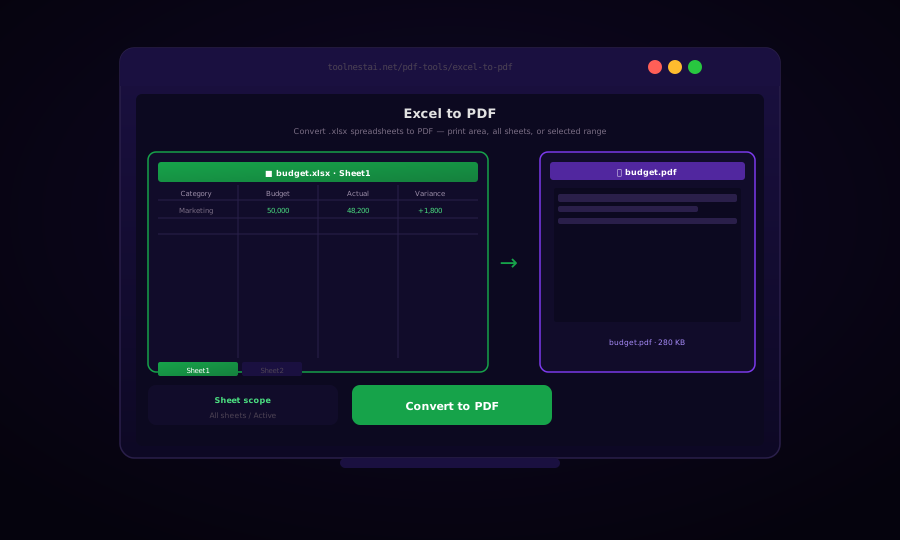
Converting an Excel spreadsheet to PDF is the standard way to share financial data, reports, and tables in a fixed, non-editable format. Unlike sharing the raw .xlsx file, a PDF cannot be accidentally modified, shows exactly the same layout on every device, and does not expose formulas or hidden data.
The main challenge with Excel-to-PDF conversion is page layout: spreadsheets can span hundreds of columns and thousands of rows, and deciding where page breaks fall, what fits on one page, and how charts and formatting translate to print is not trivial.
Microsoft Excel Built-In Export
The most reliable Excel-to-PDF conversion uses Excel's own export engine.
Via GUI:
- File → Export → Create PDF/XPS
- Options: Standard (full quality) vs Minimum size (compressed)
- Select: Entire workbook / Active sheet / Selection
- Click Publish
Via VBA macro (automation):
Sub ExportToPDF()
    ActiveSheet.ExportAsFixedFormat _
        Type:=xlTypePDF, _
        Filename:="C:\output\report.pdf", _
        Quality:=xlQualityStandard, _
        IncludeDocProperties:=True, _
        IgnorePrintAreas:=False, _
        OpenAfterPublish:=False
End Sub

' Export entire workbook (all sheets)
Sub ExportWorkbookToPDF()
    ThisWorkbook.ExportAsFixedFormat _
        Type:=xlTypePDF, _
        Filename:="C:\output\workbook.pdf"
End Sub
PowerShell automation (Windows, Excel installed):
$excel = New-Object -ComObject Excel.Application
$excel.Visible = $false
$wb = $excel.Workbooks.Open("C:\path\to\report.xlsx")
$wb.ExportAsFixedFormat(0, "C:\path\to\report.pdf")   # 0 = xlTypePDF
$wb.Close($false)
$excel.Quit()
LibreOffice Calc: Free Conversion
# Convert single .xlsx file to PDF
libreoffice --headless --convert-to pdf report.xlsx

# Output to specific directory
libreoffice --headless --convert-to pdf --outdir ./pdfs report.xlsx

# Batch: all Excel files in directory
libreoffice --headless --convert-to pdf --outdir ./pdfs *.xlsx *.xls

# Install on Linux
sudo apt-get install libreoffice-calc
LibreOffice Calc respects print areas, page breaks, and header/footer settings defined in the Excel file. Charts render faithfully in most cases.
Python: openpyxl + LibreOffice Subprocess
For server-side batch conversion in Python without a Windows machine:
import subprocess
from pathlib import Path

def excel_to_pdf(xlsx_path: str, output_dir: str = None) -> str:
    input_path = Path(xlsx_path).resolve()
    out_dir = Path(output_dir) if output_dir else input_path.parent
    out_dir.mkdir(parents=True, exist_ok=True)

    result = subprocess.run(
        [
            "libreoffice",
            "--headless",
            "--convert-to", "pdf",
            "--outdir", str(out_dir),
            str(input_path),
        ],
        capture_output=True,
        text=True,
        timeout=60,
    )

    if result.returncode != 0:
        raise RuntimeError(f"LibreOffice conversion failed: {result.stderr}")

    pdf_path = out_dir / (input_path.stem + ".pdf")
    return str(pdf_path)


def batch_excel_to_pdf(input_dir: str, output_dir: str):
    files = list(Path(input_dir).glob("*.xlsx")) + list(Path(input_dir).glob("*.xls"))
    print(f"Converting {len(files)} files...")

    for i, xlsx_path in enumerate(files, start=1):
        try:
            pdf = excel_to_pdf(str(xlsx_path), output_dir)
            print(f"  [{i}/{len(files)}] ✓ {Path(pdf).name}")
        except Exception as e:
            print(f"  [{i}/{len(files)}] ✗ {xlsx_path.name}: {e}")
Setting Print Area Before Conversion
If the spreadsheet has no defined print area, LibreOffice and Excel may include blank rows/columns. Define the print area programmatically with openpyxl:
from openpyxl import load_workbook

def set_print_area(xlsx_path: str, sheet_name: str, cell_range: str, output_path: str = None):
    """
    Set print area before conversion.
    cell_range example: "A1:H50"
    """
    wb = load_workbook(xlsx_path)
    ws = wb[sheet_name]
    ws.print_area = cell_range

    # Fit to page width
    ws.page_setup.fitToWidth = 1
    ws.page_setup.fitToHeight = 0   # 0 = as many pages as needed

    # Set landscape for wide sheets
    ws.page_setup.orientation = ws.page_setup.orientationLandscape

    out = output_path or xlsx_path
    wb.save(out)
    return out

# Then convert the modified file
set_print_area("report.xlsx", "Sheet1", "A1:H50", "report_print.xlsx")
excel_to_pdf("report_print.xlsx", "./pdfs")
Python: openpyxl + reportlab (Programmatic PDF from Spreadsheet Data)
For complete control over the PDF layout — custom headers, footers, multiple tables, charts — read the Excel data with openpyxl and generate the PDF with reportlab:
from openpyxl import load_workbook
from reportlab.lib.pagesizes import A4, landscape
from reportlab.lib.styles import getSampleStyleSheet
from reportlab.platypus import SimpleDocTemplate, Table, TableStyle, Spacer
from reportlab.lib import colors
from reportlab.lib.units import cm

def excel_to_pdf_reportlab(xlsx_path: str, pdf_path: str, sheet_name: str = None):
    wb = load_workbook(xlsx_path, data_only=True)
    ws = wb[sheet_name] if sheet_name else wb.active

    # Extract all rows
    data = []
    for row in ws.iter_rows(values_only=True):
        data.append([str(cell) if cell is not None else "" for cell in row])

    if not data:
        print("No data found")
        return

    doc = SimpleDocTemplate(pdf_path, pagesize=landscape(A4),
                            leftMargin=1*cm, rightMargin=1*cm,
                            topMargin=1.5*cm, bottomMargin=1.5*cm)

    table = Table(data, repeatRows=1)   # repeatRows=1 repeats header on each page
    table.setStyle(TableStyle([
        ("BACKGROUND", (0, 0), (-1, 0), colors.HexColor("#15803d")),
        ("TEXTCOLOR",  (0, 0), (-1, 0), colors.white),
        ("FONTNAME",   (0, 0), (-1, 0), "Helvetica-Bold"),
        ("FONTSIZE",   (0, 0), (-1, -1), 8),
        ("ROWBACKGROUNDS", (0, 1), (-1, -1), [colors.white, colors.HexColor("#f0fdf4")]),
        ("GRID",       (0, 0), (-1, -1), 0.5, colors.HexColor("#d1d5db")),
        ("ALIGN",      (0, 0), (-1, -1), "LEFT"),
        ("VALIGN",     (0, 0), (-1, -1), "MIDDLE"),
        ("TOPPADDING", (0, 0), (-1, -1), 4),
        ("BOTTOMPADDING", (0, 0), (-1, -1), 4),
    ]))

    doc.build([table])
    print(f"Saved: {pdf_path}")

excel_to_pdf_reportlab("data.xlsx", "data.pdf", sheet_name="Q4 Report")
Frequently Asked Questions
Why do columns get cut off in the converted PDF?
This is a page width problem. Either set the print area to include only the columns you need, or change the page orientation to Landscape. In LibreOffice/Excel, use "Fit to page width" to automatically scale the sheet to fit one page wide.
How do I include all sheets in the PDF?
In Microsoft Excel, choose "Entire workbook" in the Export dialog. Via LibreOffice headless, all sheets are included by default. With the Python openpyxl + LibreOffice approach, save all sheets to the file before converting.
Can I convert only specific rows or columns?
Yes. Set a print area that covers only the rows and columns you want: ws.print_area = "A1:D100" with openpyxl, or define the print area in Excel (Page Layout → Print Area → Set Print Area) before converting.
Do charts get included in the PDF?
Yes. LibreOffice and Excel's own export both render charts as vector graphics in the PDF. The openpyxl + reportlab approach extracts only cell data and does not include charts — use LibreOffice for chart-containing workbooks.
How do I handle large spreadsheets that produce many PDF pages?
For very large spreadsheets, consider: splitting the Excel file by section before conversion, setting appropriate print areas, or using the reportlab approach with pagination logic. A 10,000-row sheet may produce hundreds of PDF pages — consider whether a summary view is more appropriate.
Is there a file size limit for Excel to PDF conversion?
Browser-based tools typically limit to 50–100 MB. LibreOffice on a server can handle files up to available memory, typically gigabytes. Very large files with many charts are slower due to chart rendering.
About the author
ToolNest AI Team
The ToolNest AI editorial team writes in-depth guides on PDF tools, image processing, and developer productivity.
Related Articles
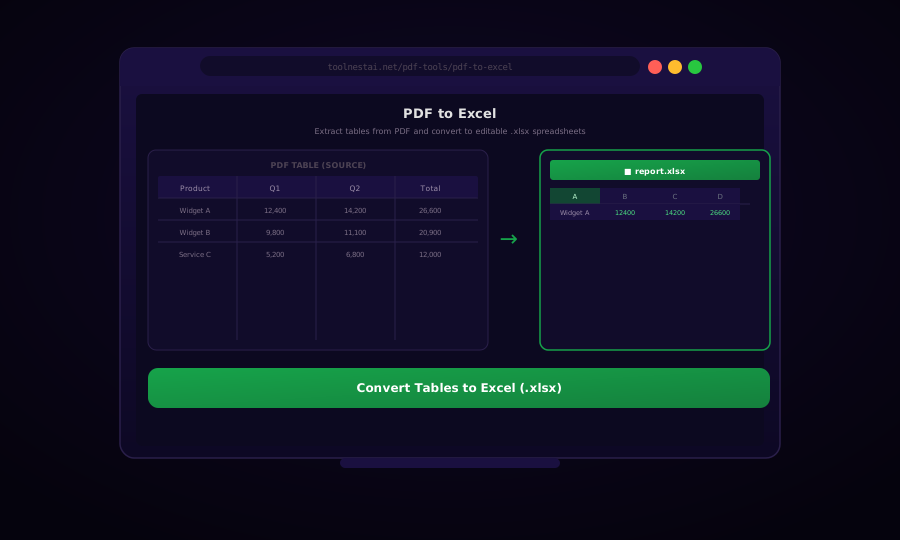
PDF to Excel: Extract Tables from PDF to .xlsx (Free)
Learn how to extract tables from PDF files and convert them to Excel spreadsheets using Camelot, Tabula, pdfplumber, and LibreOffice Calc — with Python examples.
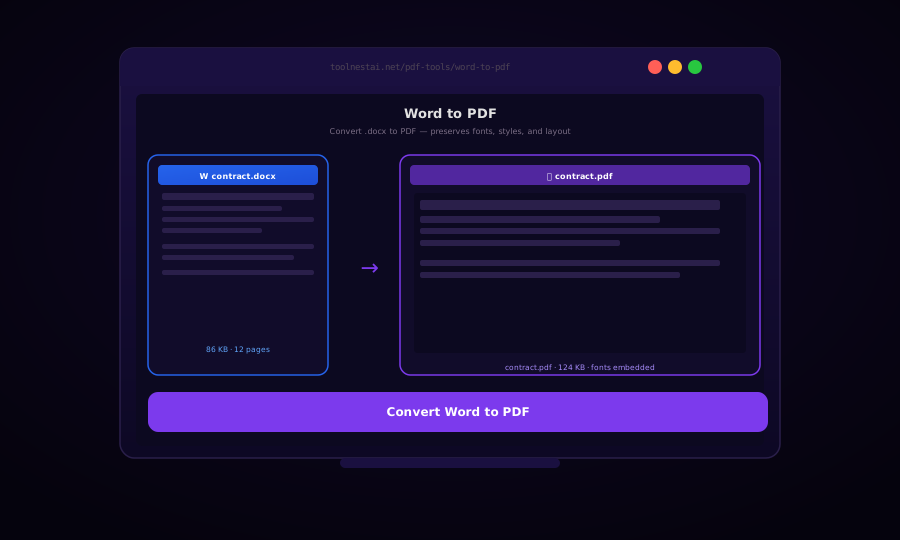
Word to PDF: Convert .docx to PDF Free — Preserve Fonts and Layout
Learn how to convert Word documents (.docx) to PDF using LibreOffice, Python python-docx2pdf, Pandoc, and the Microsoft Word built-in export. Preserve fonts, styles, and page layout.
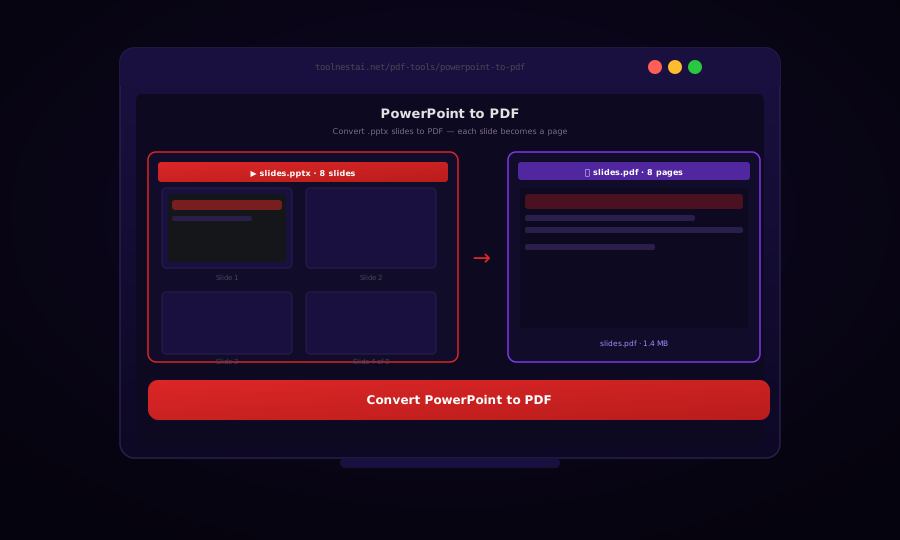
PowerPoint to PDF: Convert .pptx Presentations to PDF (Free)
Learn how to convert PowerPoint presentations to PDF using LibreOffice, Python python-pptx, and PowerPoint's built-in export. Each slide becomes a PDF page with layout preserved.