Word to PDF: Convert .docx to PDF Free — Preserve Fonts and Layout
Learn how to convert Word documents (.docx) to PDF using LibreOffice, Python python-docx2pdf, Pandoc, and the Microsoft Word built-in export. Preserve fonts, styles, and page layout.
ToolNest AI Team
Author
Published
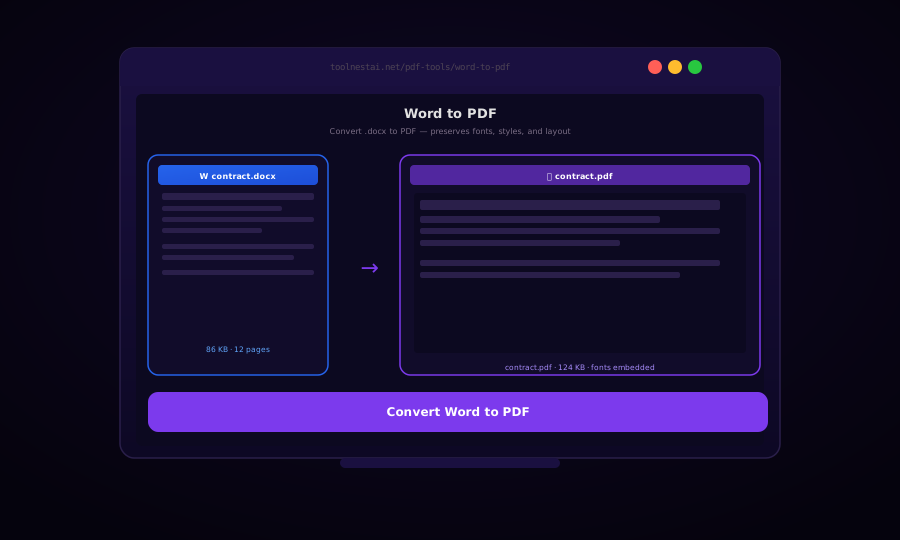
Converting a Word document to PDF is one of the most common document operations — you want a version of your file that looks the same on every device, cannot be accidentally edited, and can be signed, watermarked, or distributed without layout surprises.
The key difference between a Word document and a PDF is rendering: a Word document is a description of content that Word's engine renders differently on different systems (depending on installed fonts, printer drivers, and Word version). A PDF embeds the fonts and renders to a fixed layout that looks identical everywhere.
Method 1: Microsoft Word Built-In Export (Windows / macOS)
The highest-fidelity Word-to-PDF conversion is always the built-in Word export, because it uses the same rendering engine that displays the document.
Via the GUI:
- File → Export → Create PDF/XPS
- Set options (standard quality vs minimum size, include document properties)
- Click Publish
Via the command line (Windows, with Word installed):
# PowerShell: use Word COM automation
$word = New-Object -ComObject Word.Application
$word.Visible = $false
$doc = $word.Documents.Open("C:\path\to\document.docx")
$doc.ExportAsFixedFormat(
    "C:\path\to\output.pdf",
    17,          # wdExportFormatPDF
    $false,      # OpenAfterExport
    0,           # wdExportOptimizeForPrint
    0,           # wdExportAllDocument
    0, 0,        # From/To (unused for AllDocument)
    0,           # wdExportDocumentWithMarkup
    $false,      # IncludeDocProps
    $true        # KeepIRM
)
$doc.Close()
$word.Quit()
Method 2: LibreOffice (Free, Cross-Platform)
LibreOffice produces excellent PDF output from .docx files and is the best free alternative to Microsoft Word for batch conversion.
# Single file conversion
libreoffice --headless --convert-to pdf document.docx

# Convert to PDF with output directory
libreoffice --headless --convert-to pdf --outdir ./pdfs document.docx

# Batch: convert all .docx files in current directory
libreoffice --headless --convert-to pdf *.docx

# Batch with directory output
libreoffice --headless --convert-to pdf --outdir ./pdfs *.docx
Install:
# Ubuntu/Debian
sudo apt-get install libreoffice

# macOS
brew install --cask libreoffice

# Windows: download installer from libreoffice.org
Note on font fidelity: If the Word document uses fonts not installed on the conversion machine, LibreOffice substitutes a similar font. For exact reproduction, install the same fonts on the conversion server.
Method 3: python-docx2pdf (Python)
docx2pdf is a Python library that wraps LibreOffice (on Linux/macOS) or Microsoft Word (on Windows) for high-quality programmatic conversion.
from docx2pdf import convert
from pathlib import Path

# Single file
convert("document.docx", "output.pdf")

# Batch: convert all .docx files in a directory
convert("./documents/", "./pdfs/")

# With path objects
input_path = Path("./reports/q4-report.docx")
output_path = input_path.with_suffix(".pdf")
convert(input_path, output_path)
print(f"Converted: {output_path}")
Install:
pip install docx2pdf
# Requires LibreOffice (Linux/macOS) or Microsoft Word (Windows)
Batch processing with progress:
from docx2pdf import convert
from pathlib import Path
import glob

def batch_convert(input_dir: str, output_dir: str):
    Path(output_dir).mkdir(parents=True, exist_ok=True)
    docx_files = list(Path(input_dir).glob("*.docx"))

    print(f"Converting {len(docx_files)} files...")

    for i, docx_path in enumerate(docx_files, start=1):
        pdf_path = Path(output_dir) / docx_path.with_suffix(".pdf").name
        try:
            convert(docx_path, pdf_path)
            print(f"  [{i}/{len(docx_files)}] ✓ {pdf_path.name}")
        except Exception as e:
            print(f"  [{i}/{len(docx_files)}] ✗ {docx_path.name}: {e}")

batch_convert("./documents", "./pdfs")
Method 4: Pandoc (Lightweight CLI)
Pandoc converts DOCX to PDF via a LaTeX intermediate. This produces clean, professional-looking output but may alter complex formatting.
# Install Pandoc and LaTeX (pdflatex or xelatex)
# macOS: brew install pandoc && brew install --cask mactex
# Ubuntu: sudo apt-get install pandoc texlive-xetex

# Basic conversion
pandoc document.docx -o output.pdf

# Better quality with xelatex (handles Unicode and fonts better)
pandoc document.docx --pdf-engine=xelatex -o output.pdf

# With custom margins
pandoc document.docx -V geometry:margin=1in -o output.pdf

# Preserve Word heading styles
pandoc document.docx --reference-doc=reference.docx -o output.pdf
Pandoc is ideal for text-heavy documents with clean formatting. Complex Word documents with custom styles, tables, and images may need manual adjustment.
PDF Quality Options (LibreOffice)
LibreOffice's headless PDF export supports additional quality settings via a filter options string:
# High quality (for print), with tagged PDF for accessibility
libreoffice --headless \
  --convert-to "pdf:writer_pdf_Export:EmbedStandardFonts=true,Quality=90,IsSkipEmptyPages=true" \
  document.docx

# Screen quality (smaller file size)
libreoffice --headless \
  --convert-to "pdf:writer_pdf_Export:SelectPdfVersion=2,IsAddStream=true" \
  document.docx
Python: Direct with python-docx + reportlab
For fully programmatic control — building PDFs from DOCX content without LibreOffice — you can parse the DOCX with python-docx and generate the PDF with reportlab. This is the most complex approach but gives complete control.
from docx import Document
from reportlab.lib.pagesizes import A4
from reportlab.lib.styles import getSampleStyleSheet, ParagraphStyle
from reportlab.lib.units import cm
from reportlab.platypus import SimpleDocTemplate, Paragraph, Spacer, Table
from reportlab.lib import colors

def docx_to_pdf_reportlab(docx_path: str, pdf_path: str):
    docx = Document(docx_path)
    styles = getSampleStyleSheet()
    story = []

    for para in docx.paragraphs:
        text = para.text.strip()
        if not text:
            story.append(Spacer(1, 0.2 * cm))
            continue

        style_name = para.style.name
        if "Heading 1" in style_name:
            story.append(Paragraph(text, styles["Heading1"]))
        elif "Heading 2" in style_name:
            story.append(Paragraph(text, styles["Heading2"]))
        else:
            story.append(Paragraph(text, styles["Normal"]))

    doc = SimpleDocTemplate(pdf_path, pagesize=A4)
    doc.build(story)
    print(f"Saved: {pdf_path}")
This approach is recommended only when you need full control over the PDF output (custom fonts, page headers/footers, watermarks added during conversion). For most use cases, docx2pdf or LibreOffice is faster and more faithful.
Frequently Asked Questions
Which method produces the most faithful Word-to-PDF conversion?
Microsoft Word's own export (File → Export or the COM automation script on Windows) produces the most faithful output because it uses Word's own rendering engine. LibreOffice is the best free alternative, producing excellent results for the vast majority of documents.
Why do fonts look different after converting with LibreOffice?
LibreOffice substitutes fonts that are not installed on the conversion machine. Install the same fonts on your conversion server or machine. On Linux servers, this often means installing the Microsoft Core Fonts package: sudo apt-get install ttf-mscorefonts-installer.
How do I convert a password-protected Word document?
Remove the password protection in Word first (File → Info → Protect Document → Remove Protection), then convert the unlocked file.
Does the converted PDF preserve track changes and comments?
It depends on the tool and settings. Word's export can include or exclude tracked changes. LibreOffice exports the "accepted" version by default. If you need to preserve reviewing annotations, export from Word with the "Show Markup" setting enabled, or use the Accept All Changes option before exporting.
How do I batch convert hundreds of Word files to PDF?
Use the LibreOffice headless command: libreoffice --headless --convert-to pdf --outdir ./pdfs *.docx. Or use the Python docx2pdf batch function shown above, which wraps LibreOffice or Word and processes a whole directory.
Does Word to PDF conversion work on Linux servers (no GUI)?
Yes. LibreOffice headless mode runs without a display server. Install LibreOffice on your Linux server and use libreoffice --headless --convert-to pdf input.docx. This is the standard approach for server-side Word-to-PDF in document management systems.
About the author
ToolNest AI Team
The ToolNest AI editorial team writes in-depth guides on PDF tools, image processing, and developer productivity.
Related Articles
PDF to Word: Convert PDF to Editable .docx (Free, No Upload)
Learn how to convert PDF files to editable Word documents (.docx) using LibreOffice, Python python-docx and pdfminer, and Pandoc. Preserve text, headings, and tables.
Excel to PDF: Convert .xlsx Spreadsheets to PDF (Free)
Learn how to convert Excel spreadsheets to PDF using LibreOffice, Python openpyxl and reportlab, and Excel's built-in export. Control print area, page breaks, and which sheets to include.
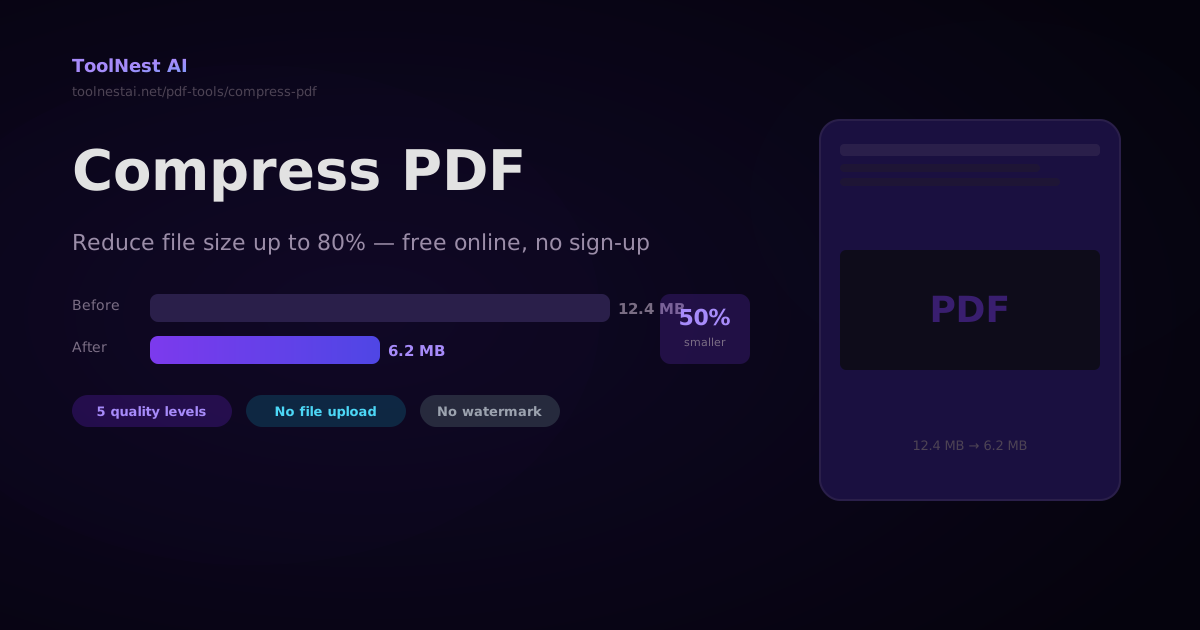
How to Compress a PDF — Reduce File Size Without Losing Quality
A complete guide to PDF compression — how it works, what affects file size, how to choose the right quality level, and how to compress PDFs with Ghostscript, pdf-lib, Python pypdf, and the ToolNest AI online tool.