PDF to Word: Convert PDF to Editable .docx (Free, No Upload)
Learn how to convert PDF files to editable Word documents (.docx) using LibreOffice, Python python-docx and pdfminer, and Pandoc. Preserve text, headings, and tables.
ToolNest AI Team
Author
Published
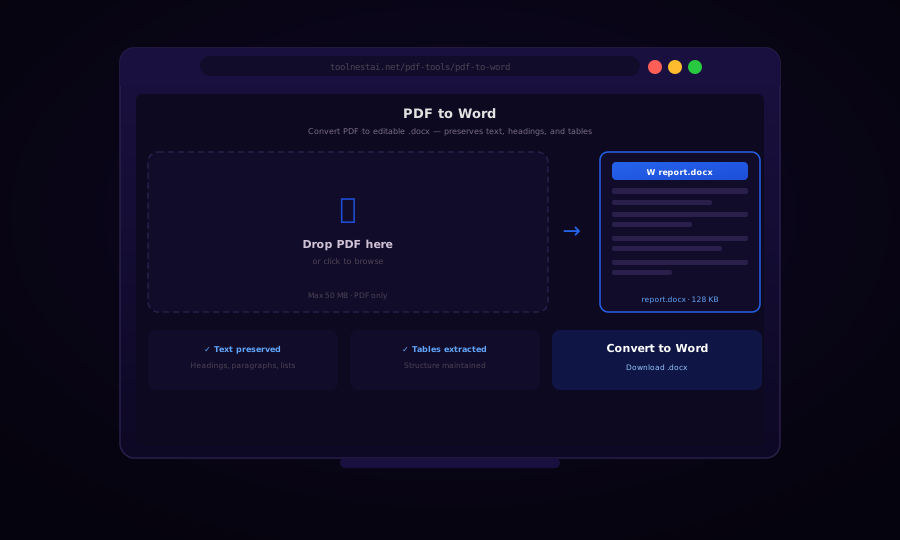
Converting a PDF back to a Word document is one of the most requested PDF operations — and one of the most misunderstood. PDFs are designed for faithful visual rendering, not for re-editing. A PDF does not store "paragraphs" or "headings" the same way Word does; it stores drawing commands for placing text at specific coordinates.
That said, modern PDF-to-Word converters have become remarkably accurate for well-structured PDFs created from digital documents (Word, InDesign, Google Docs). Scanned PDFs — which are essentially images — require OCR before any text can be extracted.
What Converts Well vs What Doesn't
| Content Type | Conversion Quality |
|---|---|
| Body text paragraphs | Excellent |
| Headings and subheadings | Good (if tagged PDF) |
| Numbered and bulleted lists | Good |
| Simple tables | Good to excellent |
| Complex multi-column layouts | Variable — often needs cleanup |
| Images embedded in PDF | Extracted as images in .docx |
| Text in images (scanned PDF) | Requires OCR first |
| Mathematical equations | Often broken into fragments |
| Headers and footers | Usually extracted but positioning may shift |
| Font appearance | Approximate — exact font matching requires that font to be installed |
LibreOffice: Free Desktop PDF to Word Conversion
LibreOffice Writer (the free open-source alternative to Microsoft Word) can open PDFs and save them as .docx. This is the best free desktop option for occasional conversions.
# Install LibreOffice if not already installed
# Ubuntu/Debian: sudo apt-get install libreoffice
# macOS: brew install --cask libreoffice

# Convert PDF to DOCX via command line (headless)
libreoffice --headless --convert-to docx input.pdf

# Convert to DOCX and place output in specific directory
libreoffice --headless --convert-to docx --outdir ./output input.pdf

# Batch convert all PDFs in a folder
libreoffice --headless --convert-to docx *.pdf
LibreOffice uses its internal PDF import filter, which produces excellent results for simple PDFs. Complex multi-column layouts may require manual cleanup.
Python: pdfminer.six + python-docx Pipeline
For programmatic conversion, combining pdfminer.six (text extraction with layout analysis) and python-docx (Word document generation) gives full control over the output structure.
from pdfminer.high_level import extract_pages
from pdfminer.layout import LTTextContainer, LTChar, LTAnno, LTFigure
from docx import Document
from docx.shared import Pt, RGBColor
from docx.enum.text import WD_ALIGN_PARAGRAPH
import re

def pdf_to_docx(pdf_path: str, docx_path: str):
    doc = Document()

    for page_layout in extract_pages(pdf_path):
        page_height = page_layout.height

        for element in page_layout:
            if not isinstance(element, LTTextContainer):
                continue

            text = element.get_text().strip()
            if not text:
                continue

            # Detect heading vs body text by font size
            max_font_size = 0
            for char in element:
                if isinstance(char, LTChar):
                    max_font_size = max(max_font_size, char.size)

            if max_font_size >= 18:
                para = doc.add_heading(text, level=1)
            elif max_font_size >= 14:
                para = doc.add_heading(text, level=2)
            else:
                para = doc.add_paragraph(text)

    doc.save(docx_path)
    print(f"Saved: {docx_path}")


# More sophisticated: extract with character-level formatting
def pdf_to_docx_formatted(pdf_path: str, docx_path: str):
    doc = Document()

    for page_layout in extract_pages(pdf_path):
        current_para = None
        last_y = None

        for element in sorted(page_layout, key=lambda e: -e.y1):
            if not isinstance(element, LTTextContainer):
                continue

            text = element.get_text()
            if not text.strip():
                continue

            # New paragraph if significant vertical gap
            if last_y is not None and abs(element.y1 - last_y) > 20:
                current_para = None

            if current_para is None:
                current_para = doc.add_paragraph()

            run = current_para.add_run(text)
            last_y = element.y0

    doc.save(docx_path)
Install:
pip install pdfminer.six python-docxPandoc: Universal Document Converter
Pandoc can convert PDF to DOCX (via an intermediate Markdown extraction), though it works best on text-heavy PDFs without complex layouts.
# Install Pandoc
# Ubuntu: sudo apt-get install pandoc
# macOS: brew install pandoc

# Direct PDF to DOCX (uses pdftotext internally)
pandoc input.pdf -o output.docx

# With better formatting via reference document
pandoc input.pdf -o output.docx --reference-doc=template.docx

# Extract text from PDF first, then convert
pdftotext -layout input.pdf - | pandoc -f plain -t docx -o output.docx
Python: Using pdf2docx Library
pdf2docx is a purpose-built library that handles many layout complexities automatically:
from pdf2docx import Converter

def convert_pdf_to_word(pdf_path: str, docx_path: str, start: int = 0, end: int = None):
    cv = Converter(pdf_path)
    cv.convert(docx_path, start=start, end=end)   # start/end are 0-based page indices
    cv.close()
    print(f"Converted: {pdf_path} → {docx_path}")

# Convert all pages
convert_pdf_to_word("report.pdf", "report.docx")

# Convert only pages 0–4 (first 5 pages)
convert_pdf_to_word("report.pdf", "report-first5.docx", start=0, end=5)
Install:
pip install pdf2docxpdf2docx handles text blocks, tables, images, and multi-column layouts better than raw pdfminer extraction. It is the recommended starting point for Python-based PDF to Word conversion.
Handling Scanned PDFs (OCR First)
If your PDF contains scanned pages (images of text rather than actual text data), no text extraction tool will work without OCR as a preprocessing step.
from pdf2image import convert_from_path
import pytesseract
from PIL import Image
from docx import Document

def scanned_pdf_to_docx(pdf_path: str, docx_path: str, dpi: int = 300, lang: str = "eng"):
    pages = convert_from_path(pdf_path, dpi=dpi)
    doc = Document()

    for i, page_img in enumerate(pages, start=1):
        text = pytesseract.image_to_string(page_img, lang=lang)

        # Add each OCR'd line as a paragraph
        for line in text.splitlines():
            if line.strip():
                doc.add_paragraph(line)

        if i < len(pages):
            doc.add_page_break()

    doc.save(docx_path)
    print(f"OCR'd and saved: {docx_path}")
Tips for Better Conversion Results
Start with a well-tagged PDF. PDFs created from Word documents (via "Save as PDF" or the Word PDF add-in) contain tag information that describes the semantic structure (headings, lists, tables). Converting these produces far better results than PDFs created by printing to PDF from arbitrary applications.
Pre-process with Ghostscript. Sometimes PDF repair or optimization before conversion improves the quality: gs -dNOPAUSE -dBATCH -sDEVICE=pdfwrite -o repaired.pdf input.pdf
Accept the cleanup step. For complex professional documents, a 5-minute manual review and cleanup in Word is faster than trying to automate every edge case. Set expectations accordingly — PDF to Word conversion is a starting point for editing, not a pixel-perfect replica.
Frequently Asked Questions
Why doesn't my converted Word document look exactly like the PDF?
PDF is a presentation format optimized for precise visual rendering; Word is a word-processing format optimized for flowing, editable text. The conversion involves mapping fixed-position text runs back to semantic paragraphs — an imperfect process, especially for complex layouts.
Can I convert a scanned PDF to Word?
Yes, but it requires OCR first. Use Tesseract (CLI), pytesseract (Python), or the OCR tool in the ToolNest AI suite to generate a searchable PDF, then convert that to Word. Accuracy depends on scan quality and DPI.
Will images in the PDF appear in the Word document?
Yes. Most PDF-to-Word converters extract embedded images and place them in the Word document. Images in the PDF that are backgrounds, watermarks, or part of complex vector graphics may be lost or rasterized.
Does the free ToolNest AI converter work entirely in the browser?
Server-side processing is used for PDF-to-Word conversion to handle complex layouts accurately. Your file is processed securely and is never stored permanently on our servers.
Is LibreOffice the best free option for PDF to Word?
For desktop conversions, LibreOffice is the best free option. For programmatic / batch conversion, pdf2docx (Python) produces better results for complex layouts. For simple text-only PDFs, Pandoc is fast and lightweight.
How do I convert multiple PDFs to Word at once?
Use LibreOffice headless: libreoffice --headless --convert-to docx *.pdf. Or loop with pdf2docx: for f in *.pdf; do python -c "from pdf2docx import Converter; cv=Converter('$f'); cv.convert('${f%.pdf}.docx'); cv.close()"; done
About the author
ToolNest AI Team
The ToolNest AI editorial team writes in-depth guides on PDF tools, image processing, and developer productivity.
Related Articles
Word to PDF: Convert .docx to PDF Free — Preserve Fonts and Layout
Learn how to convert Word documents (.docx) to PDF using LibreOffice, Python python-docx2pdf, Pandoc, and the Microsoft Word built-in export. Preserve fonts, styles, and page layout.
OCR PDF — Make Scanned Documents Searchable and Copyable
Convert scanned PDF images into searchable, selectable text with OCR (Optical Character Recognition). With Tesseract, Python, Node.js, and command-line tools. Free online, 100+ languages.
PDF Metadata Editor: View, Edit, and Strip PDF Properties (Free)
Learn how to view and edit PDF metadata — Title, Author, Subject, Keywords, Creator — using browser tools, pdf-lib, Python pypdf, and ExifTool. Strip hidden metadata for privacy.