OCR PDF — Make Scanned Documents Searchable and Copyable
Convert scanned PDF images into searchable, selectable text with OCR (Optical Character Recognition). With Tesseract, Python, Node.js, and command-line tools. Free online, 100+ languages.
ToolNest AI Team
Author
Published
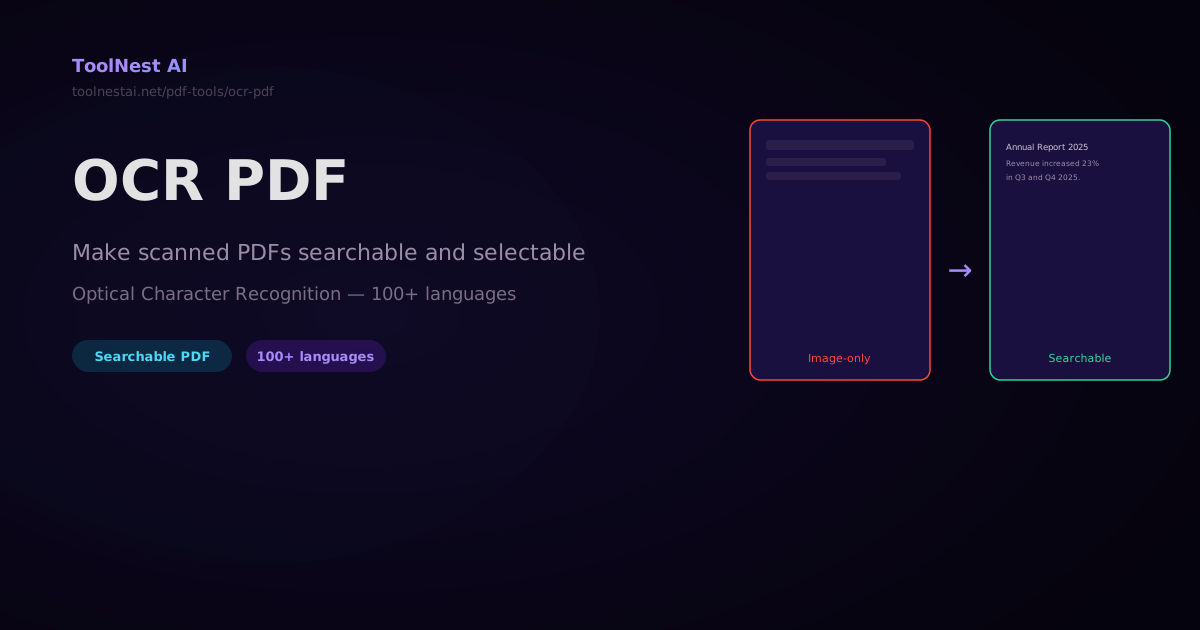
A scanned contract arrives as a PDF. You need to search for a clause, copy a name, or have the document read by a screen reader. But when you open it, the text is an image — clicking produces nothing, Ctrl+F finds nothing. The document is locked in pixels.
OCR (Optical Character Recognition) reads the image and produces real, selectable text. Make any scanned PDF searchable with the ToolNest AI OCR PDF tool — supports 100+ languages, free, no account required.
How OCR Works
- The scanned PDF page is rendered as an image (typically at 300 DPI for best accuracy)
- An OCR engine analyzes the image, detecting character shapes and layouts
- The recognized text is added as an invisible text layer "behind" the original image
- The result is a PDF where the visual appearance is unchanged but the text is now selectable, searchable, and accessible
The invisible text layer technique is called "PDF/A with hidden text" or "sandwich PDF" — the image stays on top for visual fidelity, while the text layer underneath is what search and copy operations use.
OCR with Tesseract and Python
Tesseract is the open-source OCR engine maintained by Google. It supports 100+ languages and is the backbone of most free OCR tools.
# Install Tesseract (Ubuntu/Debian)
sudo apt install tesseract-ocr tesseract-ocr-all

# Install Tesseract (macOS)
brew install tesseract tesseract-lang

# Basic OCR — image to text
tesseract scanned-page.png output -l eng

# OCR directly to PDF with text layer
tesseract scanned-page.png output --oem 3 --psm 6 -l eng pdf
Python: PDF → Images → OCR → Searchable PDF
from pdf2image import convert_from_path
import pytesseract
from pypdf import PdfWriter
from reportlab.pdfgen import canvas
from reportlab.lib.pagesizes import A4
import io

def ocr_pdf(input_path: str, output_path: str, lang: str = 'eng', dpi: int = 300):
    """Convert a scanned PDF to a searchable PDF."""

    # Step 1: Convert PDF pages to images
    print(f"Converting {input_path} to images at {dpi} DPI...")
    pages = convert_from_path(input_path, dpi=dpi)

    # Step 2: OCR each page and build a new PDF
    writer = PdfWriter()

    for i, page_image in enumerate(pages):
        print(f"OCR page {i + 1}/{len(pages)}...")

        # Get page dimensions
        w_px, h_px = page_image.size
        w_pt = w_px * 72 / dpi  # Convert pixels to PDF points
        h_pt = h_px * 72 / dpi

        # Run Tesseract OCR — get hOCR (HTML with position data)
        hocr_data = pytesseract.image_to_pdf_or_hocr(page_image, lang=lang, extension='pdf')

        # The 'pdf' extension produces a PDF with invisible text layer
        from pypdf import PdfReader
        temp_reader = PdfReader(io.BytesIO(hocr_data))
        writer.add_page(temp_reader.pages[0])

    with open(output_path, 'wb') as f:
        writer.write(f)

    print(f"Searchable PDF saved: {output_path}")

# Single language
ocr_pdf('scanned.pdf', 'searchable.pdf', lang='eng')

# Multiple languages
ocr_pdf('document.pdf', 'searchable.pdf', lang='eng+fra+deu')

# Available language codes: eng, fra, deu, spa, ita, por, nld, pol, chi_sim, chi_tra, jpn, kor, ara, rus, ...
Python with pytesseract + direct image processing
import pytesseract
from PIL import Image
from pdf2image import convert_from_path

def extract_text_from_pdf(pdf_path: str, lang: str = 'eng') -> list[str]:
    """Extract raw text from each page of a scanned PDF."""
    pages = convert_from_path(pdf_path, dpi=300)
    return [pytesseract.image_to_string(page, lang=lang) for page in pages]

# Usage
texts = extract_text_from_pdf('scanned.pdf', lang='eng')
for i, text in enumerate(texts):
    print(f"=== Page {i + 1} ===")
    print(text[:500])
OCR with Ghostscript (Offline, No Python)
For simple text extraction from image PDFs, Ghostscript with OCR support (JBIG2/CCITT) can sometimes help, but the best command-line approach remains Tesseract:
# Convert PDF to images, then OCR all pages
pdftoppm -r 300 input.pdf /tmp/page  # produces /tmp/page-001.ppm, etc.

# OCR each image and combine into a single PDF
for f in /tmp/page-*.ppm; do
  tesseract "$f" "${f%.ppm}" -l eng pdf
done

# Merge the per-page PDFs
pdftk /tmp/page-*.pdf cat output searchable.pdf
Choosing the Right DPI
| DPI | Quality | Speed | Use case |
|---|---|---|---|
| 150 | Lower | Fast | Quick drafts, low-quality scans |
| 300 | Best for OCR | Moderate | Standard documents — recommended |
| 400+ | Overkill | Slow | Fine print, technical drawings |
300 DPI is the sweet spot — it's the standard resolution for professional document scanning and provides the best balance of OCR accuracy and processing speed.
Frequently Asked Questions
What is the difference between a scanned PDF and a native PDF?
A native PDF (also called a "born digital" PDF) is created directly from a word processor, spreadsheet, or design application. Text is stored as vector outlines or font glyphs — it is always searchable. A scanned PDF is created by photographing or scanning a paper document. Text is stored as a raster image — OCR is required to make it searchable.
What languages does Tesseract OCR support?
Tesseract supports 100+ languages through separate language data packages. Install them with tesseract-ocr-[code] on Ubuntu or via brew install tesseract-lang on macOS. Common codes: eng (English), fra (French), deu (German), spa (Spanish), chi_sim (Simplified Chinese), chi_tra (Traditional Chinese), jpn (Japanese), kor (Korean), ara (Arabic), rus (Russian).
How accurate is OCR?
Modern Tesseract (v5+) using LSTM neural networks achieves 95–99% character accuracy on clean, well-scanned documents in Latin-script languages. Accuracy drops significantly for: low-resolution scans (under 200 DPI), handwriting, artistic fonts, documents with complex multi-column layouts, and languages with complex scripts. Pre-processing the image (deskewing, denoising, adjusting contrast) before OCR can significantly improve results.
Can OCR handle handwriting?
Tesseract is designed for printed text. Handwriting recognition requires specialized models. Google Cloud Vision, Microsoft Azure Computer Vision, and AWS Textract all offer handwriting OCR as cloud services with significantly better accuracy than Tesseract for handwritten documents.
About the author
ToolNest AI Team
The ToolNest AI team builds free tools that help developers, marketers, and creators do more online — faster.
Related Articles
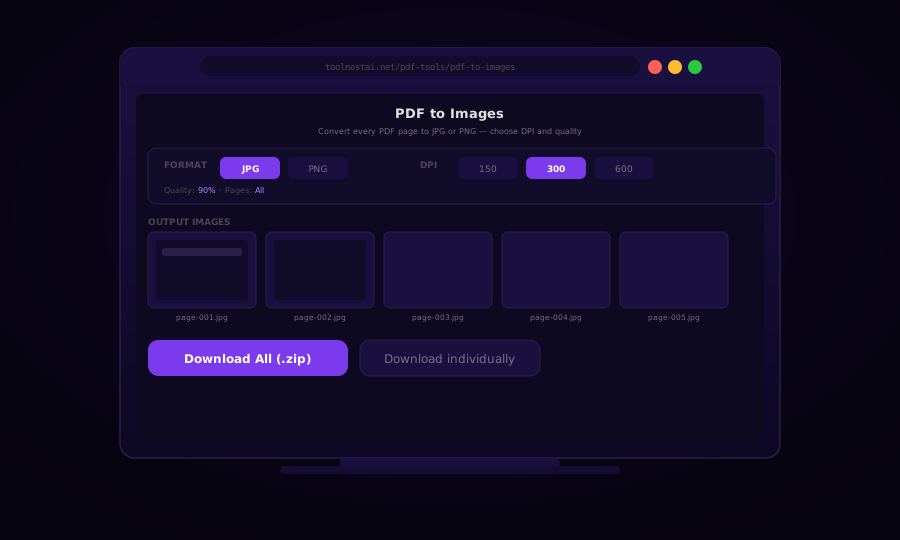
PDF to Images: Convert Every Page to JPG or PNG (Free, No Upload)
Learn how to convert PDF pages to high-quality JPG, PNG, or WebP images using browser tools, Ghostscript, Python pdf2image, and Node.js. Free, private, no upload required.
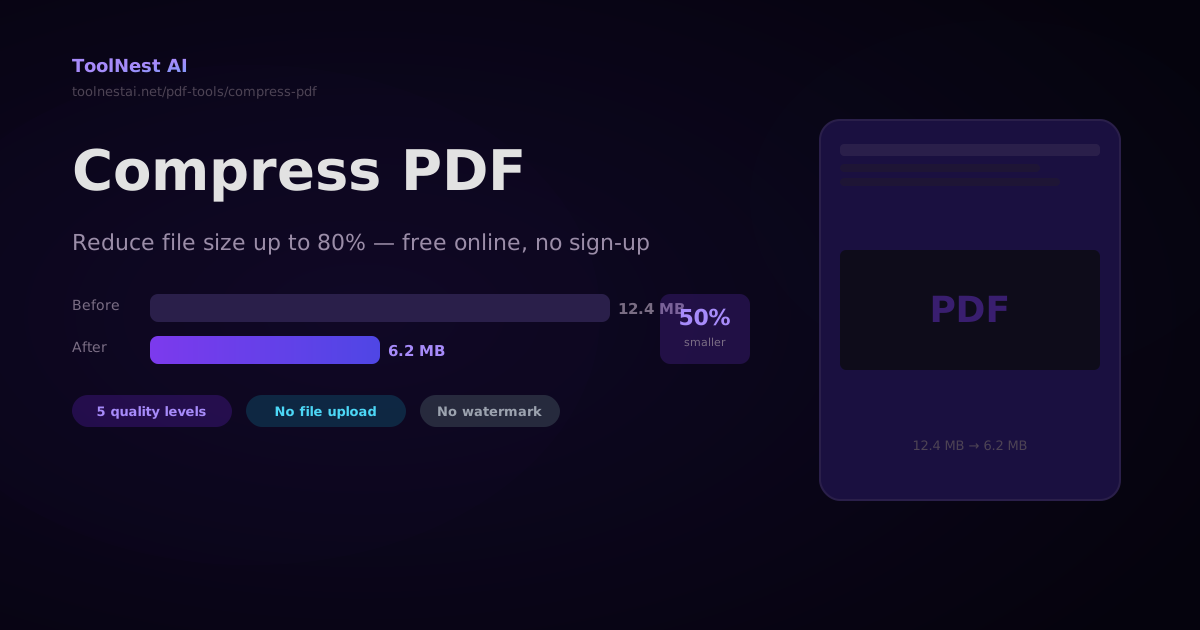
How to Compress a PDF — Reduce File Size Without Losing Quality
A complete guide to PDF compression — how it works, what affects file size, how to choose the right quality level, and how to compress PDFs with Ghostscript, pdf-lib, Python pypdf, and the ToolNest AI online tool.
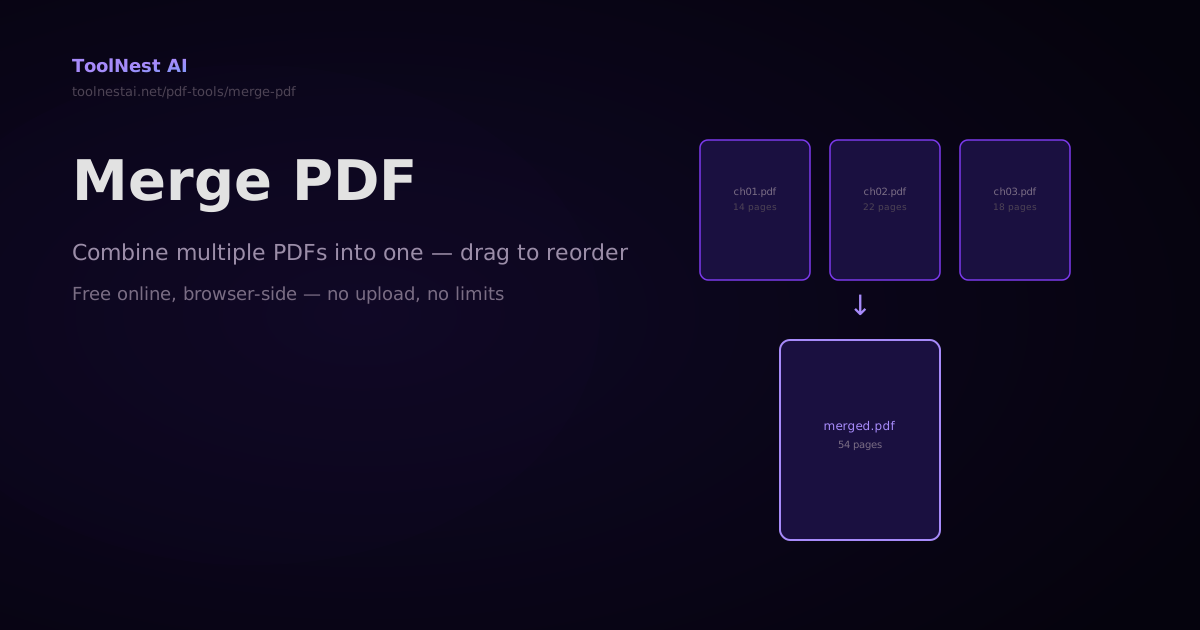
How to Merge PDFs — Combine Multiple PDF Files Into One Online or in Code
Merge any number of PDF files into a single document — drag to reorder, then combine. Plus step-by-step code with pdf-lib, pypdf, and Ghostscript. Free online with no sign-up.