How to Merge PDFs — Combine Multiple PDF Files Into One Online or in Code
Merge any number of PDF files into a single document — drag to reorder, then combine. Plus step-by-step code with pdf-lib, pypdf, and Ghostscript. Free online with no sign-up.
ToolNest AI Team
Author
Published
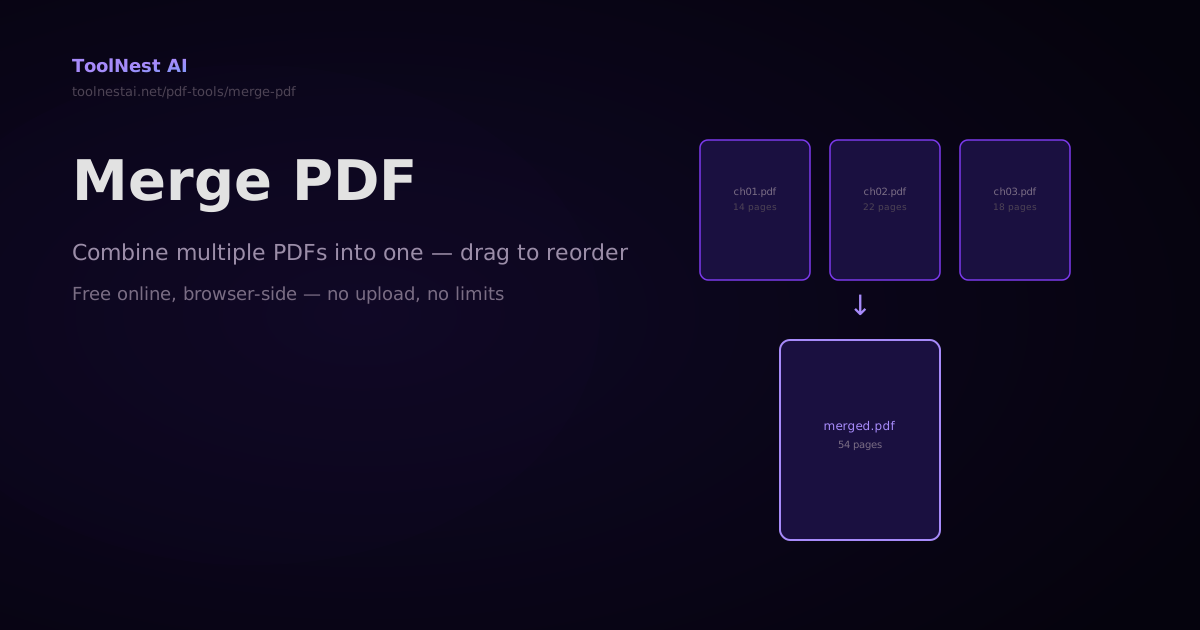
Three chapters saved as separate PDFs. A report with the cover in one file and the body in another. Invoices from five vendors that need to go to accounting as one document. Merging PDFs is one of the most common document tasks — and one of the easiest to get right.
Merge any number of PDFs for free with the ToolNest AI Merge PDF tool — upload files, drag to reorder, and download the merged result, all in your browser.
How PDF Merging Works
PDF merging copies every page object from each source PDF into a new output PDF, in the order you specify. The result contains all pages from all inputs — images, text, annotations, form fields, and hyperlinks all transfer intact.
A few things to know:
Page sizes don't have to match. A merged PDF can contain A4 pages, letter pages, and landscape pages mixed freely. Each page retains its original dimensions.
Fonts get re-embedded. If the same font appears in multiple source PDFs, it may be embedded multiple times in the merged output, slightly increasing the file size. Running the merged PDF through the Compress PDF tool afterward deduplicated these.
Bookmarks are not automatically merged. The navigation outline (bookmarks panel in your PDF reader) from each source file is typically dropped or needs to be rebuilt after merging.
Merging PDFs in Code
JavaScript with pdf-lib
import { PDFDocument } from 'pdf-lib';
import fs from 'fs';

async function mergePdfs(inputPaths, outputPath) {
  const mergedPdf = await PDFDocument.create();

  for (const pdfPath of inputPaths) {
    const pdfBytes = fs.readFileSync(pdfPath);
    const pdf = await PDFDocument.load(pdfBytes);
    const copiedPages = await mergedPdf.copyPages(pdf, pdf.getPageIndices());
    copiedPages.forEach(page => mergedPdf.addPage(page));
  }

  const mergedBytes = await mergedPdf.save();
  fs.writeFileSync(outputPath, mergedBytes);
  console.log(`Merged ${inputPaths.length} PDFs → ${outputPath}`);
}

// Usage
await mergePdfs([
  'chapter-01.pdf',
  'chapter-02.pdf',
  'chapter-03.pdf',
], 'merged-report.pdf');
To merge in the browser (no Node.js):
async function mergePdfsFromFiles(fileList) {
  const mergedPdf = await PDFDocument.create();

  for (const file of fileList) {
    const arrayBuffer = await file.arrayBuffer();
    const pdf = await PDFDocument.load(arrayBuffer);
    const copiedPages = await mergedPdf.copyPages(pdf, pdf.getPageIndices());
    copiedPages.forEach(page => mergedPdf.addPage(page));
  }

  const mergedBytes = await mergedPdf.save();

  // Trigger download
  const blob = new Blob([mergedBytes], { type: 'application/pdf' });
  const url = URL.createObjectURL(blob);
  const a = document.createElement('a');
  a.href = url;
  a.download = 'merged.pdf';
  a.click();
  URL.revokeObjectURL(url);
}
Python with pypdf
from pypdf import PdfReader, PdfWriter
from pathlib import Path

def merge_pdfs(input_paths: list[str], output_path: str) -> dict:
    writer = PdfWriter()
    total_pages = 0

    for path in input_paths:
        reader = PdfReader(path)
        pages_added = 0
        for page in reader.pages:
            writer.add_page(page)
            pages_added += 1
        total_pages += pages_added
        print(f"  Added {pages_added} pages from {Path(path).name}")

    with open(output_path, 'wb') as f:
        writer.write(f)

    return {'files': len(input_paths), 'total_pages': total_pages}

# Usage
result = merge_pdfs([
    'chapter-01.pdf',
    'chapter-02.pdf',
    'chapter-03.pdf',
], 'merged-report.pdf')
print(f"Merged {result['files']} files, {result['total_pages']} pages total")
Ghostscript (Command Line)
# Merge multiple PDFs into one
gs -dBATCH -dNOPAUSE -dSAFER \
   -sDEVICE=pdfwrite \
   -dCompatibilityLevel=1.7 \
   -sOutputFile=merged.pdf \
   chapter-01.pdf chapter-02.pdf chapter-03.pdf

# Merge all PDFs in a directory (alphabetical order)
gs -dBATCH -dNOPAUSE -dSAFER \
   -sDEVICE=pdfwrite \
   -sOutputFile=merged.pdf \
   *.pdf
pdftk
# Simple merge
pdftk chapter-01.pdf chapter-02.pdf chapter-03.pdf cat output merged.pdf

# Merge with specific page ranges from each file
pdftk A=doc1.pdf B=doc2.pdf cat A1-10 B5-end output merged.pdf
Preserving Bookmarks After Merge
from pypdf import PdfReader, PdfWriter

def merge_with_bookmarks(input_paths: list[str], output_path: str):
    writer = PdfWriter()
    page_offset = 0

    for path in input_paths:
        reader = PdfReader(path)
        filename = Path(path).stem
        pages_in_file = len(reader.pages)

        # Add all pages
        for page in reader.pages:
            writer.add_page(page)

        # Add a top-level bookmark for this file
        writer.add_outline_item(
            title=filename,
            page_number=page_offset,
        )

        page_offset += pages_in_file

    with open(output_path, 'wb') as f:
        writer.write(f)
Frequently Asked Questions
Does merge order matter?
Yes — the pages appear in the merged PDF in the exact order you add the files. The ToolNest AI tool shows a drag-and-drop interface so you can reorder files before merging. In code, the order of inputPaths determines page order.
Will form fields from multiple PDFs merge correctly?
Form fields from all source PDFs are copied to the merged output. However, if two source PDFs have form fields with the same name (field ID), they may conflict — both will map to the same value when the form is filled. For PDFs with important forms, use the PDF Metadata Editor to rename conflicting fields, or flatten the form fields in source files before merging.
Is there a file size limit for merging?
The ToolNest AI tool runs entirely in your browser, so the practical limit depends on your device's available memory. Most modern browsers handle several hundred MB without issues. For very large merges (gigabytes), use Ghostscript or pypdf on the command line.
Can I merge password-protected PDFs?
Only if you have the owner password. Both pdf-lib and pypdf accept a password parameter when loading the source PDF. Ghostscript and pdftk can also handle password-protected PDFs with the right flag.
How do I insert a new page between existing pages?
Insert at a specific position using insertPage in pdf-lib: mergedPdf.insertPage(index, page). In pypdf, add pages in the desired order using a separate PdfWriter where you interleave pages from both source documents.
About the author
ToolNest AI Team
The ToolNest AI team builds free tools that help developers, marketers, and creators do more online — faster.
Related Articles
How to Split a PDF — Divide Pages by Range, Interval, or One Page at a Time
Split a PDF into multiple files by page range, every N pages, or one page per file. With code examples using pdf-lib, pypdf, and pdftk. Free online, no upload, no sign-up.
How to Compress a PDF — Reduce File Size Without Losing Quality
A complete guide to PDF compression — how it works, what affects file size, how to choose the right quality level, and how to compress PDFs with Ghostscript, pdf-lib, Python pypdf, and the ToolNest AI online tool.
How to Delete Pages from a PDF — Free Online Tool and Code Guide
Delete specific pages from any PDF — click to select, type a range, or use code with pdf-lib, pypdf, or Ghostscript. Instant browser-side processing, no file upload required.