How to Compress a PDF — Reduce File Size Without Losing Quality
A complete guide to PDF compression — how it works, what affects file size, how to choose the right quality level, and how to compress PDFs with Ghostscript, pdf-lib, Python pypdf, and the ToolNest AI online tool.
ToolNest AI Team
Author
Published
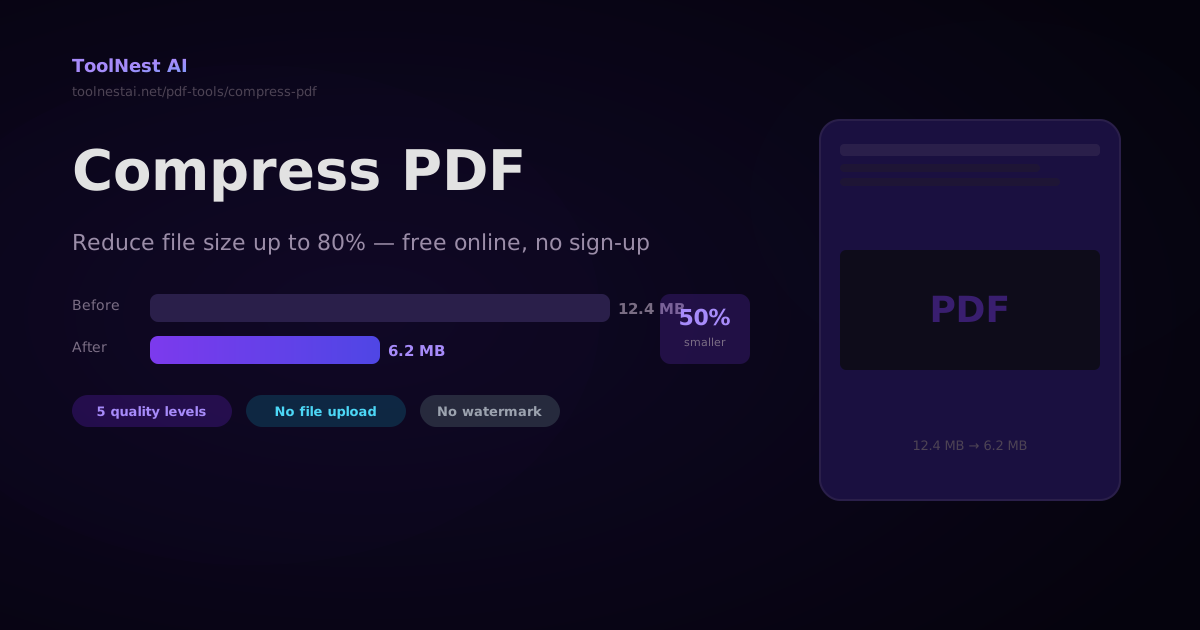
A PDF exported from Figma, a scanned contract, a presentation saved as PDF — these files can be enormous. A 50 MB PDF attached to an email gets bounced. A 15 MB PDF uploaded to a web portal times out. Compression fixes all of this, and the right tool can cut a file's size by 40–80% with no visible quality difference.
Compress any PDF for free with the ToolNest AI Compress PDF tool — multiple quality levels, browser-side processing, no file upload to any server.
What Makes a PDF Large?
Before compressing, it helps to understand what contributes to a PDF's file size:
Images are the biggest factor. A single high-resolution photo embedded uncompressed can be 5–10 MB. Most PDFs exported from design tools contain PNG or TIFF images at 300 DPI when the screen only needs 72–96 DPI.
Fonts get embedded. A PDF that uses 5 different fonts might embed 500–800 KB of font data. If the fonts are not subset-embedded (trimmed to only the glyphs actually used), the full font file is included.
Duplicate resources. A template PDF that was merged with another might contain the same logo image 40 times — once per page. A compressor can detect and deduplicate these.
Uncompressed streams. Raw content streams (text drawing commands, vector graphics) are stored uncompressed by default in some PDF generators.
Compression Levels
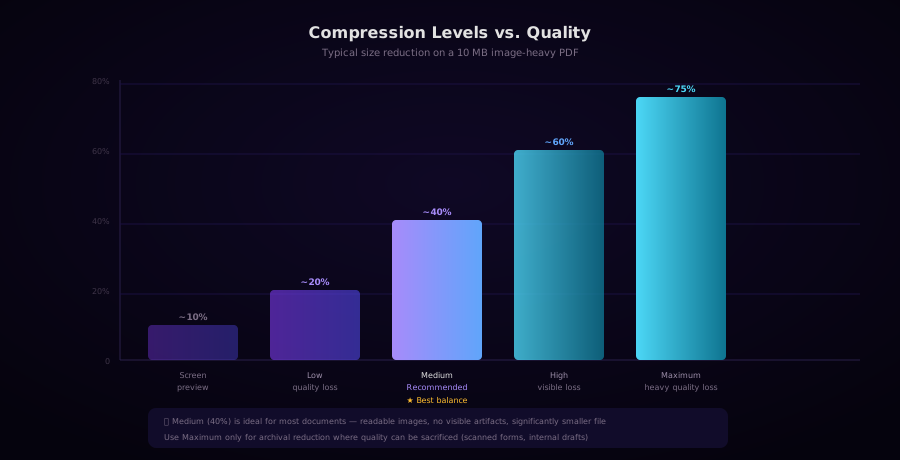
| Level | Typical reduction | Quality impact | Best for |
|---|---|---|---|
| Screen preview | ~10–15% | None | Light optimization, lossless |
| Low | ~20–30% | Minimal | Email attachments |
| Medium | ~35–50% | Slight, unnoticeable | Most documents — recommended |
| High | ~55–65% | Visible on large photos | Web upload, where small size matters more |
| Maximum | ~70–80% | Significant | Scanned forms, internal drafts |
Medium compression is the right choice for most documents. It reduces a typical 12 MB PDF to 6–7 MB with no visible difference when viewed on screen or printed at standard sizes.
Compressing PDFs with Ghostscript
Ghostscript is the most powerful free command-line PDF compressor. It is installed by default on most Linux systems and available for macOS and Windows.
# Basic compression (screen quality — 72 DPI images)
gs -dBATCH -dNOPAUSE -dSAFER \
   -sDEVICE=pdfwrite \
   -dCompatibilityLevel=1.7 \
   -dPDFSETTINGS=/screen \
   -sOutputFile=compressed.pdf \
   input.pdf

# Recommended: ebook quality — 150 DPI images, good balance
gs -dBATCH -dNOPAUSE -dSAFER \
   -sDEVICE=pdfwrite \
   -dCompatibilityLevel=1.7 \
   -dPDFSETTINGS=/ebook \
   -sOutputFile=compressed.pdf \
   input.pdf

# Print quality — 300 DPI, minimal compression
gs -dBATCH -dNOPAUSE -dSAFER \
   -sDEVICE=pdfwrite \
   -dCompatibilityLevel=1.7 \
   -dPDFSETTINGS=/printer \
   -sOutputFile=compressed.pdf \
   input.pdf
Ghostscript PDF settings map:
-dPDFSETTINGS | Image DPI | Equivalent |
|---|---|---|
/screen | 72 DPI | Screen preview / minimum quality |
/ebook | 150 DPI | Low–medium compression |
/printer | 300 DPI | Print quality |
/prepress | 300 DPI + color preservation | Pre-press/offset printing |
# Custom DPI control (finer than PDFSETTINGS)
gs -dBATCH -dNOPAUSE -dSAFER \
   -sDEVICE=pdfwrite \
   -dCompatibilityLevel=1.7 \
   -dDownsampleColorImages=true \
   -dColorImageResolution=120 \
   -dDownsampleGrayImages=true \
   -dGrayImageResolution=120 \
   -dDownsampleMonoImages=true \
   -dMonoImageResolution=300 \
   -sOutputFile=compressed.pdf \
   input.pdf
Python with pypdf
from pypdf import PdfReader, PdfWriter

def compress_pdf(input_path: str, output_path: str) -> dict:
    reader = PdfReader(input_path)
    writer = PdfWriter()

    for page in reader.pages:
        writer.add_page(page)
        # Compress the page's content streams
        for img in page.images:
            img.replace(img.image, quality=60)

    # Compress object streams
    writer.compress_identical_objects(
        remove_identicals=True,
        remove_orphans=True
    )

    with open(output_path, 'wb') as f:
        writer.write(f)

    import os
    original = os.path.getsize(input_path)
    compressed = os.path.getsize(output_path)

    return {
        'original_mb': round(original / 1024 / 1024, 2),
        'compressed_mb': round(compressed / 1024 / 1024, 2),
        'reduction_pct': round((1 - compressed / original) * 100, 1),
    }

result = compress_pdf('input.pdf', 'output.pdf')
print(f"Compressed: {result['original_mb']} MB → {result['compressed_mb']} MB ({result['reduction_pct']}% reduction)")
Node.js with pdf-lib
pdf-lib does not perform lossy image recompression (that requires native binaries), but it can remove duplicate objects and compress streams:
import { PDFDocument } from 'pdf-lib';
import fs from 'fs';

async function compressPdf(inputPath, outputPath) {
  const existingBytes = fs.readFileSync(inputPath);
  const pdfDoc = await PDFDocument.load(existingBytes, {
    updateMetadata: false,
  });

  // Save with object compression
  const compressedBytes = await pdfDoc.save({
    useObjectStreams: true,  // Cross-reference streams (smaller xref table)
    addDefaultPage: false,
  });

  fs.writeFileSync(outputPath, compressedBytes);

  const originalSize = fs.statSync(inputPath).size;
  const newSize = compressedBytes.length;
  const reduction = ((1 - newSize / originalSize) * 100).toFixed(1);

  console.log(`${(originalSize / 1024 / 1024).toFixed(2)} MB → ${(newSize / 1024 / 1024).toFixed(2)} MB (${reduction}% smaller)`);
}

await compressPdf('input.pdf', 'compressed.pdf');
For aggressive image recompression in Node.js, combine pdf-lib with Sharp or canvas to re-encode embedded images at lower quality:
import { PDFDocument } from 'pdf-lib';
import sharp from 'sharp';
import fs from 'fs';

async function compressImages(inputPath, outputPath, quality = 60) {
  const pdfBytes = fs.readFileSync(inputPath);
  const pdfDoc = await PDFDocument.load(pdfBytes);

  const pages = pdfDoc.getPages();

  // Access raw embedded images and re-encode them
  for (const page of pages) {
    const { node } = page;
    const resources = node.Resources();
    if (!resources) continue;

    const xObjects = resources.XObject();
    if (!xObjects) continue;

    // Re-encode each image XObject
    for (const [name, ref] of Object.entries(xObjects.dict)) {
      const xObj = pdfDoc.context.lookup(ref);
      // Image re-encoding logic depends on image format
      // Use sharp for JPEG/PNG re-encoding
    }
  }

  const compressed = await pdfDoc.save({ useObjectStreams: true });
  fs.writeFileSync(outputPath, compressed);
}
Batch Compression
Bash (using Ghostscript)
#!/bin/bash
# Compress all PDFs in a directory

INPUT_DIR="./pdfs"
OUTPUT_DIR="./compressed"
mkdir -p "$OUTPUT_DIR"

for pdf in "$INPUT_DIR"/*.pdf; do
  filename=$(basename "$pdf")
  output="$OUTPUT_DIR/$filename"

  gs -dBATCH -dNOPAUSE -dSAFER \
     -sDEVICE=pdfwrite \
     -dCompatibilityLevel=1.7 \
     -dPDFSETTINGS=/ebook \
     -sOutputFile="$output" \
     "$pdf"

  original=$(du -k "$pdf" | cut -f1)
  compressed=$(du -k "$output" | cut -f1)
  echo "$filename: ${original}K → ${compressed}K"
done
Python Batch
from pathlib import Path
from pypdf import PdfReader, PdfWriter

def batch_compress(input_dir: str, output_dir: str):
    Path(output_dir).mkdir(exist_ok=True)

    for pdf_path in Path(input_dir).glob('*.pdf'):
        output_path = Path(output_dir) / pdf_path.name
        result = compress_pdf(str(pdf_path), str(output_path))
        print(f"{pdf_path.name}: {result['original_mb']} MB → {result['compressed_mb']} MB ({result['reduction_pct']}% saved)")
Frequently Asked Questions
How much can PDF compression reduce file size?
It depends entirely on what is in the PDF. Image-heavy PDFs (presentations, brochures, scanned documents) can shrink by 50–80%. Text-only PDFs with embedded fonts might only shrink 5–15%. A PDF that was already compressed (exported from modern software at print quality) may not shrink much further.
Does compression affect text quality?
No. Text in PDFs is stored as vector outlines or font glyphs — never as raster pixels. Compression only affects raster images embedded in the PDF. Text remains perfectly sharp regardless of compression level.
What is the difference between lossy and lossless PDF compression?
Lossless compression (like removing duplicate objects or compressing content streams with zlib) reduces file size without any quality loss. Lossy compression (resampling images to lower DPI or re-encoding JPEGs at lower quality) is more aggressive but can reduce image sharpness. Most "compression level" sliders blend both techniques.
Can I compress a PDF without losing form field data?
Yes, as long as you use a tool that preserves the PDF's AcroForm structure. Ghostscript preserves form fields by default. pypdf and pdf-lib both preserve form fields. Some online tools may flatten (bake in) form fields — check the tool's documentation before processing important forms.
Why is my already-compressed PDF not getting smaller?
If a PDF was previously compressed with Ghostscript or another tool, the images are already resampled and the streams are already deflated. Compressing it again will yield little or no benefit — and may even slightly increase the size due to recompression overhead.
About the author
ToolNest AI Team
The ToolNest AI team builds free tools that help developers, marketers, and creators do more online — faster.
Related Articles
How to Merge PDFs — Combine Multiple PDF Files Into One Online or in Code
Merge any number of PDF files into a single document — drag to reorder, then combine. Plus step-by-step code with pdf-lib, pypdf, and Ghostscript. Free online with no sign-up.
How to Add Page Numbers to a PDF — Free Online Tool and Code Guide
Add page numbers to any PDF in seconds with ToolNest AI. Learn every position option, format style, and starting number setting — plus how to do it with pdf-lib, Python pypdf, and iText in code.
How to Split a PDF — Divide Pages by Range, Interval, or One Page at a Time
Split a PDF into multiple files by page range, every N pages, or one page per file. With code examples using pdf-lib, pypdf, and pdftk. Free online, no upload, no sign-up.