How to Add Page Numbers to a PDF — Free Online Tool and Code Guide
Add page numbers to any PDF in seconds with ToolNest AI. Learn every position option, format style, and starting number setting — plus how to do it with pdf-lib, Python pypdf, and iText in code.
ToolNest AI Team
Author
Published
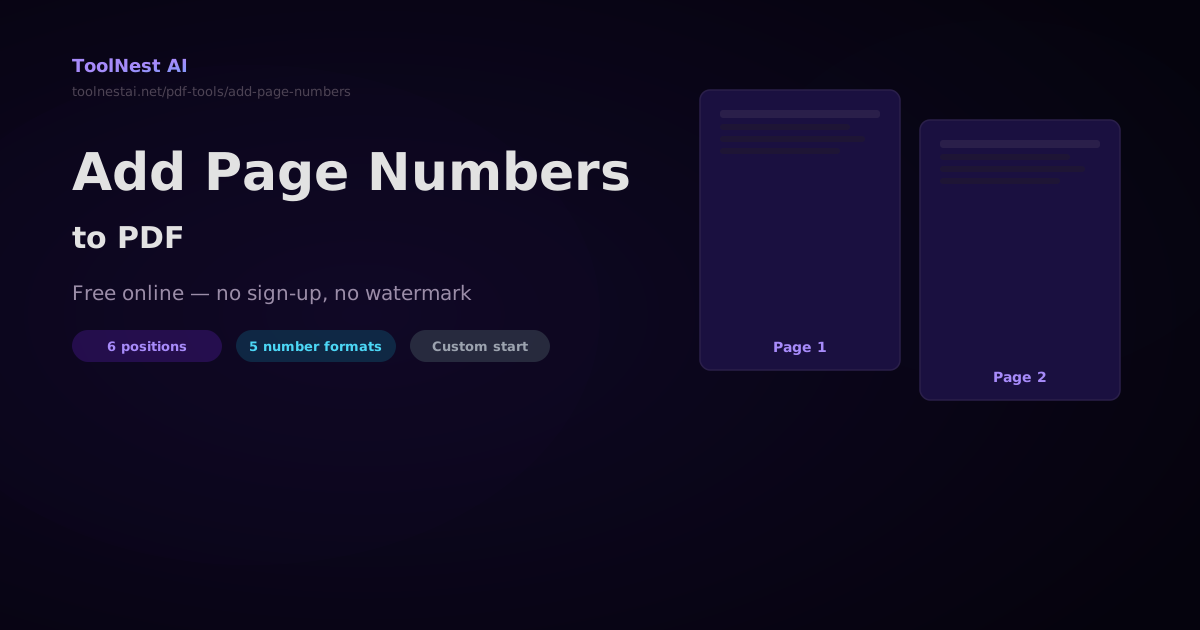
A PDF without page numbers is fine for a two-page flyer. It's a problem for a 40-page report, a legal document, or a thesis — any document where a reader might flip to a page and need to know where they are. Adding page numbers is one of the most common PDF editing tasks, and it's easier than you think.
Add page numbers to any PDF for free with the ToolNest AI Add Page Numbers tool — choose position, format, and starting number, all in your browser with no upload to any server.
Position Options
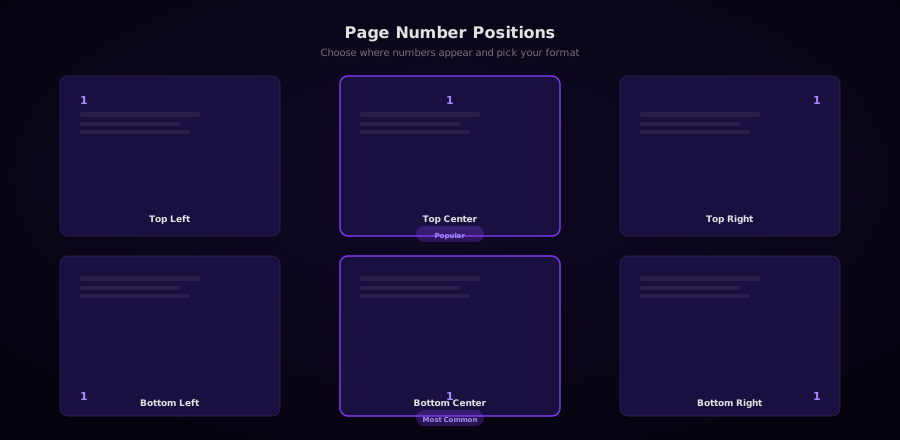
Page numbers can appear in six positions on every page:
| Position | Best for |
|---|---|
| Bottom Center | Most documents — industry default |
| Bottom Right | Formal reports, legal documents |
| Bottom Left | Academic papers (some style guides) |
| Top Center | Headers-only documents |
| Top Right | Confidential documents with header stamps |
| Top Left | Mirror-margin layouts (left pages) |
Bottom center is the most common choice and works well for virtually all document types. It follows the convention used by Microsoft Word, LibreOffice Writer, and most publishing software.
Number Format Options
Most tools offer multiple page number formats:
1— bare number (minimal, clean)Page 1— spelled out (clear, friendly)1 of 24— with total count (best for navigation)- 1 -— decorative dashes (formal/legal)- Custom — your own template (e.g.,
§ 1,A-1,Draft 1)
The 1 of 24 format is the most user-friendly for long documents because readers can see how much remains. For confidential documents or drafts, custom formats like DRAFT - 1 or CONFIDENTIAL - 1 communicate document status alongside position.
Starting Page Number
Most tools let you set the starting number rather than defaulting to 1. Common scenarios:
Skip the cover page: Set start page to 0 so page 2 of the PDF becomes page 1 visually. Or, more precisely, begin numbering from the second PDF page so the cover has no number.
Roman numerals for front matter: Some documents use Roman numerals (i, ii, iii) for a table of contents and Arabic numerals (1, 2, 3) for the main body. This requires two separate numbering operations on different page ranges.
Continue from a previous document: If your PDF is chapter 3 and the previous chapters end on page 48, start numbering from page 49.
Adding Page Numbers in Code
JavaScript with pdf-lib
pdf-lib is the most popular pure-JavaScript PDF library and runs in both Node.js and the browser.
import { PDFDocument, rgb, StandardFonts } from 'pdf-lib';
import fs from 'fs';

async function addPageNumbers(inputPath, outputPath, options = {}) {
  const {
    position = 'bottom-center',
    format = 'page-n',       // 'n', 'page-n', 'n-of-total', 'dash-n-dash'
    startNumber = 1,
    fontSize = 12,
    color = rgb(0.3, 0.3, 0.3),
    margin = 30,
  } = options;

  const existingPdfBytes = fs.readFileSync(inputPath);
  const pdfDoc = await PDFDocument.load(existingPdfBytes);
  const font = await pdfDoc.embedFont(StandardFonts.Helvetica);
  const pages = pdfDoc.getPages();
  const totalPages = pages.length;

  pages.forEach((page, index) => {
    const { width, height } = page.getSize();
    const pageNumber = startNumber + index;

    let label;
    switch (format) {
      case 'n':            label = `${pageNumber}`; break;
      case 'page-n':       label = `Page ${pageNumber}`; break;
      case 'n-of-total':   label = `${pageNumber} of ${totalPages}`; break;
      case 'dash-n-dash':  label = `- ${pageNumber} -`; break;
      default:             label = `${pageNumber}`;
    }

    const textWidth = font.widthOfTextAtSize(label, fontSize);

    let x, y;
    switch (position) {
      case 'bottom-center': x = (width - textWidth) / 2; y = margin; break;
      case 'bottom-left':   x = margin; y = margin; break;
      case 'bottom-right':  x = width - textWidth - margin; y = margin; break;
      case 'top-center':    x = (width - textWidth) / 2; y = height - margin; break;
      case 'top-left':      x = margin; y = height - margin; break;
      case 'top-right':     x = width - textWidth - margin; y = height - margin; break;
      default:              x = (width - textWidth) / 2; y = margin;
    }

    page.drawText(label, { x, y, size: fontSize, font, color });
  });

  const pdfBytes = await pdfDoc.save();
  fs.writeFileSync(outputPath, pdfBytes);
  console.log(`Added page numbers to ${totalPages} pages → ${outputPath}`);
}

// Usage
await addPageNumbers('input.pdf', 'output.pdf', {
  position: 'bottom-center',
  format: 'n-of-total',
  startNumber: 1,
  fontSize: 11,
});
Python with pypdf
from pypdf import PdfReader, PdfWriter
from pypdf.generic import (
    NameObject, NumberObject, ArrayObject, StringObject
)
import io

# pypdf can copy pages and modify them, but for drawing text
# you need reportlab as a companion library

from reportlab.pdfgen import canvas
from reportlab.lib.pagesizes import letter
from pypdf import PdfReader, PdfWriter

def create_page_number_overlay(width, height, text, font_size=12, position='bottom-center'):
    packet = io.BytesIO()
    c = canvas.Canvas(packet, pagesize=(width, height))
    c.setFont("Helvetica", font_size)

    text_width = c.stringWidth(text, "Helvetica", font_size)
    margin = 30

    if position == 'bottom-center':
        x, y = (width - text_width) / 2, margin
    elif position == 'bottom-right':
        x, y = width - text_width - margin, margin
    elif position == 'bottom-left':
        x, y = margin, margin
    elif position == 'top-center':
        x, y = (width - text_width) / 2, height - margin
    elif position == 'top-right':
        x, y = width - text_width - margin, height - margin
    elif position == 'top-left':
        x, y = margin, height - margin
    else:
        x, y = (width - text_width) / 2, margin

    c.setFillColorRGB(0.3, 0.3, 0.3)
    c.drawString(x, y, text)
    c.save()
    packet.seek(0)
    return PdfReader(packet)

def add_page_numbers(input_path, output_path,
                     position='bottom-center',
                     fmt='page-n',
                     start=1):
    reader = PdfReader(input_path)
    writer = PdfWriter()
    total = len(reader.pages)

    for i, page in enumerate(reader.pages):
        page_num = start + i
        w = float(page.mediabox.width)
        h = float(page.mediabox.height)

        if fmt == 'n':            label = str(page_num)
        elif fmt == 'page-n':     label = f"Page {page_num}"
        elif fmt == 'n-of-total': label = f"{page_num} of {total}"
        elif fmt == 'dash-n':     label = f"- {page_num} -"
        else:                     label = str(page_num)

        overlay = create_page_number_overlay(w, h, label, position=position)
        page.merge_page(overlay.pages[0])
        writer.add_page(page)

    with open(output_path, 'wb') as f:
        writer.write(f)
    print(f"Done: {total} pages numbered → {output_path}")

# Usage
add_page_numbers('input.pdf', 'numbered.pdf',
                 position='bottom-center',
                 fmt='n-of-total',
                 start=1)
Command Line with pdftk and Ghostscript
For quick batch processing from the terminal:
# Using Ghostscript to add page numbers
gs -dBATCH -dNOPAUSE -sDEVICE=pdfwrite \
   -sOutputFile=output.pdf \
   -c "<<
     /EndPage {
       2 eq { pop false } {
         gsave
         /Helvetica findfont 12 scalefont setfont
         0.3 0.3 0.3 setrgbcolor
         currentpage /PageCount get 1 add dup
         exch (Page ) exch
         10 string cvs concatstrings
         297 20 moveto
         show
         grestore true
       } ifelse
     }
   >> setpagedevice" \
   -f input.pdf
Common Scenarios
Skip the Cover Page
If your PDF has a cover page that should not be numbered:
// pdf-lib: start counting at page 2, first page gets no number
pages.forEach((page, index) => {
  if (index === 0) return; // skip cover
  const pageNumber = startNumber + index - 1; // adjust count
  // ... draw the number
});
Add Numbers Only to a Range
pages.forEach((page, index) => {
  // Number only pages 3–15 (index 2–14)
  if (index < 2 || index > 14) return;
  const pageNumber = startNumber + (index - 2);
  // ... draw the number
});
Different Odd/Even Positions (Mirror Margins)
Books and bound documents often put page numbers on the outer edge:
pages.forEach((page, index) => {
  const { width, height } = page.getSize();
  const pageNumber = startNumber + index;
  const label = `${pageNumber}`;
  const textWidth = font.widthOfTextAtSize(label, fontSize);

  // Even pages: left edge; odd pages: right edge
  const isEven = (index + 1) % 2 === 0;
  const x = isEven ? margin : width - textWidth - margin;
  const y = margin;

  page.drawText(label, { x, y, size: fontSize, font, color });
});
Frequently Asked Questions
Can I add page numbers to a protected PDF?
If the PDF is password-protected for editing, you need to supply the owner password first. The ToolNest AI tool handles unlocked PDFs only. In code, pdf-lib and pypdf both accept a password parameter: PDFDocument.load(bytes, { password: 'owner-password' }) and PdfReader('file.pdf', password='owner-password').
Will adding page numbers affect the existing content?
Page numbers are drawn on a new transparent layer on top of the existing page content. The original text, images, and layout remain unchanged. If your PDF already has page numbers stamped in the same position, the new numbers will appear on top of them — in that case, use the Organize PDF tool to remove and reorder pages, or choose a different position.
Can I use a custom font for page numbers?
With pdf-lib, you can embed any TrueType or OpenType font: await pdfDoc.embedFont(fs.readFileSync('MyFont.ttf')). With pypdf + reportlab, set the font with c.setFont("CustomFont", 12) after registering it with pdfmetrics.registerFont.
What format should I use for a thesis or academic paper?
Most academic style guides (APA, MLA, Chicago) call for bottom-center page numbers in plain Arabic numerals. Front matter (abstract, table of contents) often uses Roman numerals (i, ii, iii) while the main body starts at page 1. This requires two separate numbering passes on different page ranges.
Does adding page numbers change the file size?
Very slightly — each page gets a small amount of additional content (the text operator). For a typical 50-page document, the size increase is a few kilobytes, negligible in practice.
About the author
ToolNest AI Team
The ToolNest AI team builds free tools that help developers, marketers, and creators do more online — faster.
Related Articles
How to Merge PDFs — Combine Multiple PDF Files Into One Online or in Code
Merge any number of PDF files into a single document — drag to reorder, then combine. Plus step-by-step code with pdf-lib, pypdf, and Ghostscript. Free online with no sign-up.
How to Compress a PDF — Reduce File Size Without Losing Quality
A complete guide to PDF compression — how it works, what affects file size, how to choose the right quality level, and how to compress PDFs with Ghostscript, pdf-lib, Python pypdf, and the ToolNest AI online tool.
How to Split a PDF — Divide Pages by Range, Interval, or One Page at a Time
Split a PDF into multiple files by page range, every N pages, or one page per file. With code examples using pdf-lib, pypdf, and pdftk. Free online, no upload, no sign-up.