How to Split a PDF — Divide Pages by Range, Interval, or One Page at a Time
Split a PDF into multiple files by page range, every N pages, or one page per file. With code examples using pdf-lib, pypdf, and pdftk. Free online, no upload, no sign-up.
ToolNest AI Team
Author
Published
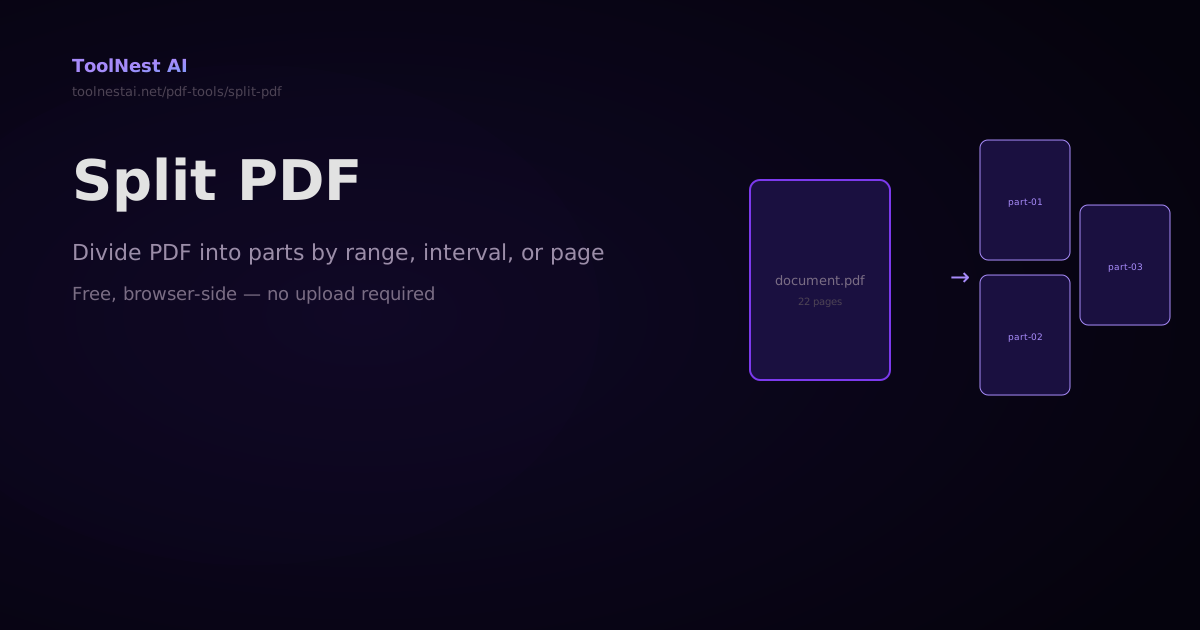
A 200-page annual report needs to be split into quarterly sections. A scanned book needs each chapter extracted as its own PDF. A combined invoice file needs to be broken apart for individual clients. Splitting a PDF is the reverse of merging, and it's just as common.
Split any PDF for free with the ToolNest AI Split PDF tool — by custom page ranges, every N pages, or one page per file, with a ZIP download of all output files.
Three Ways to Split a PDF
1. By Custom Page Ranges
Specify exactly which pages go into each output file:
1-5→ part-01.pdf (pages 1–5)6-12→ part-02.pdf (pages 6–12)13-end→ part-03.pdf (pages 13 to end)
Use end or the actual last page number — both work.
2. Every N Pages
Divide the PDF into equal chunks:
- Every 10 pages → for a 45-page PDF, produces 5 files (last file has 5 pages)
- Every 1 page → extracts each page as its own PDF
This mode is useful for splitting scanned booklets where each chapter is exactly the same length, or for batch-processing each page separately.
3. Individual Pages
Equivalent to "every 1 page" — produces one PDF per page. A 30-page PDF becomes 30 single-page PDF files, downloaded as a ZIP archive.
Splitting PDFs in Code
JavaScript with pdf-lib
import { PDFDocument } from 'pdf-lib';
import fs from 'fs';

// Split by a list of page ranges
// ranges: array of {start, end} objects (0-based indices, end exclusive)
async function splitPdf(inputPath, outputDir, ranges) {
  const pdfBytes = fs.readFileSync(inputPath);
  const sourcePdf = await PDFDocument.load(pdfBytes);
  const results = [];

  for (let i = 0; i < ranges.length; i++) {
    const { start, end } = ranges[i];
    const newPdf = await PDFDocument.create();
    const pageIndices = Array.from(
      { length: end - start },
      (_, j) => start + j
    );
    const copiedPages = await newPdf.copyPages(sourcePdf, pageIndices);
    copiedPages.forEach(page => newPdf.addPage(page));

    const outputBytes = await newPdf.save();
    const outputPath = `${outputDir}/part-${String(i + 1).padStart(2, '0')}.pdf`;
    fs.writeFileSync(outputPath, outputBytes);
    results.push(outputPath);
    console.log(`Created ${outputPath} (${copiedPages.length} pages)`);
  }

  return results;
}

// Helper: parse "1-5, 6-12, 13-end" into 0-based ranges
function parseRanges(rangeStr, totalPages) {
  return rangeStr.split(',').map(part => {
    const [startStr, endStr] = part.trim().split('-');
    const start = parseInt(startStr) - 1; // 0-based
    const end = endStr === 'end' ? totalPages : parseInt(endStr);
    return { start, end };
  });
}

// Split every N pages
async function splitEveryN(inputPath, outputDir, n) {
  const pdfBytes = fs.readFileSync(inputPath);
  const sourcePdf = await PDFDocument.load(pdfBytes);
  const totalPages = sourcePdf.getPageCount();

  const ranges = [];
  for (let start = 0; start < totalPages; start += n) {
    ranges.push({ start, end: Math.min(start + n, totalPages) });
  }

  return splitPdf(inputPath, outputDir, ranges);
}

// Usage
const pdfBytes = fs.readFileSync('document.pdf');
const pdfDoc = await PDFDocument.load(pdfBytes);
const total = pdfDoc.getPageCount();

await splitPdf('document.pdf', './output', parseRanges('1-5, 6-12, 13-end', total));
await splitEveryN('document.pdf', './chunks', 10);
Python with pypdf
from pypdf import PdfReader, PdfWriter
from pathlib import Path
import re

def split_by_ranges(input_path: str, output_dir: str, ranges: list[tuple]) -> list[str]:
    """
    ranges: list of (start, end) tuples with 1-based, inclusive page numbers
    e.g. [(1, 5), (6, 12), (13, None)] where None means 'last page'
    """
    reader = PdfReader(input_path)
    total = len(reader.pages)
    Path(output_dir).mkdir(exist_ok=True)
    outputs = []

    for i, (start, end) in enumerate(ranges):
        writer = PdfWriter()
        actual_end = end if end is not None else total

        for page_num in range(start - 1, actual_end):
            writer.add_page(reader.pages[page_num])

        output_path = f"{output_dir}/part-{i + 1:02d}.pdf"
        with open(output_path, 'wb') as f:
            writer.write(f)

        outputs.append(output_path)
        print(f"Created {output_path} (pages {start}–{actual_end})")

    return outputs

def split_every_n(input_path: str, output_dir: str, n: int) -> list[str]:
    reader = PdfReader(input_path)
    total = len(reader.pages)
    ranges = [(start + 1, min(start + n, total)) for start in range(0, total, n)]
    return split_by_ranges(input_path, output_dir, ranges)

def split_to_individual(input_path: str, output_dir: str) -> list[str]:
    return split_every_n(input_path, output_dir, n=1)

# Usage
split_by_ranges('document.pdf', './output', [(1, 5), (6, 12), (13, None)])
split_every_n('document.pdf', './chunks', n=10)
pdftk (Command Line)
# Extract pages 1-5 into part1.pdf
pdftk input.pdf cat 1-5 output part1.pdf

# Extract pages 6-12
pdftk input.pdf cat 6-12 output part2.pdf

# Split every PDF into individual pages (uses burst)
pdftk input.pdf burst output page_%04d.pdf

# Extract specific pages in one command using handles
pdftk A=input.pdf cat A1-5 output part1.pdf
pdftk A=input.pdf cat A6-12 output part2.pdf
pdftk A=input.pdf cat A13-end output part3.pdf
Ghostscript
# Extract pages 1-5
gs -dBATCH -dNOPAUSE -dSAFER \
   -sDEVICE=pdfwrite \
   -dFirstPage=1 -dLastPage=5 \
   -sOutputFile=part1.pdf \
   input.pdf

# Extract pages 6-12
gs -dBATCH -dNOPAUSE -dSAFER \
   -sDEVICE=pdfwrite \
   -dFirstPage=6 -dLastPage=12 \
   -sOutputFile=part2.pdf \
   input.pdf
Batch Splitting with a Script
#!/usr/bin/env python3
"""
Split all PDFs in a directory into individual pages.
Outputs: ./split/{filename}/page-001.pdf, page-002.pdf, ...
"""
from pypdf import PdfReader, PdfWriter
from pathlib import Path

INPUT_DIR = Path('./pdfs')
OUTPUT_DIR = Path('./split')

for pdf_path in INPUT_DIR.glob('*.pdf'):
    reader = PdfReader(str(pdf_path))
    out_dir = OUTPUT_DIR / pdf_path.stem
    out_dir.mkdir(parents=True, exist_ok=True)

    for i, page in enumerate(reader.pages):
        writer = PdfWriter()
        writer.add_page(page)
        out_path = out_dir / f"page-{i + 1:03d}.pdf"
        with open(out_path, 'wb') as f:
            writer.write(f)

    print(f"{pdf_path.name}: {len(reader.pages)} pages extracted")
Frequently Asked Questions
Can I split a PDF by bookmarks?
Not directly in most tools, but you can write a script that reads the PDF's outline (bookmark) structure and uses those page numbers as split points. pypdf exposes bookmarks via reader.outline — iterate the outline items, extract the page property of each item, and use those page numbers as your range boundaries.
What happens to form fields when I split a PDF?
Form fields on each page are preserved in the split output files. However, the overall form structure (calculated fields that reference other pages, submit buttons that send the whole form) may not work correctly in split files.
Can I split a PDF and then merge specific parts back together?
Yes — split first (to extract the pages you want), then use Merge PDF to combine the pieces you need. This is the standard workflow for extracting and rearranging sections of a document.
Does splitting a PDF reduce quality?
No. Pages are copied directly without re-rendering. There is no quality loss in text, images, or vector graphics.
About the author
ToolNest AI Team
The ToolNest AI team builds free tools that help developers, marketers, and creators do more online — faster.
Related Articles
How to Merge PDFs — Combine Multiple PDF Files Into One Online or in Code
Merge any number of PDF files into a single document — drag to reorder, then combine. Plus step-by-step code with pdf-lib, pypdf, and Ghostscript. Free online with no sign-up.
How to Delete Pages from a PDF — Free Online Tool and Code Guide
Delete specific pages from any PDF — click to select, type a range, or use code with pdf-lib, pypdf, or Ghostscript. Instant browser-side processing, no file upload required.
Organize PDF Pages: Reorder, Rotate, Duplicate, and Delete (Free)
Learn how to organize PDF pages with drag-and-drop reordering, rotation, duplication, and deletion — using browser tools, pdf-lib, Python pypdf, and pdftk.