How to Sign a PDF — Draw, Type, or Upload Your Signature Online
Add your signature to any PDF for free — draw it with your mouse, type it in a script font, or upload a signature image. Place it anywhere on the page, then download. No server upload.
ToolNest AI Team
Author
Published
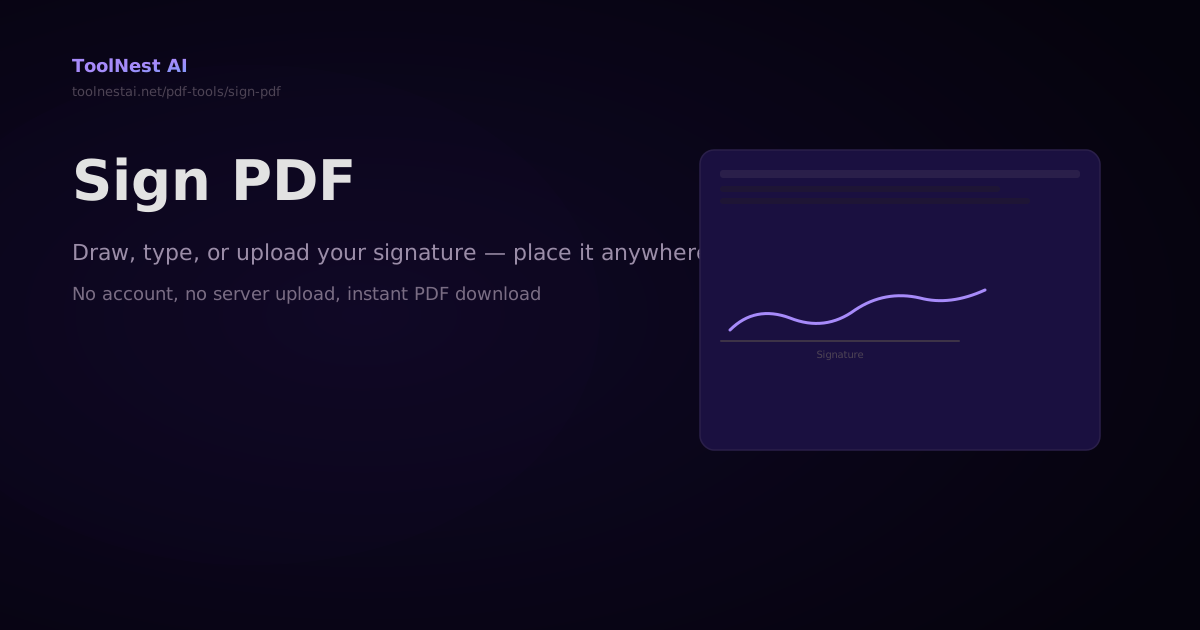
A contract needs your signature before you can send it back. An NDA needs a signoff. An approval form needs to be signed and emailed. Electronic signatures on PDFs have replaced wet ink for the vast majority of business documents — and you don't need a paid subscription to do it.
Sign any PDF for free with the ToolNest AI Sign PDF tool — draw with your mouse, type your name in a signature font, or upload an existing signature image, then drag it to exactly where you want it on the page.
Three Ways to Sign
1. Draw Your Signature
Use your mouse, trackpad, or touchscreen to draw your signature on a canvas. The result is captured as a PNG image and placed on the PDF. This produces the most natural-looking signatures.
2. Type Your Name
Type your name and choose from script/cursive fonts that resemble handwriting (e.g., Dancing Script, Pacifico, Great Vibes). The font is rendered to an image and placed on the PDF. This is fastest when you need a clean, consistent signature.
3. Upload an Image
Scan or photograph your handwritten signature on white paper, then upload it as a PNG or JPG. The ToolNest AI tool can remove the white background (make it transparent) before placing it on the PDF. This produces the most professional result when you have a good scan.
Adding Signatures in Code
JavaScript with pdf-lib (Image Signature)
import { PDFDocument } from 'pdf-lib';
import fs from 'fs';

async function signPdf(inputPath, outputPath, signatureImagePath, placement) {
  const {
    page: pageIndex = 0,     // 0-based page index
    x,                        // x position from bottom-left
    y,                        // y position from bottom-left
    width = 150,              // signature width in points
    height = 60,              // signature height in points
  } = placement;

  const pdfBytes = fs.readFileSync(inputPath);
  const sigBytes = fs.readFileSync(signatureImagePath);

  const pdfDoc = await PDFDocument.load(pdfBytes);

  // Embed the signature image (PNG or JPEG)
  const isPng = signatureImagePath.toLowerCase().endsWith('.png');
  const sigImage = isPng
    ? await pdfDoc.embedPng(sigBytes)
    : await pdfDoc.embedJpg(sigBytes);

  const page = pdfDoc.getPage(pageIndex);
  page.drawImage(sigImage, { x, y, width, height });

  const newBytes = await pdfDoc.save();
  fs.writeFileSync(outputPath, newBytes);
  console.log(`Signed PDF saved to ${outputPath}`);
}

// Place signature at bottom of page 1
const pdfBytes = fs.readFileSync('input.pdf');
const pdfDoc = await PDFDocument.load(pdfBytes);
const { width, height } = pdfDoc.getPage(0).getSize();

await signPdf('input.pdf', 'signed.pdf', 'signature.png', {
  page: 0,
  x: width - 200,       // right-aligned
  y: 80,                // 80pt from bottom
  width: 150,
  height: 60,
});
JavaScript: Converting Canvas Drawing to PDF Signature
// In the browser: capture canvas drawing → place on PDF
import { PDFDocument } from 'pdf-lib';

async function signPdfWithCanvasDrawing(pdfFile, signatureCanvas, placement) {
  // Get signature as PNG data URL from canvas
  const signatureDataUrl = signatureCanvas.toDataURL('image/png');
  const signatureBase64 = signatureDataUrl.split(',')[1];
  const signatureBytes = Uint8Array.from(atob(signatureBase64), c => c.charCodeAt(0));

  const pdfArrayBuffer = await pdfFile.arrayBuffer();
  const pdfDoc = await PDFDocument.load(pdfArrayBuffer);

  const sigImage = await pdfDoc.embedPng(signatureBytes);
  const page = pdfDoc.getPage(placement.pageIndex);
  const { width: pageWidth, height: pageHeight } = page.getSize();

  page.drawImage(sigImage, {
    x: placement.x,
    y: pageHeight - placement.y - placement.height, // Convert from top-left to bottom-left
    width: placement.width,
    height: placement.height,
  });

  const newBytes = await pdfDoc.save();
  return new Blob([newBytes], { type: 'application/pdf' });
}
Python with pypdf + reportlab
from pypdf import PdfReader, PdfWriter
from reportlab.pdfgen import canvas
from PIL import Image
import io

def add_signature_image(input_path, output_path, signature_path, placement):
    """
    placement: {'page': 0, 'x': 400, 'y': 80, 'width': 150, 'height': 60}
    Coordinates are from bottom-left of page.
    """
    reader = PdfReader(input_path)
    writer = PdfWriter()

    page_index = placement.get('page', 0)

    for i, page in enumerate(reader.pages):
        if i == page_index:
            # Create an overlay with the signature image
            w = float(page.mediabox.width)
            h = float(page.mediabox.height)

            packet = io.BytesIO()
            c = canvas.Canvas(packet, pagesize=(w, h))
            c.drawImage(signature_path,
                       x=placement['x'],
                       y=placement['y'],
                       width=placement['width'],
                       height=placement['height'],
                       mask='auto')  # 'auto' removes white background
            c.save()
            packet.seek(0)

            from pypdf import PdfReader as PR
            overlay = PR(packet)
            page.merge_page(overlay.pages[0])

        writer.add_page(page)

    with open(output_path, 'wb') as f:
        writer.write(f)

add_signature_image('contract.pdf', 'signed.pdf', 'signature.png',
                   placement={'page': 0, 'x': 380, 'y': 80, 'width': 150, 'height': 60})
Frequently Asked Questions
Is an electronic signature legally valid?
In most countries, yes — for standard business documents. The EU eIDAS regulation and the US ESIGN Act both recognize electronic signatures as legally valid. However, some documents (wills, real estate transfers, notarized documents) require a wet ink signature or qualified electronic signature (QES). Check the legal requirements for your specific document type and jurisdiction.
What is the difference between an electronic signature and a digital signature?
An electronic signature is any electronic mark indicating agreement — a scanned image, a typed name, a drawn mark. It is visual and not cryptographically verifiable.
A digital signature uses a cryptographic key pair to mathematically prove the signer's identity and that the document has not been modified since signing. Digital signatures require a certificate authority (CA) and tools like Adobe Sign, DocuSign, or macOS/Windows built-in certificate stores.
Can multiple people sign the same PDF?
Yes — each signer adds their signature in sequence. The first person signs and sends the PDF to the second person, who adds their signature, and so on. The ToolNest AI tool adds each signature as an image layer — it does not implement cryptographic multi-party signing workflows.
How do I remove a white background from my signature image?
Use the ToolNest AI Remove Image Background tool, or in code: use PIL/Pillow in Python with image.convert('RGBA') and threshold the white pixels to transparent. For pdf-lib, PNG images with an alpha channel are automatically placed with transparency.
About the author
ToolNest AI Team
The ToolNest AI team builds free tools that help developers, marketers, and creators do more online — faster.
Related Articles
How to Password Protect a PDF — Encryption, Permissions, and Ownership Explained
Add a password to any PDF with AES-256 encryption. Control open passwords, owner passwords, and permissions (print, copy, edit). With code in pdf-lib, pypdf, and Ghostscript.
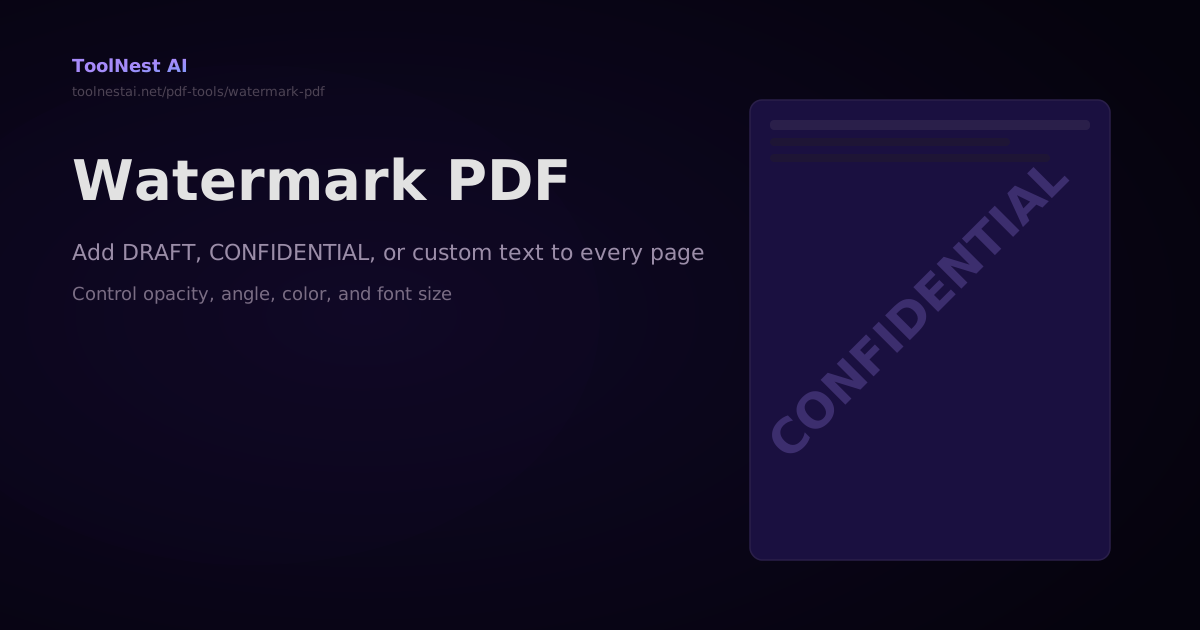
How to Add a Watermark to a PDF — Text, Opacity, Angle, and Code Guide
Add DRAFT, CONFIDENTIAL, or any custom text watermark to every page of a PDF. Control opacity, rotation, font size, and color. With code in pdf-lib, Python, and Ghostscript.
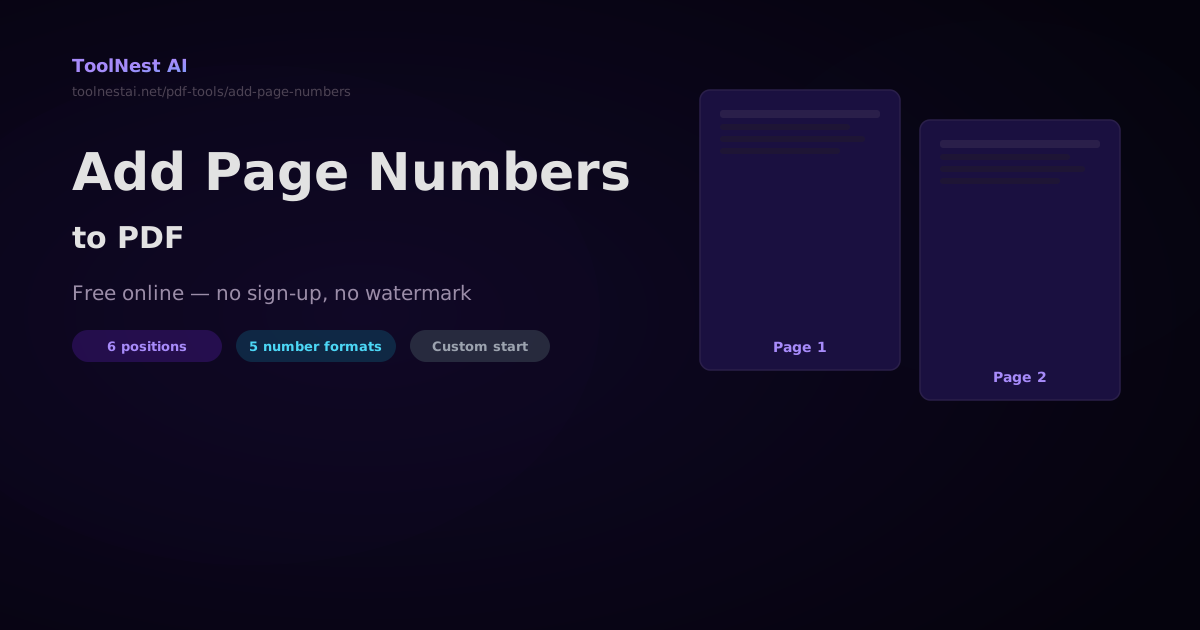
How to Add Page Numbers to a PDF — Free Online Tool and Code Guide
Add page numbers to any PDF in seconds with ToolNest AI. Learn every position option, format style, and starting number setting — plus how to do it with pdf-lib, Python pypdf, and iText in code.