How to Rotate PDF Pages — Fix Sideways Scans and Upside-Down Pages
Rotate individual pages or all pages in a PDF by 90°, 180°, or 270°. With code examples in pdf-lib, pypdf, and Ghostscript. Free online tool, no upload needed.
ToolNest AI Team
Author
Published
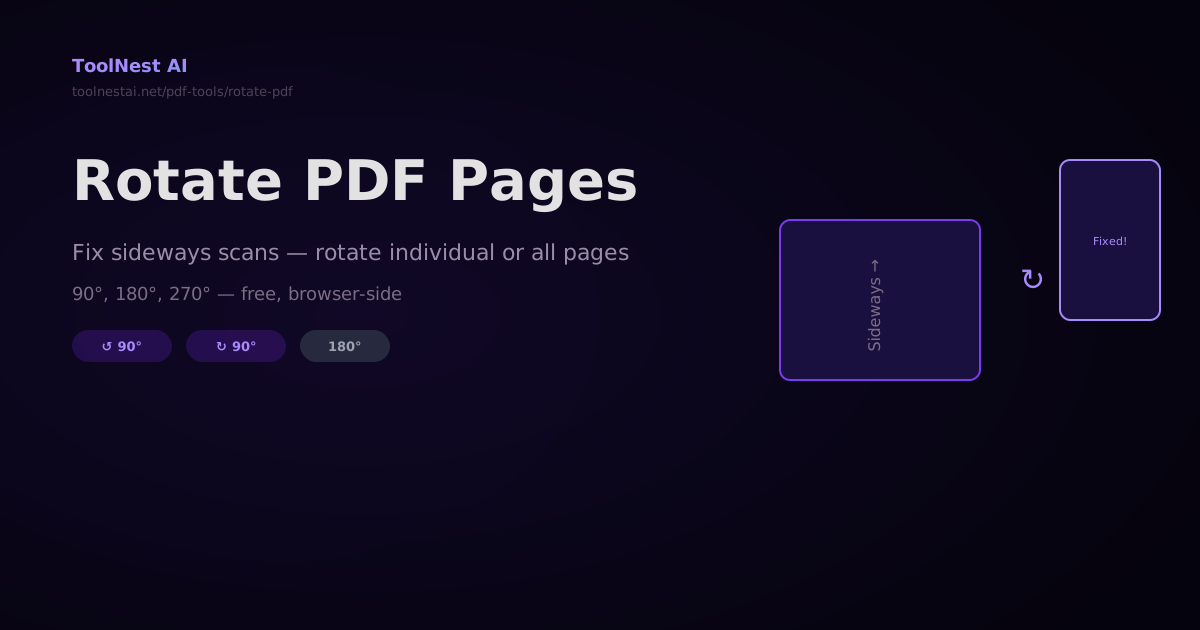
A scanned document comes in sideways. A form was saved upside down. A landscape chart is mixed into a portrait document and needs rotating back. These are everyday PDF problems — and they are solved in seconds.
Rotate any PDF pages for free with the ToolNest AI Rotate PDF tool — click to rotate individual pages or rotate all at once, with a live preview before you download.
How PDF Rotation Works
PDF rotation does not re-render or re-encode the page content. Instead, it sets a Rotate property on the page object — an integer value of 0, 90, 180, or 270 degrees. PDF viewers apply the rotation when displaying the page, so the actual content bytes remain unchanged. This means rotation is lossless and reversible.
Clockwise vs. counterclockwise: The PDF Rotate property measures clockwise rotation. A value of 90 means the page is displayed rotated 90° clockwise. Rotating counterclockwise by 90° is the same as setting Rotate to 270.
Rotation Options
| Angle | Use case |
|---|---|
| 90° clockwise (↻) | Portrait page displayed sideways — needs rotating right |
| 90° counterclockwise (↺) | Portrait page displayed sideways — needs rotating left |
| 180° | Page is upside down |
| 270° | Same as 90° counterclockwise |
Rotating PDFs in Code
JavaScript with pdf-lib
import { PDFDocument, degrees } from 'pdf-lib';
import fs from 'fs';

async function rotatePdfPages(inputPath, outputPath, rotationDeg, pageIndices = null) {
  // rotationDeg: 90, 180, or 270
  // pageIndices: null = rotate all pages, or array of 0-based indices

  const pdfBytes = fs.readFileSync(inputPath);
  const pdfDoc = await PDFDocument.load(pdfBytes);
  const pages = pdfDoc.getPages();

  const targetPages = pageIndices !== null
    ? pageIndices.map(i => pages[i]).filter(Boolean)
    : pages;

  targetPages.forEach(page => {
    const currentRotation = page.getRotation().angle;
    const newRotation = (currentRotation + rotationDeg) % 360;
    page.setRotation(degrees(newRotation));
  });

  const newBytes = await pdfDoc.save();
  fs.writeFileSync(outputPath, newBytes);
  console.log(`Rotated ${targetPages.length} pages by ${rotationDeg}°`);
}

// Rotate all pages 90° clockwise
await rotatePdfPages('input.pdf', 'output.pdf', 90);

// Rotate specific pages (0-based: pages 1, 3, 5 → indices 0, 2, 4)
await rotatePdfPages('input.pdf', 'output.pdf', 270, [0, 2, 4]);

// Rotate a single page 180°
await rotatePdfPages('input.pdf', 'output.pdf', 180, [0]);
Python with pypdf
from pypdf import PdfReader, PdfWriter

def rotate_pdf(input_path: str, output_path: str, angle: int, page_indices: list[int] | None = None):
    """
    angle: 90 (clockwise), 180, or 270
    page_indices: None = all pages, or list of 0-based indices
    """
    reader = PdfReader(input_path)
    writer = PdfWriter()

    for i, page in enumerate(reader.pages):
        if page_indices is None or i in page_indices:
            page.rotate(angle)
        writer.add_page(page)

    with open(output_path, 'wb') as f:
        writer.write(f)
    print(f"Saved {output_path}")

# Rotate all pages 90° clockwise
rotate_pdf('input.pdf', 'output.pdf', 90)

# Rotate pages 1 and 3 (0-indexed: 0 and 2) by 180°
rotate_pdf('input.pdf', 'output.pdf', 180, page_indices=[0, 2])

# Counterclockwise 90° = clockwise 270°
rotate_pdf('input.pdf', 'output.pdf', 270)
Ghostscript
# Rotate all pages 90° clockwise
gs -dBATCH -dNOPAUSE -dSAFER \
   -sDEVICE=pdfwrite \
   -c "<</Orientation 1>> setpagedevice" \
   -f input.pdf \
   -sOutputFile=output.pdf

# Orientation values: 0=portrait, 1=landscape, 2=upside-down portrait, 3=upside-down landscape
pdftk
# Rotate all pages 90° east (clockwise)
pdftk input.pdf rotate 1-endeast output rotated.pdf

# Rotate specific pages
pdftk input.pdf rotate 1east 3east output rotated.pdf

# Available directions: north, south, east, west, left, right, down
# east = 90° clockwise
# west = 90° counterclockwise
# south = 180°
Frequently Asked Questions
Does rotating a PDF affect the embedded images?
No. PDF rotation sets a metadata flag on the page — the actual image data and text are not re-rendered. This makes it a lossless operation. Images remain at their original resolution and quality.
Why does my rotated PDF look sideways in some viewers?
Some older PDF viewers ignore the Rotate property. If this happens, use Ghostscript to "bake in" the rotation permanently — Ghostscript re-renders the page content rather than just setting the metadata flag: gs -sDEVICE=pdfwrite -dCompatibilityLevel=1.7 -dAutoRotatePages=/None -sOutputFile=out.pdf -f in.pdf.
Can I rotate pages in different directions on the same PDF?
Yes. Apply rotations page by page, specifying a different angle for each page. The ToolNest AI tool lets you click individual page thumbnails to set different rotations per page.
What is the difference between rotating and flipping?
Rotation turns the page around a central point (90°, 180°, 270°). Flipping mirrors the page horizontally or vertically. PDF doesn't have a native "flip" property — to mirror a page, you need to transform the content stream, which requires tools like Ghostscript or Quartz.
About the author
ToolNest AI Team
The ToolNest AI team builds free tools that help developers, marketers, and creators do more online — faster.
Related Articles
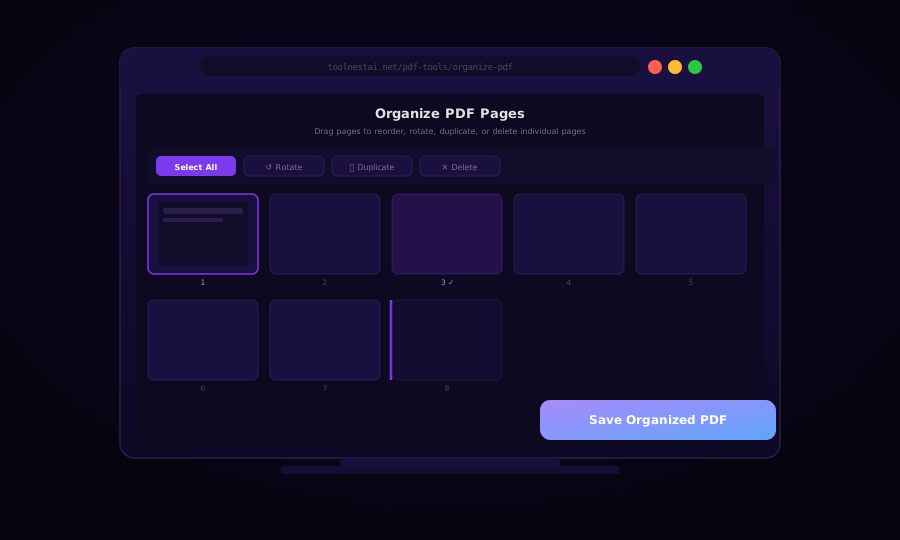
Organize PDF Pages: Reorder, Rotate, Duplicate, and Delete (Free)
Learn how to organize PDF pages with drag-and-drop reordering, rotation, duplication, and deletion — using browser tools, pdf-lib, Python pypdf, and pdftk.
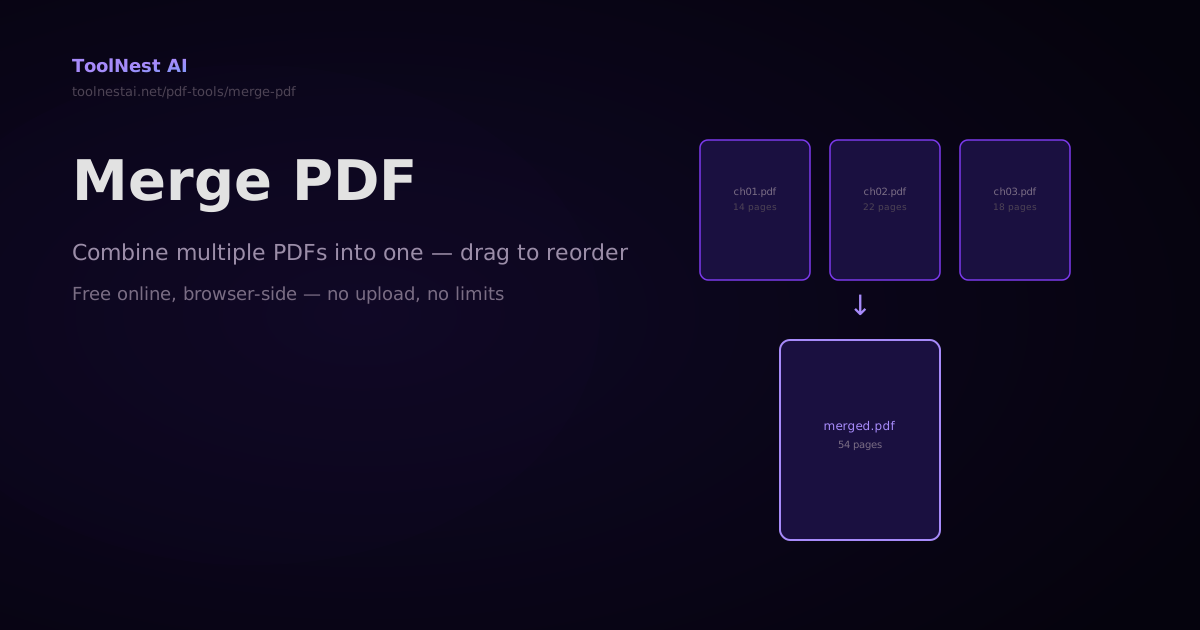
How to Merge PDFs — Combine Multiple PDF Files Into One Online or in Code
Merge any number of PDF files into a single document — drag to reorder, then combine. Plus step-by-step code with pdf-lib, pypdf, and Ghostscript. Free online with no sign-up.
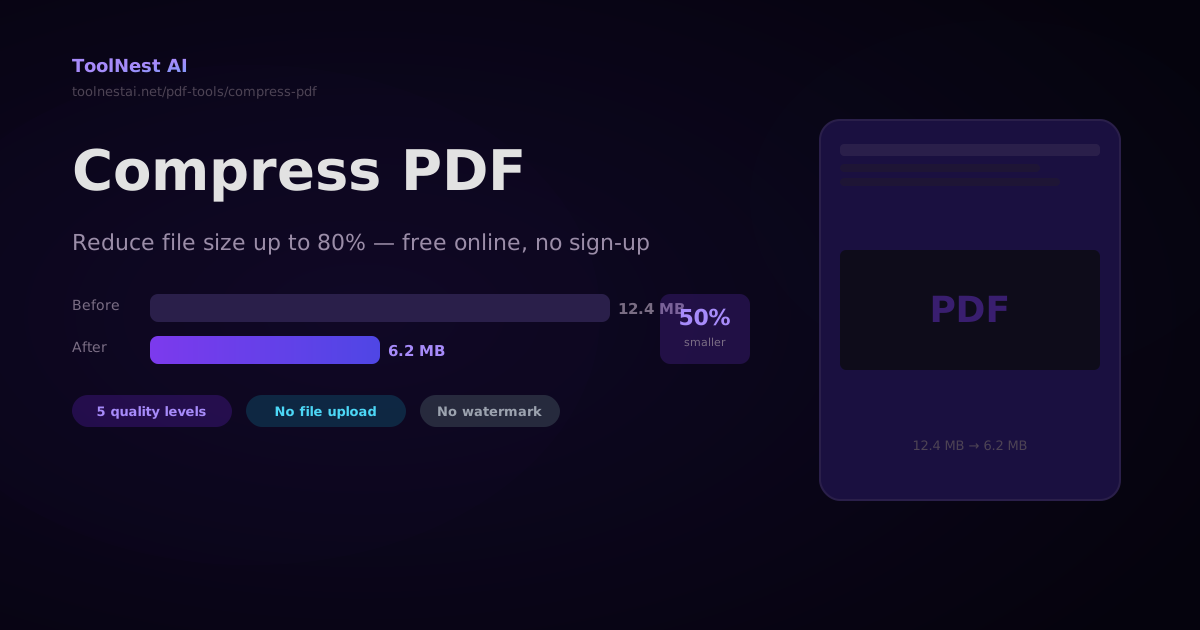
How to Compress a PDF — Reduce File Size Without Losing Quality
A complete guide to PDF compression — how it works, what affects file size, how to choose the right quality level, and how to compress PDFs with Ghostscript, pdf-lib, Python pypdf, and the ToolNest AI online tool.