Organize PDF Pages: Reorder, Rotate, Duplicate, and Delete (Free)
Learn how to organize PDF pages with drag-and-drop reordering, rotation, duplication, and deletion — using browser tools, pdf-lib, Python pypdf, and pdftk.
ToolNest AI Team
Author
Published
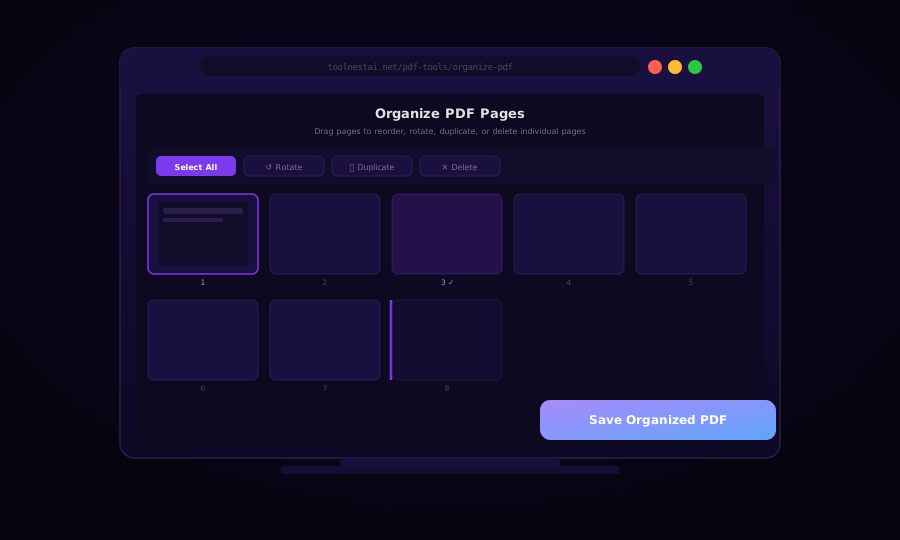
A PDF organizer is the Swiss Army knife of PDF editing: in a single session you can reorder pages, rotate sideways scans, delete blank pages, and duplicate pages that need to appear in multiple places — then save the result as a clean, reorganized file.
Unlike splitting or merging (which operate on whole files), page organization is surgical. You work at the page level, making precise decisions about what stays, what goes, and in what order. The most common use cases:
- Assembling report drafts — moving an executive summary to page 1 after the document was written bottom-up
- Fixing scanned documents — pages fed into a scanner upside-down or sideways
- Removing blanks — duplex-scanned documents often produce blank pages between content pages
- Duplicating a cover page — same cover at front and back of a document
The Four Core Operations
1. Reorder Pages
Page reordering is implemented internally as selecting a page from the source document and inserting it at a new index in the output document. There is no concept of "dragging" in the PDF spec itself — the order is determined by the sequence in which pages are written.
2. Rotate Pages
PDF pages have a Rotate property (0, 90, 180, 270 degrees) stored in the page dictionary. Rotation is metadata only — no pixel data is touched — making it an extremely fast, lossless operation. The displayed rotation is always clockwise from the PDF spec's perspective.
3. Duplicate Pages
Duplicating a page is done by copying the page object (including all its content streams and resources) and inserting it at the target position. Be aware that some PDF generators share resource dictionaries between pages — a good library will handle this transparently by copying the resource references correctly.
4. Delete Pages
Deletion means simply not including the page in the output document. The other pages' content is unaffected.
Reorder and Organize Pages with pdf-lib (JavaScript)
import { PDFDocument } from "pdf-lib";

async function organizePdf(pdfBytes, operations) {
  /**
   * operations: array describing the final page order and transformations
   * Example: [
   *   { sourceIndex: 2, rotation: 0 },   // was page 3, now page 1
   *   { sourceIndex: 0, rotation: 90 },  // was page 1, rotated 90°
   *   { sourceIndex: 1, rotation: 0 },   // was page 2, unchanged
   * ]
   */
  const srcPdf = await PDFDocument.load(pdfBytes);
  const outPdf = await PDFDocument.create();

  for (const op of operations) {
    const [copiedPage] = await outPdf.copyPages(srcPdf, [op.sourceIndex]);

    // Apply rotation (cumulative with existing page rotation)
    const existingRotation = copiedPage.getRotation().angle;
    copiedPage.setRotation(degrees((existingRotation + op.rotation) % 360));

    outPdf.addPage(copiedPage);
  }

  return outPdf.save();
}

// Helper: build operations array from a reordered page index array
// newOrder = [2, 0, 1] means: put old page 3 first, then page 1, then page 2
function buildOperations(newOrder, rotations = {}) {
  return newOrder.map((sourceIndex) => ({
    sourceIndex,
    rotation: rotations[sourceIndex] ?? 0,
  }));
}
To duplicate a page, include its sourceIndex twice in operations. To delete a page, simply omit its index from the operations array.
Python: pypdf Page Organizer
from pypdf import PdfReader, PdfWriter

def organize_pdf(input_path: str, output_path: str, page_order: list[int],
                  rotations: dict[int, int] | None = None):
    """
    page_order: new page order as 0-based source indices.
                e.g. [2, 0, 1] → old page 3 first, then page 1, then page 2
    rotations: dict of {output_position: degrees_to_add}
    """
    rotations = rotations or {}
    reader = PdfReader(input_path)
    writer = PdfWriter()

    for out_idx, src_idx in enumerate(page_order):
        page = reader.pages[src_idx]
        if out_idx in rotations:
            page.rotate(rotations[out_idx])   # Adds to existing rotation
        writer.add_page(page)

    with open(output_path, "wb") as f:
        writer.write(f)

    print(f"Organized: {len(page_order)} pages → {output_path}")


# Duplicate a page (include index twice)
def duplicate_page(input_path: str, output_path: str, page_idx: int, insert_at: int):
    reader = PdfReader(input_path)
    writer = PdfWriter()

    total = len(reader.pages)
    for i in range(total):
        writer.add_page(reader.pages[i])
        if i == insert_at - 1:
            writer.add_page(reader.pages[page_idx])  # Insert duplicate

    with open(output_path, "wb") as f:
        writer.write(f)


# Remove blank pages (heuristic: page content stream very small)
def remove_blank_pages(input_path: str, output_path: str, min_content_size: int = 200):
    reader = PdfReader(input_path)
    writer = PdfWriter()
    removed = 0

    for page in reader.pages:
        content = page.get("/Contents")
        size = len(content.get_object().get_data()) if content else 0
        if size >= min_content_size:
            writer.add_page(page)
        else:
            removed += 1

    with open(output_path, "wb") as f:
        writer.write(f)

    print(f"Removed {removed} blank pages, kept {len(writer.pages)}")
pdftk: Command-Line Page Organization
pdftk is the classic command-line PDF toolkit for page-level operations.
# Reorder: move page 3 to the front, then page 1, then page 2
pdftk input.pdf cat 3 1 2 output reorganized.pdf

# Delete page 5 from a 10-page PDF
pdftk input.pdf cat 1-4 6-10 output without-page5.pdf

# Rotate page 2 clockwise 90 degrees
pdftk input.pdf cat 1 2east 3-end output rotated.pdf
# Rotation codes: east=90° CW, west=90° CCW, south=180°, north=0°

# Duplicate page 1 (appears twice)
pdftk input.pdf cat 1 1-end output with-duplicate-cover.pdf

# Reverse all pages
pdftk input.pdf cat end-1 output reversed.pdf

# Combine: reverse odd pages for booklet printing
pdftk A=input.pdf cat A1-end Aend-1 output booklet.pdf
pdftk's cat command is extremely flexible — you can specify ranges, individual pages, or reversed ranges, and combine them in any order.
Ghostscript: Reorder Pages
For complex page manipulations without pdftk, Ghostscript can select and reorder pages:
# Extract pages 1, 3, 5 in that order
gs -dNOPAUSE -dBATCH -sDEVICE=pdfwrite \
   -dFirstPage=1 -dLastPage=1 -sOutputFile=p1.pdf input.pdf
gs -dNOPAUSE -dBATCH -sDEVICE=pdfwrite \
   -dFirstPage=3 -dLastPage=3 -sOutputFile=p3.pdf input.pdf
gs -dNOPAUSE -dBATCH -sDEVICE=pdfwrite \
   -dFirstPage=5 -dLastPage=5 -sOutputFile=p5.pdf input.pdf

# Merge back in new order
gs -dNOPAUSE -dBATCH -sDEVICE=pdfwrite \
   -sOutputFile=reorganized.pdf p1.pdf p3.pdf p5.pdf
For simpler reordering, combining pdftk's cat with shell scripting is almost always faster and cleaner than multi-step Ghostscript extraction.
Building a Drag-and-Drop Page Organizer (React)
A visual page organizer in the browser needs three things: page thumbnails (from PDF.js), a drag-and-drop list (from a library like @dnd-kit/core), and a pdf-lib export function.
import { useState, useCallback } from "react";
import { DndContext, closestCenter } from "@dnd-kit/core";
import { SortableContext, arrayMove, useSortable } from "@dnd-kit/sortable";
import { CSS } from "@dnd-kit/utilities";

function PageThumbnail({ id, pageNum, thumbnailUrl, rotation, onRotate, onDelete }) {
  const { attributes, listeners, setNodeRef, transform, transition } = useSortable({ id });
  const style = { transform: CSS.Transform.toString(transform), transition };

  return (
    <div ref={setNodeRef} style={style} {...attributes} {...listeners}
         className="page-thumbnail">
      <img
        src={thumbnailUrl}
        alt={`Page ${pageNum}`}
        style={{ transform: `rotate(${rotation}deg)` }}
      />
      <div className="page-controls">
        <button onClick={() => onRotate(id, -90)}>↺</button>
        <button onClick={() => onRotate(id, 90)}>↻</button>
        <button onClick={() => onDelete(id)}>✕</button>
      </div>
      <span className="page-number">{pageNum}</span>
    </div>
  );
}

function PdfOrganizer({ pages, onOrderChange }) {
  const [items, setItems] = useState(pages.map((p) => ({ ...p, rotation: 0 })));

  const handleDragEnd = ({ active, over }) => {
    if (active.id !== over?.id) {
      setItems((prev) => {
        const oldIdx = prev.findIndex((p) => p.id === active.id);
        const newIdx = prev.findIndex((p) => p.id === over.id);
        const reordered = arrayMove(prev, oldIdx, newIdx);
        onOrderChange(reordered);
        return reordered;
      });
    }
  };

  const handleRotate = (id, delta) => {
    setItems((prev) =>
      prev.map((p) =>
        p.id === id ? { ...p, rotation: (p.rotation + delta + 360) % 360 } : p
      )
    );
  };

  const handleDelete = (id) => {
    setItems((prev) => prev.filter((p) => p.id !== id));
  };

  return (
    <DndContext collisionDetection={closestCenter} onDragEnd={handleDragEnd}>
      <SortableContext items={items.map((p) => p.id)}>
        <div className="page-grid">
          {items.map((page) => (
            <PageThumbnail key={page.id} {...page}
              onRotate={handleRotate} onDelete={handleDelete} />
          ))}
        </div>
      </SortableContext>
    </DndContext>
  );
}
Frequently Asked Questions
Does organizing pages change the PDF quality?
No. Reordering and rotation are metadata operations — no re-rendering or re-compression occurs. The image and text quality in each page is completely unchanged.
Can I organize a password-protected PDF?
You need to provide the owner password (or a password that grants full permissions) before organizing. Most tools prompt for a password if the PDF is locked.
How do I move a page to the very beginning of a PDF?
In pdftk: pdftk input.pdf cat N 1-<N-1> <N+1>-end output out.pdf where N is the page you want at the front. In the visual tool, drag the page thumbnail to the first position.
Can I undo page deletions?
Once you save the output PDF, the deleted pages are gone from that file. Always keep a backup of your original PDF before reorganizing. In browser tools, the original file on your device is never modified — the organized version is a new download.
Why does my PDF look different after rotating pages?
If page content has a different visual orientation than the PDF's Rotate property suggests, rotating can sometimes reveal that the content was authored at a different angle. This is especially common with scanned documents where the physical scan and the Rotate property were set inconsistently.
Is there a limit to how many pages I can organize?
In browser-based tools, very large PDFs (500+ pages) may be slow to render thumbnails. For large files, CLI tools (pdftk, Ghostscript, pypdf) are faster. pdftk can handle thousands of pages without issue.
About the author
ToolNest AI Team
The ToolNest AI editorial team writes in-depth guides on PDF tools, image processing, and developer productivity.
Related Articles
How to Delete Pages from a PDF — Free Online Tool and Code Guide
Delete specific pages from any PDF — click to select, type a range, or use code with pdf-lib, pypdf, or Ghostscript. Instant browser-side processing, no file upload required.

How to Rotate PDF Pages — Fix Sideways Scans and Upside-Down Pages
Rotate individual pages or all pages in a PDF by 90°, 180°, or 270°. With code examples in pdf-lib, pypdf, and Ghostscript. Free online tool, no upload needed.
How to Split a PDF — Divide Pages by Range, Interval, or One Page at a Time
Split a PDF into multiple files by page range, every N pages, or one page per file. With code examples using pdf-lib, pypdf, and pdftk. Free online, no upload, no sign-up.