How to Password Protect a PDF — Encryption, Permissions, and Ownership Explained
Add a password to any PDF with AES-256 encryption. Control open passwords, owner passwords, and permissions (print, copy, edit). With code in pdf-lib, pypdf, and Ghostscript.
ToolNest AI Team
Author
Published
A contract ready to send to a client. A salary report going to HR. A confidential proposal that should be read but not modified. PDF password protection prevents unauthorized access, editing, copying, or printing — and with AES-256 encryption, it's cryptographically secure.
Protect any PDF for free with the ToolNest AI Protect PDF tool — set an open password, an owner password, choose permissions, and choose AES-256 or AES-128 encryption, all in your browser.
User Password vs. Owner Password
PDF has two distinct password types:
User password (open password): Required to open and view the document. If set, anyone trying to open the PDF must enter this password. This is the password you give to authorized readers.
Owner password (permissions password): Controls what the opener can do with the PDF. It gates actions like printing, copying text, editing, adding annotations, and filling forms. The owner password is set by the document creator and is not typically shared with readers.
You can set:
- Only a user password (readers must enter it to open)
- Only an owner password (document opens freely, but editing/printing restrictions apply)
- Both passwords (opening requires the user password; full control requires the owner password)
Permissions You Can Control
| Permission | Controlled by owner password |
|---|---|
| Printing | Allow/deny printing (high quality or low quality) |
| Copying text | Allow/deny text and image extraction |
| Editing content | Allow/deny modifying the document |
| Adding annotations | Allow/deny comments and form field additions |
| Form filling | Allow/deny filling interactive form fields |
| Accessibility | Allow/deny content extraction for accessibility tools |
Note: Permission restrictions only apply in compliant PDF readers. They are not enforced at the operating system level and can be bypassed by technical users with the right tools.
Encryption Standards
| Standard | Key size | PDF version | Notes |
|---|---|---|---|
| AES-256 | 256-bit | PDF 1.7 (Acrobat 9+) | Recommended — modern standard |
| AES-128 | 128-bit | PDF 1.6 (Acrobat 7+) | Widely compatible |
| RC4-128 | 128-bit | PDF 1.4 | Legacy — avoid for new documents |
| RC4-40 | 40-bit | PDF 1.1 | Weak — do not use |
Always use AES-256 for new documents unless you need compatibility with very old PDF readers.
Protecting PDFs in Code
JavaScript with pdf-lib
import { PDFDocument, EncryptionAlgorithm } from 'pdf-lib';
import fs from 'fs';

async function protectPdf(inputPath, outputPath, options) {
  const {
    userPassword = '',          // Empty = no password required to open
    ownerPassword,              // Required to change permissions
    permissions = {
      printing: 'highResolution',   // 'highResolution', 'lowResolution', false
      modifying: false,
      copying: false,
      annotating: true,
      fillingForms: true,
      contentAccessibility: true,
      documentAssembly: false,
    },
    encryptionAlgorithm = EncryptionAlgorithm.AES_256,
  } = options;

  const pdfBytes = fs.readFileSync(inputPath);
  const pdfDoc = await PDFDocument.load(pdfBytes);

  const encrypted = await pdfDoc.encrypt({
    userPassword,
    ownerPassword,
    permissions,
    encryptionAlgorithm,
  });

  fs.writeFileSync(outputPath, await pdfDoc.save());
  console.log(`Protected PDF saved to ${outputPath}`);
}

// Password protect with AES-256, allow printing but deny copying/editing
await protectPdf('document.pdf', 'protected.pdf', {
  userPassword: 'ViewOnly123!',
  ownerPassword: 'AdminSecret456!',
  permissions: {
    printing: 'highResolution',
    modifying: false,
    copying: false,
    annotating: false,
    fillingForms: false,
    contentAccessibility: true,
    documentAssembly: false,
  },
  encryptionAlgorithm: EncryptionAlgorithm.AES_256,
});
Python with pypdf
from pypdf import PdfReader, PdfWriter

def protect_pdf(
    input_path: str,
    output_path: str,
    user_password: str = '',
    owner_password: str = '',
    allow_print: bool = True,
    allow_copy: bool = False,
    allow_modify: bool = False,
):
    reader = PdfReader(input_path)
    writer = PdfWriter()

    for page in reader.pages:
        writer.add_page(page)

    # Build permissions flags (PDF spec §7.6.4.2)
    permissions = 0
    if allow_print:  permissions |= (1 << 2)  # bit 3: print
    if allow_modify: permissions |= (1 << 3)  # bit 4: modify
    if allow_copy:   permissions |= (1 << 4)  # bit 5: copy

    writer.encrypt(
        user_password=user_password,
        owner_password=owner_password or user_password + '_owner',
        use_128bit=True,  # AES-128; for AES-256 use pypdf >= 3.x with algorithm param
    )

    with open(output_path, 'wb') as f:
        writer.write(f)

protect_pdf('input.pdf', 'protected.pdf',
            user_password='ViewOnly123!',
            owner_password='AdminSecret456!',
            allow_print=True,
            allow_copy=False)
Ghostscript
# Password protect with owner and user passwords
gs -dBATCH -dNOPAUSE -dSAFER \
   -sDEVICE=pdfwrite \
   -dEncryptionR=4 \
   -dKeyLength=128 \
   -sOwnerPassword='AdminSecret456!' \
   -sUserPassword='ViewOnly123!' \
   -dPermissions=-3904 \
   -sOutputFile=protected.pdf \
   input.pdf

# -dPermissions is a bitmask. -3904 = allow printing, deny all else.
# Common permission values:
# -4 = deny all
# -3904 = allow printing only
# -60 = allow printing, copying, and annotations
Frequently Asked Questions
How strong is AES-256 PDF encryption?
AES-256 is the current gold standard for symmetric encryption, used in banking, government, and TLS. A brute-force attack against AES-256 is computationally infeasible. The weakness in practice is usually the password itself — a short or common password can be dictionary-attacked in seconds. Use a strong, unique password (12+ characters, mixed case, numbers, symbols).
What happens if I lose the user password?
If you don't have the owner password either, recovery is practically impossible with modern AES-256 encryption. Store passwords in a password manager. For older PDF encryption (RC4-40 or RC4-128), recovery tools exist, but they won't help with AES.
Can I protect a PDF without requiring a password to open it, but still restrict editing?
Yes — set only an owner password (no user password). The PDF opens normally for anyone, but the permissions you configured (deny printing, deny copying, deny editing) are enforced in compliant readers.
Will permissions restrictions stop determined users?
No. Permission restrictions are advisory — they are enforced by compliant PDF readers, but a user with technical knowledge and the right tools can remove restrictions or extract content. Permissions are a soft control, not a hard security barrier. For truly sensitive content, use a user (open) password so the content is encrypted and unreadable without it.
About the author
ToolNest AI Team
The ToolNest AI team builds free tools that help developers, marketers, and creators do more online — faster.
Related Articles
How to Unlock a Password-Protected PDF — Remove Restrictions Safely
Remove the password from a PDF you own — enter the password, download an unlocked copy. Plus code examples with pdf-lib, pypdf, and qpdf for batch unlocking.
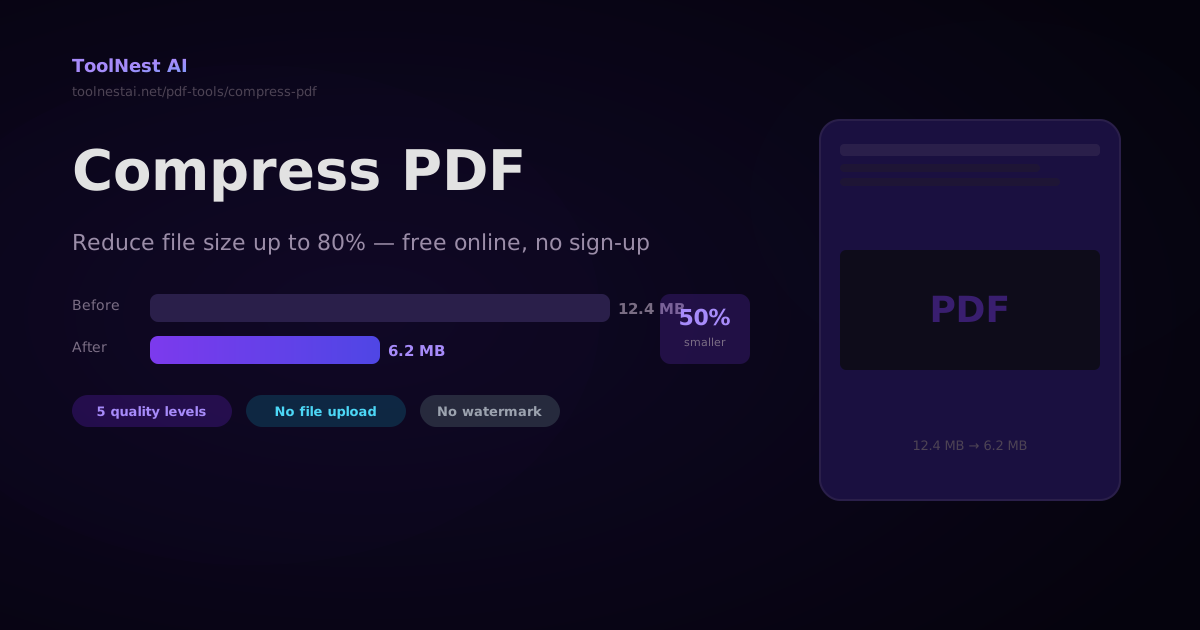
How to Compress a PDF — Reduce File Size Without Losing Quality
A complete guide to PDF compression — how it works, what affects file size, how to choose the right quality level, and how to compress PDFs with Ghostscript, pdf-lib, Python pypdf, and the ToolNest AI online tool.
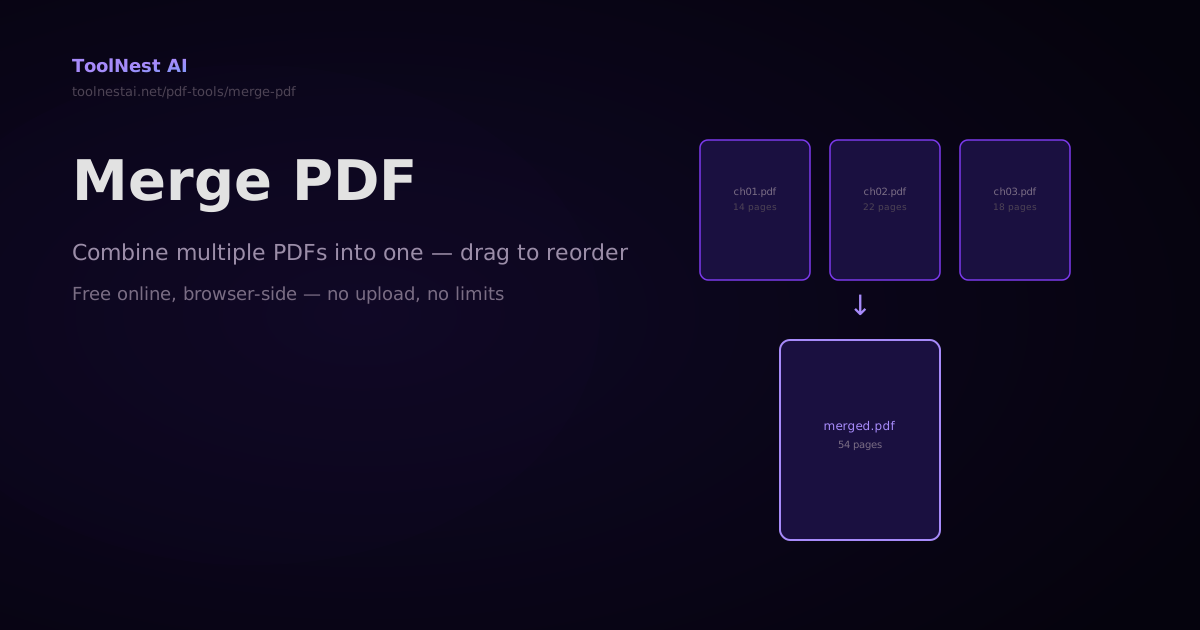
How to Merge PDFs — Combine Multiple PDF Files Into One Online or in Code
Merge any number of PDF files into a single document — drag to reorder, then combine. Plus step-by-step code with pdf-lib, pypdf, and Ghostscript. Free online with no sign-up.