How to Unlock a Password-Protected PDF — Remove Restrictions Safely
Remove the password from a PDF you own — enter the password, download an unlocked copy. Plus code examples with pdf-lib, pypdf, and qpdf for batch unlocking.
ToolNest AI Team
Author
Published
You set a password on a PDF months ago, and now you need to share it with a colleague or merge it with another document — but the password is an obstacle. Or you received a PDF with editing restrictions that prevent you from doing something legitimate, like copying text for a citation.
Unlock any PDF for free with the ToolNest AI Unlock PDF tool — enter the password, get a clean unlocked copy in seconds.
Legal note: Only unlock PDFs you own or have explicit permission to modify. Bypassing passwords on PDFs you don't have authorization to access is illegal in most jurisdictions.
What "Unlocking" Means
There are two types of PDF locks:
Open password (user password): Required to view the document. Without it, the PDF is encrypted and unreadable. Unlocking requires supplying the correct password — there is no legitimate shortcut.
Permission restrictions (owner password): The document opens without a password, but editing, copying, printing, or other actions are blocked. These restrictions are enforced by compliant PDF readers but can be removed by the PDF creator using the owner password.
Unlocking PDFs in Code
JavaScript with pdf-lib
import { PDFDocument } from 'pdf-lib';
import fs from 'fs';

async function unlockPdf(inputPath, outputPath, password) {
  const pdfBytes = fs.readFileSync(inputPath);

  // pdf-lib automatically decrypts when you provide the password
  const pdfDoc = await PDFDocument.load(pdfBytes, {
    password,          // User or owner password
    ignoreEncryption: false,
  });

  // Save without encryption — the resulting PDF has no password
  const unencryptedBytes = await pdfDoc.save();
  fs.writeFileSync(outputPath, unencryptedBytes);
  console.log(`Unlocked PDF saved to ${outputPath}`);
}

await unlockPdf('protected.pdf', 'unlocked.pdf', 'ViewOnly123!');
Python with pypdf
from pypdf import PdfReader, PdfWriter

def unlock_pdf(input_path: str, output_path: str, password: str) -> bool:
    reader = PdfReader(input_path)

    if not reader.is_encrypted:
        print("PDF is not encrypted — copying as-is")
        # Still re-save to remove any permission restrictions

    # Attempt decryption with provided password
    result = reader.decrypt(password)
    if result == 0:
        print("Wrong password")
        return False

    writer = PdfWriter()
    for page in reader.pages:
        writer.add_page(page)

    # Write without encryption
    with open(output_path, 'wb') as f:
        writer.write(f)

    print(f"Unlocked → {output_path}")
    return True

success = unlock_pdf('protected.pdf', 'unlocked.pdf', 'ViewOnly123!')
qpdf (Command Line — Recommended for Batch)
qpdf is the most robust command-line tool for PDF encryption/decryption:
# Unlock with user password
qpdf --password='ViewOnly123!' --decrypt protected.pdf unlocked.pdf

# Unlock with owner password (removes all restrictions)
qpdf --password='AdminSecret456!' --decrypt protected.pdf unlocked.pdf

# Batch unlock all PDFs in a directory
for f in *.pdf; do
  qpdf --password='MyPassword' --decrypt "$f" "unlocked_${f}" 2>/dev/null || echo "Failed: $f"
done

# Check if a PDF is encrypted
qpdf --show-encryption protected.pdf
Ghostscript
gs -dBATCH -dNOPAUSE -dSAFER \
   -sDEVICE=pdfwrite \
   -sPDFPassword='ViewOnly123!' \
   -sOutputFile=unlocked.pdf \
   protected.pdf
Frequently Asked Questions
Can I unlock a PDF without knowing the password?
Not through legitimate means for AES-256 encrypted PDFs. Older encryption (RC4-40 or RC4-128) can sometimes be cracked with specialized software, but modern AES-256 PDFs are effectively unbreakable without the password. If you need access to a PDF you own but lost the password, contact the original creator.
What is the difference between removing a user password and an owner password?
Removing the user password makes the document openable without any password. Removing the owner password removes editing and printing restrictions. With pdf-lib and pypdf, providing the user password decrypts the content; providing the owner password additionally removes restrictions. qpdf with --decrypt handles both cases depending on which password you supply.
Will unlocking a PDF change its content or quality?
No. Unlocking simply removes the encryption wrapper. Pages, images, fonts, form fields, and all other content remain identical.
Can I unlock a PDF on my phone or tablet?
Yes — the ToolNest AI tool runs in any modern browser, including mobile browsers. No app installation required.
About the author
ToolNest AI Team
The ToolNest AI team builds free tools that help developers, marketers, and creators do more online — faster.
Related Articles
How to Password Protect a PDF — Encryption, Permissions, and Ownership Explained
Add a password to any PDF with AES-256 encryption. Control open passwords, owner passwords, and permissions (print, copy, edit). With code in pdf-lib, pypdf, and Ghostscript.
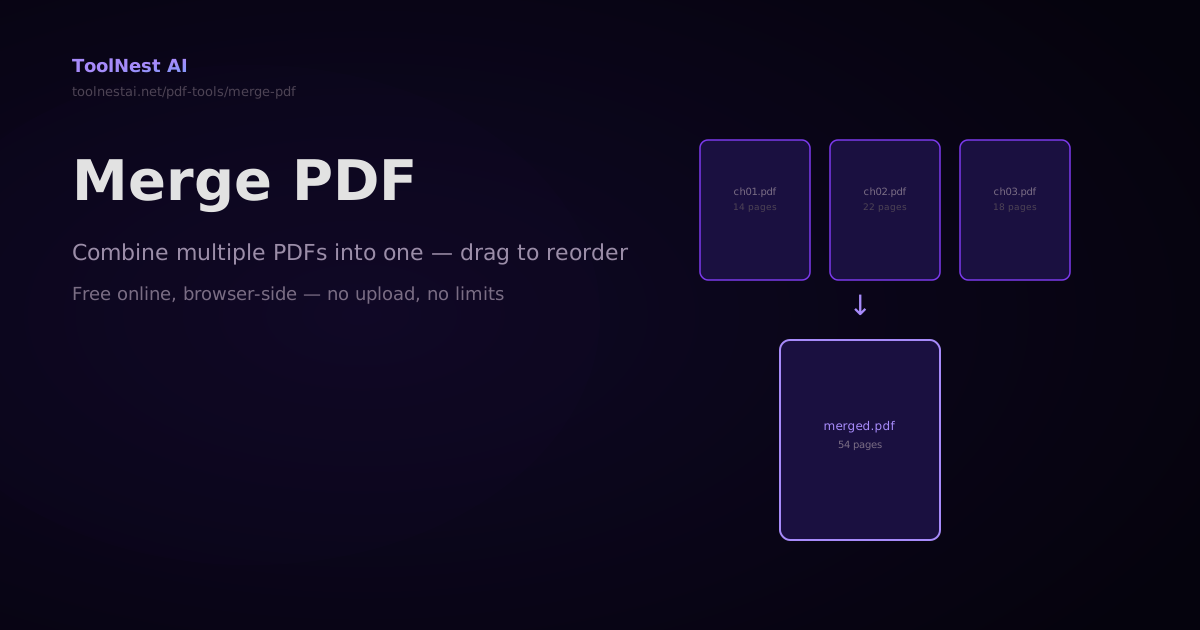
How to Merge PDFs — Combine Multiple PDF Files Into One Online or in Code
Merge any number of PDF files into a single document — drag to reorder, then combine. Plus step-by-step code with pdf-lib, pypdf, and Ghostscript. Free online with no sign-up.
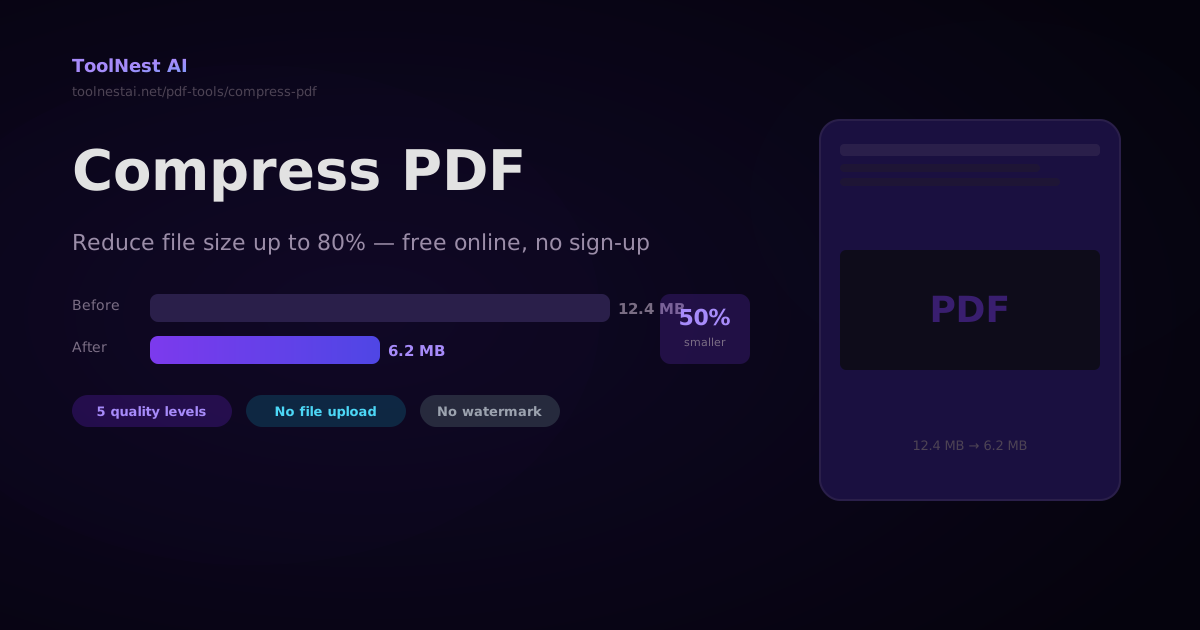
How to Compress a PDF — Reduce File Size Without Losing Quality
A complete guide to PDF compression — how it works, what affects file size, how to choose the right quality level, and how to compress PDFs with Ghostscript, pdf-lib, Python pypdf, and the ToolNest AI online tool.