PowerPoint to PDF: Convert .pptx Presentations to PDF (Free)
Learn how to convert PowerPoint presentations to PDF using LibreOffice, Python python-pptx, and PowerPoint's built-in export. Each slide becomes a PDF page with layout preserved.
ToolNest AI Team
Author
Published
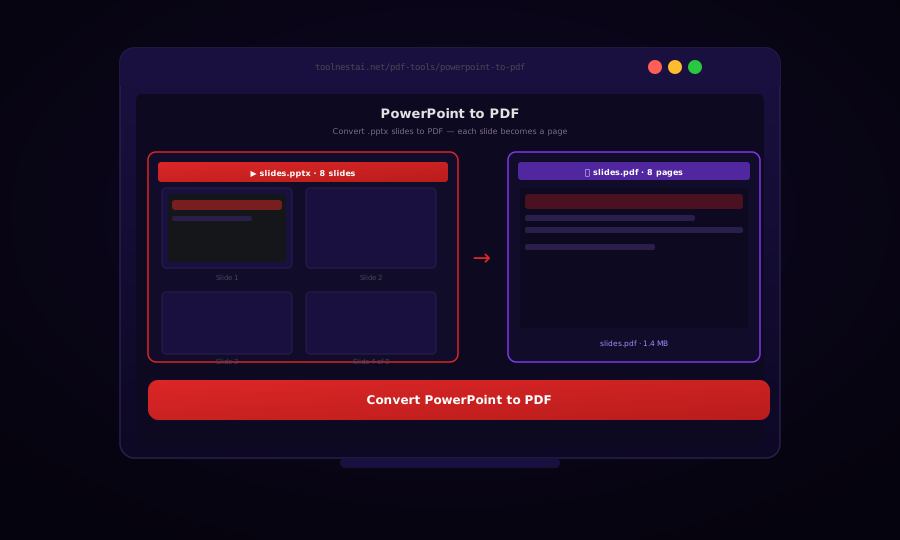
Converting a PowerPoint presentation to PDF is the standard way to share slides for viewing — preserving fonts, animations (as static frames), and layout exactly as designed, without requiring PowerPoint to be installed on the recipient's device.
Convert PowerPoint to PDF free →
A PDF of a presentation is also the standard format for conference submissions, archive copies, and speaker notes handouts. Most printing services accept presentation PDFs directly.
Microsoft PowerPoint Built-In Export
PowerPoint's own export produces the highest-quality PDF for slides created in PowerPoint.
Via GUI:
- File → Export → Create PDF/XPS
- Options: Standard (print quality) or Minimum Size (screen)
- Click Options to choose: Slides / Handouts / Notes Pages / Outline View
- Click Publish
PowerShell automation (Windows, PowerPoint installed):
$ppt = New-Object -ComObject PowerPoint.Application
$ppt.Visible = [Microsoft.Office.Core.MsoTriState]::msoTrue
$presentation = $ppt.Presentations.Open("C:\path\to\slides.pptx")
$presentation.ExportAsFixedFormat(
    "C:\path\to\slides.pdf",
    2,          # ppFixedFormatTypePDF
    2,          # ppFixedFormatIntentPrint
    $false,     # HandoutOrder
    1,          # ppPrintHandoutVerticalFirst
    2,          # ppPrintOutputSlides
    $false,     # PrintHiddenSlides
    $null,      # PrintRange (null = all slides)
    1,          # RangeType: ppPrintAll
    "",         # SlideShowName
    $true,      # IncludeDocProperties
    $true,      # KeepIRM
    1,          # DocStructureTags: ppFixedFormatDocStructureTagsType1
    $true,      # BitmapMissingFonts
    $false,     # UseISO19005_1
    $null       # ExternalExporter
)
$presentation.Close()
$ppt.Quit()
LibreOffice Impress: Free Cross-Platform Conversion
# Convert single .pptx file to PDF
libreoffice --headless --convert-to pdf presentation.pptx

# Convert with output directory
libreoffice --headless --convert-to pdf --outdir ./pdfs presentation.pptx

# Batch: all PowerPoint files
libreoffice --headless --convert-to pdf *.pptx *.ppt

# Install on Ubuntu/Debian
sudo apt-get install libreoffice-impress
LibreOffice Impress produces high-fidelity PDFs for most presentations. Very complex slide designs (3D transitions, smart art, custom motion paths) may render differently. Font substitution can affect appearance if presentation-specific fonts are not installed.
Python: python-pptx + Subprocess (LibreOffice)
import subprocess
from pathlib import Path

def pptx_to_pdf(pptx_path: str, output_dir: str = None) -> str:
    input_path = Path(pptx_path).resolve()
    out_dir = Path(output_dir) if output_dir else input_path.parent
    out_dir.mkdir(parents=True, exist_ok=True)

    result = subprocess.run(
        [
            "libreoffice",
            "--headless",
            "--convert-to", "pdf",
            "--outdir", str(out_dir),
            str(input_path),
        ],
        capture_output=True,
        text=True,
        timeout=120,
    )

    if result.returncode != 0:
        raise RuntimeError(f"Conversion failed: {result.stderr}")

    pdf_path = out_dir / (input_path.stem + ".pdf")
    return str(pdf_path)


def batch_pptx_to_pdf(input_dir: str, output_dir: str):
    files = list(Path(input_dir).glob("*.pptx")) + list(Path(input_dir).glob("*.ppt"))
    print(f"Converting {len(files)} presentations...")

    for i, path in enumerate(files, start=1):
        try:
            pdf = pptx_to_pdf(str(path), output_dir)
            print(f"  [{i}/{len(files)}] ✓ {Path(pdf).name}")
        except Exception as e:
            print(f"  [{i}/{len(files)}] ✗ {path.name}: {e}")

batch_pptx_to_pdf("./presentations", "./pdfs")
Python: Image-Based PPTX to PDF with python-pptx + Pillow
When LibreOffice is not available (e.g., constrained Docker environments), an image-based approach rasterizes each slide using python-pptx's slide rendering and combines the images into a PDF:
from pptx import Presentation
from pptx.util import Inches
from PIL import Image
import io
import subprocess
from pathlib import Path

def pptx_to_pdf_via_images(pptx_path: str, pdf_path: str, dpi: int = 150):
    """
    Fallback: convert each slide to an image, then combine into PDF.
    Requires LibreOffice for slide-to-image rendering.
    """
    # Step 1: Convert PPTX to PNG images (one per slide) via LibreOffice
    temp_dir = Path("./temp_slides")
    temp_dir.mkdir(exist_ok=True)

    subprocess.run(
        ["libreoffice", "--headless", "--convert-to", "png", "--outdir", str(temp_dir), pptx_path],
        check=True
    )

    # Step 2: Collect and combine images into PDF with Pillow
    png_files = sorted(temp_dir.glob("*.png"))
    if not png_files:
        raise RuntimeError("No slide images generated")

    images = [Image.open(f).convert("RGB") for f in png_files]
    first = images[0]
    rest = images[1:]

    first.save(pdf_path, "PDF", resolution=dpi, save_all=True, append_images=rest)
    print(f"Saved: {pdf_path} ({len(images)} slides)")

    # Cleanup
    for f in png_files:
        f.unlink()
    temp_dir.rmdir()
Pandoc: Lightweight CLI Conversion
Pandoc can convert PPTX to PDF via a Beamer (LaTeX) template, which is useful for academic/technical presentations:
# Convert PPTX to PDF via Beamer
pandoc presentation.pptx -t beamer -o presentation.pdf

# With a custom Beamer theme
pandoc presentation.pptx -t beamer \
  -V theme:metropolis \
  -o presentation.pdf

# Extract to HTML for inspection
pandoc presentation.pptx -o presentation.html
Note: Pandoc's Beamer output reimplements the content as a LaTeX presentation and does not faithfully reproduce the original visual design. Use it only when you want to convert slide content to a clean academic format, not for preserving branding.
Notes Pages and Handouts
PowerPoint presentations often have speaker notes attached to slides. To include notes in the PDF:
Microsoft PowerPoint: File → Export → Create PDF/XPS → Options → Publish What: Notes Pages
LibreOffice headless with notes:
# LibreOffice can export Notes view via the filter string
libreoffice --headless \
  --convert-to "pdf:impress_pdf_Export:ExportNotesPages=1" \
  presentation.pptx
python-pptx to extract notes text:
from pptx import Presentation

def extract_notes(pptx_path: str) -> list[dict]:
    prs = Presentation(pptx_path)
    slides_notes = []

    for i, slide in enumerate(prs.slides, start=1):
        notes_text = ""
        if slide.has_notes_slide:
            notes_frame = slide.notes_slide.notes_text_frame
            notes_text = notes_frame.text

        slides_notes.append({"slide": i, "notes": notes_text})

    return slides_notes
Frequently Asked Questions
Does the PDF preserve slide animations?
No. PDF is a static format — animations, transitions, and video are not preserved. Each slide is rendered as a static frame in its final (after-animation) state.
Why do some fonts look different in the converted PDF?
If the presentation uses fonts not installed on the conversion machine, LibreOffice substitutes a fallback font. Install the same fonts used in the presentation on the conversion machine, or embed all fonts before converting (Format → Character → Character → select "Embed fonts" in PowerPoint).
Can I convert only specific slides?
In PowerPoint's export dialog, choose "Slides from: X to: Y". In LibreOffice headless mode, there is no direct slide range option — extract specific pages from the resulting PDF using pdftk or pypdf.
How do I produce a handout PDF (multiple slides per page)?
PowerPoint: Export → Options → Publish What: Handouts → Slides per page (2, 3, 4, 6, or 9). LibreOffice: use the Handout View before exporting. Python approach: convert the full PDF, then use pypdf or pdf-lib to arrange multiple slide pages onto each output page.
What is the best format to share a presentation for viewing?
PDF is the standard choice for read-only sharing — it works on every device without PowerPoint. For interactive sharing with maintained animations, consider PowerPoint Online, Google Slides (share link), or PPSX (PowerPoint Show) format.
Does PowerPoint to PDF work on Linux without a desktop?
Yes. LibreOffice in headless mode (the --headless flag) runs without a display server (no X11 or Wayland required). This makes it suitable for server-side conversion in Docker containers and CI/CD pipelines.
About the author
ToolNest AI Team
The ToolNest AI editorial team writes in-depth guides on PDF tools, image processing, and developer productivity.
Related Articles
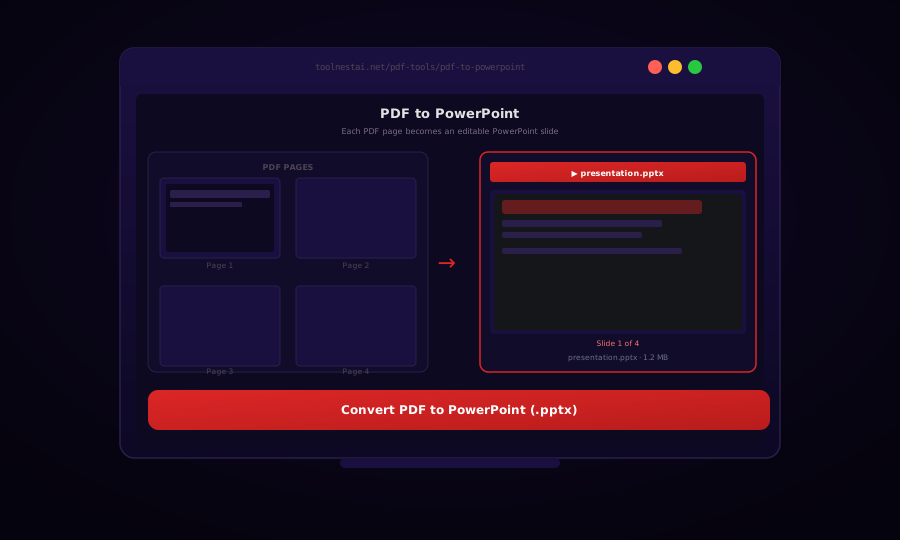
PDF to PowerPoint: Convert PDF Slides to Editable .pptx (Free)
Learn how to convert PDF files to PowerPoint presentations using LibreOffice, Python python-pptx with PDF.js, and Aspose. Each PDF page becomes an editable slide.
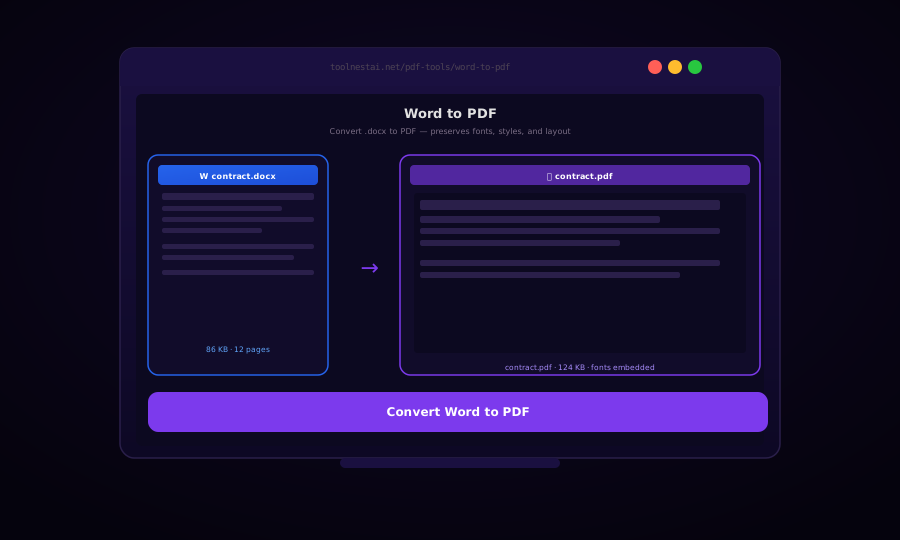
Word to PDF: Convert .docx to PDF Free — Preserve Fonts and Layout
Learn how to convert Word documents (.docx) to PDF using LibreOffice, Python python-docx2pdf, Pandoc, and the Microsoft Word built-in export. Preserve fonts, styles, and page layout.
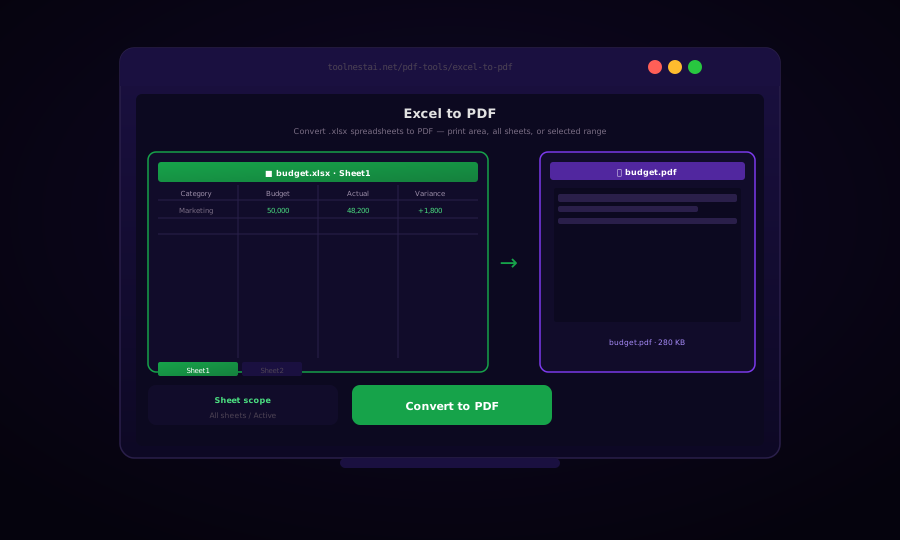
Excel to PDF: Convert .xlsx Spreadsheets to PDF (Free)
Learn how to convert Excel spreadsheets to PDF using LibreOffice, Python openpyxl and reportlab, and Excel's built-in export. Control print area, page breaks, and which sheets to include.