PDF to PowerPoint: Convert PDF Slides to Editable .pptx (Free)
Learn how to convert PDF files to PowerPoint presentations using LibreOffice, Python python-pptx with PDF.js, and Aspose. Each PDF page becomes an editable slide.
ToolNest AI Team
Author
Published
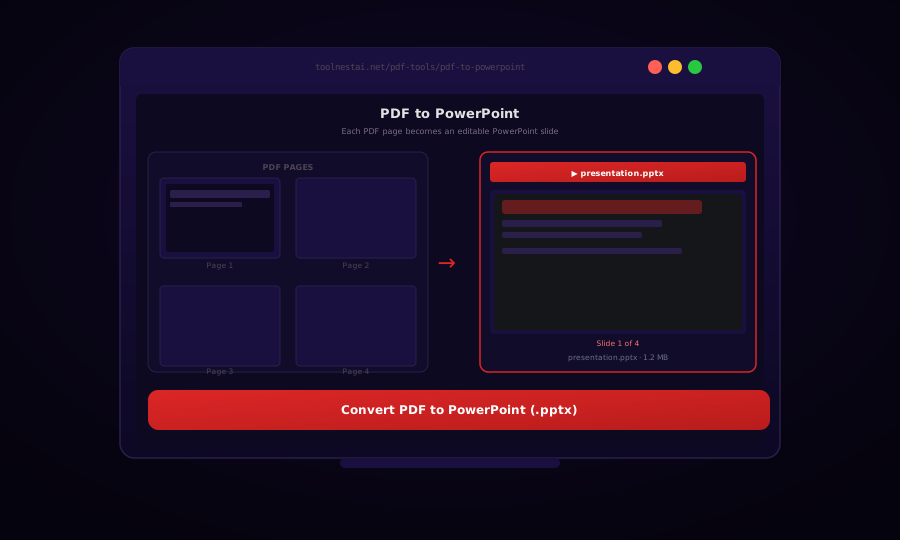
When a presentation was sent to you as a PDF and you need to edit the slides, re-present with your own branding, or extract specific content, converting it back to a PowerPoint file is the natural first step. The conversion turns each PDF page into a separate slide.
Convert PDF to PowerPoint free →
There are two fundamentally different approaches to PDF-to-PowerPoint conversion, and the one you choose determines what you can do with the result:
- Image-based: Each PDF page is rasterized into an image that is placed as the slide background. Layout is preserved perfectly, but text is not editable — it is part of the image.
- Text-extraction-based: Text, shapes, and images are extracted and placed as separate PowerPoint objects. Text becomes editable but layout may shift.
For presentations received from others that you want to re-use text from, image-based is reliable but you'll need to retype or copy text. For slides you originally created in PowerPoint and exported to PDF, text-extraction gives editable results.
LibreOffice Impress: Free Desktop Conversion
LibreOffice Impress can open PDFs and save them as .pptx format. It uses the image-based approach by default.
# Convert PDF to PPTX (headless / no GUI)
libreoffice --headless --convert-to pptx input.pdf

# Convert to PPTX with output directory
libreoffice --headless --convert-to pptx --outdir ./output input.pdf

# Batch convert all PDFs in folder
libreoffice --headless --convert-to pptx *.pdf
LibreOffice imports each PDF page as an image-filled slide. The output is immediately presentable and preserves the visual appearance exactly.
Python: Image-Based PDF to PPTX with python-pptx
This approach converts each PDF page to an image (using pdf2image) and places it as the full-slide background — perfect when layout fidelity is more important than editability.
from pdf2image import convert_from_path
from pptx import Presentation
from pptx.util import Inches, Pt
from pptx.enum.text import PP_ALIGN
from PIL import Image
import io

def pdf_to_pptx_image(pdf_path: str, pptx_path: str, dpi: int = 150):
    """
    Image-based conversion: each PDF page → full-slide image.
    High fidelity, text is not editable.
    """
    pages = convert_from_path(pdf_path, dpi=dpi)

    # Detect aspect ratio from first page
    first_w, first_h = pages[0].size
    aspect = first_w / first_h

    prs = Presentation()

    # Set slide dimensions to match PDF page aspect ratio
    slide_width = Inches(10)
    slide_height = Inches(10 / aspect)
    prs.slide_width = slide_width
    prs.slide_height = slide_height

    blank_layout = prs.slide_layouts[6]   # Blank layout

    for i, page_img in enumerate(pages):
        slide = prs.slides.add_slide(blank_layout)

        # Save page image to a bytes buffer
        img_buffer = io.BytesIO()
        page_img.save(img_buffer, format="JPEG", quality=90)
        img_buffer.seek(0)

        # Add image to fill entire slide
        slide.shapes.add_picture(
            img_buffer,
            left=0, top=0,
            width=slide_width, height=slide_height
        )

        print(f"Added slide {i+1}/{len(pages)}")

    prs.save(pptx_path)
    print(f"Saved: {pptx_path}")


pdf_to_pptx_image("presentation.pdf", "presentation.pptx")
Python: Text-Extraction PDF to PPTX
For PDFs that contain actual text (not scanned images), extract text with pdfplumber and build slides with python-pptx:
import pdfplumber
from pptx import Presentation
from pptx.util import Inches, Pt
from pptx.dml.color import RGBColor

def pdf_to_pptx_text(pdf_path: str, pptx_path: str):
    """
    Text-extraction approach: text becomes editable text boxes.
    Works best on simple, text-heavy PDFs.
    """
    prs = Presentation()
    prs.slide_width = Inches(10)
    prs.slide_height = Inches(7.5)

    blank_layout = prs.slide_layouts[6]

    with pdfplumber.open(pdf_path) as pdf:
        for page_num, page in enumerate(pdf.pages, start=1):
            slide = prs.slides.add_slide(blank_layout)

            # Extract words with position data
            words = page.extract_words(x_tolerance=3, y_tolerance=3)
            if not words:
                continue

            # Group words into lines by y-position
            lines = {}
            for word in words:
                y_key = round(word["top"] / 5) * 5   # Snap to 5pt grid
                lines.setdefault(y_key, []).append(word)

            page_w = page.width
            page_h = page.height

            for y_pos, line_words in sorted(lines.items()):
                line_words.sort(key=lambda w: w["x0"])
                line_text = " ".join(w["text"] for w in line_words)
                if not line_text.strip():
                    continue

                # Map PDF coordinates to slide coordinates
                x0 = line_words[0]["x0"]
                x_slide = (x0 / page_w) * Inches(10)
                y_slide = (y_pos / page_h) * Inches(7.5)
                w_slide = Inches(8)
                h_slide = Pt(20)

                txBox = slide.shapes.add_textbox(x_slide, y_slide, w_slide, h_slide)
                tf = txBox.text_frame
                p = tf.paragraphs[0]
                run = p.add_run()
                run.text = line_text
                run.font.size = Pt(11)
                run.font.color.rgb = RGBColor(0x22, 0x22, 0x22)

    prs.save(pptx_path)
    print(f"Saved text-based PPTX: {pptx_path}")
Hybrid Approach: Image Background + Text Overlay
The best results combine both approaches: the PDF page as a full-slide image (for faithful visual rendering) with transparent text boxes overlaid at the detected text positions (for searchability and basic editing).
from pdf2image import convert_from_path
import pdfplumber
from pptx import Presentation
from pptx.util import Inches, Pt
from pptx.dml.color import RGBColor
import io

def pdf_to_pptx_hybrid(pdf_path: str, pptx_path: str, dpi: int = 150):
    page_images = convert_from_path(pdf_path, dpi=dpi)
    prs = Presentation()
    prs.slide_width = Inches(10)
    prs.slide_height = Inches(7.5)

    with pdfplumber.open(pdf_path) as pdf:
        for i, (page_img, pdf_page) in enumerate(zip(page_images, pdf.pages)):
            slide = prs.slides.add_slide(prs.slide_layouts[6])

            # Add full-page image as background
            img_buf = io.BytesIO()
            page_img.save(img_buf, "JPEG", quality=92)
            img_buf.seek(0)
            slide.shapes.add_picture(img_buf, 0, 0, Inches(10), Inches(7.5))

            # Add invisible text boxes for searchability
            words = pdf_page.extract_words()
            for word in words:
                x_rel = word["x0"] / pdf_page.width
                y_rel = word["top"] / pdf_page.height
                txBox = slide.shapes.add_textbox(
                    x_rel * Inches(10),
                    y_rel * Inches(7.5),
                    Inches(2), Pt(14)
                )
                run = txBox.text_frame.paragraphs[0].add_run()
                run.text = word["text"]
                run.font.size = Pt(1)        # Nearly invisible
                run.font.color.rgb = RGBColor(0xFF, 0xFF, 0xFF)   # White

    prs.save(pptx_path)
Frequently Asked Questions
Will the text be editable in the converted PowerPoint?
It depends on the conversion method. Image-based conversion (most common) embeds each page as an image — text appears in the slide but is not editable. Text-extraction conversion makes text editable but may shift layout. For most presentation PDFs, image-based gives a better visual result.
Can I convert only specific pages to slides?
Yes. In pdf2image, use first_page=N, last_page=M to limit which pages are converted. In pdfplumber, iterate only over pdf.pages[start:end]. LibreOffice Impress does not natively support page range selection in headless mode — extract the pages with Ghostscript first.
What slide size should I use for the output?
Most presentations use 16:9 (widescreen) or 4:3. Check the PDF page dimensions (pdfplumber reports page width and height in points) to determine the original aspect ratio and match it in the PPTX slide dimensions.
Why does the converted PPTX look blurry?
Increase the DPI in pdf2image: dpi=300 instead of the default 150. Higher DPI means sharper images but larger file sizes.
Is there a free tool that does this without coding?
LibreOffice Impress (free, open source) converts PDF to PPTX via the GUI or command line. The ToolNest AI PDF to PowerPoint converter handles it directly in the browser.
How do I handle a PDF where each page has a different size?
Detect the dimensions of each page separately and create slides with matching dimensions. This is more complex since PowerPoint uses a single slide size for all slides — the most practical approach is to normalize to the largest page size and center smaller pages.
About the author
ToolNest AI Team
The ToolNest AI editorial team writes in-depth guides on PDF tools, image processing, and developer productivity.
Related Articles
PDF to Word: Convert PDF to Editable .docx (Free, No Upload)
Learn how to convert PDF files to editable Word documents (.docx) using LibreOffice, Python python-docx and pdfminer, and Pandoc. Preserve text, headings, and tables.
PDF to Images: Convert Every Page to JPG or PNG (Free, No Upload)
Learn how to convert PDF pages to high-quality JPG, PNG, or WebP images using browser tools, Ghostscript, Python pdf2image, and Node.js. Free, private, no upload required.
PowerPoint to PDF: Convert .pptx Presentations to PDF (Free)
Learn how to convert PowerPoint presentations to PDF using LibreOffice, Python python-pptx, and PowerPoint's built-in export. Each slide becomes a PDF page with layout preserved.