PDF to Images: Convert Every Page to JPG or PNG (Free, No Upload)
Learn how to convert PDF pages to high-quality JPG, PNG, or WebP images using browser tools, Ghostscript, Python pdf2image, and Node.js. Free, private, no upload required.
ToolNest AI Team
Author
Published
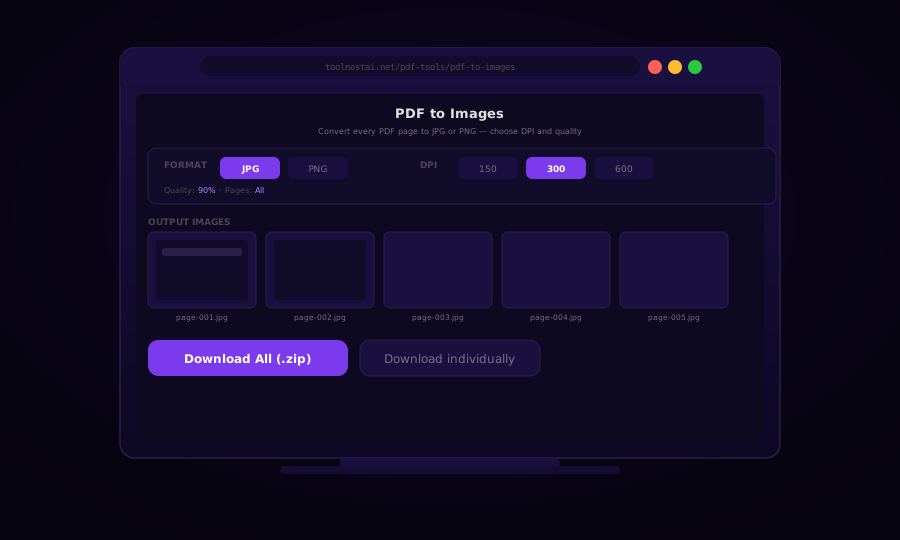
When you need an image from a PDF — for a presentation, a thumbnail, a social media post, or a web upload — converting the entire file to individual images is the cleanest solution. Every page becomes a standalone JPG or PNG that any application can use without a PDF reader.
Try the free PDF to Images converter →
PDF pages are vector-based documents: text, paths, and embedded rasters rendered by a PDF engine. Converting them to images means rasterizing that vector content at a chosen resolution (DPI). The output quality depends almost entirely on DPI — pick too low and text looks blurry; pick too high and file sizes balloon for no visible benefit.
What DPI Should You Use?
DPI (dots per inch) controls both image sharpness and file size. The right choice depends on your use case:
| DPI | File Size | Best For |
|---|---|---|
| 72 | Tiny | Screen preview only, thumbnails |
| 150 | Small | Web display, email attachments |
| 300 | Medium | Standard print, presentations |
| 400 | Large | High-quality print, archiving |
| 600 | Very large | Professional print, fine detail |
For most web and presentation use cases, 150–300 DPI is the sweet spot. Medical, legal, and architectural documents often need 400–600 DPI to preserve fine detail in diagrams and text.
A 300 DPI conversion of a standard A4 page produces roughly a 2480×3508 pixel image — large enough for most print purposes.
JPG vs PNG: Which Format to Choose?
| Property | JPG | PNG |
|---|---|---|
| Compression | Lossy | Lossless |
| File size | Smaller (50–70% of PNG) | Larger |
| Transparency | Not supported | Supported |
| Best for | Photos, color-rich pages | Diagrams, text-heavy pages, transparency |
| Quality loss | Slight at high compression | None |
Choose JPG when file size matters and the PDF contains photographs, color gradients, or rich imagery. Quality at 80–95% is indistinguishable from lossless for most viewers.
Choose PNG when you need pixel-perfect fidelity, the PDF has transparent elements, or the pages are predominantly text and line art where JPG compression artifacts would be visible.
Convert PDF to Images with Ghostscript (CLI)
Ghostscript is the reference PDF rasterizer — the same engine used under the hood by most PDF tools. It is free, open source, and produces excellent output.
# Convert all pages to JPG at 300 DPI
gs -dNOPAUSE -dBATCH -sDEVICE=jpeg -r300 \
   -dJPEGQ=90 \
   -sOutputFile="page-%03d.jpg" \
   input.pdf

# Convert all pages to PNG at 300 DPI
gs -dNOPAUSE -dBATCH -sDEVICE=png16m -r300 \
   -sOutputFile="page-%03d.png" \
   input.pdf

# Convert a single page (page 3)
gs -dNOPAUSE -dBATCH -sDEVICE=jpeg -r300 \
   -dFirstPage=3 -dLastPage=3 \
   -sOutputFile="page-003.jpg" \
   input.pdf
The %03d in the output filename is replaced by the zero-padded page number (001, 002, …), giving you naturally sorted filenames.
Ghostscript device options for image output:
| Device | Format | Notes |
|---|---|---|
jpeg | JPG | Use -dJPEGQ=85 to 100 for quality |
png16m | PNG 24-bit | Best for color content |
pnggray | PNG grayscale | Smaller, good for text-only |
tiff24nc | TIFF | Lossless, large files |
pngmono | 1-bit PNG | Line art, diagrams only |
Python: pdf2image + Pillow
pdf2image wraps Ghostscript (or pdftoppm) in a clean Python API. It returns Pillow Image objects, so you can immediately apply any Pillow operation — crop, resize, adjust contrast — before saving.
from pdf2image import convert_from_path
from pathlib import Path

def pdf_to_images(pdf_path: str, dpi: int = 300, fmt: str = "JPEG", quality: int = 90) -> list[str]:
    pages = convert_from_path(pdf_path, dpi=dpi)
    output_paths = []
    stem = Path(pdf_path).stem

    for i, page in enumerate(pages, start=1):
        ext = "jpg" if fmt == "JPEG" else "png"
        out_path = f"{stem}-page-{i:03d}.{ext}"

        if fmt == "JPEG":
            page.save(out_path, "JPEG", quality=quality, optimize=True)
        else:
            page.save(out_path, "PNG", optimize=True)

        output_paths.append(out_path)
        print(f"Saved {out_path} ({page.width}x{page.height})")

    return output_paths

# Convert a range of pages (pages 2–5)
def pdf_range_to_images(pdf_path: str, first: int, last: int, dpi: int = 300):
    pages = convert_from_path(pdf_path, dpi=dpi, first_page=first, last_page=last)
    for i, page in enumerate(pages, start=first):
        page.save(f"page-{i:03d}.jpg", "JPEG", quality=90)
Install with:
pip install pdf2image Pillow
# Also needs Ghostscript or poppler-utils installed on the system
On Ubuntu/Debian: sudo apt-get install poppler-utils
On macOS: brew install poppler
On Windows: install Ghostscript from the official site.
Node.js: pdf-lib + Canvas
For server-side JavaScript (Node.js), the combination of pdf-lib for PDF parsing and canvas (node-canvas) for rasterization is the most common approach. Alternatively, pdf2pic wraps Ghostscript with a Node-friendly API.
import { fromPath } from "pdf2pic";
import path from "path";

async function convertPdfToImages(pdfPath, options = {}) {
  const { dpi = 300, format = "jpg", quality = 90, outputDir = "./output" } = options;

  const converter = fromPath(pdfPath, {
    density: dpi,
    saveFilename: path.basename(pdfPath, ".pdf"),
    savePath: outputDir,
    format,
    quality,
  });

  // Convert all pages
  const results = await converter.bulk(-1, { responseType: "image" });

  results.forEach((r) => {
    console.log(`Page ${r.page}: ${r.path} (${r.size} bytes)`);
  });

  return results;
}

// Usage
await convertPdfToImages("report.pdf", { dpi: 300, format: "jpg", quality: 90 });
Install:
npm install pdf2pic
# pdf2pic requires GraphicsMagick or ImageMagick + Ghostscript
Browser-Side Conversion with PDF.js
For client-side conversion (running in the browser without server uploads), PDF.js is the standard library. It renders each PDF page to a canvas element, which you can then export as an image.
import * as pdfjsLib from "pdfjs-dist";

pdfjsLib.GlobalWorkerOptions.workerSrc = "/pdf.worker.min.js";

async function pdfPageToImage(pdfFile, pageNumber, scale = 2.0) {
  const arrayBuffer = await pdfFile.arrayBuffer();
  const pdf = await pdfjsLib.getDocument({ data: arrayBuffer }).promise;
  const page = await pdf.getPage(pageNumber);

  const viewport = page.getViewport({ scale });
  const canvas = document.createElement("canvas");
  canvas.width = viewport.width;
  canvas.height = viewport.height;

  await page.render({
    canvasContext: canvas.getContext("2d"),
    viewport,
  }).promise;

  // Export as JPG blob
  return new Promise((resolve) => {
    canvas.toBlob(resolve, "image/jpeg", 0.92);
  });
}

async function convertAllPages(pdfFile, onProgress) {
  const arrayBuffer = await pdfFile.arrayBuffer();
  const pdf = await pdfjsLib.getDocument({ data: arrayBuffer }).promise;
  const images = [];

  for (let i = 1; i <= pdf.numPages; i++) {
    const blob = await pdfPageToImage(pdfFile, i, 2.0);
    images.push({ page: i, blob, url: URL.createObjectURL(blob) });
    onProgress?.(i, pdf.numPages);
  }

  return images;
}
scale: 2.0 renders the page at twice the CSS pixel density — effective 144 DPI for a standard 72 DPI PDF, or 288 DPI for a 144 DPI display. For higher quality, increase the scale.
Batch Processing a Directory
To convert every PDF in a folder with a shell script:
#!/bin/bash
INPUT_DIR="./pdfs"
OUTPUT_DIR="./images"
DPI=300

mkdir -p "$OUTPUT_DIR"

for pdf in "$INPUT_DIR"/*.pdf; do
  name=$(basename "$pdf" .pdf)
  mkdir -p "$OUTPUT_DIR/$name"
  gs -dNOPAUSE -dBATCH -sDEVICE=jpeg -r$DPI \
     -dJPEGQ=90 \
     -sOutputFile="$OUTPUT_DIR/$name/page-%03d.jpg" \
     "$pdf"
  echo "Converted: $pdf → $OUTPUT_DIR/$name/"
done
Python batch version with progress reporting:
import glob
from pathlib import Path
from pdf2image import convert_from_path

def batch_convert(input_glob: str = "./pdfs/*.pdf", dpi: int = 300):
    pdfs = glob.glob(input_glob)
    print(f"Found {len(pdfs)} PDF files")

    for pdf_path in pdfs:
        name = Path(pdf_path).stem
        out_dir = Path("./images") / name
        out_dir.mkdir(parents=True, exist_ok=True)

        pages = convert_from_path(pdf_path, dpi=dpi)
        for i, page in enumerate(pages, start=1):
            out_path = out_dir / f"page-{i:03d}.jpg"
            page.save(str(out_path), "JPEG", quality=90)

        print(f"  {name}: {len(pages)} pages → {out_dir}")

batch_convert()
Creating a ZIP of All Images
When converting a multi-page PDF you typically want to bundle all images into a single ZIP for download. In Node.js:
import archiver from "archiver";
import fs from "fs";

async function zipImages(imagePaths, outputZip) {
  const output = fs.createWriteStream(outputZip);
  const archive = archiver("zip", { zlib: { level: 9 } });

  archive.pipe(output);

  for (const imgPath of imagePaths) {
    archive.file(imgPath, { name: path.basename(imgPath) });
  }

  await archive.finalize();
  return outputZip;
}
In the browser, use the JSZip library to collect blobs:
import JSZip from "jszip";

async function downloadAllAsZip(images, filename = "pages.zip") {
  const zip = new JSZip();
  images.forEach(({ page, blob }) => {
    zip.file(`page-${String(page).padStart(3, "0")}.jpg`, blob);
  });
  const content = await zip.generateAsync({ type: "blob" });
  const url = URL.createObjectURL(content);
  const a = document.createElement("a");
  a.href = url;
  a.download = filename;
  a.click();
}
Frequently Asked Questions
What DPI produces print-quality images?
300 DPI is the standard for print quality. For standard A4/Letter pages this produces a 2480×3508 or 2550×3300 pixel image — enough for most printers. For professional printing at large sizes, use 400–600 DPI.
Why do my converted images look blurry?
The most common cause is too-low DPI. Try 150 or 300 DPI. If the PDF itself contains rasterized images (scanned document), the original scan quality is the limiting factor — converting at a higher DPI cannot recover detail that was never there.
Can I convert only specific pages?
Yes. In Ghostscript use -dFirstPage=N -dLastPage=M. In Python pdf2image use first_page=N, last_page=M parameters. In PDF.js call pdf.getPage(N) for any page number you want.
Does PDF to image conversion preserve embedded fonts?
Converting to an image rasterizes everything — text, fonts, and all — into pixels. The image no longer contains selectable text or embedded font data. If you need searchable text in the output, use OCR after conversion or keep the PDF.
What is the best tool for batch PDF to image conversion?
Ghostscript via the command line is the fastest for batch processing. For automated pipelines, pdf2image (Python) or pdf2pic (Node.js) offer more programmatic control. For occasional single-file conversions, a browser-based tool is the most convenient.
How do I convert a PDF to a single image (all pages in one tall image)?
After converting to individual images, stitch them vertically with ImageMagick: convert page-001.jpg page-002.jpg page-003.jpg -append combined.jpg. With Python Pillow, open each image, create a canvas as tall as the sum of all page heights, and paste each image at the correct Y offset.
About the author
ToolNest AI Team
The ToolNest AI editorial team writes in-depth guides on PDF tools, image processing, and developer productivity.
Related Articles
OCR PDF — Make Scanned Documents Searchable and Copyable
Convert scanned PDF images into searchable, selectable text with OCR (Optical Character Recognition). With Tesseract, Python, Node.js, and command-line tools. Free online, 100+ languages.
How to Compress a PDF — Reduce File Size Without Losing Quality
A complete guide to PDF compression — how it works, what affects file size, how to choose the right quality level, and how to compress PDFs with Ghostscript, pdf-lib, Python pypdf, and the ToolNest AI online tool.
How to Split a PDF — Divide Pages by Range, Interval, or One Page at a Time
Split a PDF into multiple files by page range, every N pages, or one page per file. With code examples using pdf-lib, pypdf, and pdftk. Free online, no upload, no sign-up.