PDF to Excel: Extract Tables from PDF to .xlsx (Free)
Learn how to extract tables from PDF files and convert them to Excel spreadsheets using Camelot, Tabula, pdfplumber, and LibreOffice Calc — with Python examples.
ToolNest AI Team
Author
Published
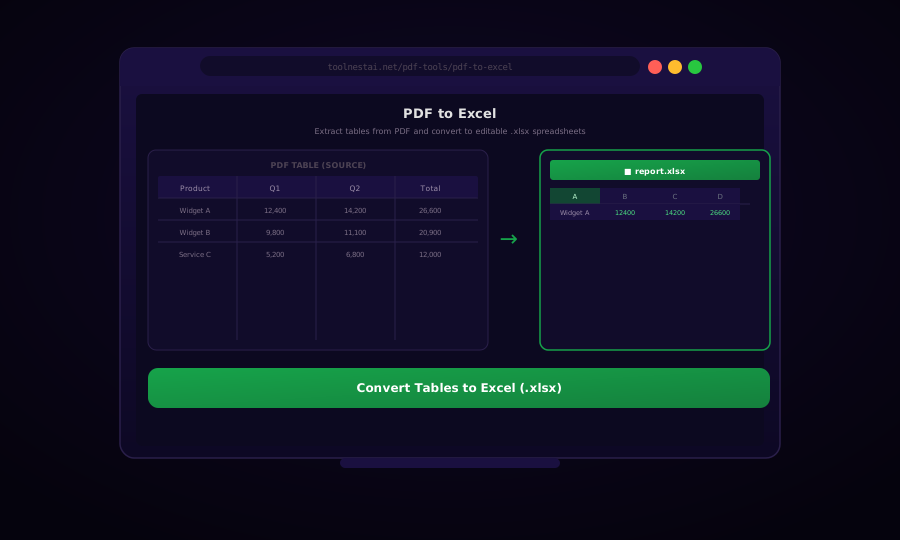
Financial reports, bank statements, invoices, research data — the data you need is in a PDF, but you need it in a spreadsheet to analyze, chart, or import into a database. PDF table extraction is a specialized conversion that focuses on pulling structured tabular data out of PDFs and into editable Excel format.
Convert PDF tables to Excel free →
Unlike PDF-to-Word conversion (which preserves flowing text), PDF-to-Excel conversion is about reconstructing the row-and-column structure of tables. The core challenge: PDFs store tables as a collection of text strings and line-drawing commands positioned by coordinates — there is no native "table" concept in the PDF spec.
Two Types of PDF Tables
| Type | Detection Method | Tools That Work |
|---|---|---|
| Lattice tables | Have visible borders/grid lines | Camelot lattice mode, Tabula |
| Stream tables | Whitespace-separated, no borders | Camelot stream mode, pdfplumber |
Choose the wrong mode and extraction fails or produces garbage. A bank statement with clean grid lines is a lattice table. A financial report with columnar data but no grid lines is a stream table.
Camelot: Python PDF Table Extraction
Camelot is the gold standard for Python PDF table extraction. It supports both lattice (bordered) and stream (borderless) table types.
import camelot
import pandas as pd

def extract_tables_from_pdf(pdf_path: str, output_path: str, flavor: str = "lattice"):
    """
    flavor: "lattice" for tables with borders, "stream" for borderless tables
    """
    tables = camelot.read_pdf(pdf_path, pages="all", flavor=flavor)

    print(f"Found {len(tables)} table(s)")

    with pd.ExcelWriter(output_path, engine="openpyxl") as writer:
        for i, table in enumerate(tables):
            df = table.df
            sheet_name = f"Table_{i+1}_p{table.page}"
            df.to_excel(writer, sheet_name=sheet_name, index=False)
            print(f"  Sheet '{sheet_name}': {df.shape[0]} rows × {df.shape[1]} cols | Accuracy: {table.accuracy:.1f}%")

    print(f"Saved: {output_path}")


# For lattice tables (borders visible)
extract_tables_from_pdf("financial_report.pdf", "financial_report.xlsx", flavor="lattice")

# For stream tables (no borders)
extract_tables_from_pdf("bank_statement.pdf", "bank_statement.xlsx", flavor="stream")

# Check extraction accuracy
tables = camelot.read_pdf("report.pdf", pages="1-3", flavor="lattice")
for t in tables:
    print(f"Page {t.page}, accuracy: {t.accuracy:.1f}%, whitespace: {t.whitespace:.1f}%")
Install:
pip install camelot-py[cv]   # For lattice mode (requires OpenCV)
pip install camelot-py[base] # For stream mode only
pip install openpyxl pandas
Tabula: Java-Powered Table Extraction (Python Wrapper)
Tabula is another excellent table extractor. tabula-py is the Python wrapper around the Tabula Java library.
import tabula
import pandas as pd

def pdf_to_excel_tabula(pdf_path: str, output_path: str):
    # Extract all tables from all pages
    dfs = tabula.read_pdf(pdf_path, pages="all", multiple_tables=True)

    print(f"Extracted {len(dfs)} table(s)")

    with pd.ExcelWriter(output_path, engine="openpyxl") as writer:
        for i, df in enumerate(dfs):
            df.to_excel(writer, sheet_name=f"Table_{i+1}", index=False)

    print(f"Saved: {output_path}")


# For specific pages and areas
def extract_specific_area(pdf_path: str, page: int, area: list):
    """
    area: [top, left, bottom, right] in points (1 pt = 1/72 inch)
    """
    df = tabula.read_pdf(
        pdf_path,
        pages=page,
        area=area,       # [top, left, bottom, right]
        lattice=True,    # True for bordered tables
    )
    return df

# Convert all pages and save as CSV
tabula.convert_into("report.pdf", "output.csv", output_format="csv", pages="all")
Install:
pip install tabula-py
# Requires Java 8+ installed on the system
pdfplumber: Layout-Aware Table Detection
pdfplumber gives fine-grained control over table detection settings — useful when Camelot and Tabula miss tables due to unusual formatting.
import pdfplumber
import pandas as pd

def extract_with_pdfplumber(pdf_path: str, output_path: str):
    all_tables = []

    with pdfplumber.open(pdf_path) as pdf:
        for page_num, page in enumerate(pdf.pages, start=1):
            tables = page.extract_tables()

            for t_idx, table in enumerate(tables):
                df = pd.DataFrame(table[1:], columns=table[0])   # First row as header
                df["_source_page"] = page_num
                all_tables.append((f"P{page_num}_T{t_idx+1}", df))
                print(f"  Page {page_num}, Table {t_idx+1}: {df.shape}")

    with pd.ExcelWriter(output_path, engine="openpyxl") as writer:
        for sheet_name, df in all_tables:
            df.to_excel(writer, sheet_name=sheet_name, index=False)

    print(f"Saved {len(all_tables)} tables to {output_path}")


# Custom table settings for unusual layouts
def extract_custom_settings(pdf_path: str, page_num: int = 1):
    table_settings = {
        "vertical_strategy": "lines",         # "lines" | "lines_strict" | "text" | "explicit"
        "horizontal_strategy": "lines",
        "explicit_vertical_lines": [],
        "explicit_horizontal_lines": [],
        "snap_tolerance": 3,
        "join_tolerance": 3,
        "edge_min_length": 3,
        "min_words_vertical": 3,
        "min_words_horizontal": 1,
        "intersection_tolerance": 3,
        "text_tolerance": 3,
    }

    with pdfplumber.open(pdf_path) as pdf:
        page = pdf.pages[page_num - 1]
        table = page.extract_table(table_settings)
        return pd.DataFrame(table[1:], columns=table[0])
LibreOffice Calc: Free Desktop PDF to Excel
For occasional conversions without coding, LibreOffice Calc can import PDF data:
# Convert PDF to CSV (for simple tables)
libreoffice --headless --infilter="writer_pdf_import" \
  --convert-to csv input.pdf

# Or open in LibreOffice and manually export to Excel
libreoffice input.pdf
The LibreOffice PDF import filter works best on simple single-table PDFs. For complex multi-table documents, the Python tools above are more reliable.
Post-Processing Extracted Data
Raw extracted tables often need cleanup:
import pandas as pd
import re

def clean_extracted_table(df: pd.DataFrame) -> pd.DataFrame:
    # Remove rows that are entirely empty or header-repeat rows
    df = df.dropna(how="all")

    # Strip whitespace from all string columns
    df = df.applymap(lambda x: x.strip() if isinstance(x, str) else x)

    # Convert numeric strings to actual numbers
    def to_numeric(val):
        if isinstance(val, str):
            cleaned = re.sub(r"[,\s$€£¥]", "", val)
            try:
                return float(cleaned) if "." in cleaned else int(cleaned)
            except ValueError:
                return val
        return val

    df = df.applymap(to_numeric)

    # Promote first non-empty row to header if header is None
    if df.columns.tolist() == list(range(len(df.columns))):
        df.columns = df.iloc[0]
        df = df[1:].reset_index(drop=True)

    return df
Frequently Asked Questions
Which Python library is best for PDF table extraction?
For most use cases: Camelot for bordered tables (lattice mode) and pdfplumber for borderless tables (stream mode). Tabula is a solid alternative, especially for multi-page tables that span page breaks.
Can I extract tables from scanned PDFs?
Not directly — scanned PDFs are images with no embedded text. You need OCR first (Tesseract, AWS Textract, or Google Document AI), which can also output detected table structures. After OCR, you can use the resulting text-layer PDF with Camelot or pdfplumber.
Why does the extracted table have merged cells or misaligned columns?
PDF tables often use spanning cells or irregular spacing that doesn't map cleanly to a rectangular grid. The snap_tolerance and join_tolerance settings in pdfplumber, or the edge_tol parameter in Camelot, can be tuned to improve alignment.
How do I handle multi-page tables that span across pages?
Camelot's copy_text=["v", "h"] parameter can copy spanning cells. Alternatively, extract page-by-page and then concatenate the DataFrames: pd.concat([table_page1, table_page2], ignore_index=True).
Is there a way to extract tables without installing Python?
Yes — Tabula Desktop is a free GUI application (Java-based) that extracts PDF tables with a point-and-click interface. LibreOffice Calc can also import basic PDF tables. The ToolNest AI converter handles this in the browser with no installation.
What accuracy can I expect from automated PDF table extraction?
For clean, well-formatted PDFs with standard table layouts: 90–99% accuracy with Camelot lattice mode. For complex layouts, overlapping text, or unusual fonts: 60–85%. Always spot-check extracted data, especially for financial documents.
About the author
ToolNest AI Team
The ToolNest AI editorial team writes in-depth guides on PDF tools, image processing, and developer productivity.
Related Articles
PDF to Word: Convert PDF to Editable .docx (Free, No Upload)
Learn how to convert PDF files to editable Word documents (.docx) using LibreOffice, Python python-docx and pdfminer, and Pandoc. Preserve text, headings, and tables.
OCR PDF — Make Scanned Documents Searchable and Copyable
Convert scanned PDF images into searchable, selectable text with OCR (Optical Character Recognition). With Tesseract, Python, Node.js, and command-line tools. Free online, 100+ languages.
PDF Metadata Editor: View, Edit, and Strip PDF Properties (Free)
Learn how to view and edit PDF metadata — Title, Author, Subject, Keywords, Creator — using browser tools, pdf-lib, Python pypdf, and ExifTool. Strip hidden metadata for privacy.