How to Remove EXIF Metadata from Photos: GPS, Camera Info and More
A complete guide to removing EXIF metadata from images — how Canvas API stripping works, what data gets removed, the orientation side-effect to handle, batch processing, and Python/JavaScript code examples.
ToolNest AI Team
Author
Published
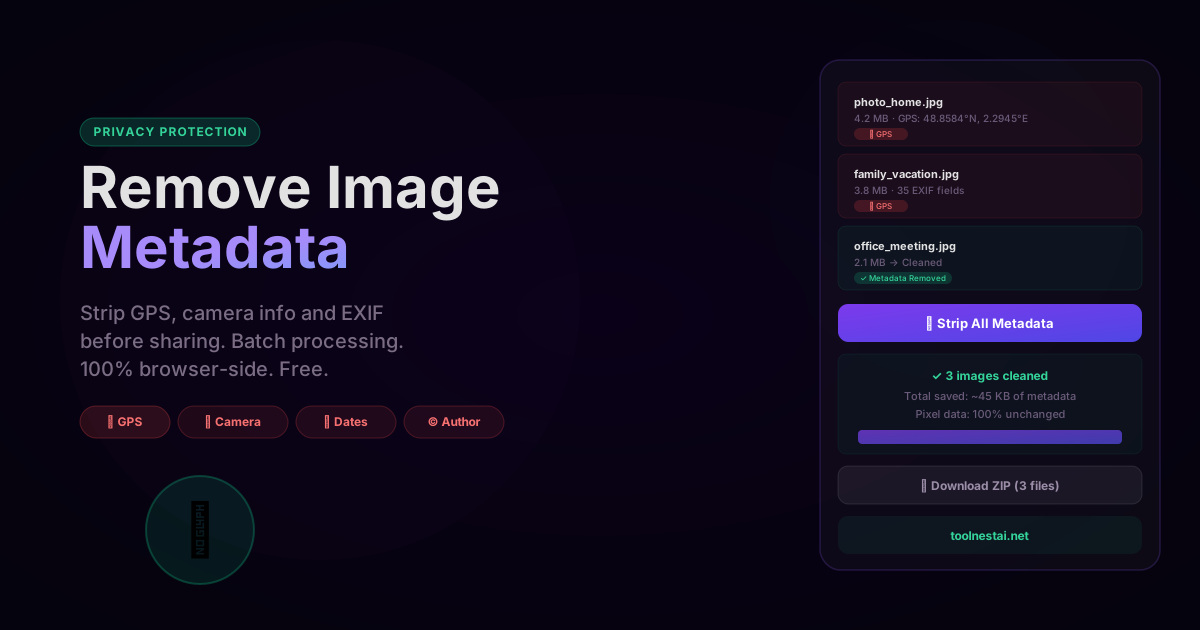
Every photo you take with a smartphone embeds a rich block of metadata alongside the pixels: GPS coordinates, camera model, device serial number, timestamps, your name if you've set up copyright fields, and more. Most of this data is invisible to the naked eye but readable by any application that opens the file.
Before sharing photos publicly — on social media, a portfolio site, a news article, or via direct message — you should understand what metadata your images contain and decide whether to remove it.
Strip all EXIF data from your photos in seconds with the ToolNest AI Remove Image Metadata tool — batch processing, ZIP download, fully browser-side.
Why Remove Image Metadata?
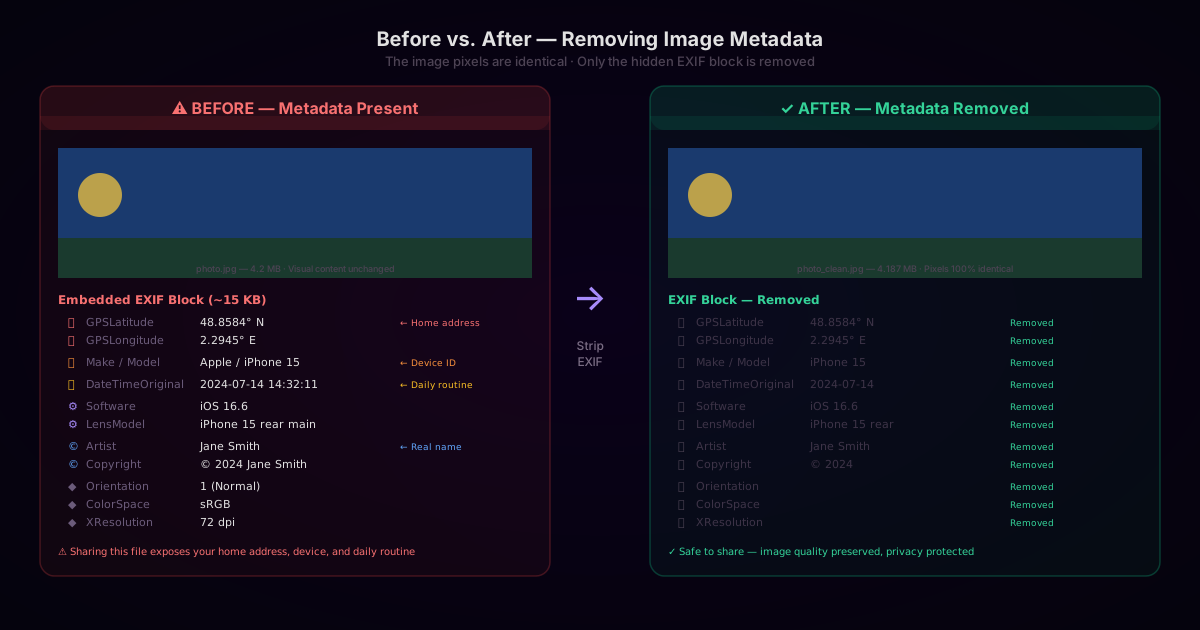
The most commonly cited reason is GPS privacy. When you photograph something with location services enabled, the exact coordinates are embedded in the image file. A photo taken at home reveals your home address. A photo taken at a school reveals where a child goes to school. When you share that file directly — by email, messaging app, or file transfer — those coordinates travel with it.
Other reasons include:
Removing device identification — Camera make, model, and serial number can be used to link images to a specific device. This matters for whistleblowers, investigative journalists, and anyone who needs to anonymize the source of an image.
Removing timestamps — The DateTimeOriginal field records the exact second the shutter was pressed. Combined with GPS data, a series of timestamped photos can reconstruct someone's daily routine, travel history, or physical presence at a location.
Removing personal information — Professional photographers who shoot with full name and copyright pre-loaded in camera settings may want to remove this before sharing working files. Stock photo marketplaces have specific metadata requirements that sometimes mean stripping fields before resubmitting.
Reducing file size — EXIF blocks are typically 5–50 KB per image. While small relative to a 5 MB photo, removing metadata from thousands of images (stock libraries, web deployments) produces measurable savings.
What Data EXIF Contains
Before removing metadata, it helps to understand what you're removing. EXIF data is organized into sections:
GPS IFD (most privacy-sensitive):
GPSLatitude/GPSLongitude— precise coordinatesGPSAltitude— elevationGPSTimeStamp— UTC time from GPS satellite (often more accurate than the camera clock)GPSSpeed— if the device was moving
EXIF IFD (exposure settings, device):
Make/Model— camera manufacturer and modelLensModel/LensMake— lens informationDateTimeOriginal— when the photo was takenExposureTime,FNumber,ISOSpeedRatings,FocalLengthSoftware— editing software version
IFD0 (basic image properties):
Orientation— rotation to display the image correctlyXResolution,YResolution— print DPIArtist,Copyright— attribution fields
MakerNote (vendor private data):
- Undocumented binary blob specific to the camera manufacturer
- Can contain face detection data, scene classification, serial number fragments, burst count
The Canvas API Method — How It Works in the Browser
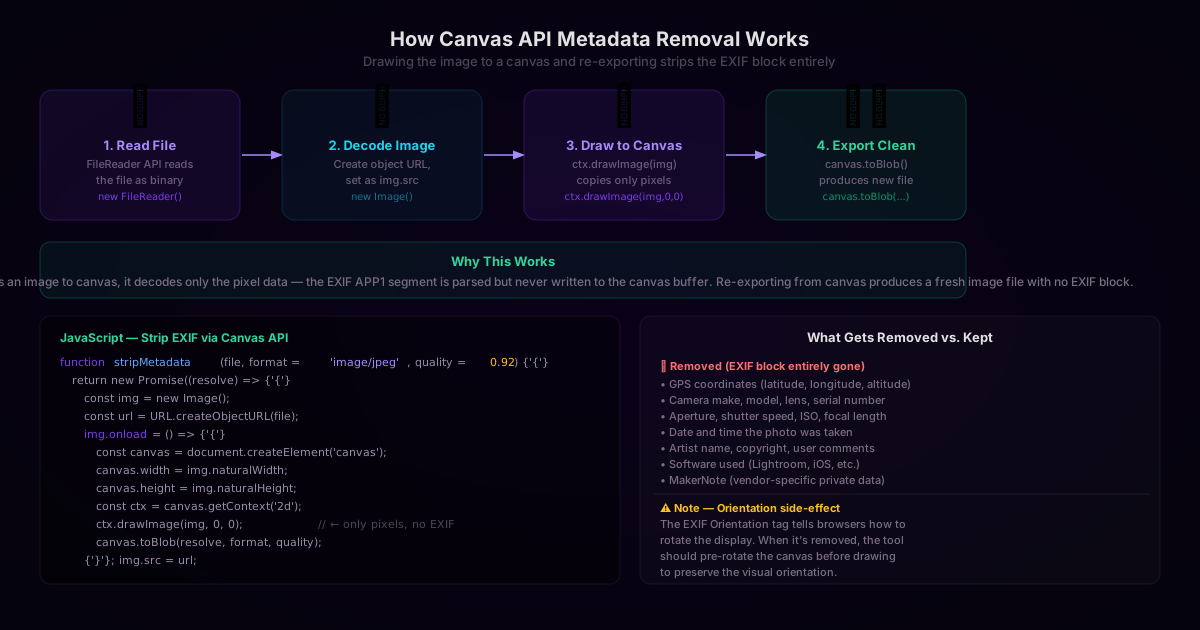
The standard browser-side approach to removing EXIF data is to draw the image to an HTML Canvas element and then export it. When a browser renders an image onto a canvas, it processes only the pixel data. The EXIF APP1 segment is parsed briefly (to determine orientation and color space), but it is never written to the canvas's pixel buffer. When you re-export from canvas using toBlob() or toDataURL(), the resulting file contains only pixels — no EXIF block.
async function removeMetadata(file, format = 'image/jpeg', quality = 0.92) {
  return new Promise((resolve, reject) => {
    const img = new Image();
    const url = URL.createObjectURL(file);

    img.onload = () => {
      URL.revokeObjectURL(url);

      const canvas = document.createElement('canvas');
      canvas.width = img.naturalWidth;
      canvas.height = img.naturalHeight;

      const ctx = canvas.getContext('2d');
      ctx.drawImage(img, 0, 0);  // Copies only pixels, no metadata

      canvas.toBlob(
        (blob) => resolve(blob),
        format,
        quality
      );
    };

    img.onerror = reject;
    img.src = url;
  });
}
Usage:
const input = document.querySelector('input[type="file"]');
input.addEventListener('change', async (e) => {
  const file = e.target.files[0];
  const cleanBlob = await removeMetadata(file, 'image/jpeg', 0.92);

  // Download
  const a = document.createElement('a');
  a.href = URL.createObjectURL(cleanBlob);
  a.download = `clean_${file.name}`;
  a.click();
});
Handling the Orientation Side Effect
The most common bug in EXIF removal implementations is the orientation side effect. JPEG files from smartphone cameras often have their pixel data stored in a portrait orientation regardless of how the phone was held — the Orientation tag (value 6 or 8) tells the viewer to rotate the image for display.
When you strip EXIF data without handling orientation, the resulting image may appear sideways or upside down.
The fix is to pre-rotate the canvas before drawing:
async function removeMetadataFixed(file, format = 'image/jpeg', quality = 0.92) {
  // First, read the orientation tag
  const orientation = await getOrientation(file);

  return new Promise((resolve, reject) => {
    const img = new Image();
    const url = URL.createObjectURL(file);

    img.onload = () => {
      URL.revokeObjectURL(url);

      const { width, height } = getDimensionsForOrientation(
        img.naturalWidth, img.naturalHeight, orientation
      );

      const canvas = document.createElement('canvas');
      canvas.width = width;
      canvas.height = height;
      const ctx = canvas.getContext('2d');

      applyOrientationTransform(ctx, orientation, width, height);
      ctx.drawImage(img, 0, 0);

      canvas.toBlob((blob) => resolve(blob), format, quality);
    };

    img.onerror = reject;
    img.src = url;
  });
}

function applyOrientationTransform(ctx, orientation, w, h) {
  switch (orientation) {
    case 2: ctx.transform(-1, 0, 0, 1, w, 0); break;
    case 3: ctx.transform(-1, 0, 0, -1, w, h); break;
    case 4: ctx.transform(1, 0, 0, -1, 0, h); break;
    case 5: ctx.transform(0, 1, 1, 0, 0, 0); break;
    case 6: ctx.transform(0, 1, -1, 0, h, 0); break;
    case 7: ctx.transform(0, -1, -1, 0, h, w); break;
    case 8: ctx.transform(0, -1, 1, 0, 0, w); break;
    default: break; // Orientation 1 = normal, no transform needed
  }
}
Reading the orientation before stripping requires parsing the EXIF block from the original file — a two-phase operation.
Removing Metadata in Python with Pillow
Pillow's Canvas equivalent is saving the image to a new file. When Pillow re-saves a JPEG, it discards EXIF data by default:
from PIL import Image

def remove_metadata(input_path, output_path, quality=92):
    # Open image — EXIF is loaded but not yet written
    img = Image.open(input_path)

    # Handle orientation before stripping
    img = ImageOps.exif_transpose(img)  # Rotates/flips based on Orientation tag

    # Save without EXIF — by not passing exif= parameter, Pillow omits it
    img.save(output_path, 'JPEG', quality=quality, optimize=True)

# Batch processing
import os
from pathlib import Path

def batch_remove_metadata(input_dir, output_dir, quality=92):
    output_dir = Path(output_dir)
    output_dir.mkdir(exist_ok=True)

    for path in Path(input_dir).glob('*.jpg'):
        out = output_dir / f"clean_{path.name}"
        remove_metadata(str(path), str(out), quality)
        print(f"Cleaned: {path.name} → {out.name}")
Image.open() reads the file including EXIF data into a Pillow Image object. ImageOps.exif_transpose() applies any rotation indicated by the Orientation tag to the pixel data, then clears the tag. save() without the exif keyword argument produces a file with no EXIF block.
Removing Metadata with ExifTool (Command Line)
For batch processing on a server or in a CI pipeline, ExifTool is the standard command-line tool:
# Remove all metadata from a single file
exiftool -all= photo.jpg

# Remove all metadata, create a clean copy
exiftool -all= -o clean_photo.jpg photo.jpg

# Batch process an entire directory
exiftool -all= /path/to/photos/

# Remove only GPS data (keep camera settings)
exiftool -GPS:all= photo.jpg

# Remove GPS and personal fields, keep technical EXIF
exiftool -GPS:all= -Artist= -Copyright= -XPAuthor= photo.jpg
ExifTool's -all= operator sets all tags to empty (i.e., removes them). The -GPS:all= variant targets only the GPS IFD. ExifTool backs up the original file to photo.jpg_original by default — use -overwrite_original to skip this.
What Gets Removed vs. Preserved
When you draw to canvas and re-export, the following is removed:
| Removed | Preserved |
|---|---|
| All EXIF fields (GPS, camera, exposure, dates) | Pixel data (100% identical) |
| MakerNote (vendor private data) | Image dimensions |
| IPTC metadata (keywords, caption) | Color profile (ICC) — sometimes |
| XMP metadata (Adobe metadata) | Transparency (PNG only) |
| Photoshop resource blocks | Animation frames (GIF — partially) |
Note that the ICC color profile (embedded in APP2) is sometimes stripped when using canvas.toBlob(). If color-accurate reproduction is important (design work, print output), you should re-embed the sRGB or AdobeRGB profile after stripping. Most web images use sRGB, and modern browsers assume sRGB when no profile is present — so this is usually not a problem in practice.
Which Platforms Auto-Strip Metadata?
Knowing which platforms remove EXIF on your behalf helps you understand where manual stripping is necessary:
| Platform | Auto-strips EXIF? | Notes |
|---|---|---|
| Yes | GPS, camera, timestamps all removed on upload | |
| Twitter / X | Yes | Strips all EXIF |
| Yes | Strips GPS; may preserve some technical data | |
| Partial | Compresses images, which incidentally removes EXIF; original-quality sends preserve it | |
| Telegram | Partial | Compressed sends strip EXIF; "Send as file" preserves it |
| Slack | No | File uploads preserve all metadata |
| No | Attachments preserve all metadata | |
| Dropbox / Google Drive | No | Preserve all metadata |
| iCloud Photos | No (preserves in library) | Shared links may strip; direct exports preserve |
| WeTransfer | No | File transfers preserve all metadata |
When in doubt, check before you share — the Image Metadata Viewer shows you exactly what fields are present in any image.
Frequently Asked Questions
Does removing metadata change the image quality?
No. EXIF data is metadata stored alongside the pixel data — removing it does not touch the pixels. When using the Canvas API approach, if you re-export as JPEG, a compression step does occur, so export quality matters. At quality 90–95, the difference from the original is imperceptible. Export as PNG for lossless output.
Will my photos still display correctly after removing metadata?
Yes, if the tool handles orientation correctly. The only visual property embedded in EXIF that affects display is the Orientation tag. A good EXIF removal tool applies the orientation rotation to the pixel data before stripping the tag, so the image displays correctly in all viewers.
Does removing metadata work on PNG files?
Yes. PNG files can contain EXIF metadata (in Exif chunks or tEXt chunks) or XMP metadata. Drawing to canvas and re-exporting as PNG strips these blocks. PNG is a lossless format, so there is no quality loss from re-exporting.
How much does removing metadata reduce file size?
Typically 5–50 KB per JPEG image, depending on how much EXIF data is present. MakerNote data from DSLRs can be large — Canon and Nikon cameras sometimes embed 10–30 KB of private data. For most smartphone photos, EXIF is 15–30 KB out of a 3–5 MB file, which is less than 1% of the total size.
Can removed metadata be recovered?
If you overwrite or delete the original file, no. The metadata is removed from the image data itself — it is not stored elsewhere. If you keep the original, you can always go back to it. This is why batch processing tools like ExifTool make a backup copy by default.
What is the difference between EXIF, XMP, and IPTC?
EXIF (Exchangeable Image File Format) is stored in the JPEG APP1 segment and contains camera and GPS data. IPTC (International Press Telecommunications Council) metadata is stored in the APP13 segment and contains editorial data: keywords, captions, credits, categories. XMP (Extensible Metadata Platform) is Adobe's XML-based metadata format stored in APP1 or as a separate sidecar file, used primarily by Lightroom, Photoshop, and professional workflows. All three can coexist in a single JPEG file. The Canvas API removes all of them.
Should I always remove metadata before sharing?
Not necessarily. If you're sharing with trusted individuals, metadata can be useful — it documents when and where a memorable photo was taken. The case for removal is strongest for: photos shared publicly on the web, photos sent to people you don't know, photos of sensitive locations (your home, children's school, workplace), and images submitted to professional or commercial platforms where you don't want device identification.
About the author
ToolNest AI Team
The ToolNest AI team builds free tools that help developers, marketers, and creators do more online — faster.
Related Articles
EXIF Data Explained: What's Hidden in Your Photos and How to Read It
A complete guide to EXIF image metadata — what it is, what every field means, how GPS data reveals your location, how to read it with JavaScript, and when you should remove it before sharing.
Image Filters: How Sepia, Vintage, HDR, Noir and 13 More Effects Work
A technical and practical guide to photo filter algorithms — color matrix operations, tone curves, saturation adjustments, and artistic effects — with JavaScript and CSS code examples and guidance on when to use each filter.
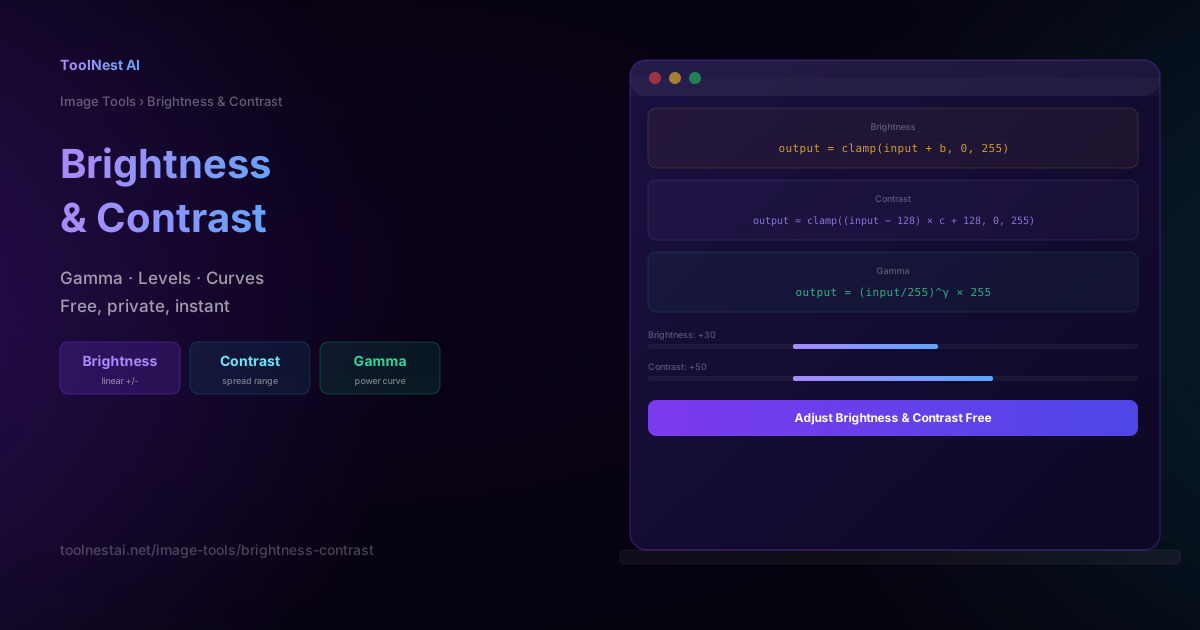
Brightness and Contrast: How Linear Shift, Contrast Stretch, and Gamma Work
A precise technical breakdown of brightness (linear shift), contrast (center stretch), gamma (power curve), and levels — with formulas, code examples in JavaScript and Python, histogram reading, and how to choose the right adjustment for your image.