QR Code Generator: Create Free QR Codes for URLs, Wi-Fi, vCard & More
Learn how QR codes work, which content type to use for each situation, how error correction levels affect scanability, and how to generate a free QR code for any purpose — no sign-up required.
ToolNest AI Team
Author
Published
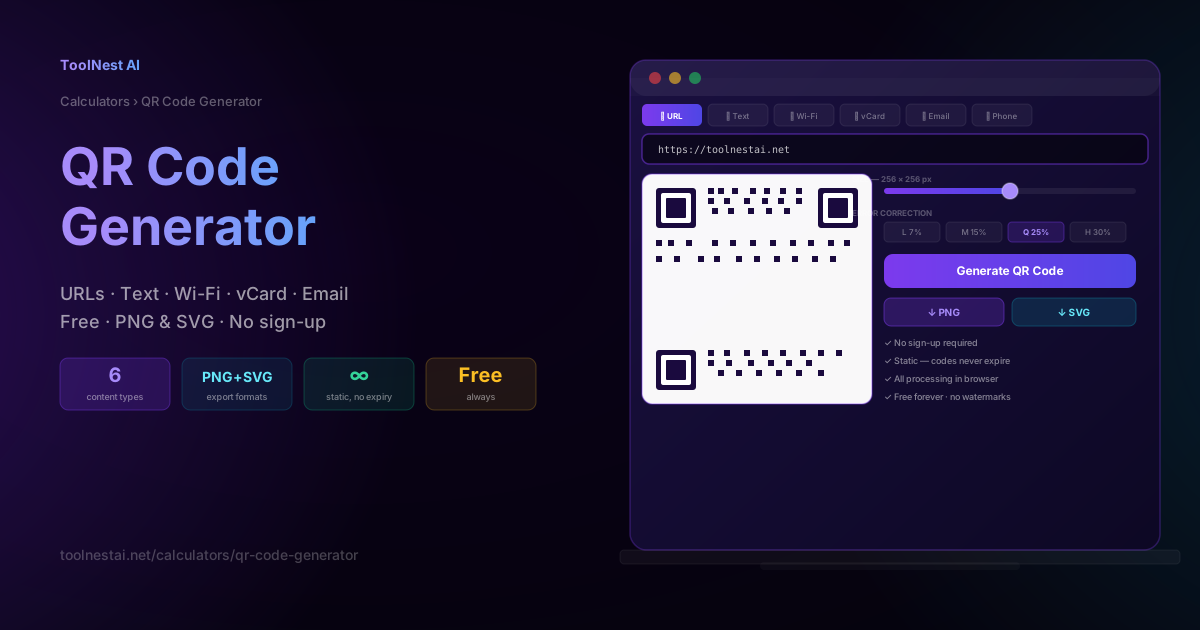
QR codes are everywhere — on restaurant menus, product packaging, event tickets, business cards, and shop windows. They bridge the physical and digital worlds in a single scan: point a phone camera, and a URL opens, a contact saves, or a Wi-Fi network connects without any typing.
But generating a useful QR code requires more than entering a URL and clicking a button. Choosing the wrong content type, skipping error correction, or printing too small produces a QR code that looks right but fails to scan when it matters. This guide covers everything: how QR codes work, the six content types, how to choose error correction levels, and the most common mistakes to avoid.
How QR Codes Work
A QR code (Quick Response code) is a two-dimensional matrix barcode invented by Denso Wave in 1994 to track automotive parts. Today they are used globally for any application where a small physical mark needs to encode digital information.
The anatomy of a QR code
Finder patterns: The three large square patterns in the top-left, top-right, and bottom-left corners. These tell the scanner the code's position, size, and orientation. They must never be covered or obscured.
Timing patterns: Alternating dark and light modules along the top and left edges that help the scanner determine the grid size.
Data modules: The remaining black and white squares that encode the actual content. The pattern of light and dark modules represents bits of data.
Quiet zone: The blank white border around the entire code. Without a sufficient quiet zone (at least four modules wide on every side), scanners often fail to locate the code boundary.
Alignment patterns: Additional smaller square patterns in larger QR codes that help the scanner correct for distortion when the code is photographed at an angle.
Error correction
QR codes use Reed-Solomon error correction — the same mathematical technique used on CDs and DVDs. It adds redundant data that allows part of the code to be damaged, dirty, or obscured and still be read correctly. The amount of redundancy is controlled by the error correction level you choose.
How scanning works
Modern smartphones (iOS 11+ and Android 8+) scan QR codes natively through the camera app — no separate QR scanner app is needed. The camera detects the finder patterns, reads the module data, decodes it, and either opens a URL, displays text, or triggers an action depending on the content type.
The 6 Content Types — and When to Use Each
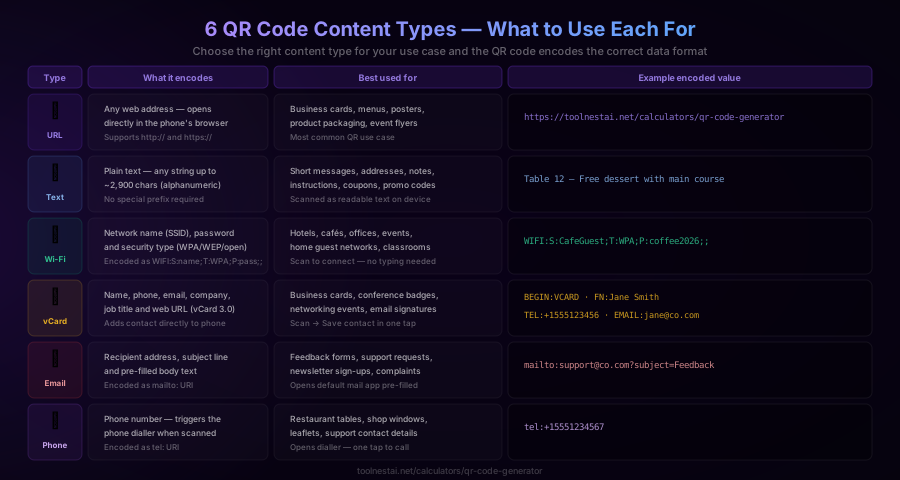
The ToolNest AI QR Code Generator supports six content types. Choosing the right one is critical — encoding a Wi-Fi password as plain text, for example, will not trigger automatic connection.
URL — the most common type
Encodes: Any web address starting with http:// or https://
What happens when scanned: The phone's default browser opens at that URL.
Best for: Business cards, restaurant menus, product packaging, event posters, retail signage, social media profiles, app store links.
Tip: Use https:// rather than http:// — some phones display a security warning for unencrypted URLs.
Text — plain readable content
Encodes: Any plain text string, up to roughly 2,900 alphanumeric characters (less for binary data).
What happens when scanned: The decoded text is displayed on screen. The user can copy it, search it, or follow any links it contains.
Best for: Short messages, table numbers, promo codes, delivery instructions, product serial numbers, coupons.
Tip: For long addresses or multi-line content, keep it under 300 characters for the smallest, most scannable QR code.
Wi-Fi — connect without typing
Encodes: Network name (SSID), password, and security type (WPA/WPA2, WEP, or open) in the format WIFI:S:network-name;T:WPA;P:password;;
What happens when scanned: The phone automatically connects to the Wi-Fi network. On iOS and Android, no confirmation is needed for WPA networks.
Best for: Hotel rooms, cafés, restaurants, offices, classrooms, event venues, Airbnb properties.
Tip: This is one of the highest-value QR applications — guests love not having to type a long Wi-Fi password. Print it and frame it near the entrance.
vCard — save contact in one tap
Encodes: A vCard 3.0 contact record containing name, phone number, email address, company, job title, and website URL.
What happens when scanned: A prompt appears asking the user if they want to save the contact to their address book. One tap saves everything.
Best for: Business cards, conference badges, networking events, email signatures, trade shows.
Tip: Put a QR code on the back of a physical business card — even if the card is lost, anyone who scanned it already has your details.
Email — pre-filled message
Encodes: A mailto: URI with a recipient address, subject line, and optional body text. For example: mailto:support@company.com?subject=Feedback&body=Hello
What happens when scanned: The phone's default mail app opens with the recipient, subject, and body pre-filled. The user only needs to tap Send.
Best for: Customer feedback forms, support contact details, newsletter sign-ups, complaint forms, restaurant review requests.
Tip: Pre-fill the subject line with something specific — it makes it far more likely the email will actually be sent.
Phone — dial with one tap
Encodes: A tel: URI with an international phone number. For example: tel:+15551234567
What happens when scanned: The phone dialler opens with the number pre-filled. One tap calls.
Best for: Restaurant tables, shop windows, support leaflets, real estate signage, service business flyers.
Tip: Always use the international format with a + and country code. Local formats may not work on foreign phones.
Error Correction Levels Explained
Error correction is one of the most misunderstood settings in QR code generation. It controls how much redundant data is added to the code, which determines how much damage or obscuration the code can survive and still be read.
The four levels are:
L — Low (7% recovery): The smallest possible QR code for a given data payload. Suitable for digital screens where the code will not be physically damaged.
M — Medium (15% recovery): A good balance of size and durability. Suitable for most indoor print applications where the code is unlikely to be damaged.
Q — Quartile (25% recovery): Recommended for general print use. Handles light scratching, ink smudging, minor tears, or partial dirt coverage.
H — High (30% recovery): The most resilient level. Used when the code may be heavily damaged or when you want to embed a logo in the centre of the code. The trade-off is a significantly larger QR code for the same data.
Which to choose:
- Digital display (website, email, PDF): L or M
- Indoor print (business card, leaflet, menu): M or Q
- Outdoor print (poster, banner, window sticker): Q or H
- Logo embedded in the centre: H only
The ToolNest AI QR Code Generator defaults to Q — a sensible choice for most print use cases.
PNG vs SVG: Which Format to Download
The generator offers two download formats. Choosing the right one depends on how you will use the QR code.
PNG — for digital use
PNG is a raster format — a fixed grid of pixels. It works well for:
- Embedding in websites, emails, or social media posts
- Adding to Word documents, PowerPoint, or Google Slides
- Printing at the size you generated (256×256, 512×512, etc.)
The limitation: if you scale a PNG up significantly, it becomes pixelated. If you need a QR code larger than the generated size, export as SVG instead.
SVG — for print and large formats
SVG is a vector format — it describes shapes mathematically rather than as pixels. It scales to any size without any loss of quality. Use SVG for:
- Large-format printing (posters, banners, billboards)
- Laser engraving or vinyl cutting
- Any situation where the final print size is unknown
- Embedding in design applications like Adobe Illustrator, Figma, or Inkscape
For print work, always request the SVG from your QR generator. Most print shops prefer vector files.
How to Generate a QR Code
The ToolNest AI QR Code Generator generates QR codes entirely in your browser — nothing is sent to a server, and the codes are free with no account required.
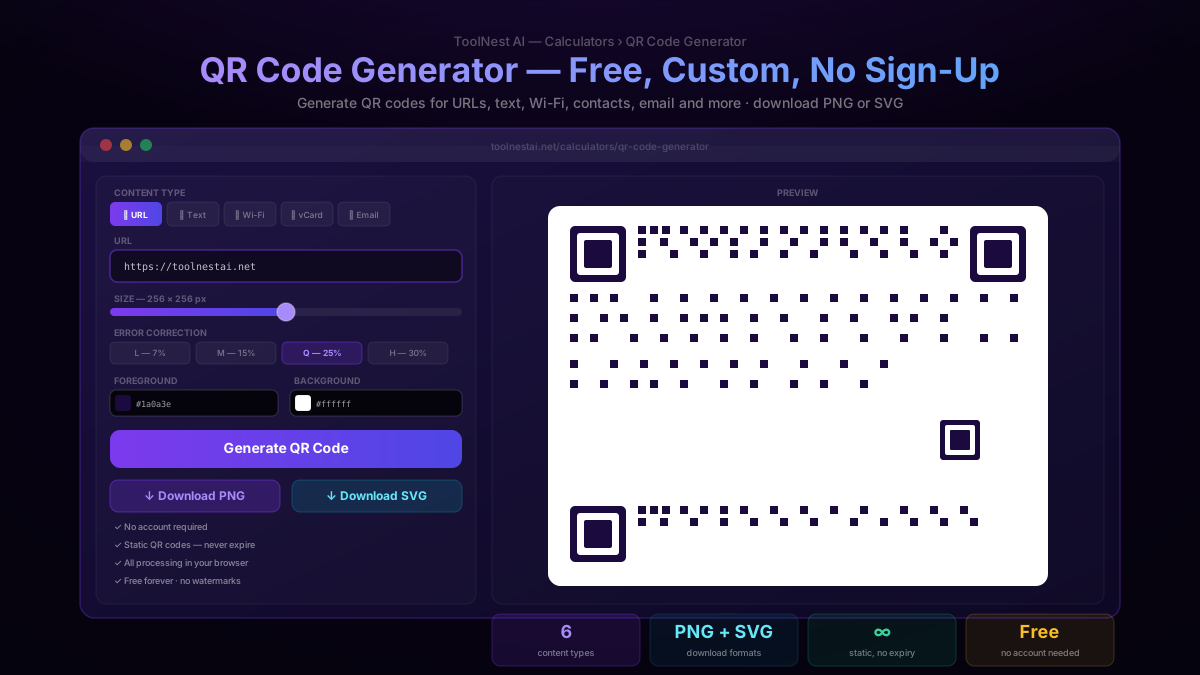
Step 1: Choose a content type
Click the tab for your use case: URL, Text, Wi-Fi, vCard, Email, or Phone. The input form updates to match the selected type.
Step 2: Enter your data
For URL: paste the full address — do not type it manually. A single typo produces a broken QR code that cannot be fixed after printing.
For Wi-Fi: enter the network name exactly as it appears in Wi-Fi settings, including capitalisation and spaces.
For vCard: fill in the fields you want to include. Name and phone or email are the minimum for a useful contact QR.
Step 3: Set size and error correction
Use the size slider to set the output resolution. For digital use, 256×256 px is sufficient. For download and later use in print software, 512×512 px or higher gives more flexibility. Export as SVG for large-format printing.
Set error correction to Q for most print applications.
Step 4: Generate and preview
Click Generate. The QR code preview updates instantly. Check that it looks correct — all three corner finder patterns should be clear and the quiet zone (white border) should be present.
Step 5: Test before committing
Scan the preview with your own phone before downloading and printing. Open the camera app, point it at the screen, and confirm the result is what you expected. This is the step most people skip — and the most important one before a print run.
Step 6: Download
Click Download PNG for digital use or Download SVG for print. The file saves directly to your device.
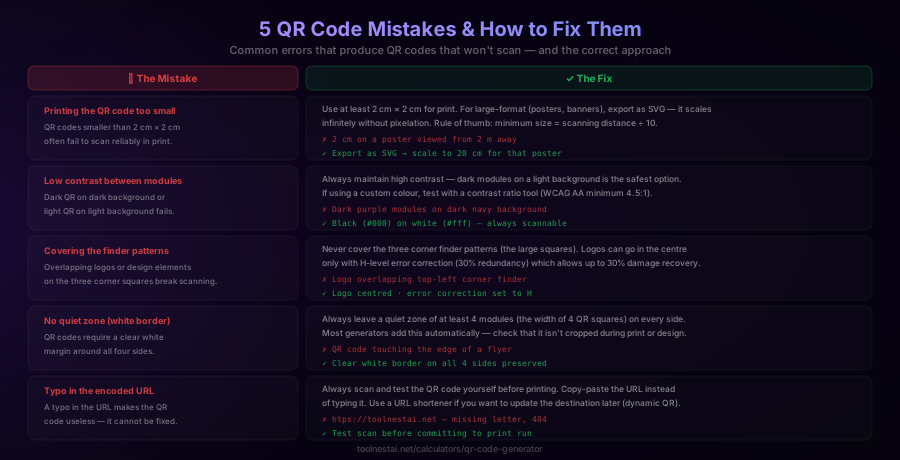
5 QR Code Mistakes to Avoid
1. Printing the code too small
The minimum reliable size for a QR code in print is 2 cm × 2 cm. Below this, the modules become too small for a phone camera to resolve reliably, especially with higher error correction levels.
A useful rule: the minimum print size equals the scanning distance divided by 10. A QR code on a poster viewed from 2 metres away should be at least 20 cm × 20 cm. For large formats, always export as SVG so the code can be scaled without pixelation.
2. Low contrast between modules
QR codes require high contrast to scan reliably. Dark modules on a light background is the original and most reliable design. If you want a custom colour, ensure the foreground-to-background contrast ratio is at least 4.5:1 (WCAG AA standard).
Never use dark modules on a dark background, even if the colours look distinct on screen — they may not be sufficiently distinct for a camera sensor under variable lighting.
3. Covering the finder patterns
The three corner squares (finder patterns) are critical to the scanner's ability to locate and orient the code. Overlapping any of them with a logo, design element, or cropped border will likely break scanning.
Logos can be placed in the centre of the code only when error correction is set to H (30% recovery). The logo should cover no more than 15–20% of the total code area.
4. No quiet zone
The blank white border around the QR code (called the quiet zone) must be at least four modules wide on every side. If this border is cropped during printing, trimming, or layout work, the scanner will fail to locate the code boundary.
Most generators add the quiet zone automatically. Check that it is not cropped when placing the QR code in a design application or when printing edge-to-edge.
5. A typo in the encoded URL
A typo in the URL makes the QR code permanently broken — it cannot be corrected without generating a new code, and any printed copies are waste. Always copy-paste the URL rather than typing it, and test-scan before printing.
If you need the ability to change the destination URL without reprinting (for example, for a campaign that redirects to different landing pages over time), use a URL shortener or a dynamic QR service that allows you to update the destination.
Static vs Dynamic QR Codes
The ToolNest AI generator creates static QR codes — the encoded data is fixed at generation time and cannot be changed.
Advantages of static QR codes:
- The entire code exists in the QR image itself — no server dependency
- Works offline and forever, as long as the destination URL stays live
- No subscription or account required
- More privacy — no scan tracking
When to use dynamic QR codes:
- You need to change the destination URL after printing (A/B testing landing pages, seasonal campaigns)
- You need analytics on scan counts, times, and locations
- You are running paid advertising and need to optimise the destination
Dynamic QR codes require a third-party service (Bitly, QR.io, Flowcode, etc.) that hosts a redirect. The QR code points to the service's URL, which redirects to your actual destination. If the service goes down or your subscription lapses, the QR codes stop working.
For most use cases — business cards, menus, product pages, Wi-Fi access, contact sharing — static QR codes are the better choice.
QR Codes for Developers
In-app QR scanning: Both iOS (AVFoundation) and Android (CameraX with ML Kit) provide native QR code scanning APIs. No third-party library is needed for basic URL scanning.
Generating QR codes programmatically: Popular libraries include qrcode (Python), node-qrcode (Node.js), ZXing (Java/Android), and CoreImage (iOS/Swift). All support error correction level selection and output in raster or vector format.
Structured data formats:
- Wi-Fi:
WIFI:S:{ssid};T:{WPA|WEP|nopass};P:{password};; - vCard: follows vCard 3.0 spec (RFC 2426)
- Phone:
tel:{number}(E.164 international format recommended) - Email:
mailto:{address}?subject={subject}&body={body} - SMS:
smsto:{number}:{message}
Size considerations: A URL QR code with error correction Q fits comfortably in a version 5 or 6 QR code (37×37 or 41×41 modules). Longer data strings require larger versions with more modules — keep URLs short where possible.
Frequently Asked Questions
Do QR codes expire?
Static QR codes do not expire. They will work as long as the encoded URL is live and the physical code is legible. If you encode a URL that later goes offline (the page is deleted or the domain expires), the QR code will scan but show an error in the browser. Dynamic QR codes (from third-party services) may stop working if the service goes offline or a subscription lapses.
What types of data can a QR code store?
A single QR code can store a URL, plain text, email address, phone number, SMS message, Wi-Fi credentials, or vCard contact. The six content types in the ToolNest AI generator cover all common use cases. The theoretical maximum data capacity is 7,089 numeric characters or 4,296 alphanumeric characters per code, though practical limits are lower when using error correction.
What is the minimum print size for a QR code?
The minimum reliable print size is 2 cm × 2 cm for scanning at arm's length. For signage viewed from further away, scale proportionally: a QR code viewed from 2 metres should be at least 20 cm × 20 cm. Always export as SVG for large-format printing so the code scales without pixelation.
Can I put a logo inside a QR code?
Yes, but only with H-level error correction (30% recovery). The logo should cover no more than 15–20% of the total code area, and it must not overlap the three corner finder patterns. Lower error correction levels cannot recover from the data loss caused by the logo overlay, and the code will likely fail to scan.
PNG or SVG — which should I download?
Download PNG for digital use: embedding in emails, websites, social media, or presentations. Download SVG for print: business cards, posters, menus, banners, or any application where the final print size may be larger than the generated resolution. SVG scales perfectly to any size without pixelation.
Are the QR codes free to use commercially?
Yes. QR codes generated with ToolNest AI are completely free for any use, including commercial applications. There are no watermarks, no usage limits, and no attribution required. The codes are yours to use however you like.
Why is my QR code not scanning?
The most common causes are: insufficient quiet zone (the white border is cropped), low contrast between modules and background, a typo in the encoded URL, the code printed too small, or the finder patterns covered by a design element. Test the code by scanning the digital version before printing. If it fails to scan digitally, regenerate — do not print.
Can I scan a QR code without a QR reader app?
Yes, on iOS 11+ and Android 8+ the native camera app scans QR codes without any additional app. Open the camera, point it at the QR code, and a notification banner appears with the decoded content. Older devices may need a dedicated QR reader app, available free on both app stores.
About the author
ToolNest AI Team
The ToolNest AI team builds free tools that help developers, marketers, and creators do more online — faster.
Related Articles
Password Generator: Create Strong, Random Passwords Free
Learn what makes a password strong, how password entropy works, which character sets to use, and how to generate uncrackable passwords instantly with a free tool — no sign-up required.
Open Graph Generator: Create Perfect Social Preview Cards Free
Learn how Open Graph tags work, which tags every page needs, and how to generate them instantly with a free OG generator. Includes live previews for Facebook, LinkedIn, Twitter/X, and Discord.