JPG to PNG Converter: What Actually Changes and When to Use It
Converting JPG to PNG doesn't improve quality — it preserves it. Learn what the conversion actually does, why PNG files are larger, how to avoid common misconceptions, and when this conversion is genuinely useful. Free online tool.
Founder & Developer, ToolNest AI
Published
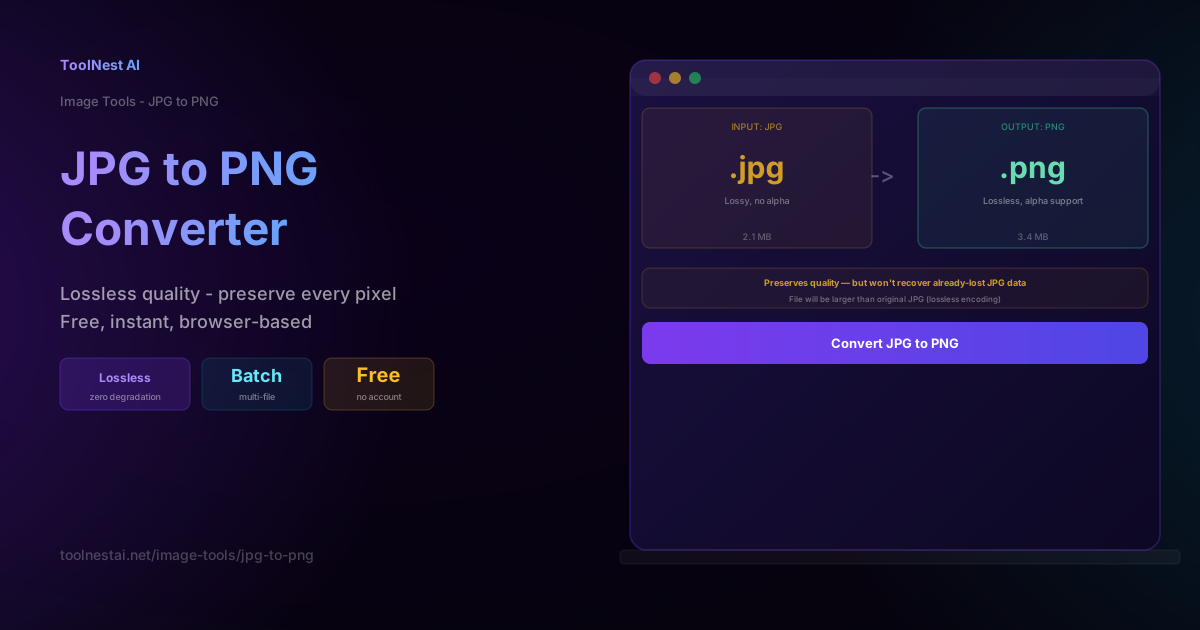
Searching for "JPG to PNG converter" usually implies one of a few things: you want to edit the image without adding more JPEG artifacts, you need to add transparency, or you've heard PNG is "better quality" and want to upgrade your file. Two of those are valid reasons. The third is based on a very common misunderstanding about what format conversion actually does.
This guide covers exactly what changes when you convert JPG to PNG, what doesn't change, why the output file is larger, and the real situations where this conversion is worth doing.
Convert instantly in your browser with the ToolNest AI JPG to PNG Converter — no uploads, no account, no limits.
JPG vs PNG: The Core Difference
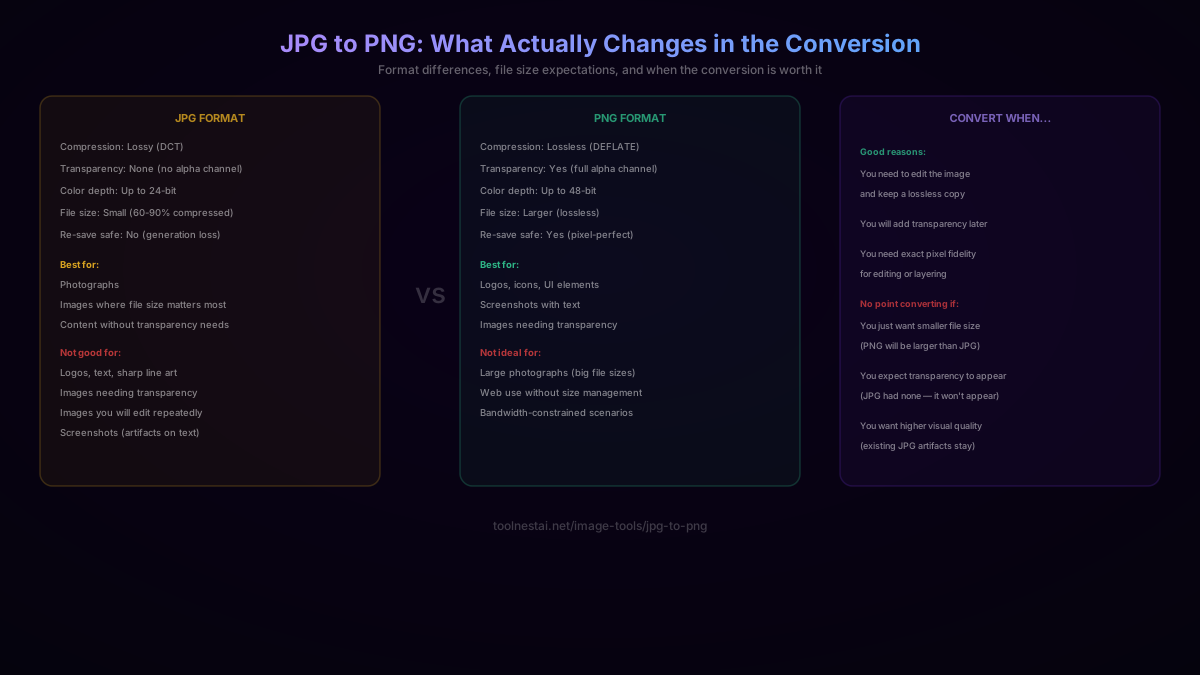
| Feature | JPG | PNG |
|---|---|---|
| Compression | Lossy (DCT algorithm) | Lossless (DEFLATE algorithm) |
| Transparency | None (no alpha channel) | Full alpha channel support |
| File size | Small (60-90% compressed) | Larger (especially for photos) |
| Re-save safe | No (generation loss) | Yes (pixel-perfect) |
| Best for | Photographs | Logos, screenshots, graphics |
| Color depth | Up to 24-bit | Up to 48-bit |
The fundamental difference is in compression type. JPG permanently discards some image data to achieve small file sizes — a trade-off that works well for photographs where the discarded detail is hard to notice. PNG preserves every pixel exactly, which produces larger files but zero quality degradation, no matter how many times you save the file.
What Converting JPG to PNG Actually Does
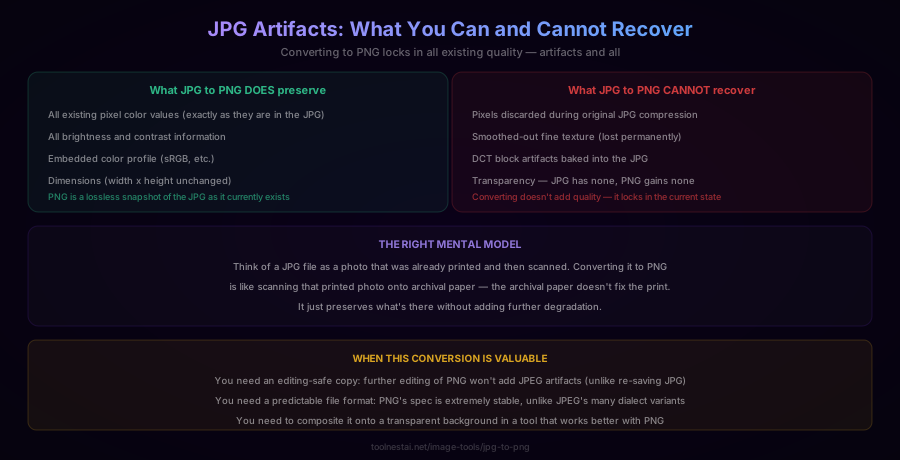
Here's the key insight that most guides skip: converting JPG to PNG does not improve image quality. It preserves the current quality — exactly as it exists in the JPG — and re-encodes it losslessly as PNG.
What the conversion does:
- Reads the current pixel values from the JPG file
- Re-encodes those exact pixel values as PNG (losslessly)
- The output is a lossless snapshot of whatever is currently in the JPG
What the conversion cannot do:
- Recover pixels that were discarded during the original JPG compression
- Remove JPEG block artifacts already baked into the image
- Add transparency (JPG has no alpha data to convert)
- "Upgrade" the image quality in any way
A useful mental model: think of a JPG as a photo that was printed on paper. Converting it to PNG is like scanning that printed photo onto archival paper. The archival paper doesn't fix the print — it just preserves it at its current state without degrading further.
The conversion is still useful, just not for quality improvement. The value is in what happens next: a PNG can be edited repeatedly without accumulating further JPEG artifacts, supports transparency (which you can add after conversion with any editor), and is handled predictably by virtually all software.
Why PNG Files Are Larger Than JPG
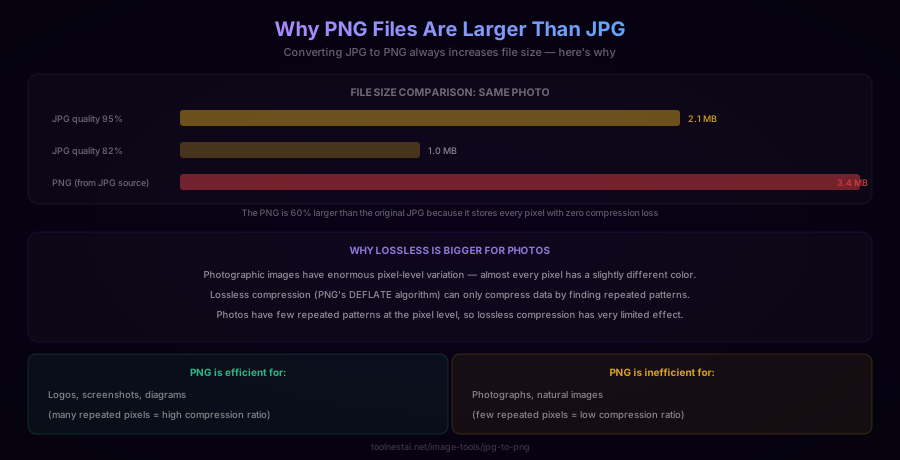
The output PNG will almost always be significantly larger than the source JPG — typically 50-100% larger for photographic content. This surprises many people who expected the conversion to produce a smaller file or at least the same size.
The reason is the nature of each format's compression approach.
JPEG's lossy compression discards data aggressively and works particularly well on photographs because natural images have smooth color gradients that can be approximated after losing high-frequency detail. The result is very small files.
PNG's lossless compression (using the DEFLATE algorithm, the same one in ZIP files) works by finding and eliminating repeated patterns in the pixel data. It cannot discard any actual pixel values — everything must be preserved exactly. For photographic content with enormous pixel-level color variation, there are very few repeated patterns to exploit, so the compression ratio is limited.
The irony is that PNG compression is most effective on exactly the types of images where you want lossless quality — logos, screenshots, and diagrams with large flat areas of color and many repeated pixel values. For photographs (JPG's natural territory), PNG produces large files with little to show for it.
When file size matters: if you need a smaller lossless format for a photograph, consider lossless WebP — it uses a more modern algorithm and typically produces smaller lossless files than PNG for the same visual content, while still supporting full transparency.
Common Misconceptions
Misconception 1: Converting to PNG improves quality. It doesn't. A blurry or artifact-ridden JPG becomes a lossless blurry or artifact-ridden PNG. The conversion preserves the current state, not the original pre-JPG state. If there's any quality to recover at all (which usually there isn't), you'd need the original pre-JPEG source file.
Misconception 2: PNG files will be transparent after converting from JPG. JPG has no alpha channel at all — there's no transparency data to convert. A JPG-to-PNG conversion produces a fully opaque PNG. Every pixel that was an RGB color in the JPG remains that exact RGB color in the PNG, just with full opacity. Transparency appears in PNG only if you explicitly add it (for example, by using a background removal tool after conversion).
Misconception 3: PNG is always better than JPG. Neither format is universally better — they're optimized for different use cases. JPG's lossy compression makes it dramatically more efficient for photographs. PNG's lossless compression makes it better for logos, screenshots, and images you need to edit repeatedly. The right choice depends on the content and how the image will be used.
Misconception 4: You can "upgrade" a low-quality JPG to high-quality PNG. This would require recovering data that no longer exists in the file. What the conversion does instead is preserve the low quality in a lossless format. The result is a larger file with the same artifacts.
When Converting JPG to PNG Is Genuinely Useful
Despite the misconceptions, there are real reasons to convert JPG to PNG:
1. Safe editing without further quality loss. If you need to open and edit an image in software that saves as JPEG, every save adds a new round of JPEG compression and slightly degrades quality. Converting to PNG first means your editing software will save in PNG format, so you accumulate no further lossy artifacts throughout the editing process. This is particularly valuable if you'll be making multiple rounds of edits.
2. Preparing for transparency work. You can't add transparency to a JPG directly — JPEG doesn't support it. If you want to remove the background (the most common transparency task), you first convert to PNG, then use a background-removal tool to make the background transparent. The converted PNG now supports the alpha channel that background removal requires.
3. Compositing in graphic design software. Some editing and compositing workflows work better with PNG than JPEG — either because the software handles PNG's lossless nature better, or because the JPEG decoder's approximate color reconstruction interferes with color-accurate compositing. Converting to PNG gives the compositing software a stable, exact set of pixel values to work with.
4. Format stability and compatibility. The PNG specification is extremely stable and consistently implemented across all software. JPEG has numerous variants and implementation quirks (progressive JPEG, different chroma subsampling modes, various metadata formats) that occasionally cause rendering differences between applications. PNG is more predictable.
5. Archival purposes. If you need to store an image in a format that guarantees no further degradation on any future save or read, PNG is a solid choice. JPG is inappropriate for archival use since each re-save degrades it.
How to Use the JPG to PNG Converter
The ToolNest AI JPG to PNG Converter works entirely in your browser:
- Upload your JPG — drag and drop or click to select. Multiple files supported for batch conversion.
- Review the conversion — the tool shows file size before and after, so you know what to expect.
- Download the PNG — or batch download all converted files.
No files are uploaded to any server. Processing happens locally in your browser using JavaScript, so your images remain private.
Code Examples: JPG to PNG Programmatically
JavaScript (Canvas API — browser):
function jpgToPng(img) {
  const canvas = document.createElement('canvas');
  canvas.width = img.width;
  canvas.height = img.height;
  canvas.getContext('2d').drawImage(img, 0, 0);
  return canvas.toDataURL('image/png'); // PNG is the default
}
Python (Pillow):
from PIL import Image

img = Image.open('photo.jpg')
img.save('photo.png')  # Pillow auto-detects format from extension
Node.js (Sharp):
const sharp = require('sharp');

await sharp('photo.jpg')
  .png({ compressionLevel: 9 })  // 0-9, higher = smaller file, slower
  .toFile('photo.png');
Command line (ImageMagick):
convert input.jpg output.png

# With maximum PNG compression
convert input.jpg -define png:compression-level=9 output.png
JPG to PNG vs JPG to WebP
If your goal is to get a lossless, transparency-capable format with the smallest possible file size, lossless WebP is worth considering alongside PNG:
| Scenario | JPG to PNG | JPG to WebP (lossless) |
|---|---|---|
| File size | Larger (limited compression) | Smaller (modern algorithm) |
| Transparency | Yes (alpha channel) | Yes (alpha channel) |
| Browser support | Universal | Near-universal (all modern browsers) |
| Software support | Universal | Limited in older desktop apps |
| Editing safety | Yes (lossless) | Yes (lossless) |
For web use, lossless WebP is almost always the better choice. For desktop software, print workflows, or anywhere WebP support isn't guaranteed, PNG remains the safe universal choice.
Frequently Asked Questions
Does converting JPG to PNG improve image quality?
No. Converting JPG to PNG preserves the existing quality — exactly as it is — but cannot recover any quality that was already lost during JPEG compression. A blurry or artifact-ridden JPEG becomes a lossless copy of that exact blurry or artifact-ridden image. The conversion prevents further degradation from future saves, but it cannot undo past compression.
Why is my PNG file larger than the original JPG?
Because PNG uses lossless compression, which must preserve every pixel exactly, while JPEG uses lossy compression that discards data aggressively. Lossless compression has limited effect on photographic content (which has enormous pixel-level variation with few repeated patterns), so PNG files for photos are typically 50-100% larger than equivalent JPEG files. This is expected and normal.
Will the PNG have a transparent background?
No. JPG has no alpha channel (transparency support) at all, so there's nothing to convert. The output PNG will have a fully opaque background — every pixel that was a color in the JPG will be that same color at full opacity in the PNG. To add transparency after converting, you'd use a separate background removal tool.
Is PNG better quality than JPG?
Not inherently — they're optimized for different content. PNG is better for logos, screenshots, and graphics with sharp edges, where its lossless compression preserves crisp detail. JPG is more efficient for photographs, where its lossy compression achieves much smaller files with minimal visible quality loss. The right choice depends on what the image contains and how it will be used.
When should I convert JPG to PNG instead of to WebP?
Convert to PNG when you need maximum software compatibility — PNG is supported by virtually every image viewer, editor, and platform. Convert to WebP (lossless) when you're targeting modern web use and want a smaller file size, since lossless WebP typically produces files 20-30% smaller than PNG for the same content, while supporting full transparency.
Can I batch convert multiple JPG files to PNG?
Yes. The ToolNest AI JPG to PNG Converter supports batch conversion — upload multiple JPG files at once and download all the converted PNGs. For large-scale or automated batch conversion (thousands of files), command-line tools like ImageMagick or Python's Pillow library are more practical.
Does the conversion preserve image metadata (EXIF, color profile)?
PNG supports embedded metadata, and the conversion typically preserves the color profile. EXIF metadata (camera settings, GPS location) handling depends on the conversion tool — some preserve it, some strip it. The ToolNest AI converter preserves embedded color profiles to ensure accurate color rendering in the output PNG.
About the author
Emir LočićI'm a developer focused on building practical online tools, with several years of experience in web development. I created ToolNest AI to make useful AI-powered tools simple, accessible, and free to use in one place.
Related Articles
Image Converter: JPG, PNG, WebP Compared + Free Online Tool
Learn the real differences between JPG, PNG, and WebP, lossy vs lossless compression, why re-saving JPG repeatedly degrades quality, and the transparency trap when converting to JPG. Free, instant tool.
Image Compressor: How to Reduce File Size Without Losing Quality
Learn how JPEG compression actually works, the optimal quality setting for web images, the difference between lossy and lossless compression, and the mistakes that silently degrade your images. Free online image compressor tool.