Image Converter: JPG, PNG, WebP Compared + Free Online Tool
Learn the real differences between JPG, PNG, and WebP, lossy vs lossless compression, why re-saving JPG repeatedly degrades quality, and the transparency trap when converting to JPG. Free, instant tool.
Founder & Developer, ToolNest AI
Published
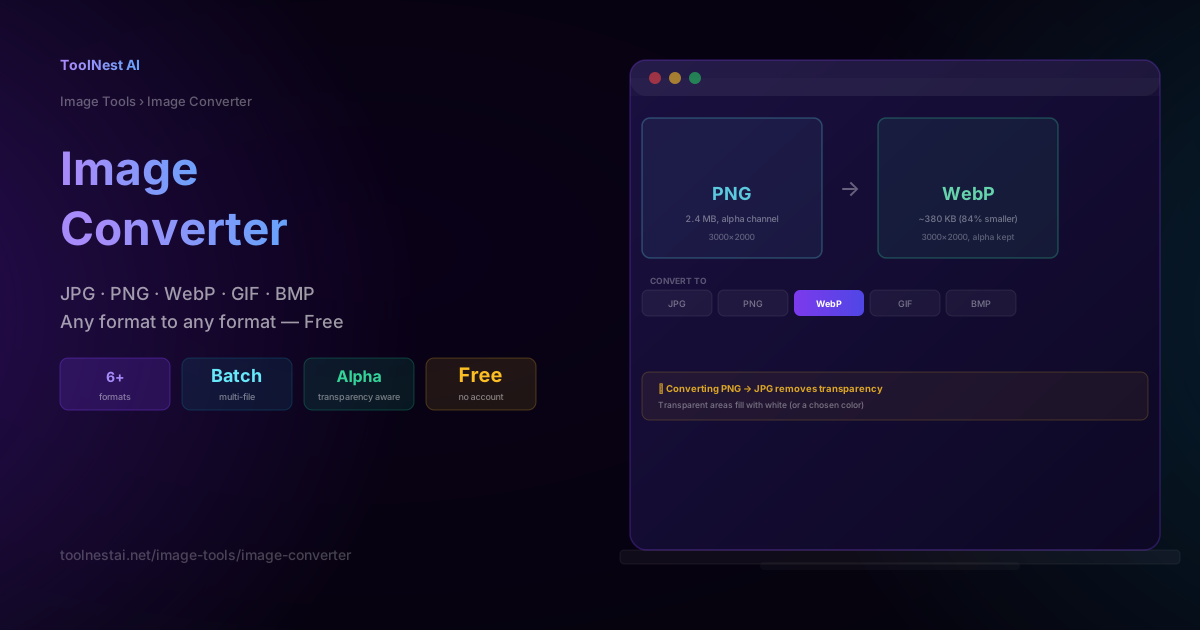
Every image format makes a different trade-off between file size, quality, and features like transparency — and picking the wrong one for the job produces predictable, avoidable problems: a logo with a white box where transparency should be, or a photo that gets visibly blockier every time someone re-saves it. This guide covers exactly what each major format does differently and the mistakes that quietly degrade image quality over time.
Convert between formats instantly, entirely in your browser, with the ToolNest AI Image Converter.
Format Comparison: PNG, JPG, WebP
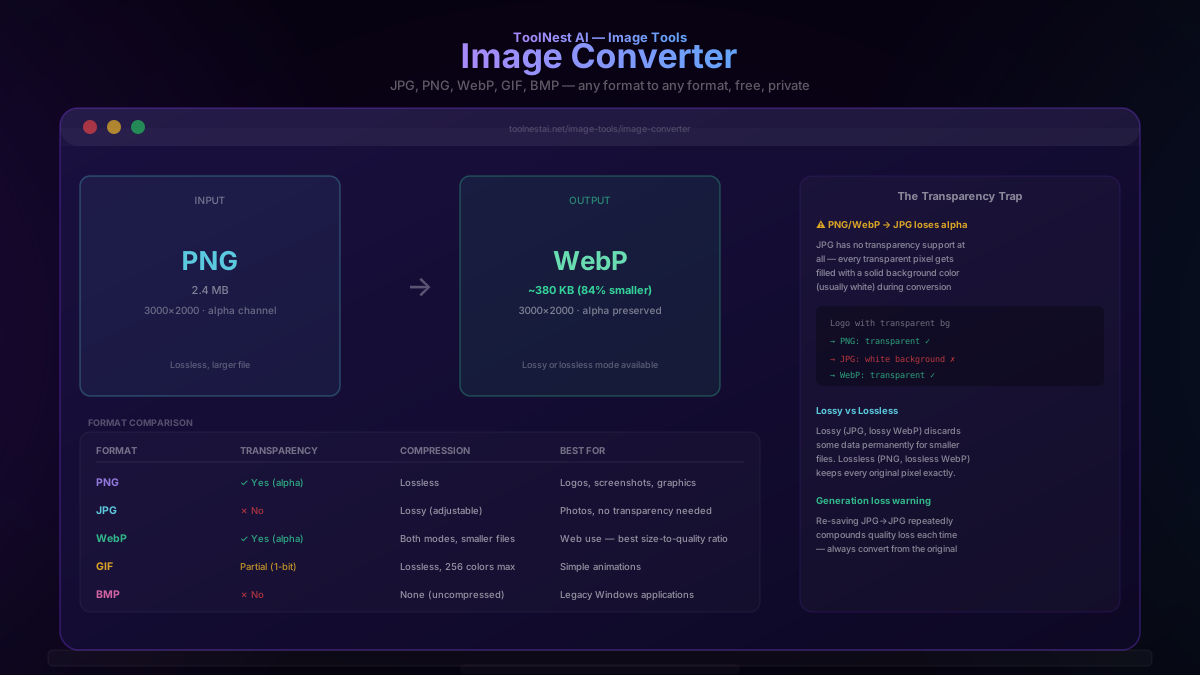
| Format | Transparency | Compression | Best for |
|---|---|---|---|
| PNG | Yes (full alpha channel) | Lossless | Logos, screenshots, graphics, line art |
| JPG | No | Lossy (adjustable quality) | Photographs with no transparency needed |
| WebP | Yes (full alpha channel) | Both lossy and lossless modes | General web use — best size-to-quality ratio |
| GIF | Partial (1-bit, on/off only) | Lossless, 256 colors max | Simple animations |
| BMP | No | None (uncompressed) | Legacy Windows applications only |
WebP is the modern default choice for most web use cases. It supports both lossy and lossless compression modes plus full transparency, and typically produces files 25-35% smaller than an equivalent-quality JPG or PNG — making it the best general-purpose format when browser compatibility isn't a concern (which is now nearly universal, as all major modern browsers support WebP).
Lossy vs Lossless Compression
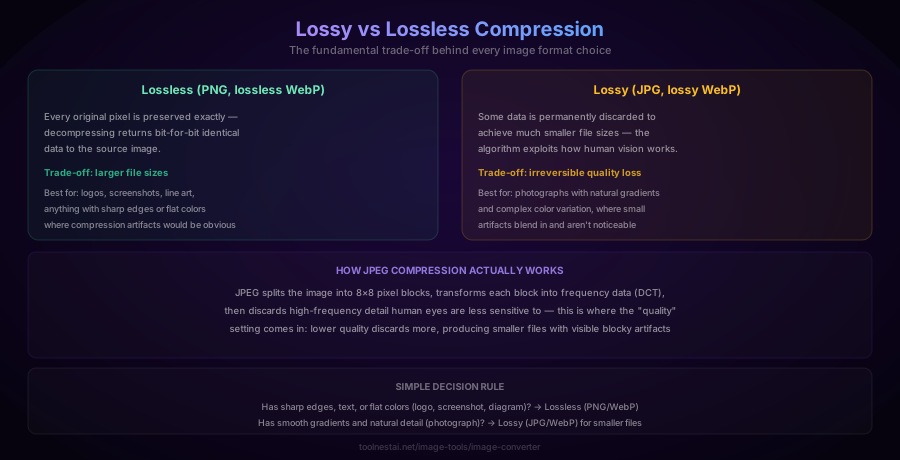
Lossless compression (PNG, lossless WebP mode) preserves every original pixel exactly — decompressing the file returns bit-for-bit identical data to the source image. The trade-off is larger file sizes, since no data is discarded. This is the right choice for logos, screenshots, line art, and anything with sharp edges or flat colors, where compression artifacts would be immediately visible.
Lossy compression (JPG, lossy WebP mode) permanently discards some image data to achieve much smaller file sizes, exploiting the fact that human vision is less sensitive to certain kinds of detail loss than others. JPEG specifically splits the image into 8×8 pixel blocks, transforms each block into frequency data using a Discrete Cosine Transform (DCT), and discards high-frequency detail based on the chosen quality setting — lower quality settings discard more, producing smaller files but visible blocky artifacts.
The simple decision rule: if your image has sharp edges, text, or flat colors (a logo, screenshot, or diagram), use a lossless format. If your image has smooth gradients and natural photographic detail, lossy compression is appropriate and produces much smaller files with minimal visible quality impact.
Generation Loss: Why Re-Saving JPG Degrades Quality
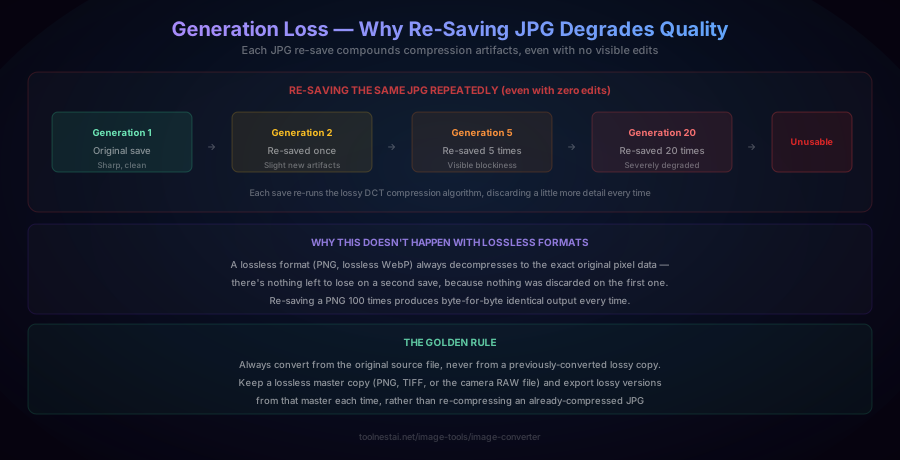
Here's a subtle but important consequence of lossy compression: every time a JPEG is re-saved, the compression algorithm runs again, discarding a little more detail — even if no visible edits were made between saves.
This compounds over time. An original JPG might look perfectly sharp. After being re-saved (say, opened and exported again by different software, or passed through multiple editing tools) five or ten times, visible blockiness starts to appear, even though nobody intentionally lowered the quality at any single step. This is called generation loss, and it's a well-known problem for images that pass through multiple hands or automated pipelines that re-encode JPEGs.
Lossless formats don't have this problem. A PNG re-saved 100 times produces byte-for-byte identical output every time, because there's nothing left to discard on a second save that wasn't already discarded (or rather, not discarded at all) on the first.
The fix: always convert from the original source file, never from a previously lossy-compressed copy. Keep a lossless master (PNG, TIFF, or the camera's RAW file) and export lossy versions from that master each time you need one, rather than re-compressing an already-compressed JPG.
The Transparency Trap
JPG has no transparency support whatsoever — no alpha channel exists in the format at all. Converting any image with transparent areas (a logo saved as PNG, for example) to JPG silently fills every transparent pixel with a solid background color, usually white. This is a common, easily overlooked mistake: a transparent logo that looks perfect in PNG or WebP suddenly has an ugly white box around it once converted to JPG.
If your image needs transparency, your output format must be PNG or WebP — never JPG.
How to Use the Image Converter
The ToolNest AI Image Converter processes your image entirely in your browser — nothing is uploaded to a server.
- Upload your image (JPG, PNG, WebP, GIF, or BMP)
- Select your target format
- Adjust quality if converting to a lossy format (JPG or lossy WebP)
- Check the transparency warning if your source image has an alpha channel and you're converting to JPG
- Download the converted file
Format Conversion in Different Languages
JavaScript (Canvas API):
function convertToWebP(img, quality = 0.85) {
  const canvas = document.createElement('canvas');
  canvas.width = img.width;
  canvas.height = img.height;
  canvas.getContext('2d').drawImage(img, 0, 0);
  return canvas.toDataURL('image/webp', quality);
}
Python (Pillow):
from PIL import Image

img = Image.open('photo.png')
img.convert('RGB').save('photo.jpg', quality=85)  # RGB drops alpha for JPG
img.save('photo.webp', quality=85)  # WebP keeps alpha automatically
Command line (ImageMagick):
convert input.png -quality 85 output.jpg
convert input.png output.webp
Common Mistakes
Mistake 1: Converting a transparent PNG or WebP to JPG without realizing transparency is lost. As covered above, JPG has no alpha channel at all — transparent areas become a solid background color.
Mistake 2: Repeatedly re-saving JPG files, compounding generation loss. Each re-save discards more detail, even without any intentional edits. Keep a lossless master copy and always convert from it.
Mistake 3: Using PNG for photographs. PNG's lossless compression produces much larger files for photographic content than a well-tuned lossy JPG or WebP, with no visible quality benefit for typical viewing — lossless precision matters far more for graphics with sharp edges than for continuous-tone photos.
Mistake 4: Ignoring browser compatibility when choosing WebP. While WebP support is now nearly universal across modern browsers, if you need to support very old browsers or specific legacy software, verify compatibility first or provide a JPG/PNG fallback.
Frequently Asked Questions
What's the difference between JPG, PNG, and WebP?
JPG uses lossy compression (adjustable quality vs. file size trade-off) and doesn't support transparency — best for photographs. PNG uses lossless compression (preserves every pixel exactly) and supports full transparency — best for logos, screenshots, and graphics with sharp edges. WebP supports both lossy and lossless modes plus transparency, typically producing smaller files than either JPG or PNG at equivalent quality — the best general-purpose choice for modern web use.
Why does my logo have a white background after converting to JPG?
Because JPG has no alpha channel (transparency support) at all. When you convert an image with transparent areas to JPG, every transparent pixel is filled with a solid background color — typically white — since JPG has no way to represent "no color here." If you need to preserve transparency, convert to PNG or WebP instead.
Does converting an image lose quality?
It depends on the source and target formats. Converting from a lossless format (PNG) to another lossless format (like lossless WebP) doesn't lose any quality. Converting from a lossless format to a lossy format (JPG or lossy WebP) does discard some data, though at high quality settings this is often visually unnoticeable. Converting from an already-lossy format (JPG) to another lossy format compounds the quality loss — this is why repeatedly re-saving JPGs degrades quality over time (generation loss).
What is generation loss in image compression?
Generation loss is the cumulative quality degradation that occurs when a lossy-compressed file (like JPG) is repeatedly decompressed and re-compressed, even without any intentional edits between saves. Each re-save runs the lossy compression algorithm again, discarding a bit more detail each time. After many generations, visible artifacts (blockiness, color banding) accumulate. Lossless formats like PNG don't suffer from this, since re-saving produces byte-for-byte identical output every time.
Which format should I use for a website?
WebP is generally the best choice for modern websites — it supports both lossy and lossless compression, full transparency, and produces smaller files than equivalent-quality JPG or PNG, improving page load speed. For images requiring maximum compatibility with very old browsers, JPG (for photos) or PNG (for graphics/logos with transparency) remain safe universal fallbacks.
Can I convert a JPG to PNG and get back the transparency it never had?
No. Since JPG never had transparency data to begin with (the format doesn't support it), converting a JPG to PNG only changes the compression method — it can't recover transparency information that was never captured, because there's nothing to recover. If you need transparency, you must start from a source image that actually had transparent areas before it was ever saved as JPG.
Is WebP supported everywhere?
WebP support is now nearly universal across modern browsers (Chrome, Firefox, Safari, Edge) as of the past several years. It's a safe default for nearly all current web use cases. If you need to support very old browser versions or specific legacy software that predates broad WebP adoption, verify compatibility for your specific audience or provide a JPG/PNG fallback.
How do I choose the right quality setting for lossy compression?
Start around 80-85% quality for JPG or lossy WebP — this typically provides a good balance between file size and visual quality for most photographic content, with compression artifacts that are difficult to notice at normal viewing sizes. Lower settings (60-70%) produce smaller files but increasingly visible artifacts, especially in areas with fine detail or sharp color transitions. There's no single "correct" setting — it depends on your specific image content and how much file size reduction you need.
About the author
Emir LočićI'm a developer focused on building practical online tools, with several years of experience in web development. I created ToolNest AI to make useful AI-powered tools simple, accessible, and free to use in one place.
Related Articles
Image Resizer: Resize Without Distortion — Free Online Tool
Learn the aspect ratio math behind distortion-free resizing, why downscaling is always safe but upscaling loses quality, and the interpolation algorithms behind image resizing. Free, instant, private tool.
Word Counter: Count Words, Characters & Reading Time Free
Learn how to use a word counter to track words, characters, sentences, paragraphs and reading time — plus a complete reference of character limits for every major platform.