Image Cropper: Aspect Ratios, Composition, and Platform Dimensions
Learn how image cropping works, the standard aspect ratios for every major platform, how to apply the rule of thirds for better composition, and the difference between crop and resize. Free online image cropper tool.
Founder & Developer, ToolNest AI
Published
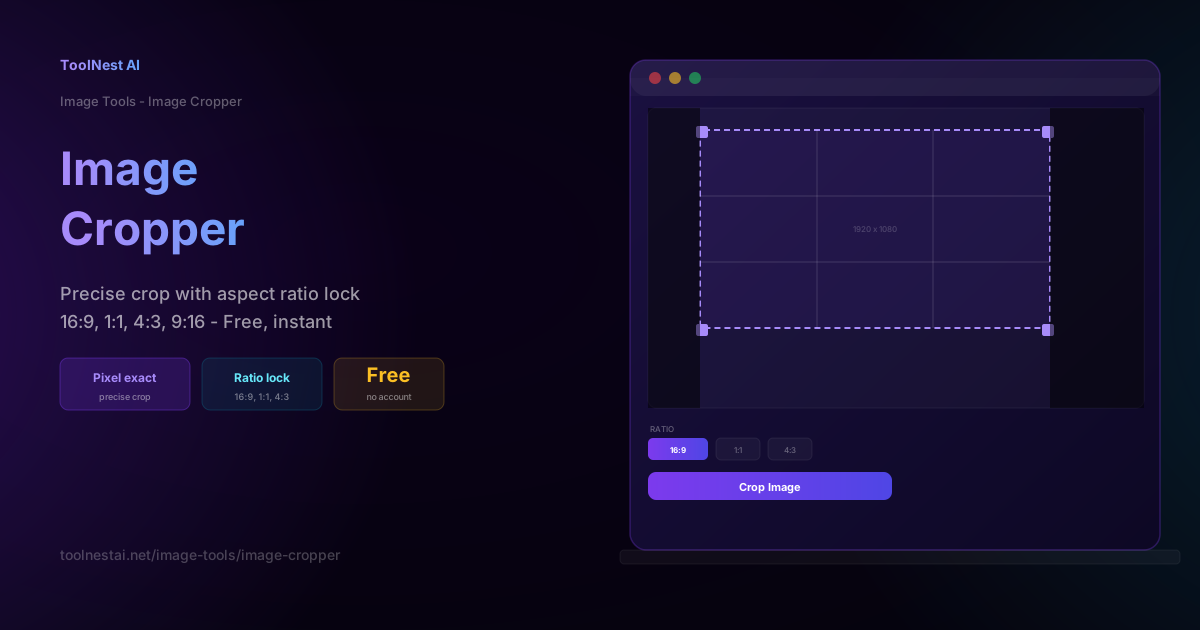
Cropping is one of the most common and important image edits: removing distracting edges, adjusting composition, preparing images for specific platform requirements, or changing the aspect ratio so an image fits correctly in a 16:9 hero section or 1:1 Instagram square. Done correctly, a crop improves both the technical fit and the visual impact of an image.
Crop your images instantly with the ToolNest AI Image Cropper — drag to select, lock your aspect ratio, download in seconds.
Understanding Aspect Ratios
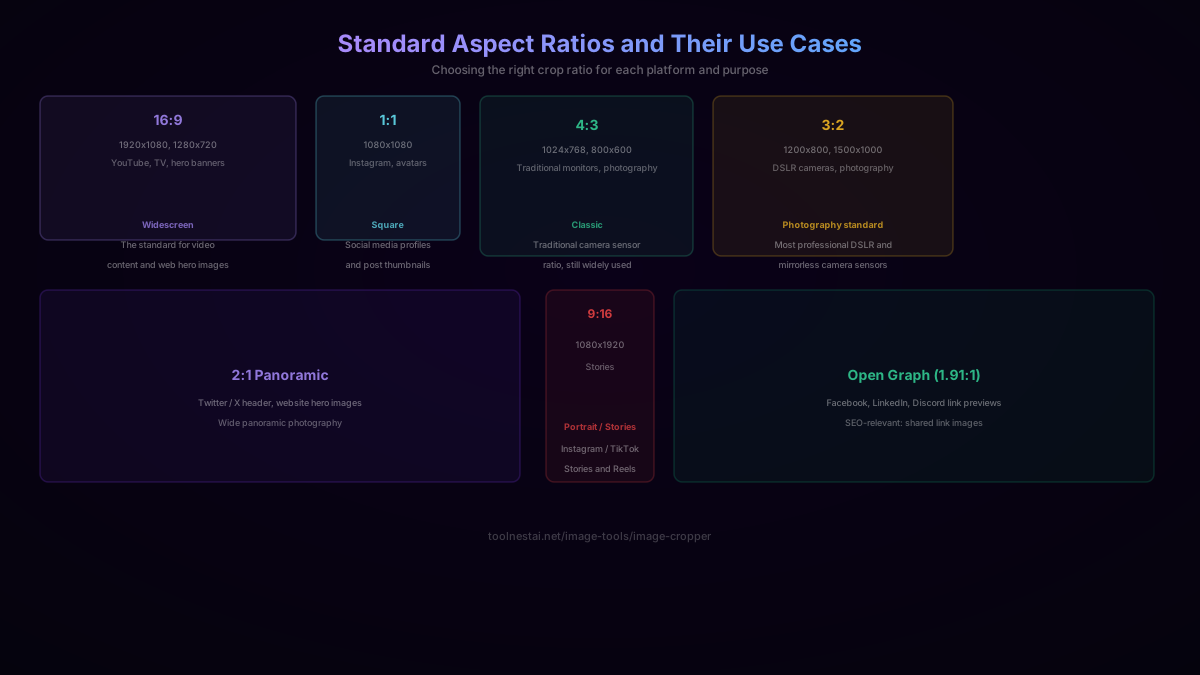
An aspect ratio is the proportional relationship between width and height, expressed as width:height. The same ratio can exist at many different pixel resolutions:
- 16:9 covers 1280×720 (720p HD), 1920×1080 (1080p Full HD), and 3840×2160 (4K)
- 1:1 covers 500×500, 1080×1080, or any equal dimension square
Why ratios matter: most display surfaces expect a specific ratio. A hero section designed for 16:9 widescreen will distort a 1:1 square image, cropping it or letterboxing it. A platform like YouTube expects thumbnail images at exactly 16:9; off-ratio images get letterboxed with black bars.
The most common ratios:
| Ratio | Shape | Typical use |
|---|---|---|
| 16:9 | Widescreen | YouTube, TV, website hero images |
| 1:1 | Square | Instagram posts, profile pictures |
| 4:3 | Classic | Traditional monitors, photography, presentations |
| 3:2 | Near-widescreen | DSLR cameras, prints, photography standard |
| 9:16 | Tall portrait | Instagram Stories, TikTok, Reels |
| 4:5 | Portrait | Instagram recommended post ratio |
| 1.91:1 | Wide | Open Graph (Facebook/LinkedIn/Discord previews) |
Platform-Specific Crop Dimensions
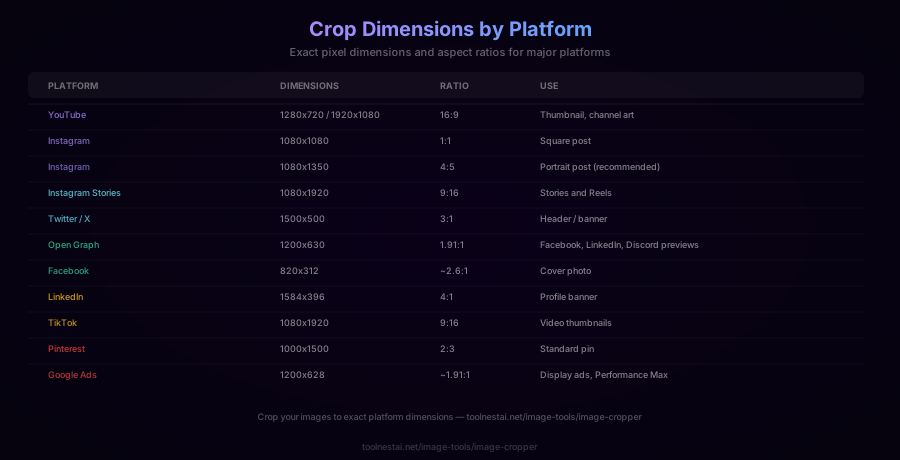
Every major platform has specific dimension requirements. Cropping to exact dimensions prevents letterboxing, cropping, and quality loss from platform-side resizing.
Video platforms:
- YouTube thumbnail: 1280×720 (16:9) — keep critical elements in the center 1080×720 safe zone, as YouTube adds blur to the outer edges in some displays
- YouTube channel art: 2560×1440, but safe area is 1546×423 (only the center shows on most screens)
Social media posts:
- Instagram square: 1080×1080 (1:1)
- Instagram portrait: 1080×1350 (4:5) — recommended by Instagram as it takes up more feed real estate
- Instagram landscape: 1080×566 (1.91:1)
- Instagram Stories / Reels: 1080×1920 (9:16)
- Facebook post: 1200×630 (1.91:1)
Profile/banner images:
- Twitter/X header: 1500×500 (3:1)
- LinkedIn banner: 1584×396 (4:1)
- Facebook cover: 820×312 (~2.6:1)
Sharing/SEO:
- Open Graph image: 1200×630 (1.91:1) — this is what appears when your page is shared on Facebook, LinkedIn, Twitter, and Discord
Advertising:
- Google Ads: 1200×628 (~1.91:1) — Display Network and Performance Max
- Pinterest: 1000×1500 (2:3) — standard pin format
Rule of Thirds: Cropping for Better Composition
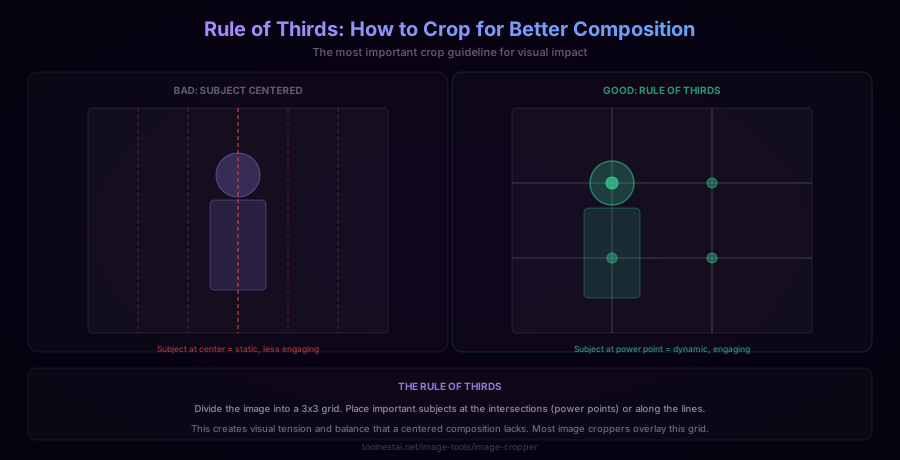
Aspect ratio determines the shape of your crop. Where you position the crop within the original image determines the composition — and the most useful guide here is the rule of thirds.
The rule: divide the image into a 3×3 grid (two evenly-spaced horizontal lines and two vertical lines). The four intersections of these lines are called "power points." Placing your main subject at or near a power point creates more visually engaging, dynamic compositions than centering the subject.
Why it works: centered compositions are static and predictable — the eye immediately knows where to look and there's nowhere left to go. Off-center compositions create visual tension and direct the eye, giving the viewer a richer experience of scanning the image.
Applying the rule when cropping:
- Enable the thirds grid overlay in your cropper (most crop tools provide this)
- Drag the crop selection so that your subject — a face, a product, a horizon line, or any key element — falls on or near one of the four intersection points
- Leave more "breathing room" in the direction the subject is looking or moving
Practical examples:
- Portrait photography: position the face at an upper-third intersection, leaving more space at the bottom
- Landscape photography: place the horizon along the lower horizontal third (sky-heavy) or upper horizontal third (ground-heavy) rather than dead center
- Product photography: position the product at a left or right third with negative space on the other side
Crop vs Resize: A Common Confusion
Crop and resize are different operations that are often confused:
Crop removes pixels from the edges of the image. The remaining area keeps its original resolution and pixel density. Cropping changes the aspect ratio and content area — some of the image is permanently removed.
Resize scales all pixels proportionally up or down. The content area stays the same, but the pixel dimensions change. Resizing doesn't remove any content — it just changes the scale.
When to crop:
- You want to remove distracting elements from the edges
- You need to change the aspect ratio (from 4:3 to 16:9, for example)
- You want to reframe the composition
When to resize:
- You need a specific pixel dimension but want to keep all the content
- You're reducing file size by reducing pixel count
- You're scaling for a specific display context
Often you need both: crop to the right composition and ratio, then resize to the target pixel dimensions.
How to Crop Precisely
For exact control, most crop tools (including the ToolNest AI Image Cropper) provide:
Pixel input fields: type exact pixel coordinates for left, top, right, bottom edges, or enter exact width and height for the crop selection. This is useful for preparing images to exact dimensions like 1200×630 for Open Graph.
Aspect ratio lock: lock the ratio and drag freely — the selection snaps to maintain the chosen ratio regardless of how you drag it. Prevents accidentally producing off-ratio output.
Rotate before crop: straightening a slightly tilted photo before cropping produces better results than trying to compensate for the tilt by cropping unevenly.
Preview at output size: some tools show you the output dimensions in real time as you move the crop selection, letting you verify you'll hit the target dimensions.
How to Use the Image Cropper
The ToolNest AI Image Cropper runs entirely in your browser:
- Upload your image — drag and drop or click to select
- Choose an aspect ratio — 16:9, 1:1, 4:3, 3:2, 9:16, or free selection
- Drag the crop selection to frame the right area
- Use the grid overlay to apply the rule of thirds
- Download the cropped image in the same format as the source
Programmatic Cropping: Code Examples
JavaScript (Canvas API):
function cropImage(img, x, y, width, height) {
  const canvas = document.createElement('canvas');
  canvas.width = width;
  canvas.height = height;
  canvas.getContext('2d').drawImage(img, x, y, width, height, 0, 0, width, height);
  return canvas.toDataURL();
}
// x, y = top-left corner of crop; width, height = crop dimensions in pixels
Python (Pillow):
from PIL import Image

img = Image.open('photo.jpg')
# crop(left, upper, right, lower) in pixels
cropped = img.crop((100, 50, 900, 550))
cropped.save('cropped.jpg')
Node.js (Sharp):
const sharp = require('sharp');

// Crop to a 1200x630 Open Graph image from a larger source
await sharp('hero.jpg')
  .extract({ left: 0, top: 100, width: 1200, height: 630 })
  .toFile('og-image.jpg');
Crop to a specific aspect ratio (Python):
from PIL import Image

def crop_to_ratio(img, width_ratio, height_ratio):
    w, h = img.size
    target_ratio = width_ratio / height_ratio
    current_ratio = w / h

    if current_ratio > target_ratio:
        # Image too wide — crop width
        new_w = int(h * target_ratio)
        left = (w - new_w) // 2
        return img.crop((left, 0, left + new_w, h))
    else:
        # Image too tall — crop height
        new_h = int(w / target_ratio)
        top = (h - new_h) // 2
        return img.crop((0, top, w, top + new_h))

img = Image.open('photo.jpg')
cropped_16_9 = crop_to_ratio(img, 16, 9)
cropped_16_9.save('photo_16_9.jpg')
Common Cropping Mistakes
Mistake 1: Not locking the aspect ratio. Dragging a corner without ratio lock easily produces off-ratio output that gets distorted on the target platform. Always lock the ratio to the platform's requirement before dragging.
Mistake 2: Cropping too aggressively near the subject. Leaving no space ("breathing room") around a subject makes the image feel cramped. Especially with portraits, leave space at the top and in the direction the subject faces.
Mistake 3: Centering everything. Centered compositions are static. Try the rule of thirds — move the subject to a power point and see whether the image becomes more engaging.
Mistake 4: Cropping first, then noticing the resolution is too small. Cropping reduces pixel count. If you crop a 2000×1500 image to a small area, the resulting crop may not have enough resolution for your target display size. Start with the highest-resolution source image available.
Mistake 5: Cropping a JPG and re-saving it. Each JPEG re-save adds compression artifacts. If you need to crop a JPEG repeatedly, either keep a PNG source or make all your crops from the original JPEG file, not from previously cropped copies.
Frequently Asked Questions
What aspect ratio should I use for Instagram?
Instagram supports multiple ratios depending on post type. For standard posts: 1:1 (1080×1080) for square, 4:5 (1080×1350) for portrait (recommended — takes more feed space), or 1.91:1 (1080×566) for landscape. For Stories and Reels: 9:16 (1080×1920). Instagram will crop images that don't match the expected ratio to fit.
What image size should I use for YouTube thumbnails?
YouTube thumbnails should be 1280×720 pixels at the 16:9 aspect ratio. Keep critical text and faces in the center region — YouTube blurs the outer edges in some display contexts. The file must be under 2 MB, and JPG, PNG, GIF, or BMP formats are accepted.
What is Open Graph image size?
Open Graph images should be 1200×630 pixels (1.91:1 ratio). This is the image that appears when your page is shared on Facebook, LinkedIn, Discord, and many other platforms. The image must be referenced in your page's <meta property="og:image"> tag.
What is the difference between cropping and resizing?
Cropping removes pixels from the edges of the image, changing the content area and potentially the aspect ratio. Resizing scales all pixels proportionally, changing the dimensions without removing any content. Often you need both: crop to the right composition and ratio, then resize to the target pixel dimensions.
How do I crop to an exact pixel size?
Use the pixel input fields in the cropper to specify exact pixel coordinates or dimensions. First set the aspect ratio to match your target (e.g., 16:9 for a 1920×1080 output), then crop the composition, then use the resize tool to scale the crop to the exact target dimensions (1920×1080).
Does cropping reduce image quality?
Cropping itself doesn't affect quality — it only removes pixels from the edges. The pixels that remain are unchanged. However, if your crop is much smaller than the original image and you then resize it up to a larger display size, you may see quality loss from upscaling. Start with the highest-resolution source image possible.
What is the rule of thirds?
The rule of thirds is a composition guideline that divides the image into a 3×3 grid. Placing the main subject at or near one of the four grid intersections (power points) creates more dynamic and engaging compositions than centering the subject. Most image croppers include a thirds grid overlay to help apply this during cropping.
About the author
Emir LočićI'm a developer focused on building practical online tools, with several years of experience in web development. I created ToolNest AI to make useful AI-powered tools simple, accessible, and free to use in one place.
Related Articles
Image Resizer: Resize Without Distortion — Free Online Tool
Learn the aspect ratio math behind distortion-free resizing, why downscaling is always safe but upscaling loses quality, and the interpolation algorithms behind image resizing. Free, instant, private tool.
Image Converter: JPG, PNG, WebP Compared + Free Online Tool
Learn the real differences between JPG, PNG, and WebP, lossy vs lossless compression, why re-saving JPG repeatedly degrades quality, and the transparency trap when converting to JPG. Free, instant tool.