JSON Formatter: Format, Validate & Minify JSON Free
Learn what JSON is, how to read and write it correctly, the 6 data types, common syntax errors, and how to instantly format or minify any JSON online with a free formatter tool.
Founder & Developer, ToolNest AI
Published
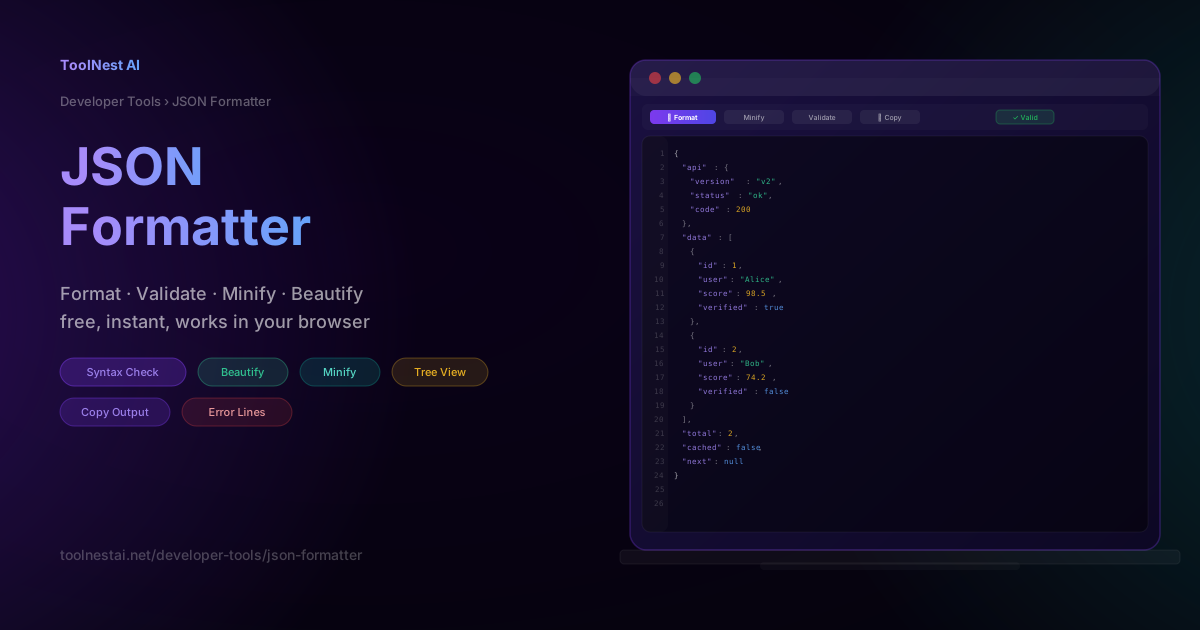
You paste a JSON response from an API into your editor. It is one long line, 4000 characters, no spaces, no line breaks. You need to find a specific key buried somewhere in a nested object. You could manually count brackets — or you could paste it into a JSON formatter and read a clean, indented, colour-coded structure in under a second.
That is the basic use case. But a JSON formatter does more than make JSON readable. A good one validates your syntax, highlights the exact line where an error occurs, lets you collapse and expand sections of a large document, and converts between formatted and minified output instantly.
This guide explains what JSON is, the six data types, the strict syntax rules that catch most developers off guard, the most common errors and how to fix them, and how to use a formatter effectively.
What Is JSON?
JSON (JavaScript Object Notation) is a lightweight text format for storing and transmitting structured data. It was originally derived from JavaScript object literal syntax but is now completely language-independent. Every major programming language — Python, Go, Java, Ruby, PHP, Swift, Kotlin, Rust — has built-in JSON support.
JSON is defined by RFC 8259 (updated in 2017), which is the current standard used by all modern parsers. The format is intentionally simple: it has six data types and a small set of syntax rules.
JSON is used everywhere:
- REST APIs — the standard response format for most web services
- Configuration files — package.json, tsconfig.json, .eslintrc, and hundreds more
- Databases — MongoDB, Firestore, DynamoDB, PostgreSQL JSONB columns
- Log formats — structured logging for Elasticsearch, Datadog, Splunk
- Data interchange — between services, between frontend and backend, between systems
A JSON formatter (also called a beautifier or pretty-printer) adds indentation and line breaks to compact JSON to make it readable. A JSON minifier does the reverse — removing all whitespace to produce the smallest possible output for network transfer.
JSON Data Types
JSON supports exactly six data types. Understanding them is the foundation for reading and writing valid JSON.
String
A sequence of Unicode characters enclosed in double quotes.
"Hello, World"
"alice@example.com"
"2026-07-29T10:00:00Z"
""
Strings must use double quotes — single quotes are not valid JSON. Special characters inside strings must be escaped with a backslash: \" for a literal quote, \\ for a backslash, \n for a newline, \t for a tab, \uXXXX for a Unicode character.
Number
An integer or floating-point value. No quotes.
42
-7
3.14159
1.5e10
-2.8E-4
JSON does not support hexadecimal (0xFF), octal (0777), binary, NaN, or Infinity. Numbers must be standard decimal notation.
Boolean
Exactly two values: true or false. Lowercase only — no quotes.
true
falseTrue, False, TRUE, FALSE are all invalid JSON and will cause a parse error. This catches many developers coming from Python, where boolean values are capitalised.
Null
Represents the intentional absence of a value.
nullNull, NULL, nil, undefined, and None are all invalid. Only the lowercase null is valid JSON.
Object
An unordered collection of key-value pairs enclosed in curly braces.
{
  "id": 1,
  "name": "Alice",
  "active": true,
  "score": 98.5,
  "notes": null
}
Rules for objects:
- Keys must be strings (double-quoted)
- Keys and values are separated by a colon
- Key-value pairs are separated by commas
- No trailing comma after the last pair
- No duplicate keys (technically allowed by the spec but discouraged and handled inconsistently by parsers)
- Objects can be nested inside other objects
Array
An ordered list of values enclosed in square brackets.
["developer", "admin", "editor"]
[1, 2, 3, 4, 5]
[true, false, null, 42, "mixed"]
[{"id": 1}, {"id": 2}]
Arrays can contain values of any type, including mixed types and nested objects or arrays. No trailing comma after the last element.
JSON Syntax Rules
JSON is stricter than JavaScript object literals. Developers familiar with JS often run into parse errors because of differences they did not expect.
Double quotes only. JSON requires double quotes for all keys and string values. Single quotes (') are not valid.
No trailing commas. A comma after the last item in an object or array is a syntax error. {"a": 1, "b": 2,} is invalid.
No comments. JSON has no comment syntax. // and /* */ are both invalid inside JSON. If you need comments in a config file, use JSON5 or a format like YAML that supports them.
Lowercase keywords. true, false, and null must be lowercase. True, False, Null, TRUE, NULL, None, undefined are all invalid.
No undefined or special values. JavaScript's undefined, NaN, and Infinity are not valid JSON values.
Balanced braces and brackets. Every { needs a matching } and every [ needs a matching ]. Nesting must be correct.
Keys must be strings. Unlike JavaScript object literals, JSON does not allow unquoted keys. {name: "Alice"} is not valid JSON.
Formatting vs Minifying
The same JSON content can be represented in two ways: formatted (beautified) and minified (compact). Neither is more correct — they are the same data in different presentations.
Formatted JSON adds indentation (usually 2 or 4 spaces) and line breaks to make the structure visible. Use it for:
- Reading and debugging API responses
- Writing config files that humans will edit
- Code review and documentation
- Understanding the structure of unfamiliar data
{
  "user": {
    "id": 1,
    "name": "Alice",
    "active": true
  }
}
Minified JSON removes all unnecessary whitespace. Use it for:
- API responses sent over the network
- Storing JSON in databases
- Config files that are generated programmatically
- Reducing payload size (can be significant for large objects)
{"user":{"id":1,"name":"Alice","active":true}}The ToolNest AI JSON Formatter converts between the two instantly. Paste minified JSON and click Format to beautify it. Paste formatted JSON and click Minify to compact it.
How to Validate JSON
JSON validation checks that your JSON is syntactically correct — that it follows all the rules above and can be parsed without errors.
A validator identifies:
- The type of error (unexpected token, unterminated string, unexpected end of input)
- The line number and column where the error occurs
- Context to help you understand what is wrong
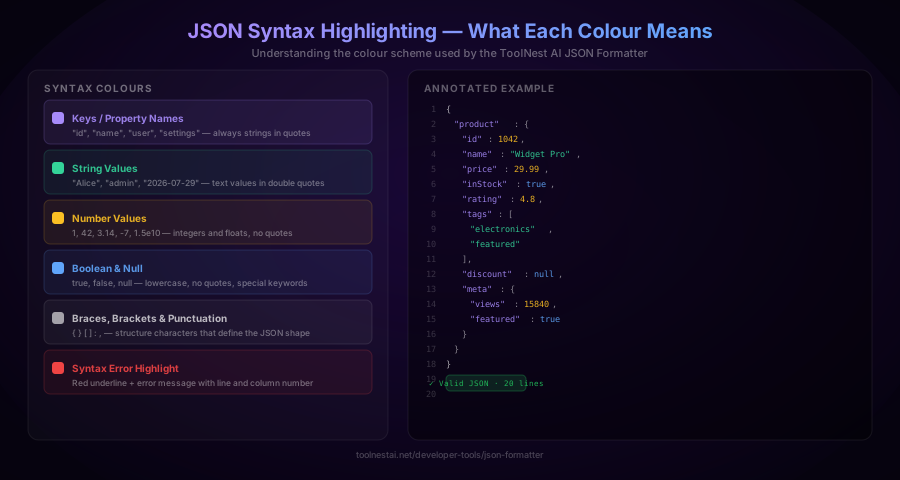
The ToolNest AI JSON Formatter validates JSON automatically as you type. A green "Valid JSON" badge appears when the input is valid. When there is an error, the problematic line is highlighted in red with an error message showing the exact position.
Validation is useful in several scenarios:
- Before sending a JSON request body to an API — a syntax error will cause the request to fail with a 400 Bad Request
- After manually editing a config file — trailing commas and missing quotes are easy to introduce by hand
- When copying JSON from browser DevTools — large responses sometimes get truncated or mangled when copied
- After transforming JSON — concatenating strings or using find-and-replace can introduce syntax errors
5 Common JSON Errors
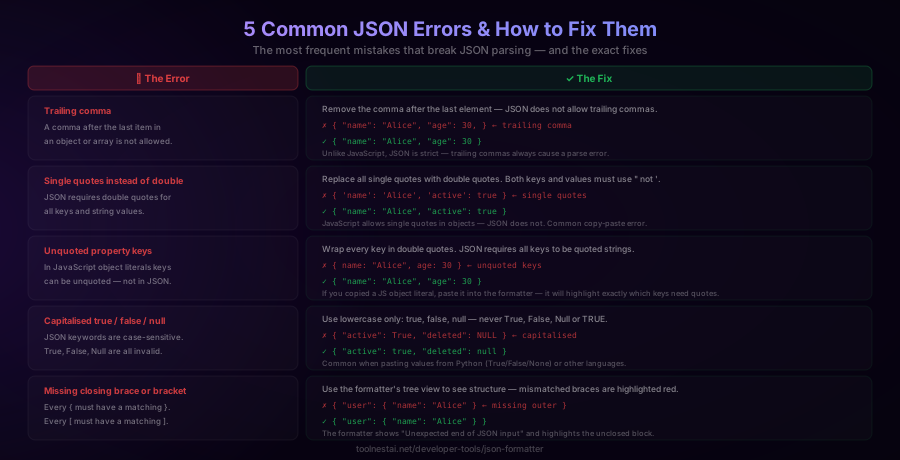
1. Trailing comma
The most common JSON error. A comma after the last item in an object or array works fine in JavaScript — but not in JSON.
// Invalid
{ "name": "Alice", "age": 30, }

// Valid
{ "name": "Alice", "age": 30 }
The JSON formatter highlights the trailing comma with a red underline and reports "Unexpected token }". Remove the comma after the last property.
2. Single quotes instead of double quotes
JSON strictly requires double quotes. Single quotes are valid in JavaScript object literals but cause a parse error in JSON.
// Invalid
{ 'name': 'Alice', 'active': true }

// Valid
{ "name": "Alice", "active": true }
This commonly happens when copying a JavaScript object literal and pasting it as JSON. Use the formatter to identify and fix all single-quoted strings.
3. Unquoted property keys
In JavaScript, object keys can be unquoted identifiers. In JSON, all keys must be quoted strings.
// Invalid (JavaScript object literal syntax)
{ name: "Alice", age: 30 }

// Valid JSON
{ "name": "Alice", "age": 30 }
4. Capitalised true, false, or null
Python uses True, False, and None. Ruby uses nil. Neither is valid JSON. All three JSON keywords must be lowercase.
// Invalid
{ "active": True, "deleted": NULL, "value": None }

// Valid
{ "active": true, "deleted": null, "value": null }
This is the most common error when converting from Python dictionaries or Ruby hashes to JSON manually.
5. Missing closing brace or bracket
For large or deeply nested JSON, it is easy to miss a closing } or ]. The parser reports "Unexpected end of JSON input" at the end of the file.
// Invalid — missing outer }
{ "user": { "name": "Alice" }

// Valid
{ "user": { "name": "Alice" } }
The formatter's tree view makes nesting structure visible — unclosed blocks are highlighted so you can see exactly where the mismatch is.
How to Use the JSON Formatter
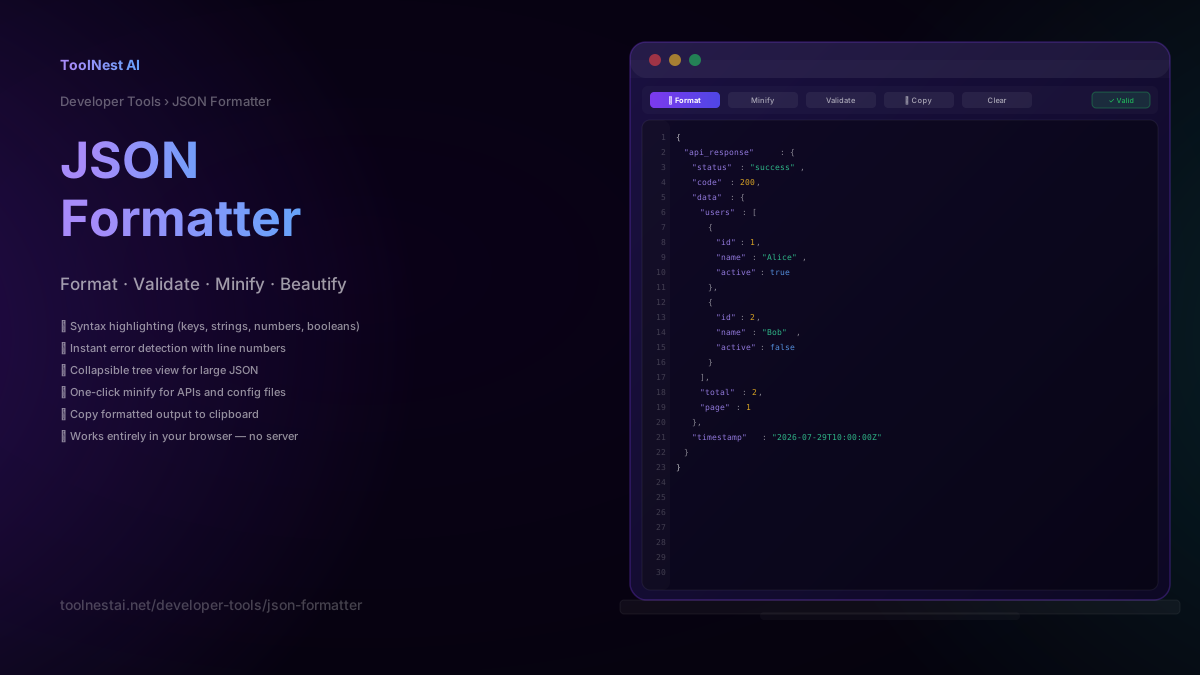
The ToolNest AI JSON Formatter runs entirely in your browser. No data is sent to any server.
Format (Beautify)
Paste your JSON into the editor and click "Format." The tool adds consistent 2-space indentation, line breaks after every key-value pair, and syntax highlighting that colours keys, strings, numbers, booleans, and null values differently. Invalid JSON shows a red error message with the line number.
Validate
The validator runs automatically. A green badge confirms valid JSON. A red error message pinpoints the exact location and type of the syntax error.
Minify
Click "Minify" to remove all whitespace from the current JSON. The output is the most compact valid representation — useful for API payloads, database storage, and reducing transfer size.
Copy
Click "⎘ Copy" to copy the current output to the clipboard. The button provides one-click copying of formatted or minified JSON without selecting the entire editor.
Clear
Click "Clear" to reset the editor and start fresh.
JSON vs Related Formats
JSON is not the only structured data format. Here is when you might choose an alternative:
YAML — More human-friendly for config files. Supports comments, multi-line strings, and a cleaner syntax for nested data. Used by Docker Compose, GitHub Actions, Kubernetes. Not directly interchangeable with JSON without conversion.
XML — More verbose than JSON. Supports attributes, namespaces, and document schemas. Still common in enterprise systems, SOAP APIs, and document formats. JSON has largely replaced XML in new REST APIs.
CSV — Flat tabular data only. No nesting, no types beyond string. Much simpler than JSON for spreadsheet-style data. Cannot represent nested structures.
TOML — Designed for config files. More readable than JSON for humans, supports comments, cleaner for simple key-value configs. Used by Rust's Cargo.toml.
JSON5 — A superset of JSON that allows comments, trailing commas, single quotes, and unquoted keys. Not supported by standard JSON parsers but useful for config files where you want JSON-like syntax with fewer restrictions.
For API responses and data interchange between systems, JSON remains the dominant choice. For config files that humans edit frequently, YAML or TOML are often more comfortable.
JSON in JavaScript
Since JSON originated from JavaScript, working with it in JS is built-in.
Parse JSON string → JavaScript object:
const json = '{"name":"Alice","age":30}';
const obj = JSON.parse(json);
console.log(obj.name); // "Alice"
Convert JavaScript object → JSON string:
const obj = { name: "Alice", age: 30, active: true };
const json = JSON.stringify(obj);
// '{"name":"Alice","age":30,"active":true}'
Pretty-print with indentation:
const pretty = JSON.stringify(obj, null, 2);
// {
//   "name": "Alice",
//   "age": 30,
//   "active": true
// }
Handle parse errors safely:
try {
  const data = JSON.parse(input);
} catch (error) {
  console.error("Invalid JSON:", error.message);
}
JSON.parse throws a SyntaxError when the input is not valid JSON. Always wrap it in a try/catch when parsing user input or external API responses.
Frequently Asked Questions
What does a JSON formatter do?
A JSON formatter takes compact, minified, or poorly indented JSON and outputs it with consistent indentation, line breaks, and optional syntax highlighting. This makes nested structures readable, helps identify the hierarchy of objects and arrays, and makes it easier to find specific keys in large responses.
What is the difference between JSON formatting and JSON validation?
Formatting changes the presentation of JSON (adding whitespace and indentation) without changing the data. Validation checks whether the JSON is syntactically correct — whether it can be parsed without errors. A formatter often includes validation, so you get both: readable output and confirmation that the JSON is valid.
Why does my JSON have a syntax error when it looks correct?
The most common causes are: a trailing comma after the last item, single quotes instead of double quotes, unquoted keys, capitalised True/False/None (from Python), or a missing closing brace or bracket. Paste your JSON into the formatter — it will highlight the exact line and character where the error occurs.
Can I use comments in JSON?
No. JSON does not support comments. // and /* */ both cause a parse error. If you need comments in a config file, consider JSON5 (a superset of JSON), YAML, or TOML — all of which support comments. Alternatively, add a "_comment" key with a string value, though this is not standard and adds data to the parsed object.
What is the difference between JSON and a JavaScript object?
A JavaScript object is a runtime data structure. JSON is a text format (a string). They look similar but have different rules: JSON requires double-quoted keys, does not allow trailing commas, does not support comments, and cannot represent undefined, NaN, Infinity, functions, or symbols. JSON.stringify() converts a JavaScript object to a JSON string. JSON.parse() converts a JSON string back to a JavaScript object.
What is JSON minification?
Minification removes all unnecessary whitespace (spaces, tabs, newlines) from JSON to produce the smallest possible valid output. The data is identical — only the presentation changes. Minified JSON is typically 15–30% smaller than formatted JSON, which reduces network transfer time for API responses. Use formatted JSON for readability; use minified JSON for production API payloads and database storage.
Is JSON case-sensitive?
Yes, in two ways. First, JSON keywords (true, false, null) are case-sensitive — True and NULL are invalid. Second, object keys are case-sensitive strings — "Name" and "name" are different keys.
What is the maximum size JSON can handle?
The JSON specification does not set a maximum size. In practice, limits come from the parser or the environment: browser JavaScript engines handle JSON up to several hundred megabytes; server-side parsers depend on available memory. For very large JSON files (tens of MB or more), streaming parsers are more appropriate than loading the entire file into memory at once.
About the author
Emir LočićI'm a developer focused on building practical online tools, with several years of experience in web development. I created ToolNest AI to make useful AI-powered tools simple, accessible, and free to use in one place.
Related Articles
Image Compressor: How to Reduce File Size Without Losing Quality
Learn how JPEG compression actually works, the optimal quality setting for web images, the difference between lossy and lossless compression, and the mistakes that silently degrade your images. Free online image compressor tool.
Open Graph Generator: Create Perfect Social Preview Cards Free
Learn how Open Graph tags work, which tags every page needs, and how to generate them instantly with a free OG generator. Includes live previews for Facebook, LinkedIn, Twitter/X, and Discord.