Image to PDF: Combine JPG, PNG, and WebP Into a Single PDF (Free)
Learn how to convert and combine images into a PDF using browser tools, pdf-lib, Python Pillow, and ImageMagick. Control page size, margins, and image fit mode.
ToolNest AI Team
Author
Published
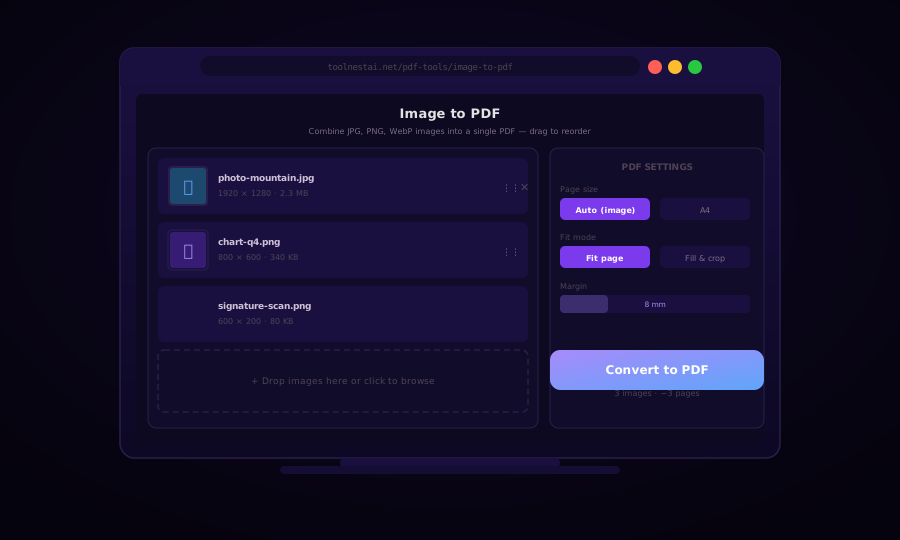
Whether you are scanning documents with your phone, assembling a photo portfolio, or sending charts to a colleague who needs a PDF, converting images to PDF is one of the most common file-conversion tasks. The right approach depends on how many images you need to combine, whether page size matters, and where the conversion will happen.
A PDF is not simply a wrapper around an image. When you embed an image in a PDF, the PDF engine stores the image data, creates a page of defined dimensions (e.g., A4 at 595×842 pts), and places the image on that page at a specific position and scale. Understanding these mechanics helps you control quality, file size, and layout.
Page Size and Image Fit Options
When you convert an image to a PDF page, you have two fundamental choices: match the page size to the image, or fit the image into a standard page size.
| Mode | When to Use |
|---|---|
| Auto (image size) | Photo portfolios, screenshots — each page is exactly the image's pixel dimensions converted to points |
| A4 / Letter | Documents that will be printed on standard paper |
| Fit (preserve aspect ratio) | Image is scaled to fill the page while maintaining its proportions |
| Fill & crop | Image fills the entire page; edges are cropped if aspect ratios differ |
| Stretch | Image is forced to exact page dimensions; aspect ratio distorted |
For document scans, A4 with "Fit" is the professional choice. For photo books, Auto size gives each photo its natural proportions.
Margins
A non-zero margin creates breathing room between the image and the page edge. For documents that will be printed and bound, a left margin of 12–20mm prevents content from disappearing into the spine.
Convert Images to PDF with pdf-lib (JavaScript / Browser)
pdf-lib runs entirely in the browser with no server upload — ideal for privacy-sensitive documents.
import { PDFDocument, PageSizes } from "pdf-lib";

async function imagesToPdf(imageFiles, options = {}) {
  const {
    pageSize = "auto",       // "auto" | "A4" | "Letter"
    fitMode = "fit",         // "fit" | "fill" | "stretch"
    marginMm = 8,
  } = options;

  const pdf = await PDFDocument.create();
  const MM_TO_PT = 2.8346;
  const margin = marginMm * MM_TO_PT;

  for (const file of imageFiles) {
    const arrayBuffer = await file.arrayBuffer();
    const mimeType = file.type;

    let img;
    if (mimeType === "image/png") {
      img = await pdf.embedPng(arrayBuffer);
    } else if (mimeType === "image/jpeg") {
      img = await pdf.embedJpg(arrayBuffer);
    } else {
      // Convert WebP/other via canvas first
      img = await embedViaCanvas(pdf, file);
    }

    const { width: imgW, height: imgH } = img;

    let pageW, pageH;
    if (pageSize === "A4") {
      [pageW, pageH] = PageSizes.A4;
    } else if (pageSize === "Letter") {
      [pageW, pageH] = PageSizes.Letter;
    } else {
      // Auto: use image dimensions (1 px = 1 pt at 72 DPI)
      pageW = imgW;
      pageH = imgH;
    }

    const page = pdf.addPage([pageW, pageH]);
    const availW = pageW - margin * 2;
    const availH = pageH - margin * 2;

    let drawW, drawH, x, y;

    if (fitMode === "stretch") {
      drawW = availW; drawH = availH;
      x = margin; y = margin;
    } else {
      const scale = fitMode === "fill"
        ? Math.max(availW / imgW, availH / imgH)
        : Math.min(availW / imgW, availH / imgH);
      drawW = imgW * scale;
      drawH = imgH * scale;
      x = margin + (availW - drawW) / 2;
      y = margin + (availH - drawH) / 2;
    }

    page.drawImage(img, { x, y, width: drawW, height: drawH });
  }

  const pdfBytes = await pdf.save();
  return new Blob([pdfBytes], { type: "application/pdf" });
}

async function embedViaCanvas(pdf, file) {
  const bitmap = await createImageBitmap(file);
  const canvas = new OffscreenCanvas(bitmap.width, bitmap.height);
  const ctx = canvas.getContext("2d");
  ctx.drawImage(bitmap, 0, 0);
  const blob = await canvas.convertToBlob({ type: "image/jpeg", quality: 0.92 });
  const buffer = await blob.arrayBuffer();
  return pdf.embedJpg(buffer);
}
Python: Pillow Image to PDF
Pillow is the simplest path in Python for converting images to PDF pages. It handles JPEG, PNG, WebP, TIFF, and more.
from PIL import Image
from pathlib import Path

def images_to_pdf(image_paths: list[str], output_path: str, page_size: str = "auto", dpi: int = 150):
    """
    Combines multiple images into a single PDF.
    page_size: "auto" keeps image dimensions, "A4" fits to A4.
    """
    if not image_paths:
        raise ValueError("No images provided")

    images = []
    for path in image_paths:
        img = Image.open(path).convert("RGB")
        images.append(img)

    first = images[0]
    rest = images[1:]

    # Pillow saves multi-page PDF with save_all=True, append_images=rest
    first.save(
        output_path,
        "PDF",
        resolution=dpi,
        save_all=True,
        append_images=rest,
    )
    print(f"Created {output_path} with {len(images)} pages")

# A4 version: resize each image to A4 at 150 DPI
def images_to_a4_pdf(image_paths: list[str], output_path: str, dpi: int = 150):
    A4_PX = (int(8.27 * dpi), int(11.69 * dpi))   # (1240, 1754) at 150 DPI
    images = []

    for path in image_paths:
        img = Image.open(path).convert("RGB")
        img.thumbnail(A4_PX, Image.LANCZOS)   # Fit within A4, maintain aspect ratio
        background = Image.new("RGB", A4_PX, (255, 255, 255))
        offset = ((A4_PX[0] - img.width) // 2, (A4_PX[1] - img.height) // 2)
        background.paste(img, offset)
        images.append(background)

    images[0].save(output_path, "PDF", resolution=dpi, save_all=True, append_images=images[1:])
    print(f"Saved A4 PDF: {output_path}")

images_to_a4_pdf(["photo1.jpg", "chart.png", "scan.jpg"], "combined.pdf")
ImageMagick: Command-Line Image to PDF
ImageMagick is the fastest CLI solution for batch image-to-PDF conversion.
# Combine multiple images into one PDF
convert photo1.jpg chart.png scan.jpg combined.pdf

# Convert to A4 size (595x842 points = 210x297 mm)
convert -page A4 photo1.jpg chart.png scan.jpg combined.pdf

# Set DPI for better print quality
convert -density 150 photo1.jpg chart.png -compress jpeg -quality 90 combined.pdf

# Fit images to A4, center, white background
convert photo1.jpg -thumbnail 595x842 -background white \
  -gravity center -extent 595x842 \
  chart.png -thumbnail 595x842 -background white \
  -gravity center -extent 595x842 \
  -compress jpeg combined.pdf
For large batches, use a shell loop:
# Convert every JPG in a folder to a single PDF
convert -quality 90 ./photos/*.jpg output.pdf

# Or with a sorted list
ls -v ./photos/*.jpg | xargs convert -quality 90 -o output.pdf
ReportLab: Advanced Python PDF Generation
When you need full control — custom fonts, text overlays, watermarks, or mixed image/text pages — ReportLab is the professional Python PDF library.
from reportlab.pdfgen import canvas
from reportlab.lib.pagesizes import A4, letter
from reportlab.lib.utils import ImageReader
from reportlab.lib.units import mm

def images_to_pdf_reportlab(image_paths: list[str], output_path: str,
                              page_size=A4, margin_mm: float = 10):
    margin = margin_mm * mm
    c = canvas.Canvas(output_path, pagesize=page_size)
    page_w, page_h = page_size
    avail_w = page_w - 2 * margin
    avail_h = page_h - 2 * margin

    for img_path in image_paths:
        reader = ImageReader(img_path)
        img_w, img_h = reader.getSize()

        # Fit to available area, preserve aspect ratio
        scale = min(avail_w / img_w, avail_h / img_h)
        draw_w = img_w * scale
        draw_h = img_h * scale
        x = margin + (avail_w - draw_w) / 2
        y = margin + (avail_h - draw_h) / 2

        c.drawImage(reader, x, y, width=draw_w, height=draw_h, preserveAspectRatio=True)
        c.showPage()   # Next page

    c.save()
    print(f"Saved {output_path}")

images_to_pdf_reportlab(["img1.jpg", "img2.png"], "output.pdf")
Node.js: Sharp + pdf-lib Pipeline
When processing images server-side before embedding (resizing, converting WebP, stripping EXIF data), combine Sharp with pdf-lib:
import sharp from "sharp";
import { PDFDocument } from "pdf-lib";
import fs from "fs/promises";

async function processAndEmbedImage(pdf, imagePath) {
  // Normalize: convert any format to JPEG, strip EXIF, cap at 4000px width
  const jpegBuffer = await sharp(imagePath)
    .rotate()                     // Apply EXIF rotation
    .resize({ width: 4000, withoutEnlargement: true })
    .jpeg({ quality: 90, mozjpeg: true })
    .toBuffer();

  return pdf.embedJpg(jpegBuffer);
}

async function buildPdf(imagePaths, outputPath) {
  const pdf = await PDFDocument.create();

  for (const imgPath of imagePaths) {
    const img = await processAndEmbedImage(pdf, imgPath);
    const { width, height } = img;
    const page = pdf.addPage([width, height]);
    page.drawImage(img, { x: 0, y: 0, width, height });
  }

  await fs.writeFile(outputPath, await pdf.save());
  console.log(`Written: ${outputPath}`);
}
File Size and Quality Tips
Embedding images in PDFs can produce very large files if the source images are high-resolution. Strategies to control file size:
Downscale before embedding. A 24-megapixel photo rarely needs to be embedded at full resolution in a PDF. Resize to 2000–3000px on the long edge before conversion — the visual difference is negligible and file sizes drop by 60–80%.
Use JPEG for photos, PNG for graphics. PDF allows you to choose the compression per embedded image. pdf-lib and most other tools default to lossless for PNG and lossy for JPG — matching the source format is usually optimal.
Compress the output PDF. After building the PDF, run it through a PDF compressor to optimize the internal object streams further. Ghostscript's -sDEVICE=pdfwrite -dPDFSETTINGS=/ebook typically saves another 10–30%.
Frequently Asked Questions
Can I reorder images before converting to PDF?
Yes. Any image-to-PDF tool, including the ToolNest AI converter, lets you drag images to reorder them before conversion. In code, simply reorder the array of image paths before passing it to the conversion function.
Does converting images to PDF reduce quality?
It depends on the settings. Using JPEG compression at quality 90–95% produces virtually no visible quality loss. PNG (lossless) preserves every pixel. If you embed at the original resolution with lossless settings, there is zero quality loss.
What image formats are supported?
Most tools support JPEG, PNG, WebP, and TIFF. BMP and GIF are supported by tools like ImageMagick. HEIC/HEIF (iPhone photos) may need conversion to JPEG first — use Sharp or a dedicated HEIC converter.
How do I make each image a separate page in the PDF?
This is the default behavior of every tool covered here. Each image becomes one page. The page dimensions can match the image exactly (Auto mode) or a fixed paper size (A4/Letter) with the image scaled to fit.
Can I add a text cover page alongside the images?
Yes, with ReportLab (Python) or pdf-lib with custom text rendering. These libraries let you mix image pages and text pages freely in the same PDF. Simple cover pages can also be created as an image (a PNG with your title text) and prepended to the image list.
How do I convert a folder of images to one PDF automatically?
Use ImageMagick: convert ./images/*.jpg output.pdf, or the Python Pillow script above with glob.glob("./images/*.jpg"). Sort the file list alphabetically or by modification time to control page order.
About the author
ToolNest AI Team
The ToolNest AI editorial team writes in-depth guides on PDF tools, image processing, and developer productivity.
Related Articles
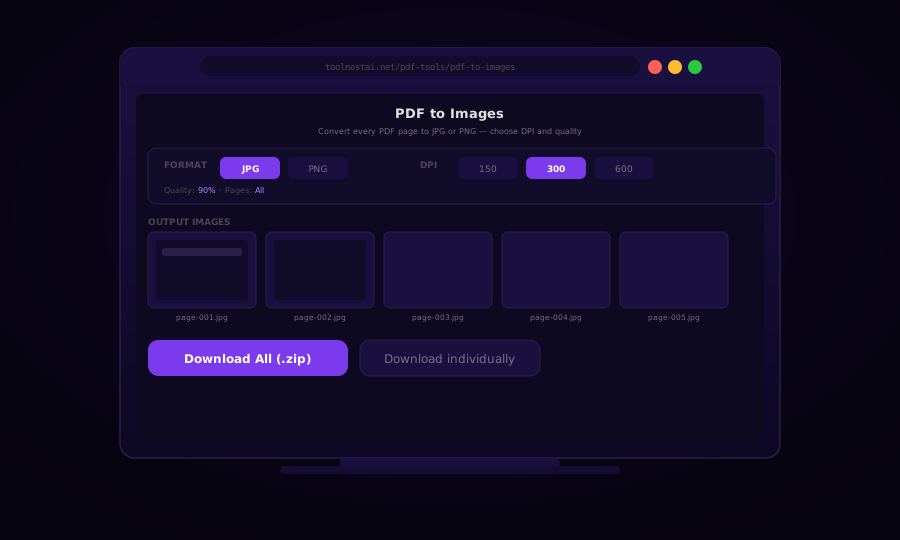
PDF to Images: Convert Every Page to JPG or PNG (Free, No Upload)
Learn how to convert PDF pages to high-quality JPG, PNG, or WebP images using browser tools, Ghostscript, Python pdf2image, and Node.js. Free, private, no upload required.
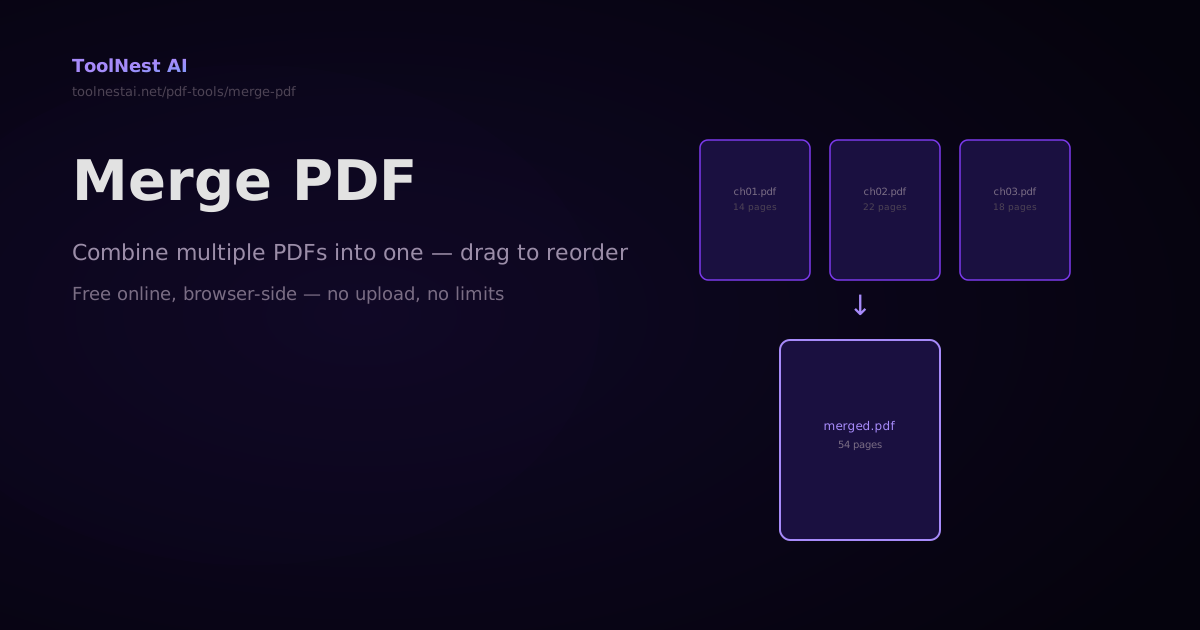
How to Merge PDFs — Combine Multiple PDF Files Into One Online or in Code
Merge any number of PDF files into a single document — drag to reorder, then combine. Plus step-by-step code with pdf-lib, pypdf, and Ghostscript. Free online with no sign-up.
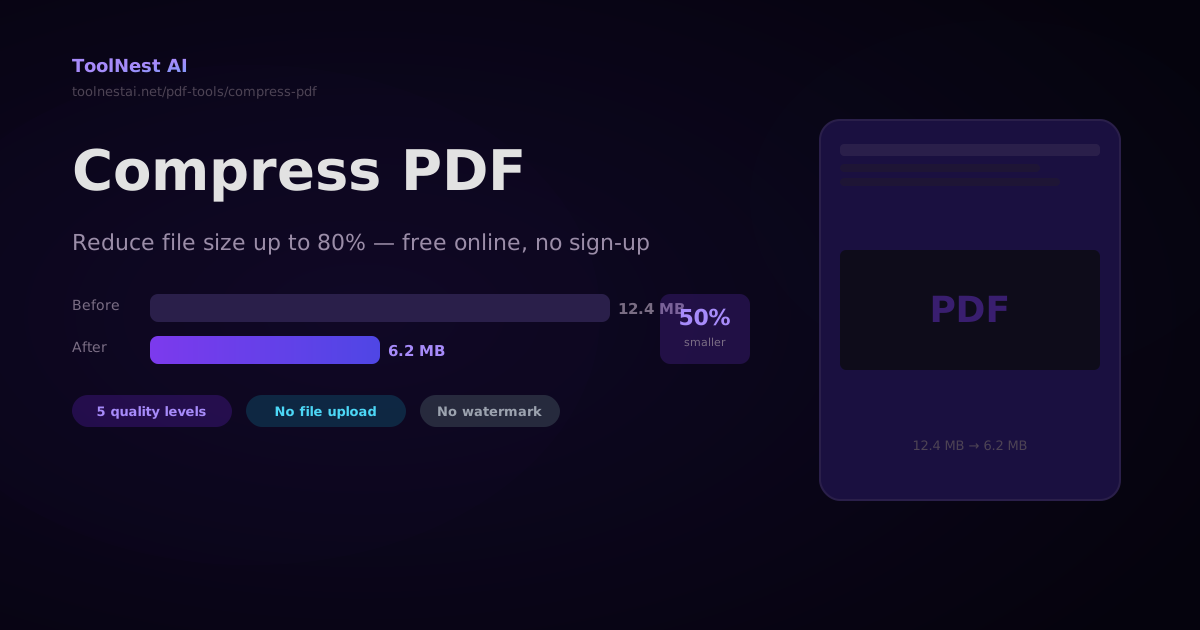
How to Compress a PDF — Reduce File Size Without Losing Quality
A complete guide to PDF compression — how it works, what affects file size, how to choose the right quality level, and how to compress PDFs with Ghostscript, pdf-lib, Python pypdf, and the ToolNest AI online tool.