Image to Base64: How It Works, Data URI Formats, and When to Use It
Learn how Base64 encoding converts binary image data to ASCII text, the four Data URI output formats (HTML, CSS, JSON, email), and when NOT to use inline Base64.
Founder & Developer, ToolNest AI
Published
Base64 encoding is a technique for converting binary data — like an image file — into a text string that can be safely embedded in contexts that only accept text: HTML attributes, CSS property values, JSON strings, email bodies, and URLs. This guide explains how the encoding works, what the four main output formats look like, and when you should and shouldn't use inline Base64 images instead of regular file references.
Convert any image to Base64 instantly with the ToolNest AI Image to Base64 tool — multiple output formats, one-click copy.
How Base64 Encoding Works
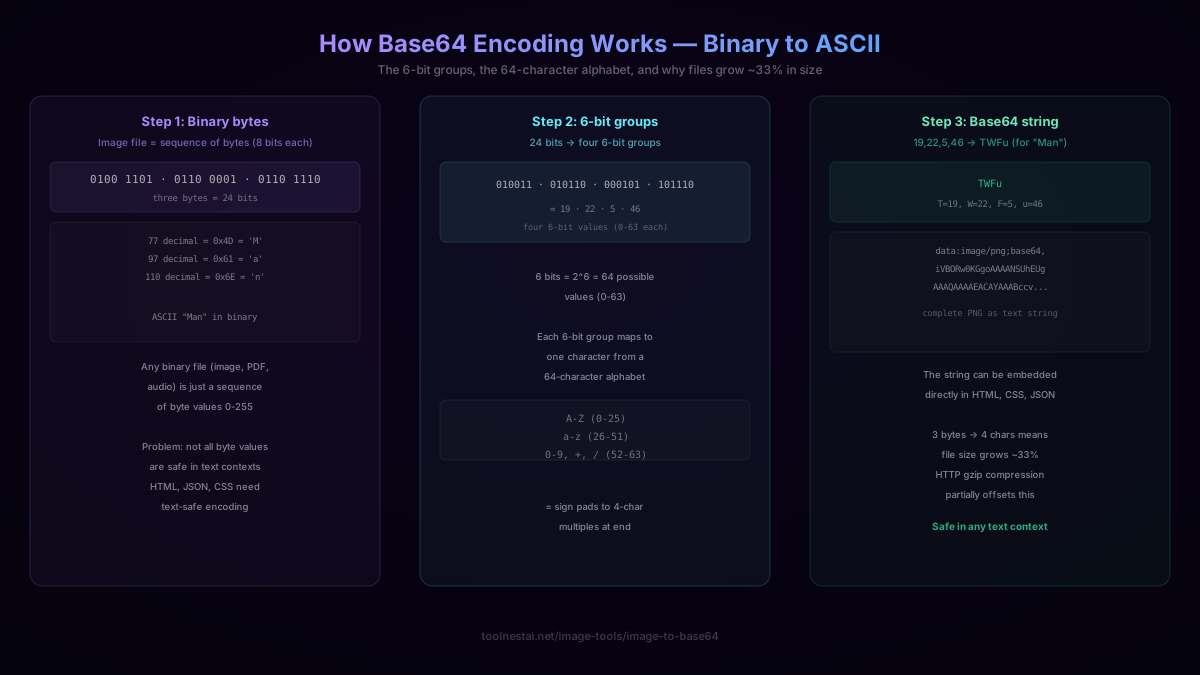
Base64 is not encryption or compression — it's purely a representation change that converts arbitrary binary data into a restricted set of printable ASCII characters. Here's the precise process:
Step 1: Binary bytes
An image file is a sequence of bytes — each byte is a number from 0 to 255 (8 bits). The problem is that not all byte values are safe in text contexts: some represent control characters, others have special meaning in HTML/JSON (like <, >, ", &), and some early network protocols couldn't reliably transmit certain byte ranges.
Step 2: Group into 6-bit chunks
Base64 takes 3 bytes (24 bits) at a time and splits them into four 6-bit groups. Each 6-bit group can have a value from 0 to 63 — exactly 64 possible values.
For example, the bytes for the ASCII string "Man" (77, 97, 110 in decimal; 01001101 01100001 01101110 in binary) group into: 010011 · 010110 · 000101 · 101110 = 19, 22, 5, 46.
Step 3: Map to the Base64 alphabet
Each of the 64 possible values maps to a specific character from the Base64 alphabet:
- Values 0–25 → uppercase A–Z
- Values 26–51 → lowercase a–z
- Values 52–61 → digits 0–9
- Value 62 →
+ - Value 63 →
/
So 19, 22, 5, 46 → T, W, F, u → TWFu — the Base64 encoding of "Man".
The = character is used as padding at the end of the string when the input doesn't divide evenly into 3-byte groups.
The size consequence: Every 3 bytes become 4 characters. That's a 4/3 = ~33% size increase in encoded data. A 100 KB JPEG becomes approximately 133 KB as a Base64 string.
Data URI Format
The Data URI scheme combines the MIME type information with the Base64 data into a single self-contained string:
data:[MIME-type];base64,[Base64-encoded-data]
For common image types:
data:image/png;base64,...— PNG imagedata:image/jpeg;base64,...— JPEG imagedata:image/gif;base64,...— GIF animationdata:image/webp;base64,...— WebP imagedata:image/svg+xml;base64,...— SVG (though SVG can also be embedded as raw text)
The MIME type before base64, tells the browser what kind of data follows so it can decode and render it correctly.
Four Output Formats
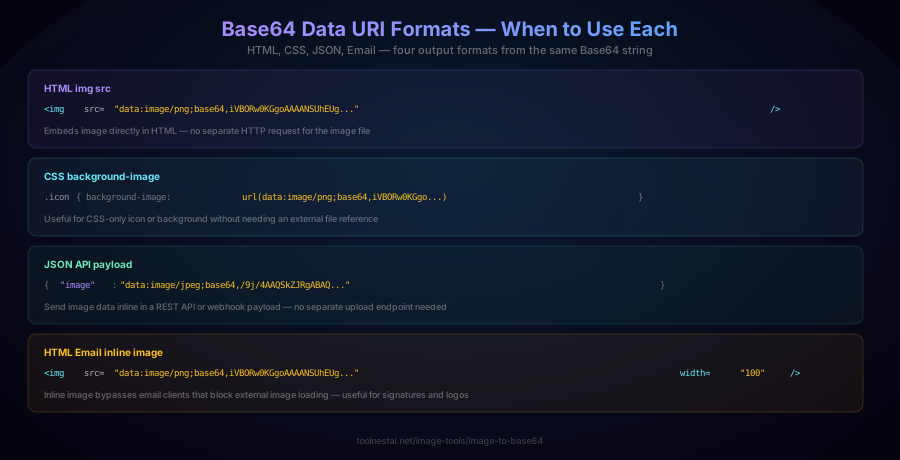
The same Base64 string can be used in four different contexts, each with slightly different wrapping:
HTML Image Tag
<img src="data:image/png;base64,iVBORw0KGgoAAAANSUhEUg..." alt="Embedded image" />This embeds the image directly in the HTML without any additional HTTP request. The browser decodes the Base64 and renders the image as if it were loaded from a file URL.
When to use: Small icons or images in self-contained HTML files (demos, emails, offline documentation) where you want zero external dependencies. Also useful in environments where external resource loading is blocked.
When not to use: Regular web pages with images — external file references with a proper CDN are dramatically faster and allow browser caching.
CSS Background Image
.logo {
  background-image: url("data:image/png;base64,iVBORw0KGgoAAAANSUhEUg...");
  background-size: contain;
  background-repeat: no-repeat;
}
When to use: Small CSS icons, bullets, or decorative elements where you want them bundled with the stylesheet rather than as separate HTTP requests. Some build systems (Webpack, Vite) automatically inline small images as Base64 in CSS.
JSON API Payload
{
  "image": "data:image/jpeg;base64,/9j/4AAQSkZJRgABAQ...",
  "metadata": { "filename": "photo.jpg" }
}
Or with just the raw Base64 without the Data URI prefix:
{
  "image_base64": "/9j/4AAQSkZJRgABAQ...",
  "mime_type": "image/jpeg"
}
When to use: Sending an image as part of a JSON API payload without a separate multipart upload. Common for AI APIs (including the Anthropic Claude API, OpenAI vision endpoints) which accept images as Base64-encoded strings in the message body.
When not to use: Uploading large files to your own API — multipart form uploads are more efficient for large files and don't impose a 33% size penalty.
HTML Email Inline Image
<img src="data:image/png;base64,iVBORw0KGgo..." width="100" alt="Logo" />When to use: Email signatures and HTML email campaigns where external image loading is often blocked by email clients (Gmail, Outlook) by default. An inline Base64 image bypasses external image blocking because the image data is part of the email itself, not a request to an external server.
Caution: Inline images significantly increase email file size, which can affect deliverability — some spam filters penalize very large emails. Keep inline images small (logo, signature icon) and reference larger images externally.
Encoding in Code
JavaScript (FileReader API) — browser:
function imageToBase64(file) {
  return new Promise((resolve) => {
    const reader = new FileReader();
    reader.onload = (e) => resolve(e.target.result);  // includes data: prefix
    reader.readAsDataURL(file);
  });
}

// Usage:
const dataURI = await imageToBase64(inputFile);
// "data:image/png;base64,iVBORw0KGgo..."

// Strip prefix to get raw Base64:
const base64 = dataURI.split(',')[1];
JavaScript (Node.js) — server-side:
const fs = require('fs');

const buffer = fs.readFileSync('image.png');
const base64 = buffer.toString('base64');
const dataURI = `data:image/png;base64,${base64}`;
Python:
import base64

with open("image.png", "rb") as f:
    encoded = base64.b64encode(f.read()).decode("utf-8")

data_uri = f"data:image/png;base64,{encoded}"
PHP:
$data = file_get_contents("image.png");
$base64 = base64_encode($data);
$dataURI = "data:image/png;base64,{$base64}";
Performance Trade-offs: When Not to Use Base64
Base64 inline images have real costs that make them inappropriate for many use cases:
No browser caching. When an image is loaded from a URL, browsers cache it — the second page load doesn't re-download the image. When it's embedded as Base64, the image data is inside the HTML or CSS, so it's re-transferred with every page load. For images that appear on multiple pages, this is a significant performance regression.
Larger payload size. The 33% size increase means larger HTML files that take longer to download. For the same bytes, a separate image file is more efficient.
Slower rendering. Base64 strings must be decoded before the image can be rendered. A separate image URL allows the browser to start decoding the image in parallel with the rest of the page; a large inline Base64 string blocks further parsing until it's processed.
Harder to update. An image referenced by URL can be updated by replacing the file. An image embedded as Base64 requires regenerating and re-deploying the HTML or CSS.
Practical guideline:
- Under 1–2 KB: inline as Base64 may be a net win (eliminates an HTTP request)
- 2–10 KB: case-by-case depending on how many pages the asset appears on
- Over 10 KB: use a separate file with a URL almost always
Modern HTTP/2 and HTTP/3 multiplexing has significantly reduced the cost of additional HTTP requests, shifting the break-even point further toward using external files for most web use cases.
Base64 and AI APIs
Many AI vision APIs accept images as Base64-encoded strings, which is a natural fit for the format — the API consumer doesn't need a publicly accessible URL for the image, just the raw data.
Example: sending an image to an AI vision API:
const fs = require('fs');
const { default: Anthropic } = require('@anthropic-ai/sdk');

const client = new Anthropic();
const imageData = fs.readFileSync('photo.jpg').toString('base64');

const response = await client.messages.create({
  model: 'claude-opus-4-5',
  max_tokens: 1024,
  messages: [{
    role: 'user',
    content: [
      {
        type: 'image',
        source: {
          type: 'base64',
          media_type: 'image/jpeg',
          data: imageData,
        },
      },
      { type: 'text', text: 'What is in this image?' }
    ],
  }],
});
This is the standard pattern when you need to send an image to an API without first uploading it to a publicly accessible URL.
Frequently Asked Questions
What is Base64 encoding?
Base64 is a binary-to-text encoding scheme that converts arbitrary binary data (like an image file's bytes) into a restricted set of 64 printable ASCII characters (A-Z, a-z, 0-9, +, /). This makes binary data safe to include in text contexts like HTML, CSS, JSON, URLs, and email bodies, which can't reliably handle arbitrary binary bytes.
Why does Base64 make files bigger?
The encoding maps every 3 bytes of input to 4 characters of output — a 4/3 ratio, or approximately 33% size increase. This is an inherent mathematical consequence of representing 8-bit bytes using 6-bit character codes: you need more characters to represent the same number of bits.
When should I use Base64 for images?
The main use cases are: (1) small icons or images that you want to bundle into a single HTML or CSS file with no external dependencies, (2) images in HTML emails where external image loading may be blocked, (3) sending image data inline in JSON API payloads where a separate upload step would be awkward. Avoid it for large images on normal web pages — external file references with browser caching are much more efficient.
What is a Data URI?
A Data URI is a URL scheme that allows data to be included inline in a URL string rather than referencing an external resource. The format is data:[MIME-type];base64,[data]. For images, it looks like data:image/png;base64,iVBORw0KGgo.... This can be used anywhere a URL is accepted — src attributes, CSS url(), href links — and the browser decodes the embedded data instead of making an HTTP request.
Can I embed a Base64 image in CSS?
Yes. The CSS background-image property accepts data URIs: background-image: url("data:image/png;base64,..."). This is sometimes used for tiny icons or sprites that you want bundled with the stylesheet. Build tools like Webpack and Vite have options to automatically inline small images as Base64 in CSS bundles.
Does Base64 compress images?
No — Base64 is an encoding, not a compression. It actually increases file size by ~33%. To reduce image file size, use image compression (JPEG quality setting, image optimizers) before Base64 encoding if you need to embed the image inline.
About the author
Emir LočićI'm a developer focused on building practical online tools, with several years of experience in web development. I created ToolNest AI to make useful AI-powered tools simple, accessible, and free to use in one place.
Related Articles
How to Watermark Images: Placement, Opacity, Text vs Logo + Free Tool
Learn how to watermark images effectively — placement strategies, opacity settings, text vs logo trade-offs, Canvas API compositing, and what watermarks can and can't protect.
Image Color Picker: HEX, RGB, HSL, CMYK Explained + Free Tool
Learn what HEX, RGB, HSL, and CMYK color formats are, when to use each, how dominant color extraction works, and how to pick any pixel color from an image in your browser.
Remove Background from Image: How AI Does It + Free Online Tool
Learn how AI background removal works using neural network segmentation, when it struggles with hair and glass, and the best techniques for perfect transparent PNG results.