Image Color Picker: HEX, RGB, HSL, CMYK Explained + Free Tool
Learn what HEX, RGB, HSL, and CMYK color formats are, when to use each, how dominant color extraction works, and how to pick any pixel color from an image in your browser.
Founder & Developer, ToolNest AI
Published
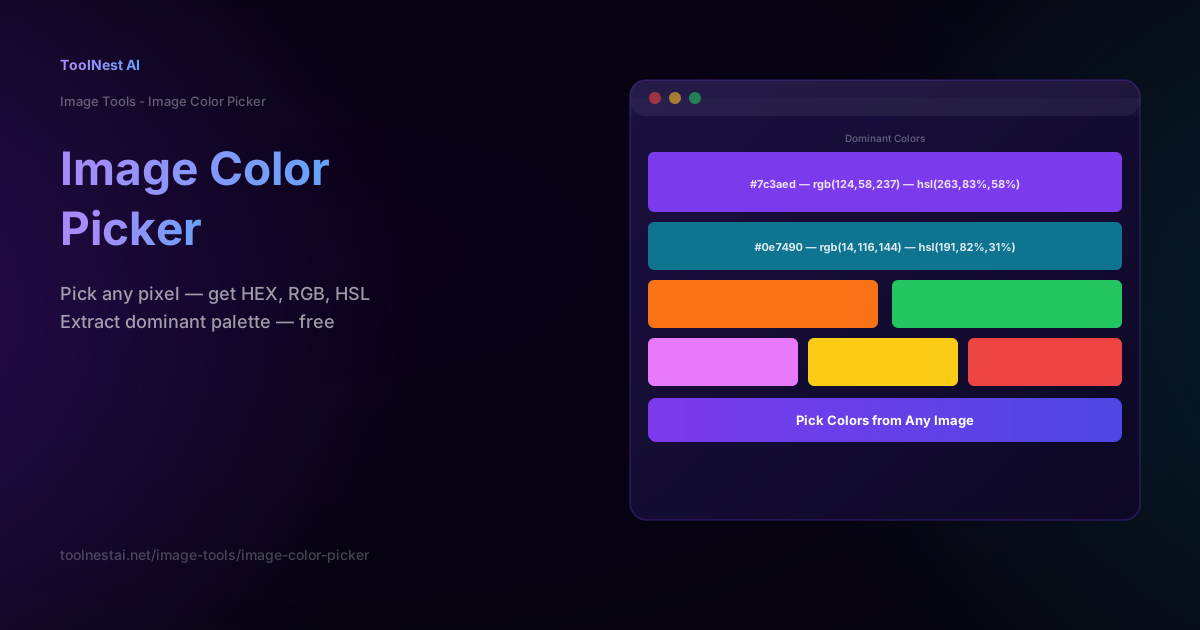
Every color on a digital screen is a number — but that number can be expressed in different ways depending on who needs to use it. A web developer wants a HEX code. A CSS animation engineer might want HSL to easily generate tints and shades. A print designer needs CMYK. An image processing function expects RGB tuples. None of these are more "correct" than the others — they're just different representations of the same color, optimized for different use cases.
Pick any pixel color from any image and get HEX, RGB, HSL, and CMYK values instantly with the ToolNest AI Image Color Picker.
Color Spaces: HEX, RGB, HSL, CMYK Compared
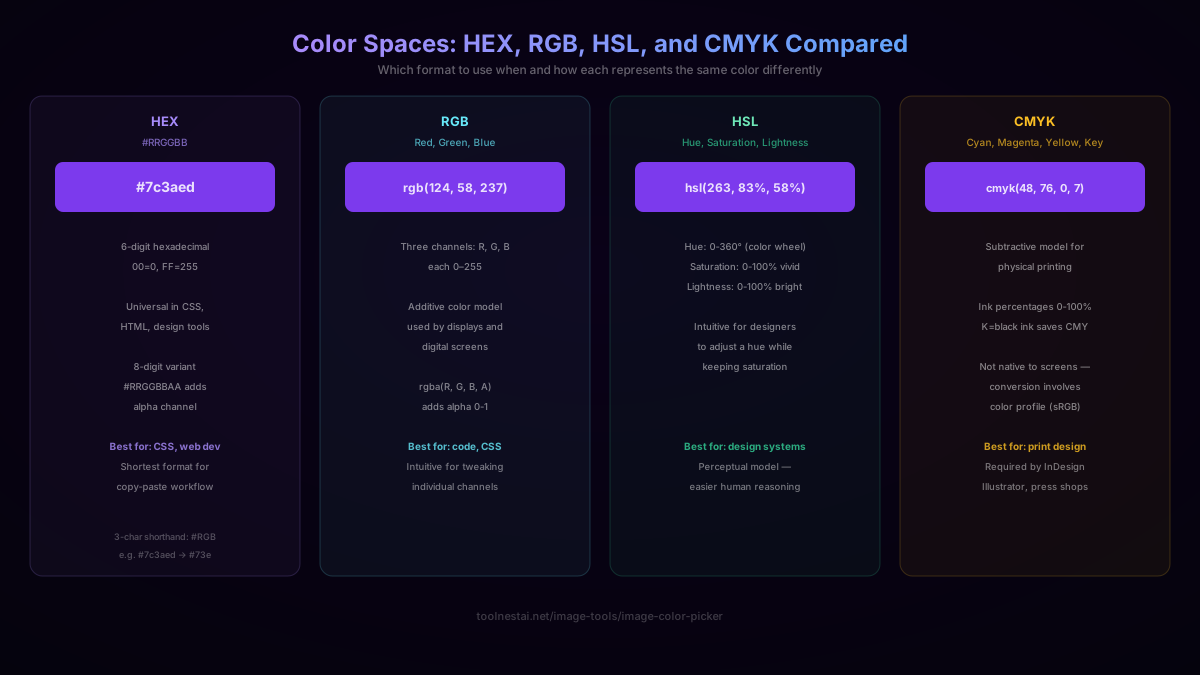
All four major color formats represent the same underlying colors — they're just different ways of encoding the same value for different purposes.
HEX — The Web Developer Standard
HEX color notation (#RRGGBB) encodes each of the three RGB channels as a two-digit hexadecimal number from 00 (0 in decimal) to FF (255 in decimal). The color #7c3aed decodes as R=7c (124), G=3a (58), B=ed (237).
A 3-character shorthand exists for colors where each pair repeats: #ffcc00 can be written as #fc0. This doesn't apply to most colors, only those where R1=R2, G1=G2, B1=B2.
An 8-character variant #RRGGBBAA adds an alpha channel for transparency, where 00 is fully transparent and FF is fully opaque. This is useful in CSS but not widely supported in all contexts.
Best for: CSS, HTML, copy-paste design workflows. HEX is the most commonly expected format in design tools, color pickers, and frontend code — it's the shortest format that encodes all the RGB information.
RGB — The Screen Coordinate System
RGB(r, g, b) expresses each color channel as a decimal integer from 0 to 255, matching the actual numeric representation used inside computer graphics. rgb(124, 58, 237) for the same purple from the HEX example above.
The rgba(r, g, b, a) variant adds an alpha value from 0 (fully transparent) to 1 (fully opaque), written as a floating-point number: rgba(124, 58, 237, 0.5) is 50% transparent.
RGB is additive: adding light produces brighter colors, and full R+G+B = white. This mirrors how displays actually work — each pixel's backlight is filtered through red, green, and blue subpixels.
Best for: Code that directly manipulates pixels, image processing libraries, Canvas API, any context where you need to adjust individual channels.
HSL — The Designer's Color Space
HSL is a cylindrical representation: Hue as an angle (0–360°), Saturation as a percentage (0–100%), Lightness as a percentage (0–100%). The same purple as hsl(263, 83%, 58%).
The key insight is that HSL separates "what color" (hue) from "how vivid" (saturation) and "how bright" (lightness). This makes it dramatically easier to reason about color relationships:
- To create a lighter shade: keep H and S the same, increase L (
hsl(263, 83%, 70%)) - To create a darker shade: decrease L (
hsl(263, 83%, 35%)) - To make it more muted/pastel: decrease S (
hsl(263, 40%, 58%)) - To get the complementary color: shift H by 180° (
hsl(83, 83%, 58%)) - To create a full tonal scale: fix H and S, vary L from 10% to 90%
None of this is intuitive in RGB — adjusting a single lightness means recalculating all three channel values simultaneously.
Best for: Design systems, CSS variables with calc(), Tailwind color scales, any situation where you're building a palette of related colors from a starting hue.
CMYK — The Print Standard
CMYK (Cyan, Magenta, Yellow, Key/Black) is a subtractive color model used in physical printing. Where RGB adds light, CMYK subtracts it — ink on paper absorbs certain wavelengths, and the combination of C, M, and Y inks can theoretically produce black. In practice, mixing all three produces a muddy dark brown, so a separate black (K) ink is added, which is why it's CMYK not CMYK.
CMYK values are ink percentages (0–100%). The same purple as approximately cmyk(48, 76, 0, 7).
Important caveat: CMYK doesn't exist as a native color space on screens. When you see CMYK values in a digital color picker, they're calculated from RGB values using a mathematical formula that assumes the sRGB color profile. Real print workflows use ICC color profiles that account for the specific properties of the paper and ink being used — those values may differ from what you see in a screen-based color picker.
Best for: Print design, InDesign documents, offset printing specifications, anything going to a professional press shop.
The HSL Color Space in Depth
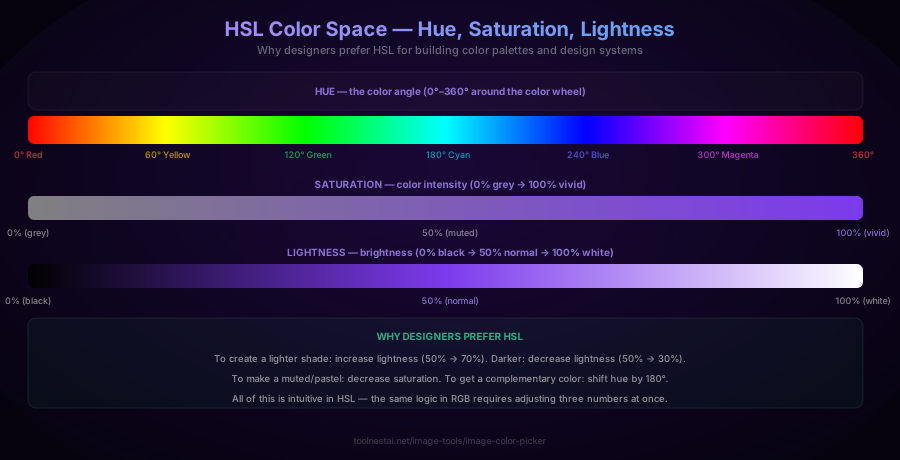
The three HSL parameters are genuinely independent from each other, which is what makes them so useful:
Hue (0–360°): The position on the color wheel. The key values: 0°/360° = red, 30° = orange, 60° = yellow, 90° = chartreuse, 120° = green, 150° = spring green, 180° = cyan, 210° = azure, 240° = blue, 270° = violet, 300° = magenta, 330° = rose.
Saturation (0–100%): How vivid or grey the color is. 0% saturation at any hue produces pure grey (the grey value determined by lightness). 100% is the most vivid version of that hue. Reducing saturation to 20–40% produces the "muted" or "dusty" tones common in modern design systems.
Lightness (0–100%): How bright the color is. At 0% you get pure black regardless of H and S. At 100% you get pure white. At 50% you get the "full" version of the hue. This is what you adjust to create tints (lighter versions) and shades (darker versions).
Generating a Tailwind-style color scale in CSS:
:root {
  --color-primary-50:  hsl(263, 83%, 95%);
  --color-primary-100: hsl(263, 83%, 90%);
  --color-primary-200: hsl(263, 83%, 80%);
  --color-primary-300: hsl(263, 83%, 70%);
  --color-primary-400: hsl(263, 83%, 62%);
  --color-primary-500: hsl(263, 83%, 58%);  /* base */
  --color-primary-600: hsl(263, 83%, 48%);
  --color-primary-700: hsl(263, 83%, 38%);
  --color-primary-800: hsl(263, 83%, 25%);
  --color-primary-900: hsl(263, 83%, 15%);
}
This approach keeps H and S constant and varies only L — producing a coherent, harmonious scale from the same starting hue.
How Pixel Color Picking Works
The web platform provides getImageData() on the Canvas 2D API, which gives you an array of raw RGBA pixel values:
function getPixelColor(imageElement, x, y) {
  const canvas = document.createElement('canvas');
  canvas.width = imageElement.naturalWidth;
  canvas.height = imageElement.naturalHeight;
  const ctx = canvas.getContext('2d');
  ctx.drawImage(imageElement, 0, 0);
  const [r, g, b, a] = ctx.getImageData(x, y, 1, 1).data;

  const hex = `#${r.toString(16).padStart(2,'0')}${g.toString(16).padStart(2,'0')}${b.toString(16).padStart(2,'0')}`;

  const rf = r/255, gf = g/255, bf = b/255;
  const max = Math.max(rf,gf,bf), min = Math.min(rf,gf,bf);
  const l = (max+min)/2;
  const s = max===min ? 0 : l>0.5 ? (max-min)/(2-max-min) : (max-min)/(max+min);
  let h = 0;
  if(max !== min) {
    if(max===rf) h = ((gf-bf)/(max-min)+6)%6;
    else if(max===gf) h = (bf-rf)/(max-min)+2;
    else h = (rf-gf)/(max-min)+4;
    h = Math.round(h*60);
  }

  return { hex, rgb: `rgb(${r},${g},${b})`, hsl: `hsl(${h},${Math.round(s*100)}%,${Math.round(l*100)}%)` };
}
Note the CORS requirement: to call getImageData() on a cross-origin image (one from a different domain), the image must be served with appropriate CORS headers and the image element must have crossOrigin="anonymous" set. For same-origin images and local file uploads, this isn't an issue.
Dominant Color Palette Extraction
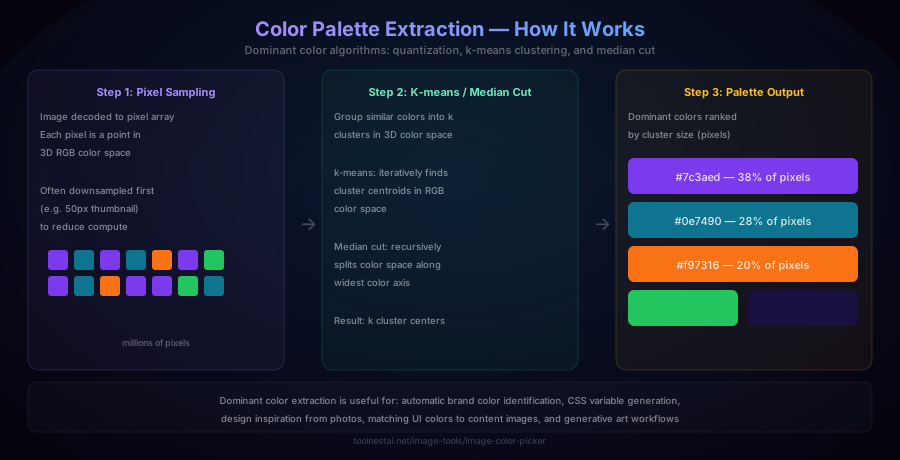
Extracting the dominant colors from an image is a color quantization problem: represent millions of unique pixel colors with a much smaller palette (typically 5–10 colors) that best represents the image.
Median Cut algorithm:
- Put all pixel colors into a 3D box in RGB color space
- Find which axis (R, G, or B) has the widest color range
- Sort pixels along that axis and split at the median value
- Repeat recursively until you have k boxes
- Average the pixels in each box to get the representative color
K-means clustering:
- Start with k random color centroids in RGB space
- Assign each pixel to its nearest centroid
- Recalculate centroids as the mean of their assigned pixels
- Repeat until centroids stabilize (convergence)
- Return the k centroid colors, typically sorted by cluster size
K-means is more computationally intensive but tends to produce better-separated colors. In practice, browsers often downsample the image first (to a small thumbnail like 50×50 pixels) to make the computation fast enough to run synchronously.
Practical applications of dominant color extraction:
- Brand color identification: Upload a company logo, get its primary brand colors in HEX format
- CSS variable generation: Extract palette from a hero image and use those colors in the page's color system
- Design inspiration: Identify what makes a photo's color palette work by seeing its dominant hues
- Content-matched UI: Some streaming services and apps dynamically theme their UI to match album art or movie poster colors
Frequently Asked Questions
What's the difference between HEX and RGB?
HEX and RGB encode the same color information — they're just different notations. #7c3aed and rgb(124, 58, 237) represent the exact same color. HEX uses hexadecimal pairs; RGB uses decimal integers. HEX is more compact (6 characters vs ~16); RGB is more readable for humans who think in decimal numbers.
When should I use HSL instead of HEX or RGB?
Use HSL when you're building color relationships — creating lighter or darker versions of a color, generating tints and shades, finding complementary colors, or building a design system color scale. HSL makes these operations intuitive by separating the color (hue), its vividness (saturation), and its brightness (lightness) into independent parameters. For copy-pasting a specific color value, HEX is usually simpler.
Can I use a color picker on any image?
Yes, if the image is loaded via a local file upload or from the same domain. For images from external URLs, you may need CORS-compliant server headers (Access-Control-Allow-Origin: *) and the crossOrigin="anonymous" attribute on the image element — otherwise the Canvas API blocks access to pixel data for security reasons (to prevent cross-origin data leaks).
How accurate is the CMYK conversion from a screen color picker?
Screen-based CMYK values are approximations based on the sRGB color profile and a mathematical formula. Real print workflows use ICC profiles specific to the paper stock, ink type, and press being used — those values can differ meaningfully from what a digital tool shows. Screen-based CMYK values are useful for ballpark reference but should be verified by a professional print operator before going to press.
What is color quantization?
Color quantization is the process of reducing an image with millions of unique colors to a smaller palette of representative colors while minimizing visible quality loss. It's used in dominant color extraction, GIF creation (limited to 256 colors), and some image compression workflows. Common algorithms include median cut, k-means clustering, and the Neuquant neural quantizer.
Why does my picked color look slightly different from what I see?
Several factors can cause this: screen gamma and color profile differences (your display may not be calibrated to sRGB), JPEG compression artifacts (the actual pixel value near where you clicked may differ slightly from what the original color was), or anti-aliasing along edges (a pixel on an edge is a blend of two colors). For the most accurate color, pick from flat areas of color away from edges.
About the author
Emir LočićI'm a developer focused on building practical online tools, with several years of experience in web development. I created ToolNest AI to make useful AI-powered tools simple, accessible, and free to use in one place.
Related Articles
Remove Background from Image: How AI Does It + Free Online Tool
Learn how AI background removal works using neural network segmentation, when it struggles with hair and glass, and the best techniques for perfect transparent PNG results.
How to Rotate an Image: Lossless Steps, Free Angles, and EXIF Orientation Explained
Learn when image rotation is lossless, how EXIF orientation causes sideways photos, the math behind canvas expansion, and how to rotate images in code.
Image Compressor: How to Reduce File Size Without Losing Quality
Learn how JPEG compression actually works, the optimal quality setting for web images, the difference between lossy and lossless compression, and the mistakes that silently degrade your images. Free online image compressor tool.