Base64 to Image: Decode, Preview and Download Images from Base64 Strings
Learn how to decode Base64 strings back into image files using atob(), Buffer.from(), and Python. Covers Data URI parsing, magic byte detection, and real-world use cases like API responses and HTML email extraction.
Founder & Developer, ToolNest AI
Published
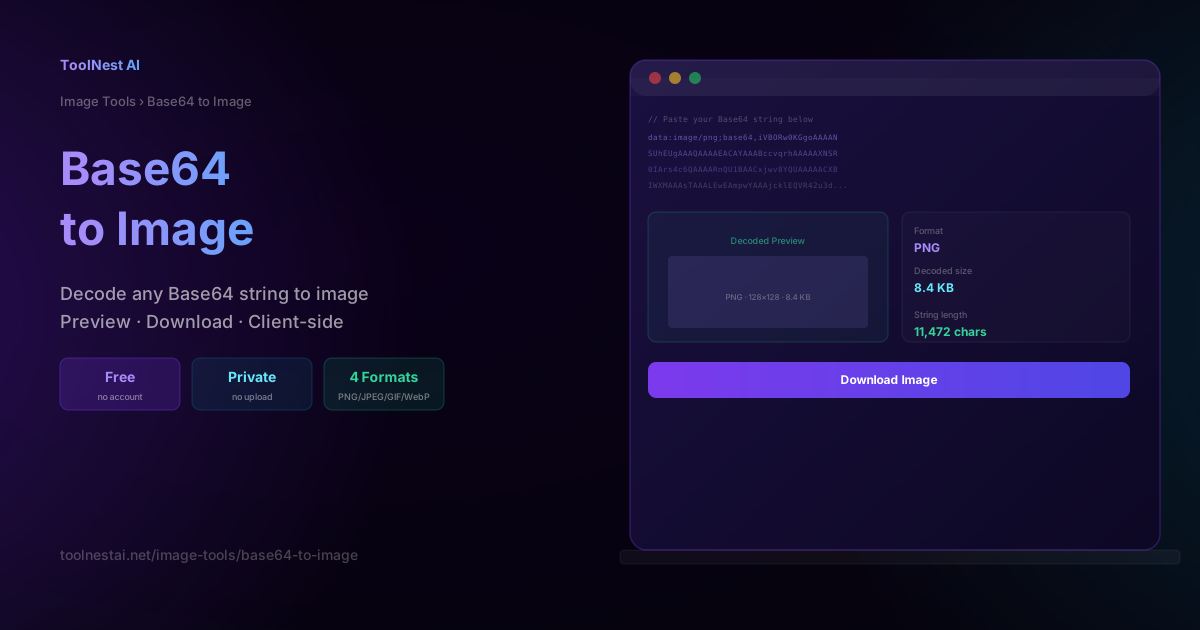
Base64 strings look like noise — hundreds of characters of letters, numbers, and slashes — but they're actually a compact, text-safe representation of a binary image file. Every modern web platform, AI API, and email client works with them daily. Knowing how to reverse the process — decoding a Base64 string back into a viewable, downloadable image — is one of those small skills that saves a surprising amount of time.
Decode any Base64 string instantly with the ToolNest AI Base64 to Image tool. Paste your string, preview the image, and download it — all in your browser, nothing uploaded.
What Is Base64 and Why Does Reversing It Matter?
Base64 encoding converts binary data into a string of 64 printable ASCII characters (A–Z, a–z, 0–9, +, /, and = for padding). Every group of 3 binary bytes becomes 4 Base64 characters, which is why encoded strings are always about 33% longer than the original binary data.
The encoding exists because many transport protocols — HTTP headers, JSON, HTML attributes, email bodies — were originally designed for text and can't reliably carry arbitrary binary data. Encoding images as Base64 makes them safe to embed anywhere text is accepted.
Decoding is the reverse: given a Base64 string, reconstruct the exact original binary bytes and write them to a file. Done correctly, the decoded file is bit-for-bit identical to the original image before it was encoded.
This matters in practice because:
- AI image generation APIs (DALL-E, Stable Diffusion API, many others) return generated images as Base64 strings in their JSON responses — you need to decode them to see or save the image
- HTML email clients frequently embed images directly as Base64 Data URIs in
<img>tags so the email is self-contained without external image requests - Debugging Data URIs — a broken
<img src="data:image/png;base64,...">attribute is hard to inspect; decoding it lets you see exactly what image (if any) the string represents - Legacy system integration — older enterprise APIs often transfer images as Base64 fields in XML or JSON payloads
Input Format Variations
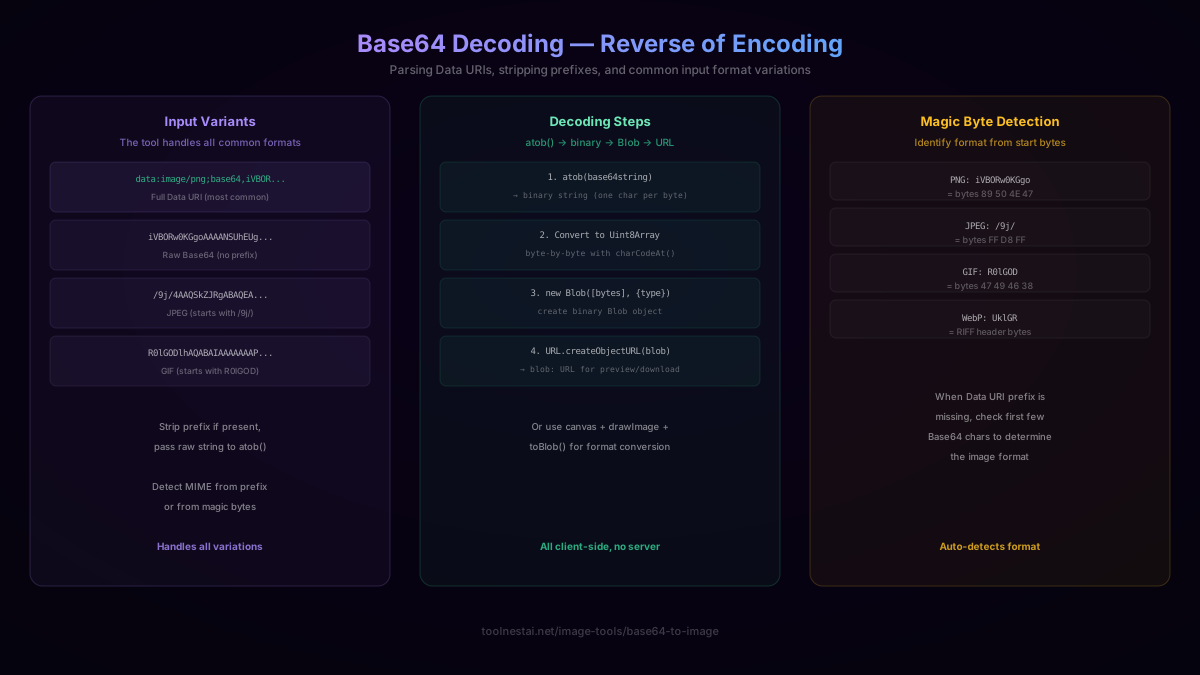
Real-world Base64 strings come in several forms. A good decoder handles all of them:
Full Data URI (most common):
data:image/png;base64,iVBORw0KGgoAAAANSUhEUgAA...
The prefix data:[MIME type];base64, is followed by the actual Base64 payload. This format is ready to use directly in HTML <img src> and CSS background-image, so it's what most tools produce.
Raw Base64 with no prefix:
iVBORw0KGgoAAAANSUhEUgAA...
Many APIs return just the Base64 string, no data: prefix. You need to either detect the format from the string itself or know it from context.
JPEG raw string:
/9j/4AAQSkZJRgABAQEA...
JPEG Base64 always starts with /9j/ — the Base64 encoding of JPEG's FF D8 FF magic bytes.
GIF raw string:
R0lGODlhAQABAIAAAAAAAP...
GIF Base64 always starts with R0lGOD — the encoding of GIF8.
WebP raw string:
UklGR...
WebP files start with the RIFF header, which encodes to UklGR in Base64.
The key insight: even without a Data URI prefix, the first few characters of a Base64 string reliably identify the image format. This is called magic byte detection — you're reading the Base64-encoded version of the format's magic header bytes.
How Decoding Works: atob() and Blob URLs
The browser provides atob() (ASCII to Binary), which decodes a Base64 string into a binary string where each character represents one byte. From there, the standard pattern converts it to a Uint8Array, wraps it in a Blob, and creates a temporary object URL:
function base64ToImageURL(base64, mimeType = 'image/png') {
  // Strip Data URI prefix if present
  const b64 = base64.includes(',') ? base64.split(',')[1] : base64;

  // atob() converts Base64 string to binary string
  const byteChars = atob(b64);

  // Convert binary string to byte array
  const bytes = new Uint8Array(byteChars.length);
  for (let i = 0; i < byteChars.length; i++) {
    bytes[i] = byteChars.charCodeAt(i);
  }

  // Create a Blob (binary object) with the correct MIME type
  const blob = new Blob([bytes], { type: mimeType });

  // Return a temporary blob: URL for preview or download
  return URL.createObjectURL(blob);
}
The resulting blob: URL works like any other URL — you can set it as an <img> src to preview the image, or use it with an anchor tag to trigger a download:
// Preview
const img = document.createElement('img');
img.src = base64ToImageURL(myBase64String, 'image/png');
document.body.appendChild(img);

// Download
const a = document.createElement('a');
a.href = base64ToImageURL(myBase64String, 'image/png');
a.download = 'decoded-image.png';
a.click();

// Important: release the object URL when done to free memory
URL.revokeObjectURL(a.href);
A few important points about this approach:
atob()only accepts pure Base64 — if you pass it a full Data URI including thedata:image/png;base64,prefix, it will throw. Always strip the prefix first.- MIME type matters for the Blob — get it from the Data URI prefix when present, or detect it from the Base64 string's first characters.
- Object URLs are session-local — they exist only in the current browser tab and must be revoked with
URL.revokeObjectURL()when no longer needed to avoid memory leaks.
Auto-Detecting the Image Format
When no Data URI prefix is present, you can detect the format from the first few Base64 characters:
function detectMimeType(base64) {
  const signatures = {
    'iVBOR': 'image/png',          // PNG magic: 89 50 4E 47
    '/9j/':  'image/jpeg',         // JPEG magic: FF D8 FF
    'R0lGO': 'image/gif',          // GIF magic: 47 49 46 38
    'UklGR': 'image/webp',         // WebP: RIFF header
    'Qk02U': 'image/bmp',          // BMP magic
    'AAAB':  'image/x-icon',       // ICO format
  };

  for (const [prefix, mime] of Object.entries(signatures)) {
    if (base64.startsWith(prefix)) return mime;
  }

  return 'image/png'; // fallback
}
This works because Base64 encoding is deterministic — the same bytes always produce the same Base64 characters. The magic bytes at the start of each image format always encode to the same Base64 prefix.
Node.js: Decoding Base64 to a File
On the server side, Node.js provides Buffer which handles Base64 decoding natively:
const fs = require('fs');

function saveBase64Image(base64String, outputPath) {
  // Strip Data URI prefix if present
  const b64 = base64String.includes(',')
    ? base64String.split(',')[1]
    : base64String;

  // Buffer.from() with 'base64' encoding decodes directly
  const imageBuffer = Buffer.from(b64, 'base64');

  // Write binary buffer to file
  fs.writeFileSync(outputPath, imageBuffer);
}

saveBase64Image(apiResponseBase64, './output/generated-image.png');
For large images or high-throughput scenarios, the streaming version is more efficient:
const { Writable } = require('stream');

function saveBase64ImageStream(base64String, outputPath) {
  const b64 = base64String.includes(',')
    ? base64String.split(',')[1]
    : base64String;

  const buffer = Buffer.from(b64, 'base64');
  return fs.promises.writeFile(outputPath, buffer);
}
Python: base64.b64decode()
Python's standard library makes Base64 decoding trivial:
import base64

def save_base64_image(base64_string: str, output_path: str) -> None:
    # Strip Data URI prefix if present
    if ',' in base64_string:
        base64_string = base64_string.split(',')[1]

    # Decode from Base64 to bytes
    image_bytes = base64.b64decode(base64_string)

    # Write bytes directly to file
    with open(output_path, 'wb') as f:
        f.write(image_bytes)

save_base64_image(api_response['image'], 'output.png')
For cases where you want to process the image rather than just save it, Pillow can read directly from bytes:
from PIL import Image
import base64
import io

def base64_to_pil_image(base64_string: str) -> Image.Image:
    if ',' in base64_string:
        base64_string = base64_string.split(',')[1]
    image_bytes = base64.b64decode(base64_string)
    return Image.open(io.BytesIO(image_bytes))

img = base64_to_pil_image(api_response['image'])
img.save('output.webp', quality=90)  # convert format while saving
PHP and Other Languages
<?php
function saveBase64Image(string $base64, string $outputPath): void {
    // Strip Data URI prefix if present
    if (str_contains($base64, ',')) {
        $base64 = explode(',', $base64)[1];
    }

    // base64_decode converts to binary string
    $imageData = base64_decode($base64);

    // Write to file
    file_put_contents($outputPath, $imageData);
}
?>
For Ruby: Base64.decode64(string) followed by File.binwrite(). For Go: base64.StdEncoding.DecodeString() followed by os.WriteFile(). The pattern is identical across all languages — strip the prefix, decode, write binary.
Real-World Use Case: Handling AI API Responses
The most common reason developers need Base64 decoding today is handling image generation API responses. Here's a complete example using the OpenAI Images API:
const response = await fetch('https://api.openai.com/v1/images/generations', {
  method: 'POST',
  headers: {
    'Authorization': `Bearer ${apiKey}`,
    'Content-Type': 'application/json',
  },
  body: JSON.stringify({
    prompt: 'a purple mountain at sunset',
    response_format: 'b64_json', // request Base64 instead of URL
    size: '1024x1024',
  }),
});

const data = await response.json();
const base64 = data.data[0].b64_json; // the raw Base64 string

// Decode and display
const imageURL = base64ToImageURL(base64, 'image/png');
document.getElementById('result').src = imageURL;
The response_format: 'b64_json' option is useful when you want to process or save the image without making a second HTTP request to the temporary URL the API otherwise provides. The trade-off is a larger JSON response payload — about 33% larger than the actual image file due to Base64 overhead.
Extracting Images from HTML Email
HTML emails often embed images directly as Base64 Data URIs:
<img src="data:image/png;base64,iVBORw0KGgoAAAANSUhEUgAA..." alt="...">To extract these images programmatically:
function extractBase64Images(htmlString) {
  const regex = /src="(data:image\/[^;]+;base64,[^"]+)"/g;
  const images = [];
  let match;

  while ((match = regex.exec(htmlString)) !== null) {
    const dataUri = match[1];
    const mimeType = dataUri.split(';')[0].replace('data:', '');
    images.push({ dataUri, mimeType });
  }

  return images;
}
Or paste the Data URI directly into the ToolNest AI Base64 to Image tool to preview and download it instantly, without writing any code.
Common Errors and How to Fix Them
InvalidCharacterError: Failed to execute 'atob' — The string contains the Data URI prefix (data:image/png;base64,). Strip everything up to and including the first comma before passing to atob().
Image displays as broken — The Base64 string is incomplete (truncated) or contains whitespace. Base64 is sensitive to exact character sequences; any truncation or line break in the wrong position produces invalid binary data.
Wrong format saved — If you save a JPEG Base64 string as a .png file, some viewers will fail to open it. Let the magic byte detection determine the correct extension.
atob is not defined — You're running in a Node.js environment, not a browser. Use Buffer.from(b64, 'base64') instead, which is the Node.js equivalent.
Enormous response payload — If you're receiving large Base64 images from an API, consider requesting a URL-based response format instead if available. A 5 MB image becomes ~6.7 MB as a Base64 string, adding latency and memory pressure.
Frequently Asked Questions
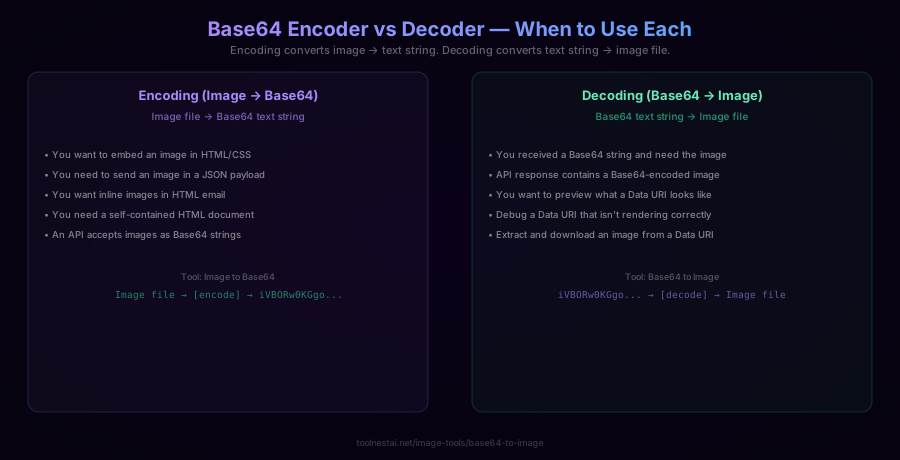
What's the difference between Base64 to Image and Image to Base64?
They're exact inverses. Image to Base64 reads a binary image file and outputs a Base64 text string. Base64 to Image takes that text string and reconstructs the original binary image file. The process is perfectly reversible — decoding a correctly encoded Base64 string always produces the original image, byte for byte.
Why is my Base64 string so much longer than the image file?
Base64 encoding expands the size of binary data by approximately 33%. This is because every 3 bytes of binary data becomes 4 Base64 characters — you're representing 6-bit groups using 8-bit ASCII characters, which uses 2 bits per character for overhead. A 100 KB PNG becomes about a 133 KB Base64 string.
Does the Base64 to Image tool upload my string to a server?
No. The ToolNest AI Base64 to Image tool decodes entirely in your browser using the atob() JavaScript API. Nothing is sent to any server. This is both faster (no network round-trip) and more private (your image data never leaves your device).
How do I detect what image format a Base64 string is?
Check the first few characters of the Base64 string. PNG always starts with iVBOR, JPEG with /9j/, GIF with R0lGOD, and WebP with UklGR. If the string is a full Data URI, the MIME type is stated explicitly in the prefix: data:image/png;base64,.... The tool detects format automatically.
Can I convert the decoded image to a different format?
Yes — decode the Base64 string to get the image, then use a format converter. The ToolNest AI Image Converter converts between PNG, JPEG, WebP, GIF, and BMP formats in the browser. Or use Pillow in Python to decode and save in a different format in one step.
What causes the "InvalidCharacterError" when using atob()?
The atob() function only accepts the raw Base64 payload — not the full Data URI. If your string starts with data:image/png;base64, (or any data: prefix), you must strip everything up to and including the comma before passing it to atob(). The error means atob encountered a character (like the colon in data:) that isn't part of the Base64 alphabet.
About the author
Emir LočićI'm a developer focused on building practical online tools, with several years of experience in web development. I created ToolNest AI to make useful AI-powered tools simple, accessible, and free to use in one place.
Related Articles
Image to Base64: How It Works, Data URI Formats, and When to Use It
Learn how Base64 encoding converts binary image data to ASCII text, the four Data URI output formats (HTML, CSS, JSON, email), and when NOT to use inline Base64.
Image Converter: JPG, PNG, WebP Compared + Free Online Tool
Learn the real differences between JPG, PNG, and WebP, lossy vs lossless compression, why re-saving JPG repeatedly degrades quality, and the transparency trap when converting to JPG. Free, instant tool.