Base64 Encoder & Decoder: Complete Guide + Free Online Tool
Learn how Base64 encoding works, when to use it, the difference between Base64 and Base64URL, real-world use cases in JWTs, data URIs, and MIME email, and how to encode or decode anything free online.
ToolNest AI Team
Author
Published
You have seen it before: a long string of letters, numbers, plus signs, and slashes ending with one or two equals signs. Maybe it was embedded in a JWT token, the value of a CSS background-image, an email attachment, or an API request body. That is Base64 — and once you understand how it works, you will recognise it everywhere in modern software development.
This guide explains the Base64 encoding algorithm from first principles, covers the difference between standard Base64 and Base64URL, walks through the most important real-world use cases, and shows you how to use the ToolNest AI Base64 Encoder to encode or decode anything instantly — text, binary data, images, and files — all free and client-side.
What Is Base64?
Base64 is a binary-to-text encoding scheme that converts arbitrary binary data into a string of 64 printable ASCII characters. It was designed to solve a specific problem: many older protocols — most notably SMTP for email — were designed to carry only 7-bit ASCII text. They could not transmit raw binary data without corruption. Base64 provides a reliable way to represent binary data using only safe ASCII characters.
The "64" in the name refers to the size of the character alphabet: 64 characters are used to represent all possible values. Because each Base64 character represents exactly 6 bits of data (2⁶ = 64), and each byte is 8 bits, it takes 4 Base64 characters to represent 3 bytes of binary data. This is why Base64-encoded data is always approximately 33% larger than the original.
The standard is defined in RFC 4648 (published 2006), which covers both standard Base64 and the URL-safe Base64URL variant.
The Base64 Alphabet
The 64 characters that make up the standard Base64 alphabet are:
| Value | Char | Value | Char | Value | Char | Value | Char |
|---|---|---|---|---|---|---|---|
| 0–25 | A–Z | 26–51 | a–z | 52–61 | 0–9 | 62 | + |
| 63 | / | padding | = |
Every 6-bit group maps to exactly one of these characters. A = sign is used for padding when the input length is not a multiple of 3 bytes.
How Base64 Encoding Works
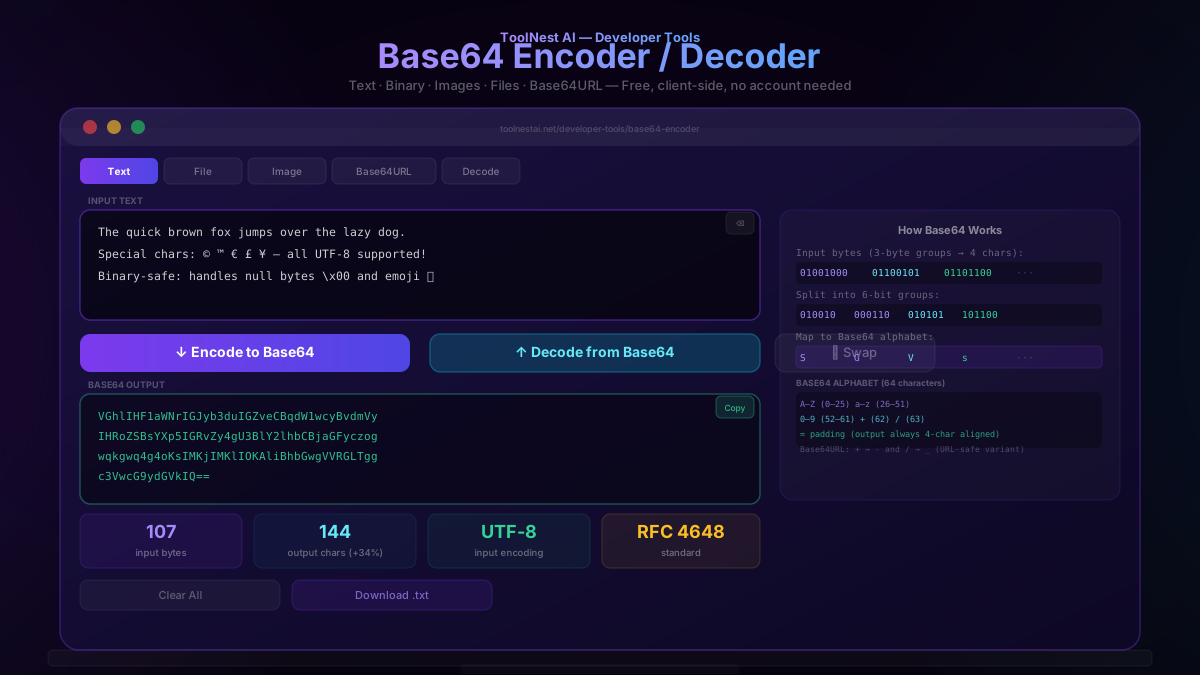
The algorithm converts binary data into Base64 in four steps:
Step 1: Read the input as bytes. Text input is first converted to bytes using UTF-8 encoding. For example, the letter M has the UTF-8 byte value 77, represented in binary as 01001101.
Step 2: Group the bits into 6-bit chunks. Take three consecutive bytes (24 bits) and split them into four groups of 6 bits. If the input does not divide evenly into groups of 3, the last group is padded with zero bits.
Step 3: Map each 6-bit value to the Base64 alphabet. Each 6-bit group (a number from 0 to 63) maps to the corresponding character in the Base64 alphabet.
Step 4: Add padding. If the input had 1 remaining byte, append ==. If it had 2 remaining bytes, append =. This ensures the output length is always a multiple of 4 characters.
Example — encoding the word "Man":
Input bytes:  M (77)        a (97)        n (110)
Binary:       01001101      01100001      01101110
6-bit groups: 010011  010110  000101  101110
Decimal:      19      22      5       46
Base64:       T       W       F       u
Result: "TWFu"
Example — encoding "Ma" (2 bytes, needs padding):
Input bytes:  M (77)        a (97)
Binary:       01001101      01100001  (padded with 0000)
6-bit groups: 010011  010110  000100  (last group padded)
Base64:       T       W       E       =
Result: "TWE="
Decoding Base64
Decoding is simply the algorithm in reverse: each Base64 character is converted back to its 6-bit value, the bits are assembled into bytes, and the padding characters are stripped. The resulting bytes are then interpreted as UTF-8 (for text) or raw binary data (for files and images).
One important note: you cannot decode an arbitrary string as Base64. The input must consist only of Base64 characters (A–Z, a–z, 0–9, +, /) with optional = padding, and its length must be a multiple of 4. The ToolNest AI Base64 Encoder validates the input before decoding and shows a clear error message if the string is not valid Base64.
Standard Base64 vs Base64URL
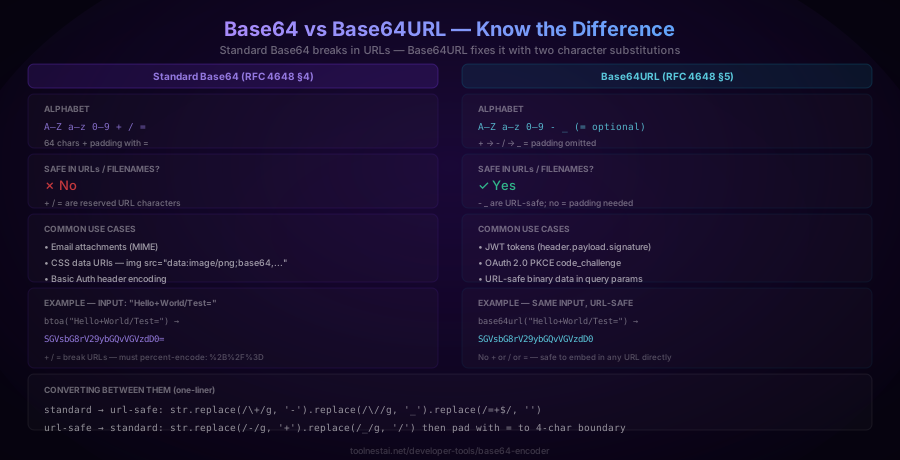
The standard Base64 alphabet contains three characters that have special meaning in URLs: + (interpreted as a space in query strings), / (interpreted as a path separator), and = (used as a key-value separator). If you embed standard Base64 in a URL query parameter without percent-encoding these characters first, the URL will be silently corrupted.
Base64URL (defined in RFC 4648 §5) solves this by replacing two characters:
+→-/→_=padding is omitted (or made optional)
The result is a string that can be safely placed in any URL component or filename without percent-encoding.
When to use each:
| Use case | Encoding |
|---|---|
CSS data URIs (data:image/png;base64,...) | Standard Base64 |
| MIME email attachments | Standard Base64 |
| HTTP Basic Auth header | Standard Base64 |
| PEM certificates and private keys | Standard Base64 |
| JWT tokens (header, payload, signature) | Base64URL |
OAuth 2.0 PKCE code_challenge | Base64URL |
| Binary data in URL query parameters | Base64URL |
| Filenames containing binary data | Base64URL |
Converting between them is a simple character substitution:
// Standard Base64 → Base64URL
const toBase64URL = (str) =>
  str.replace(/\+/g, '-').replace(/\//g, '_').replace(/=+$/, '');

// Base64URL → Standard Base64
const fromBase64URL = (str) => {
  str = str.replace(/-/g, '+').replace(/_/g, '/');
  const pad = str.length % 4;
  if (pad) str += '='.repeat(4 - pad);
  return str;
};
Real-World Use Cases
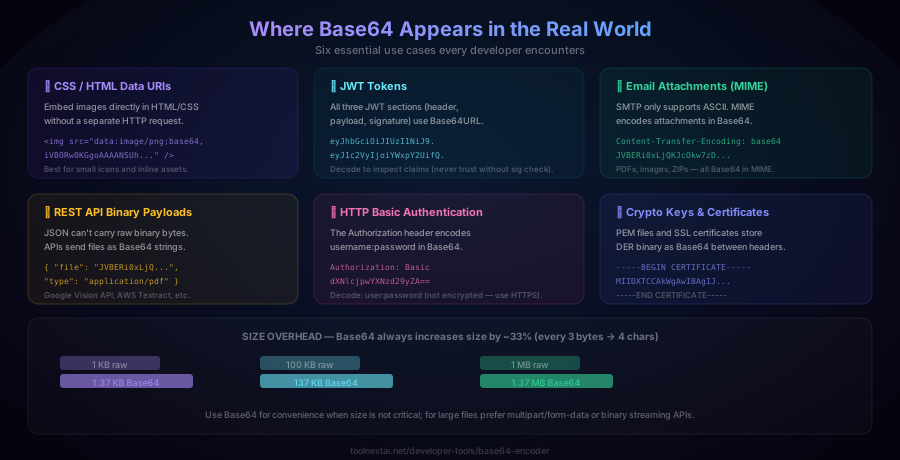
1. CSS and HTML Data URIs
Data URIs let you embed file content directly inside an HTML or CSS document, eliminating an HTTP request for small assets:
<img src="data:image/png;base64,iVBORw0KGgoAAAANSUhEUgAAAAEAAAABCAYAAAAfFcSJAAAADUlEQVR42mNk+M9QDwADhgGAWjR9awAAAABJRU5ErkJggg==" alt="1px pixel" />.icon {
background-image: url("data:image/svg+xml;base64,PHN2ZyB4bWxucz0iaHR0cDovL3d3dy53My5vcmcvMjAwMC9zdmciPjwvc3ZnPg==");
}Data URIs are best for small icons and inline assets. For large images, the 33% size overhead and inability to cache the image separately make them a poor choice.
2. JWT Tokens
JSON Web Tokens are the most common example of Base64URL in production code. A JWT looks like this:
eyJhbGciOiJIUzI1NiIsInR5cCI6IkpXVCJ9.eyJ1c2VyIjoiYWxpY2UiLCJpYXQiOjE2MDAwMDAwMDB9.SflKxwRJSMeKKF2QT4fwpMeJf36POk6yJV_adQssw5c
It consists of three Base64URL-encoded sections separated by dots:
- Header —
eyJhbGciOiJIUzI1NiIsInR5cCI6IkpXVCJ9decodes to{"alg":"HS256","typ":"JWT"} - Payload —
eyJ1c2VyIjoiYWxpY2UiLCJpYXQiOjE2MDAwMDAwMDB9decodes to{"user":"alice","iat":1600000000} - Signature — the HMAC-SHA256 of the header and payload, also Base64URL-encoded
You can use the ToolNest Base64 decoder to inspect any JWT's header and payload — paste the section before or after the first dot. Note that the signature cannot be verified without the secret key; always validate signatures server-side and never trust a decoded JWT payload without signature verification.
3. MIME Email Attachments
SMTP (Simple Mail Transfer Protocol) was designed for 7-bit ASCII text. When you attach a PDF, image, or ZIP file to an email, your email client encodes the binary file as Base64 and includes it in the message with a MIME header:
Content-Type: application/pdf; name="report.pdf"
Content-Transfer-Encoding: base64
Content-Disposition: attachment; filename="report.pdf"

JVBERi0xLjQKJcOkw7zDtsOfCjIgMCBvYmoKPDwvTGVuZ3RoIDMgMCBSL0ZpbHRlci9GbGF0ZURl
Y29kZT4+CnN0cmVhbQp4nCvkAAAA//8DAFBLAwQUAAYACAAAACEA...
The Base64 content is wrapped at 76 characters per line (with CRLF line endings) as specified by the MIME standard.
4. REST API Binary Payloads
JSON is a text format and cannot represent raw binary bytes. When an API needs to accept or return binary data (an image, a PDF, audio) inside a JSON payload, Base64 is the standard solution:
{
  "filename": "invoice.pdf",
  "content_type": "application/pdf",
  "data": "JVBERi0xLjQKJcOkw7zDtsOfCjIgMCBvYmoKPDwvTGVuZ3Ro..."
}
Examples include the Google Cloud Vision API (which accepts images as Base64), AWS Textract, and many webhook payloads. For large files this is inefficient — prefer multipart/form-data or signed upload URLs for anything over a few hundred kilobytes.
5. HTTP Basic Authentication
The HTTP Authorization header for Basic authentication encodes username:password as Base64:
Authorization: Basic dXNlcjpwYXNzd29yZA==
Decoding dXNlcjpwYXNzd29yZA== gives user:password. Important: Base64 is not encryption — it provides zero security on its own. HTTP Basic Auth must always be used over HTTPS, not plain HTTP.
6. PEM Certificates and Private Keys
TLS certificates and private keys are stored in PEM format, which is essentially Base64-encoded DER (binary) data wrapped in ASCII headers:
-----BEGIN CERTIFICATE-----
MIIDXTCCAkWgAwIBAgIJAJC1HiIAZAiIMA0GCSqGSIb3DQEBCwUAMEUxCzAJBgNV
...
-----END CERTIFICATE-----
The data between the headers is standard Base64 (with line wrapping at 64 characters as per the PEM convention).
How to Use the Base64 Encoder Tool
The ToolNest AI Base64 Encoder runs entirely in your browser — your data is never sent to a server. It supports five modes:
Text mode: Encode any text string to Base64. Input is treated as UTF-8, so accented characters, emoji, and international text are all handled correctly.
File mode: Upload any file and receive its Base64 representation. Useful for generating data URIs from images or encoding files for API payloads.
Image mode: Upload an image and get a complete data:image/...;base64,... URI ready to paste into HTML or CSS.
Base64URL mode: Encode to the URL-safe variant — + becomes -, / becomes _, and = padding is omitted.
Decode mode: Paste any Base64 or Base64URL string and decode it back to text or a downloadable file.
Step-by-step for encoding text:
- Select "Text" mode
- Type or paste your input into the text area
- Click "Encode to Base64"
- Copy the output with the Copy button
Step-by-step for decoding a JWT:
- Select "Decode" mode
- Paste one section of the JWT (the part before or after the first dot, not the signature)
- Click "Decode from Base64"
- The decoded JSON payload appears in the output
Base64 in Different Languages
The same encoding is available natively in every major language:
JavaScript (browser):
// Encode
btoa("Hello, World!");          // → "SGVsbG8sIFdvcmxkIQ=="
btoa(unescape(encodeURIComponent("Héllo"))); // UTF-8 safe

// Decode
atob("SGVsbG8sIFdvcmxkIQ==");  // → "Hello, World!"

// Base64URL (Node.js 16+)
Buffer.from("Hello").toString('base64url'); // → "SGVsbG8"
Note: btoa() in browsers only handles Latin-1 characters. For UTF-8 text with characters outside the Latin-1 range, use the encodeURIComponent trick shown above, or use TextEncoder with a Uint8Array.
Node.js:
Buffer.from("Hello, World!").toString('base64');
// → "SGVsbG8sIFdvcmxkIQ=="

Buffer.from("SGVsbG8sIFdvcmxkIQ==", 'base64').toString('utf8');
// → "Hello, World!"
Python:
import base64

base64.b64encode(b"Hello, World!")
# → b'SGVsbG8sIFdvcmxkIQ=='

base64.b64decode("SGVsbG8sIFdvcmxkIQ==")
# → b'Hello, World!'

# URL-safe variant
base64.urlsafe_b64encode(b"Hello+World/")
# → b'SGVsbG8rV29ybGQv'
PHP:
base64_encode("Hello, World!");     // → "SGVsbG8sIFdvcmxkIQ=="
base64_decode("SGVsbG8sIFdvcmxkIQ=="); // → "Hello, World!"
Go:
import "encoding/base64"

encoded := base64.StdEncoding.EncodeToString([]byte("Hello, World!"))
// → "SGVsbG8sIFdvcmxkIQ=="

decoded, _ := base64.StdEncoding.DecodeString(encoded)
// → "Hello, World!"

// URL-safe
urlSafe := base64.URLEncoding.EncodeToString([]byte("Hello+World/"))
Common Mistakes
Mistake 1: Using standard Base64 in a URL. The +, /, and = characters all have special meanings in URLs. If you embed standard Base64 in a query parameter, the server may receive corrupted data. Always use Base64URL for URL contexts, or percent-encode the standard Base64 output.
Mistake 2: Treating Base64 as encryption. Base64 is an encoding, not encryption. Anyone can decode it instantly. Never use it to "hide" passwords, API keys, or sensitive data. For encryption, use AES or another cryptographic cipher.
Mistake 3: Double-encoding. If you encode data that is already Base64-encoded, you get a double-encoded string that must be decoded twice. This often happens when piping tool output through another tool, or when a function is called twice by mistake.
Mistake 4: Wrong encoding for text input. The standard browser function btoa() only handles Latin-1 (ISO-8859-1) characters. If you pass a string containing characters above U+00FF — like Chinese characters, emoji, or most extended Unicode — btoa() throws a InvalidCharacterError. Always convert text to UTF-8 bytes first.
Mistake 5: Assuming Base64 output is the same length as Base64URL. They differ in the = padding at the end. Base64URL typically omits padding, making it one or two characters shorter. Account for this when parsing or comparing tokens.
Frequently Asked Questions
What is Base64 encoding?
Base64 is a binary-to-text encoding scheme that converts arbitrary binary data into a string using 64 printable ASCII characters: A–Z, a–z, 0–9, +, and /. It was designed to allow binary data to be transmitted over text-only channels such as email (SMTP). Every 3 bytes of input become 4 Base64 characters, resulting in approximately 33% larger output. It is defined in RFC 4648.
What is the difference between Base64 and Base64URL?
Standard Base64 uses +, /, and = as part of its alphabet. These characters have special meanings in URLs, so standard Base64 strings must be percent-encoded before being placed in a URL. Base64URL (RFC 4648 §5) replaces + with - and / with _, and omits the = padding, making the output safe to use directly in URLs, filenames, and HTTP headers without escaping. JWTs use Base64URL; email attachments use standard Base64.
Is Base64 encryption?
No. Base64 is encoding, not encryption. It is completely reversible by anyone — no key or secret is required. Encoding a password or API key in Base64 provides zero security. For secure storage of passwords use a cryptographic hash function (bcrypt, Argon2); for encrypting data use AES or another cipher.
Why does Base64 increase file size by 33%?
Base64 uses 6 bits per character to represent data that requires 8 bits per byte. To encode 3 bytes (24 bits) of input, 4 Base64 characters (4 × 6 = 24 bits) are needed. This 4/3 ratio means every 3 bytes of input produces 4 bytes of output — a 33% increase. For a 1 MB file, the Base64 representation is about 1.37 MB.
How do I decode a JWT token?
A JWT has three Base64URL-encoded sections separated by dots: header.payload.signature. To inspect the claims, take the payload section (the middle part) and decode it with a Base64URL decoder. The ToolNest Base64 Encoder handles Base64URL decoding in Decode mode. Important: decoding a JWT shows you the claims, but it does not verify the signature — always verify the signature server-side before trusting the claims.
Why does btoa() throw an error for some strings?
The browser's built-in btoa() function only accepts Latin-1 (ISO-8859-1) characters — the range U+0000 to U+00FF. Characters outside this range (accented letters beyond the basic set, Chinese, Japanese, Korean, emoji, and much of Unicode) throw an InvalidCharacterError. To encode UTF-8 text, convert it to bytes first: btoa(String.fromCharCode(...new TextEncoder().encode(str))), or use the Node.js Buffer API which handles UTF-8 natively.
Can Base64 handle binary files like images and PDFs?
Yes — that is one of its primary use cases. Binary files are just sequences of bytes, and Base64 encodes any sequence of bytes without caring about their meaning. The ToolNest Base64 Encoder accepts file uploads and produces the complete Base64 or data URI output. For large files, note the 33% size overhead and consider whether a binary protocol (multipart form upload, pre-signed URL) would be more appropriate.
What does the = padding at the end of Base64 mean?
The = characters are padding added to make the Base64 output length a multiple of 4 characters. Since Base64 processes input in 3-byte groups, if the input has 1 or 2 remaining bytes, the last output group is padded with one or two = signs respectively. Input that is already a multiple of 3 bytes produces no padding. Base64URL often omits padding since the decoder can infer the original length from the output length.
About the author
ToolNest AI Team
The ToolNest AI team builds free tools that help developers, marketers, and creators do more online — faster.
Related Articles
URL Encoder & Decoder: Percent-Encode URLs Free Online
Learn how URL percent-encoding works, when to use encodeURIComponent vs encodeURI, the full %XX character reference, and how to encode or decode any URL instantly — free, no sign-up.
JSON Formatter: Format, Validate & Minify JSON Free
Learn what JSON is, how to read and write it correctly, the 6 data types, common syntax errors, and how to instantly format or minify any JSON online with a free formatter tool.