WebP Converter: Why WebP Is Smaller Than JPG and When to Use It
WebP produces files 25-35% smaller than JPG at the same visual quality — with full transparency support. Learn how WebP compression works, where it's supported, how to convert images to WebP, and when to fall back to JPG or PNG.
Founder & Developer, ToolNest AI
Published
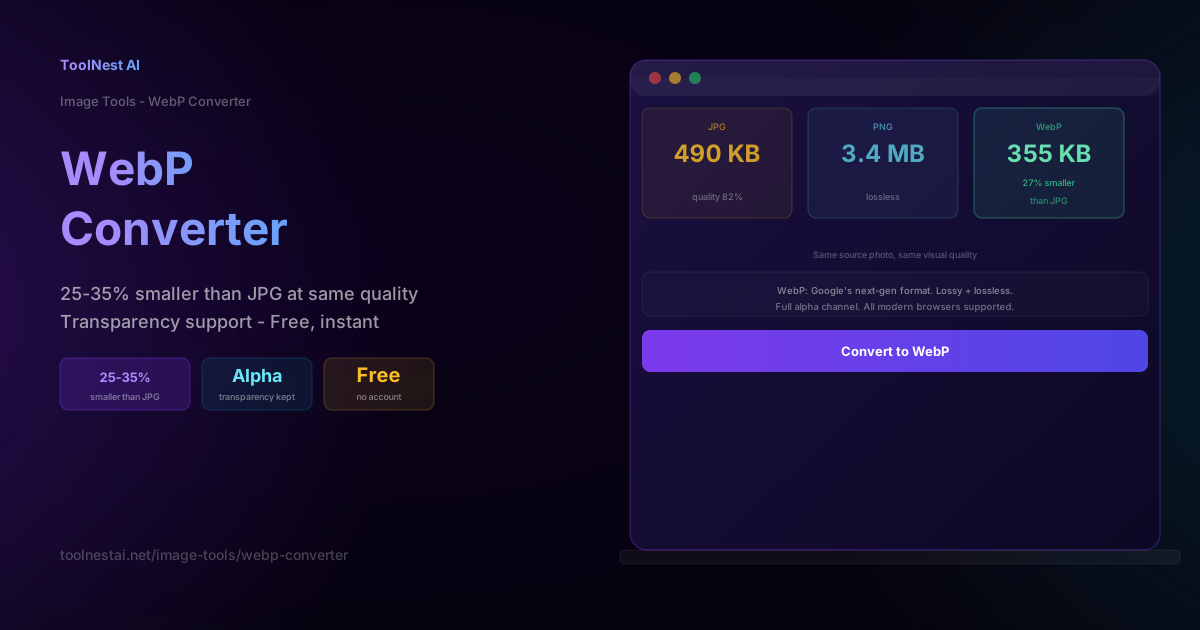
WebP is Google's answer to the question: what would a modern image format look like if we designed it with everything we know about compression algorithms and human vision? The answer, developed in 2010 and now supported by every major browser, is a format that consistently produces files 25-35% smaller than JPEG at equivalent visual quality — and 26% smaller than PNG for lossless content — while also supporting full transparency.
For web developers and anyone publishing images online, WebP is the most impactful single-format change you can make for performance.
Convert your images to WebP instantly with the ToolNest AI WebP Converter — runs entirely in your browser, no upload required.
WebP vs JPG vs PNG: The Numbers
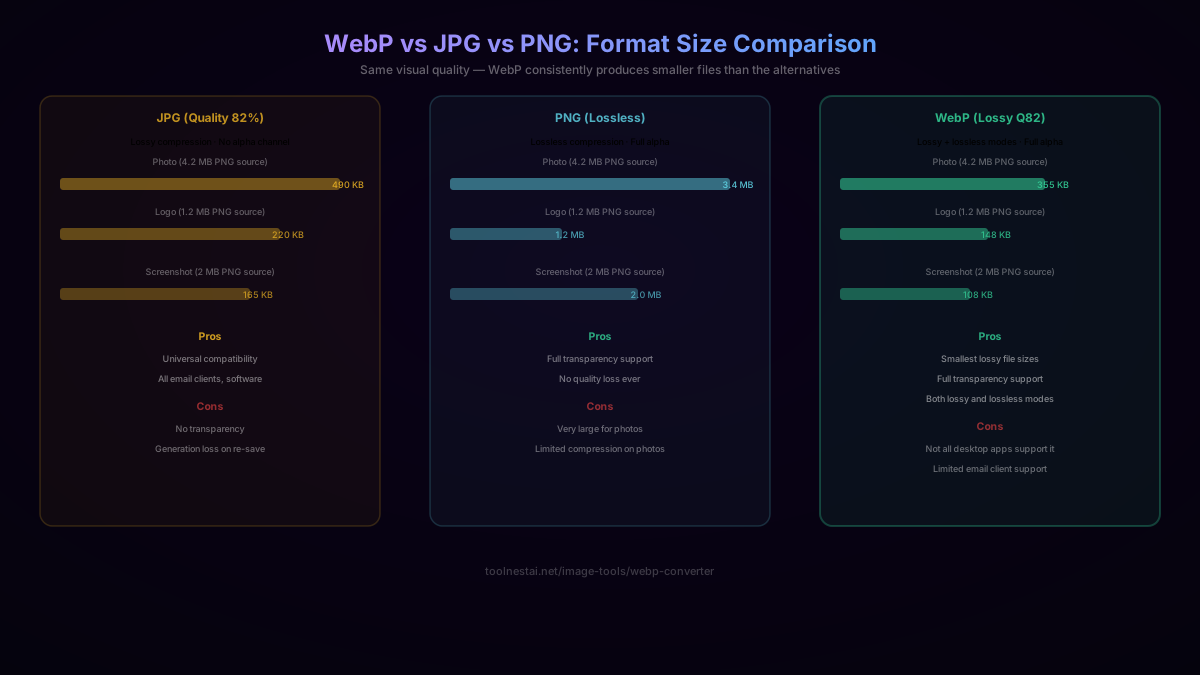
| Format | File size (same photo, same quality) | Transparency | Compression type |
|---|---|---|---|
| JPG (quality 82%) | 490 KB | No | Lossy |
| PNG (lossless) | 3.4 MB | Yes | Lossless |
| WebP (lossy, quality 82%) | 355 KB | Yes | Lossy |
| WebP (lossless) | ~2.5 MB | Yes | Lossless |
The numbers tell the story: WebP lossy is 27% smaller than JPG for the same photo at equivalent quality, with the added benefit of keeping transparency. WebP lossless is 26% smaller than PNG on average.
For a website with 20 images averaging 800 KB in JPG format, switching to WebP saves roughly 5.5 MB of page payload — translating to faster load times and better Core Web Vitals scores.
Why WebP Is Smaller: The Technical Reason
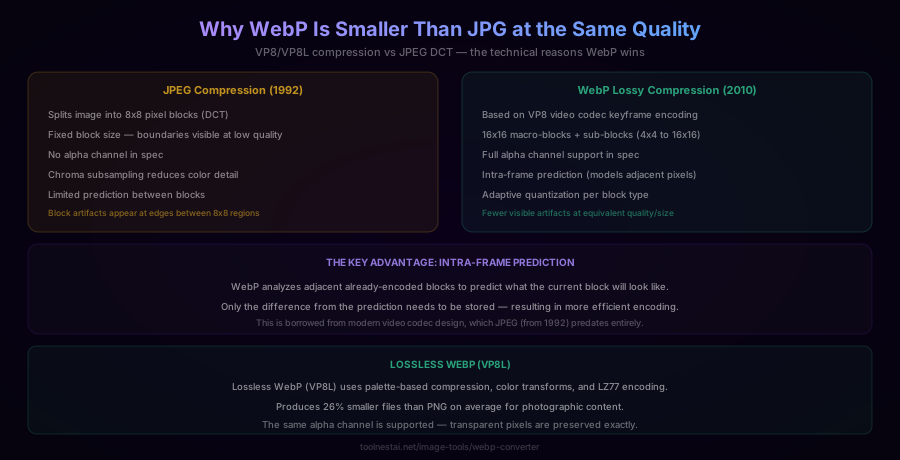
The size advantage comes from WebP's more modern compression algorithm, borrowed from video encoding:
JPEG (1992) uses Discrete Cosine Transform (DCT) on fixed 8×8 pixel blocks. It's a solid algorithm for its era, but it has limitations: the fixed block size means block boundaries become visible as artifacts at lower quality settings, and there's limited ability to predict what the current block will look like based on adjacent blocks.
WebP lossy (VP8, 2010) uses a compression approach based on VP8 video codec keyframe encoding. The key differences:
- Variable block sizes (4×4 up to 16×16 macro-blocks) — can adapt the block size to the content
- Intra-frame prediction — analyzes already-encoded neighboring blocks to predict the current block, then only stores the residual (the difference between prediction and reality). This is far more efficient for most images.
- Adaptive quantization — can apply different compression intensities to different regions of the image based on visual complexity
- Native alpha channel — the format spec includes transparency support at no additional quality cost
WebP lossless (VP8L) uses a completely different algorithm — palette-based encoding, color transforms, and LZ77-based compression — that achieves 26% better compression than PNG on average.
The result is that WebP can represent the same visual information in significantly fewer bytes than JPEG, not because it discards more data, but because it compresses the retained data more efficiently.
Browser and Software Support
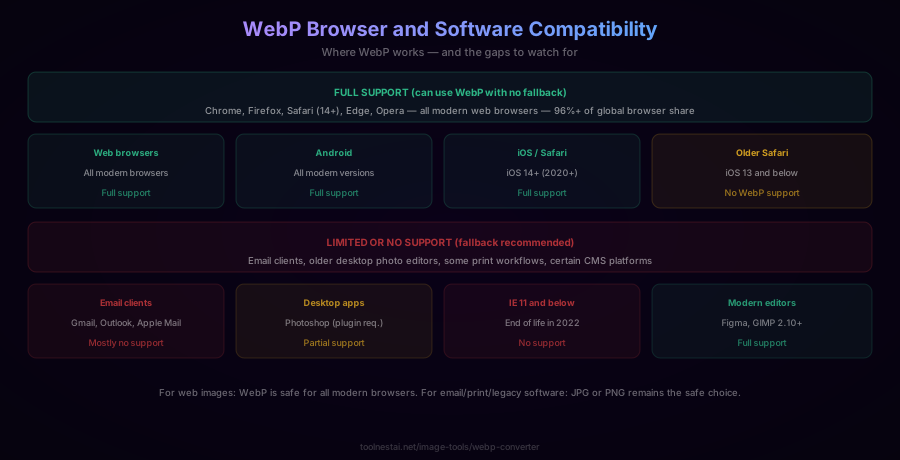
WebP support has reached near-universal status in browsers:
- Chrome (since 2011), Firefox (since 2019), Edge (since 2020), Opera — full support
- Safari — full support from Safari 14+ (released 2020), which covers iOS 14+ and macOS Big Sur+
- Overall global browser support — 96%+ of users worldwide
The gaps:
- Older iOS devices running iOS 13 or earlier don't support WebP
- Most email clients (Gmail, Outlook, Apple Mail) don't render WebP in emails — use JPG/PNG for email images
- Some desktop editing software — Photoshop requires a plugin, though newer versions have native support; GIMP 2.10+ supports WebP natively
- Internet Explorer — doesn't support WebP, but IE has been end-of-life since 2022
The practical conclusion: for modern web pages, WebP is safe for virtually all real users. For email, print, or workflows involving legacy software, JPG or PNG remains the reliable choice.
Lossy vs Lossless WebP
WebP supports both compression modes, each optimal for different content:
Lossy WebP (VP8): Permanently discards imperceptible detail to achieve dramatically smaller files. This is the mode that produces 25-35% smaller files than equivalent JPEG. The quality slider works the same as JPEG: higher quality = less data discarded = larger file. Recommended quality range for web: 80-85%.
Use lossy WebP for: photographs, natural images, hero images, product photos — any content where file size matters and minor quality loss is acceptable.
Lossless WebP (VP8L): Preserves every pixel exactly, like PNG, but uses a more efficient algorithm. Produces files approximately 26% smaller than PNG on average. The alpha channel is fully preserved.
Use lossless WebP for: logos, icons, screenshots, UI elements, source files, any image where exact pixel values must be preserved — the same scenarios where you'd use PNG, but with better compression.
How to Use the WebP Converter
The ToolNest AI WebP Converter handles the conversion entirely in your browser:
- Upload your image — JPG, PNG, or WebP supported. Batch conversion available.
- Choose lossy or lossless mode — lossy for smaller files on photos, lossless for pixel-perfect output.
- Adjust quality (lossy mode only) — start at 82% for web use.
- Preview the result — side-by-side comparison to verify quality.
- Download the WebP file.
Implementing WebP on the Web
Next.js (automatic)
import Image from 'next/image';

// Next.js automatically serves WebP to browsers that support it
<Image src="/photo.jpg" width={800} height={600} alt="Description" />
The Next.js <Image> component automatically converts your source image to WebP (or AVIF) when serving to browsers that support these formats, with no manual conversion step required.
HTML <picture> element with fallback
<picture>
  <source srcset="image.webp" type="image/webp">
  <img src="image.jpg" alt="Description">
</picture>
Browsers that support WebP use the <source> tag; those that don't fall back to the <img> tag's JPG. This is the standard way to serve WebP with a fallback.
JavaScript (Canvas API)
function toWebP(img, quality = 0.82) {
  const canvas = document.createElement('canvas');
  canvas.width = img.width;
  canvas.height = img.height;
  canvas.getContext('2d').drawImage(img, 0, 0);
  return canvas.toDataURL('image/webp', quality);
}
Python (Pillow)
from PIL import Image

img = Image.open('photo.jpg')
img.save('photo.webp', quality=82)           # lossy
img.save('photo_lossless.webp', lossless=True)  # lossless
Node.js (Sharp)
const sharp = require('sharp');

// Lossy WebP
await sharp('input.jpg').webp({ quality: 82 }).toFile('output.webp');

// Lossless WebP (good for PNGs)
await sharp('input.png').webp({ lossless: true }).toFile('output.webp');
Command line (cwebp — Google's WebP tool)
# Lossy
cwebp -q 82 input.jpg -o output.webp

# Lossless
cwebp -lossless input.png -o output.webp
WebP and Core Web Vitals
Largest Contentful Paint (LCP) — one of Google's Core Web Vitals metrics used in search ranking — is heavily influenced by how quickly the largest visible image on a page loads. Image format directly affects this.
Switching from JPEG to WebP typically reduces image payload by 25-35%, which translates proportionally to faster LCP times, especially on mobile connections where bandwidth is constrained. Google's own research consistently cites image optimization (including format choice) as one of the highest-impact interventions for web performance.
If your site's LCP element is an image, converting it to WebP is one of the lowest-effort highest-impact things you can do for Core Web Vitals without changing any code.
Common Questions and Mistakes
Mistake: Using WebP for email images. Email clients don't support WebP — emails with WebP images will show broken image placeholders in Gmail, Outlook, and Apple Mail. Always use JPG or PNG for email.
Mistake: Converting to WebP without providing a fallback for legacy users. If your audience includes iOS 13 or older users, or if your site needs to work in older browsers, use the <picture> element with a JPG/PNG fallback.
Mistake: Assuming WebP lossless will be smaller than a JPEG for photographic content. It won't — lossless WebP is comparable to PNG sizes, not JPEG sizes. For photographs where file size is the priority, use lossy WebP.
Frequently Asked Questions
Is WebP better than JPG?
For web use, yes — WebP typically produces files 25-35% smaller than JPEG at the same visual quality. It also adds support for transparency (which JPEG lacks) and both lossy and lossless compression modes. The only scenario where JPG is preferable is maximum software compatibility — email clients, older desktop applications, and some platforms don't support WebP.
Is WebP supported by all browsers?
WebP is supported by all modern browsers: Chrome, Firefox, Safari 14+, Edge, and Opera. This covers approximately 96% of global browser usage. The gaps are older iOS Safari (pre-iOS 14, released 2020) and Internet Explorer (end-of-life since 2022). For practical web development, WebP is safe to use without a fallback for modern-browser-targeted sites.
Does WebP support transparency?
Yes, WebP supports full alpha channel transparency in both lossy and lossless modes. This is a significant advantage over JPEG, which has no transparency support. Transparent areas in PNG files can be preserved through WebP conversion, making lossy WebP ideal for transparent images that need to be as small as possible.
What is the difference between lossy and lossless WebP?
Lossy WebP (VP8 algorithm) permanently discards some image detail to achieve small files — 25-35% smaller than equivalent JPEG. Use for photographs and natural images. Lossless WebP (VP8L algorithm) preserves every pixel exactly, like PNG, but uses a more efficient algorithm — producing files 26% smaller than PNG on average. Use for logos, screenshots, and source files where exact pixel fidelity is required.
What quality setting should I use for WebP?
80-85% is the recommended range for lossy WebP for web use. This produces files 25-35% smaller than equivalent JPEG, with artifacts that are invisible at normal viewing sizes. The quality scale works similarly to JPEG: higher quality = larger file = fewer artifacts. Use the side-by-side preview to verify quality for your specific image before downloading.
Can I convert WebP back to JPG or PNG?
Yes. WebP is a standard image format and can be converted to JPG, PNG, or any other format using any image converter tool. However, if you created a lossy WebP from an original JPG, converting back to JPG will apply another round of lossy compression — keep the original source file if you need to convert to other formats later.
Does WebP work in email?
No. Virtually all major email clients — including Gmail, Outlook, Apple Mail, and Yahoo Mail — do not support WebP. For email images, use JPG (for photos) or PNG (for graphics with transparency). Always test your email rendering across major clients before assuming any format works.
About the author
Emir LočićI'm a developer focused on building practical online tools, with several years of experience in web development. I created ToolNest AI to make useful AI-powered tools simple, accessible, and free to use in one place.
Related Articles
Image Converter: JPG, PNG, WebP Compared + Free Online Tool
Learn the real differences between JPG, PNG, and WebP, lossy vs lossless compression, why re-saving JPG repeatedly degrades quality, and the transparency trap when converting to JPG. Free, instant tool.
PNG to JPG Converter: File Size, Transparency, and Quality Guide
Learn how PNG to JPG conversion works, how much file size you can save, what happens to transparency (spoiler: it's gone), how to choose the right quality setting, and when WebP is a better option. Free online tool.