Find and Replace: Plain Text & Regex Modes Explained + Free Tool
Learn plain text vs regex find-and-replace, how capture groups let you reformat matched text, why whole-word matching prevents partial-word corruption, and common mistakes. Free, instant tool.
ToolNest AI Team
Author
Published

Find and replace looks like the simplest text operation there is — until you need to swap "cat" for "dog" without corrupting "category," or reformat a hundred dates from YYYY-MM-DD to MM/DD/YYYY without doing it one at a time. This guide covers plain text vs regex modes, how capture groups let you restructure matched text, and the whole-word matching detail that prevents a genuinely common editing mistake.
Find and replace instantly with the ToolNest AI Find and Replace tool.
Two Modes: Plain Text vs Regex
Plain text mode finds an exact literal string and replaces every occurrence with another exact string — simple, predictable, no special syntax to learn. This covers the vast majority of everyday find-and-replace needs: fixing a misspelled name, updating a brand reference, or standardizing terminology throughout a document.
Regex mode finds text matching a pattern rather than an exact string, and can capture portions of each match for use in constructing the replacement. This unlocks operations plain text mode can't do at all — reformatting dates, restructuring names, wrapping matched words in punctuation, or handling any find-and-replace where the exact matched text needs to be transformed, not just substituted wholesale.
Capture Groups: Reusing Matched Text in Your Replacement
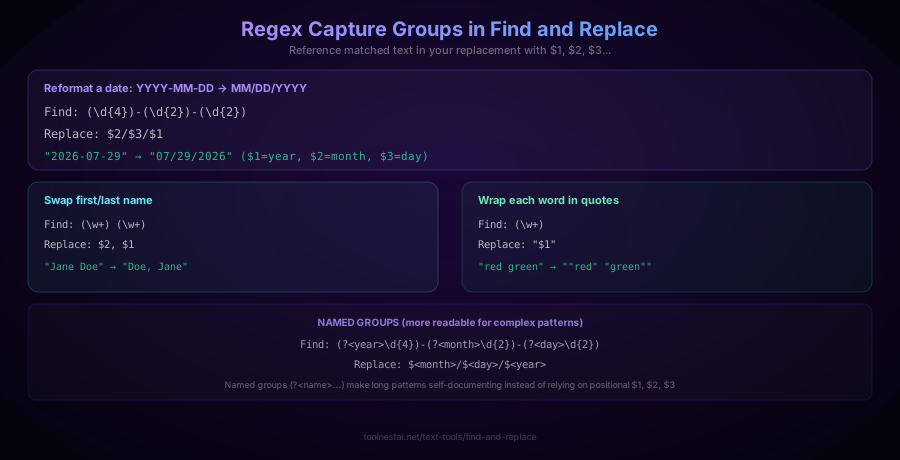
Parentheses in a regex pattern create numbered "capture groups" — portions of the match you can reference in the replacement text using $1, $2, $3, and so on.
Reformatting a date:
Find:    (\d{4})-(\d{2})-(\d{2})
Replace: $2/$3/$1
"2026-07-29" → "07/29/2026" — the year, month, and day are each captured, then rearranged in the replacement.
Swapping first and last name order:
Find:    (\w+) (\w+)
Replace: $2, $1
"Jane Doe" → "Doe, Jane"
Wrapping every word in quotes:
Find:    (\w+)
Replace: "$1"
"red green" → ""red" "green""
Named groups offer a more readable alternative to positional $1, $2 references for complex patterns:
Find:    (?<year>\d{4})-(?<month>\d{2})-(?<day>\d{2})
Replace: $<month>/$<day>/$<year>
Named groups make long patterns self-documenting, especially useful when a pattern has more than two or three capture groups and positional references become hard to track.
Whole-Word Matching Prevents Partial-Word Corruption
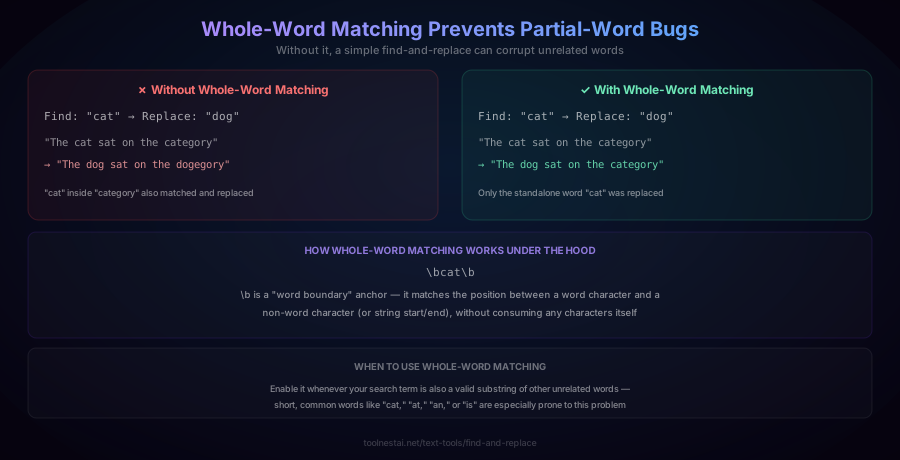
Here's a mistake that catches nearly everyone at least once: searching for "cat" and replacing it with "dog" across a document also matches the "cat" hiding inside "category" — turning it into "dogegory".
Without whole-word matching:
"The cat sat on the category"
→ "The dog sat on the dogegory"
With whole-word matching enabled:
"The cat sat on the category"
→ "The dog sat on the category"
Whole-word matching works by wrapping the search pattern in word-boundary anchors: \bcat\b. The \b anchor matches the position between a word character and a non-word character (or the start/end of the string) without consuming any characters itself — so \bcat\b only matches "cat" when it appears as a complete, standalone word, not as a substring of a longer word.
Enable whole-word matching whenever your search term could also appear as a substring of an unrelated word — short, common words ("cat", "at", "an", "is") are especially prone to this problem, since they're likely to appear embedded inside longer words purely by coincidence.
How to Use the Find and Replace Tool
The ToolNest AI Find and Replace tool runs entirely in your browser.
- Paste your text into the input field
- Enter your find and replace terms
- Toggle options as needed: match case, whole word only, or use regex mode
- Preview the matches — highlighted directly in your text, with a count of how many were found
- Replace all at once, or step through matches one at a time with "Replace Next"
- Copy the result
Find and Replace in Different Languages
JavaScript:
// Plain text, all occurrences
text.replaceAll('colour', 'color');

// Regex with capture groups
text.replace(/(\d{4})-(\d{2})-(\d{2})/g, '$2/$3/$1');

// Whole-word matching
text.replace(/\bcat\b/g, 'dog');
Python:
import re

# Plain text replace
text.replace('colour', 'color')

# Regex with capture groups
re.sub(r'(\d{4})-(\d{2})-(\d{2})', r'\2/\3/\1', text)

# Whole-word matching
re.sub(r'\bcat\b', 'dog', text)
PHP:
str_replace('colour', 'color', $text);
preg_replace('/(\d{4})-(\d{2})-(\d{2})/', '$2/$3/$1', $text);
preg_replace('/\bcat\b/', 'dog', $text);
Command line (sed):
sed 's/colour/color/g' input.txt > output.txt
sed -E 's/([0-9]{4})-([0-9]{2})-([0-9]{2})/\2\/\3\/\1/g' input.txt
Common Mistakes
Mistake 1: Forgetting whole-word matching, causing unintended partial-word replacements. As covered extensively above, this is the single most common find-and-replace mistake. Always preview matches before applying a replacement broadly, especially for short, common search terms.
Mistake 2: Not escaping special regex characters when searching for literal text in regex mode. Characters like ., (, ), [, ], *, +, and ? have special meaning in regex. If you're trying to find a literal period or parenthesis while in regex mode, you need to escape it with a backslash (\., \(, \)), or the pattern will behave unexpectedly.
Mistake 3: Confusing capture group numbering. Capture groups are numbered based on the position of their opening parenthesis, left to right — nested groups can be easy to miscount. When a pattern has more than two or three groups, consider using named groups ((?<name>...)) instead of positional $1, $2 references for clarity.
Mistake 4: Replacing without previewing on a large document. A single mistyped pattern applied to a long document can silently corrupt many more instances than intended. Always check the match count and preview highlighted matches before committing to "Replace All" on anything you can't easily undo.
Frequently Asked Questions
What's the difference between plain text and regex find and replace?
Plain text mode finds an exact literal string and replaces every occurrence with another literal string — no special characters or patterns involved. Regex mode finds text matching a pattern (which can include wildcards, character classes, and quantifiers) and can capture portions of each match for reuse in the replacement text via $1, $2, etc. Regex mode is more powerful but requires understanding regex syntax; plain text mode is simpler and sufficient for most everyday needs.
What are capture groups in find and replace?
Capture groups are portions of a regex match — marked by parentheses in the "find" pattern — that can be referenced in the replacement text using $1, $2, $3 (in order of the opening parenthesis position), or by name if using named groups ((?<name>...) referenced as $<name>). They allow you to rearrange or reuse parts of the matched text in the replacement, such as reformatting a date from YYYY-MM-DD to MM/DD/YYYY.
Why does replacing "cat" with "dog" also affect the word "category"?
Because without whole-word matching enabled, the search simply looks for the substring "cat" anywhere it appears — including inside longer words like "category," which contains "cat" as its first three letters. Enabling whole-word matching adds word-boundary anchors (\b in regex) around the search term, ensuring it only matches "cat" as a complete, standalone word.
What is a word boundary in regex?
A word boundary (\b in most regex flavors) is a zero-width anchor that matches the position between a word character (letters, digits, underscore) and a non-word character (or the start/end of the string), without consuming any characters itself. It's the mechanism behind whole-word matching — wrapping a search term in \b...\b ensures it only matches when it appears as a complete word, not as part of a longer word.
Can I use find and replace to swap the order of words or reformat data?
Yes, using regex mode with capture groups. For example, finding (\w+) (\w+) and replacing with $2, $1 swaps two space-separated words (like turning "Jane Doe" into "Doe, Jane"). Similarly, capturing date components and rearranging them in the replacement lets you reformat dates, phone numbers, or any other structured text pattern without manually editing each instance.
How do I search for a special character like a period or parenthesis in regex mode?
Escape it with a backslash. Characters like ., (, ), [, ], *, +, ?, and $ have special meaning in regex syntax, so searching for a literal period requires the pattern \. rather than just . (which in regex means "any character"). If you're searching for literal text that happens to contain these characters, plain text mode avoids this issue entirely since it doesn't interpret any characters as special.
Is there a way to preview changes before applying them?
Yes — a well-designed find-and-replace tool, including the ToolNest AI Find and Replace, highlights every match directly in your text and shows a match count before you commit to replacing anything. This lets you verify the search pattern is matching exactly what you intend before applying the replacement, especially important when using regex patterns or working with a large document.
Can find and replace work across multiple lines of text?
Yes, in both plain text and regex modes — the search scans the entire input text, not just a single line, so matches spanning across (or appearing on different) lines are all found and replaced. In regex mode, be aware that . does not match newline characters by default (requiring the s/dotall flag to do so), which matters if your pattern needs to match text that spans across a line break.
About the author
ToolNest AI Team
The ToolNest AI team builds free tools that help developers, marketers, and creators do more online — faster.
Related Articles

Regex Tester: Complete Guide to Regular Expressions + Free Tool
Learn regular expression syntax from the ground up — character classes, quantifiers, groups, flags, and lookaround — plus 6 ready-to-use patterns, catastrophic backtracking, and how to test regex live, free online.

Case Converter: UPPERCASE, camelCase, snake_case & More — Free Tool
Learn every text case format — UPPERCASE, Title Case, camelCase, snake_case, kebab-case, and more — when to use each for writing and code, and the real rules behind proper Title Case. Free, instant tool.